

Setting up Salesforce
The Salesforce integration allows you to send engagement data from demos to your Salesforce Opportunity, Leads, Contact, and Accounts. To connect Salesforce, follow these steps:1
Connect Salesforce
Navigate to 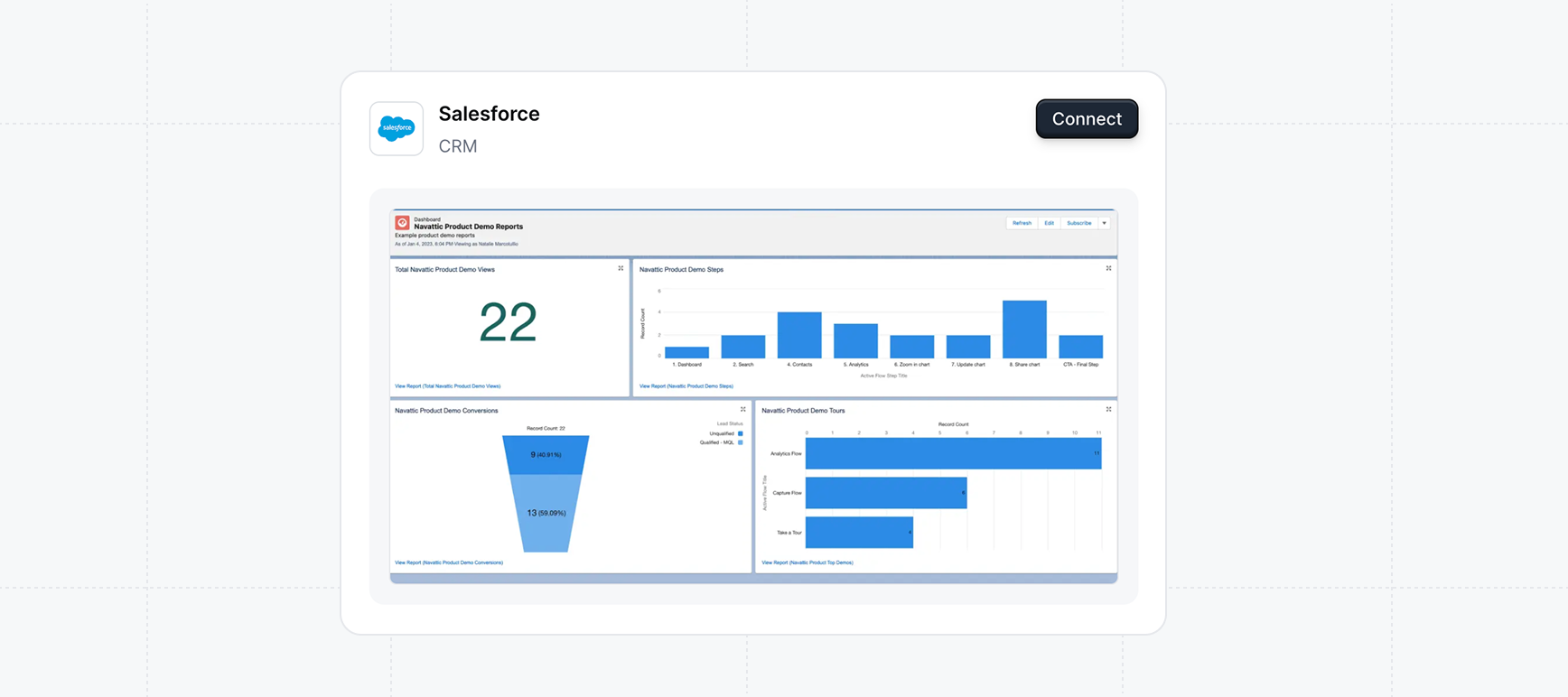
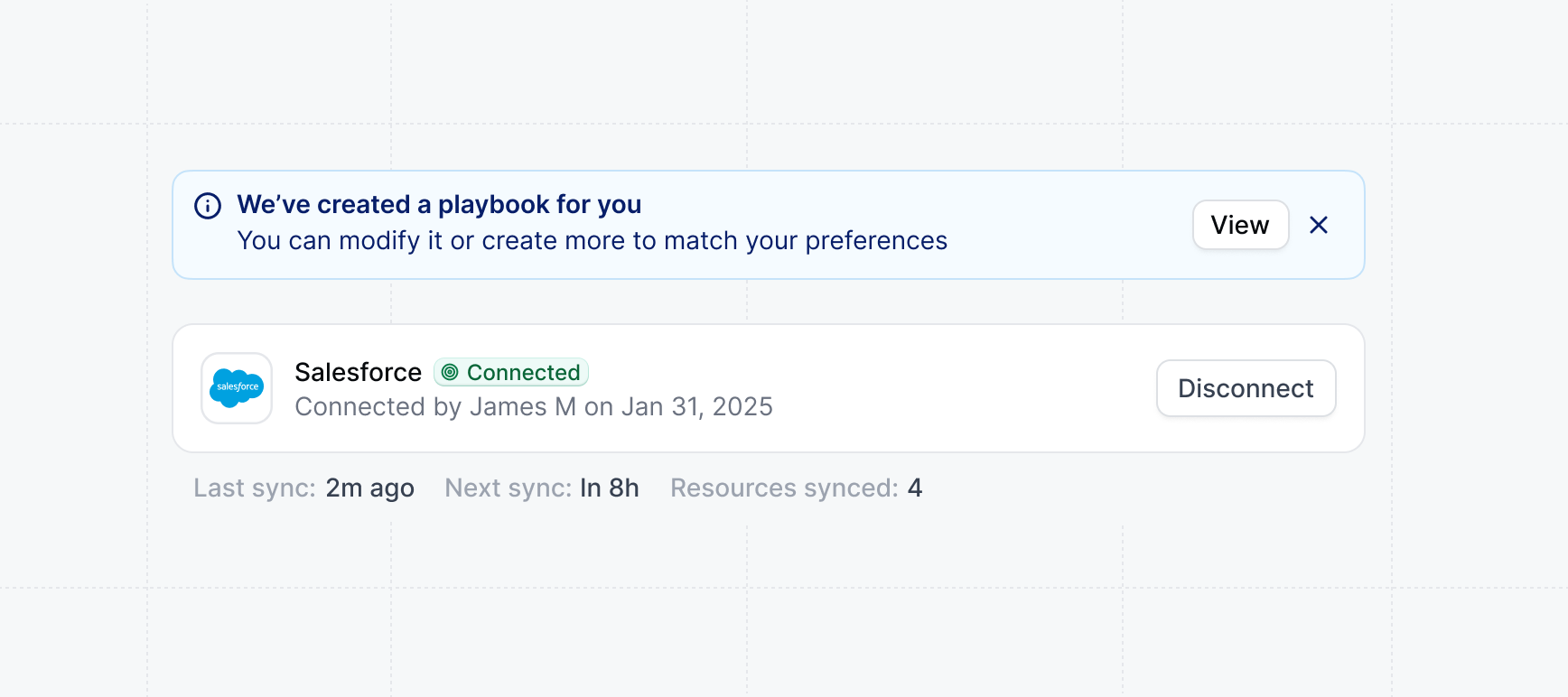
Integrations in Settings and select Salesforce. Click on
Connect and follow the instructions to authorize your Salesforce account.Playbook will be automatically created to send engagement data from demos to your Salesforce Opportunity, Leads, Contact, and Accounts.You can click view to manage the Playbook or refine the Audience filters.2
Edit your Salesforce Object page
Navigate to your Salesforce object page that you’d like to edit (Opportunity, Lead, Contact, or Account). Select 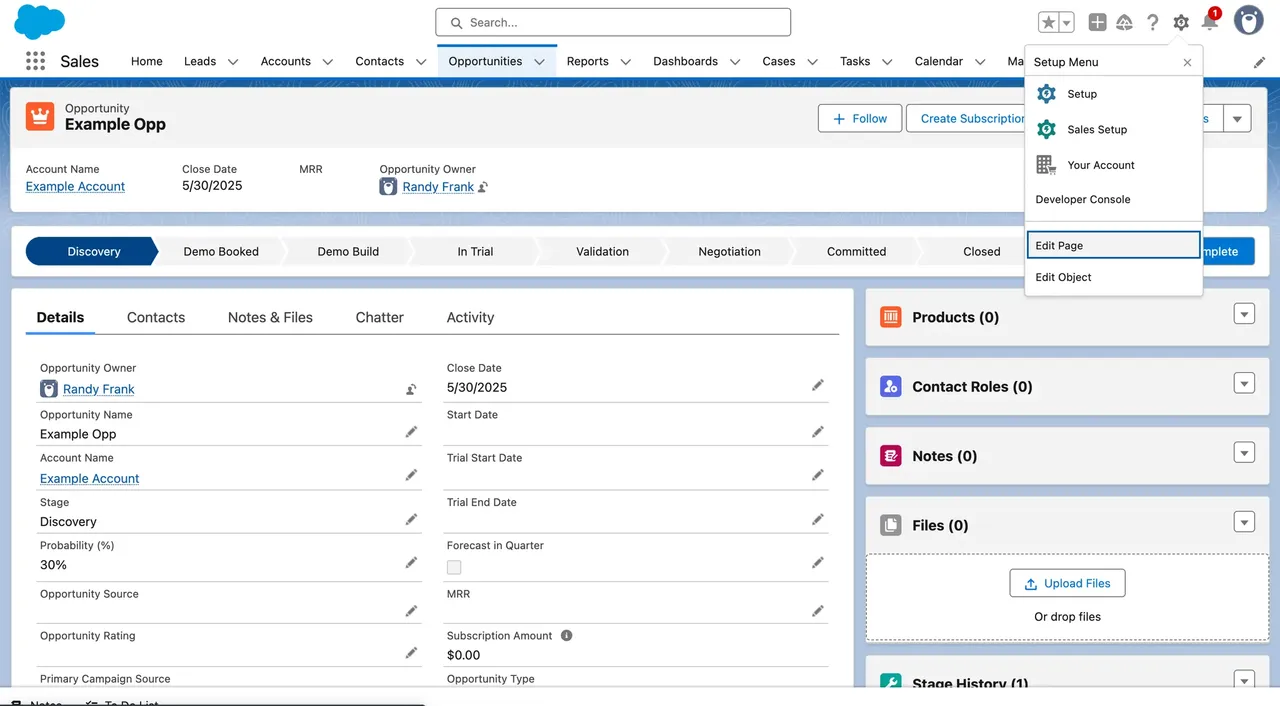
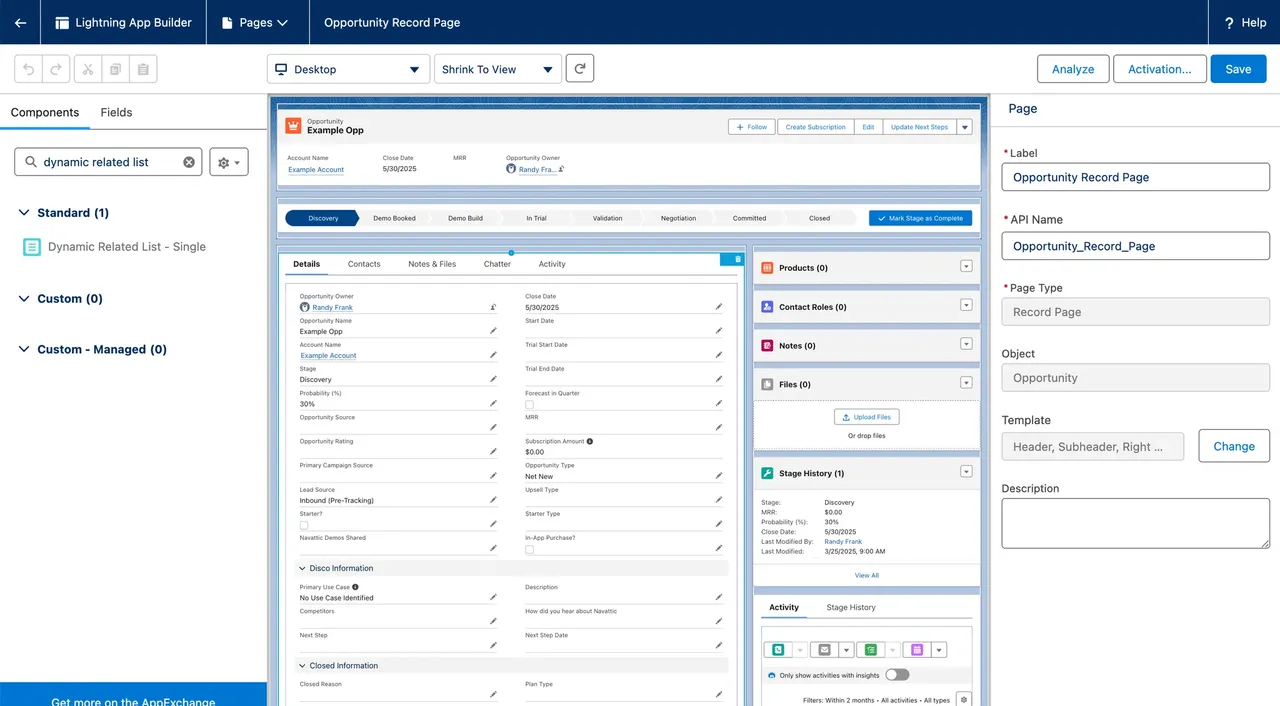
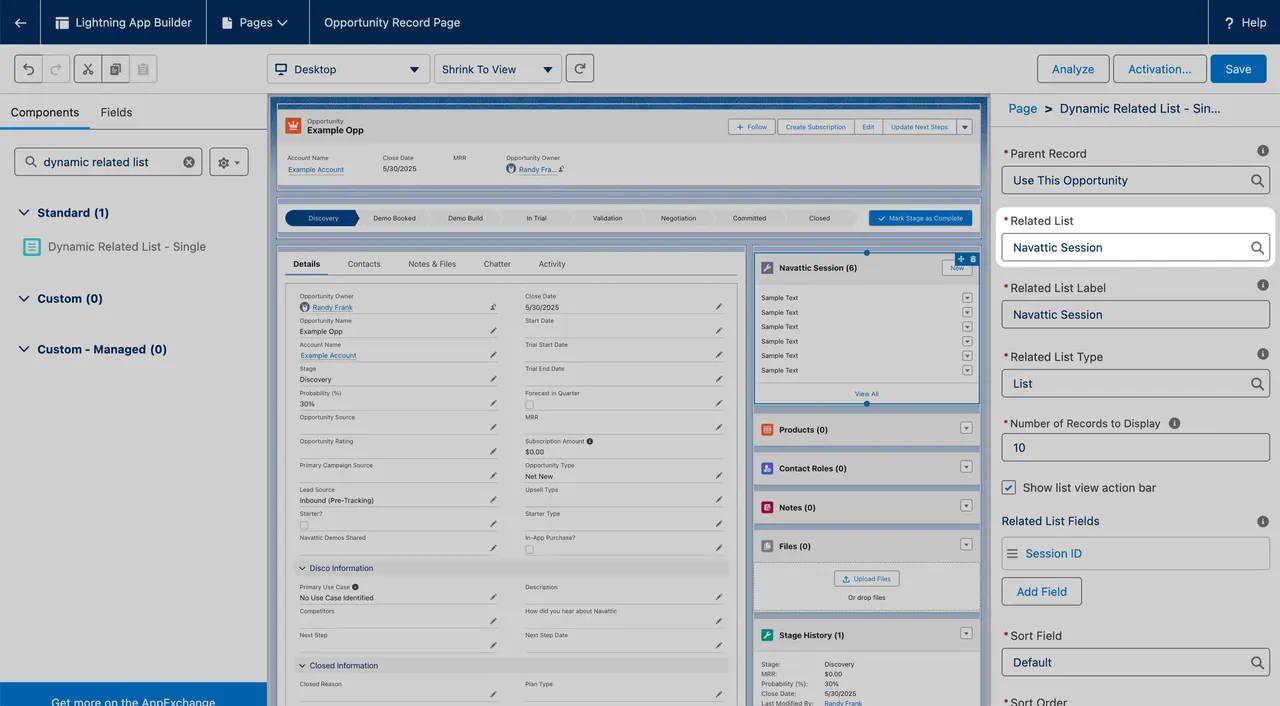
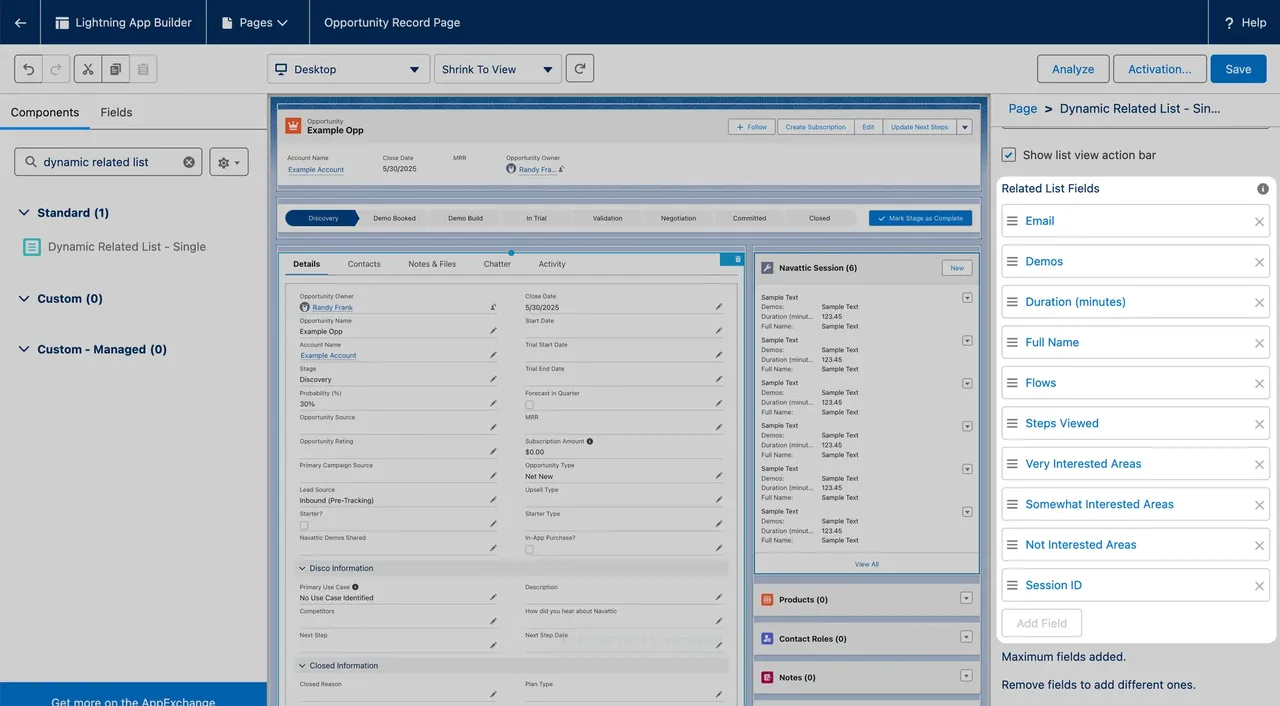
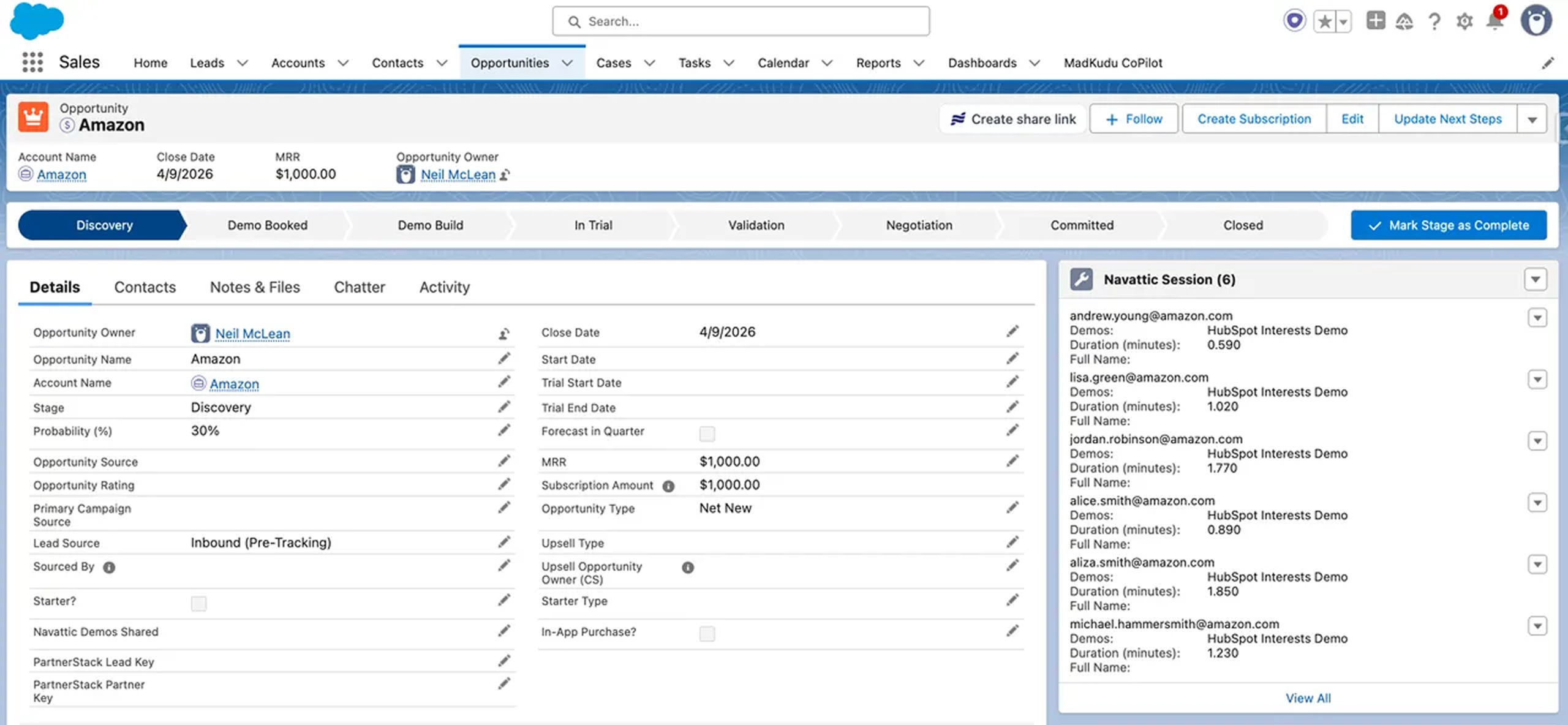

Edit Page under the Setup Menu.Dynamic Related List - Single in the Components search field.Dynamic Related List - Single in the Components search field.Navattic Session in the Related List field. Make sure that the Parent Record is set to the default Use This Opportunity (or the relevant Salesforce object).Related List Fields to show the following fields:- Demos
- Duration (minutes)
- Full Name
- Flows
- Steps Viewed
- Very Interested Areas
- Somewhat Interested Areas
- Not Interested Areas
- Session ID