


Install the Chrome Extension
The easiest way to access and share demos is through the Launchpad Chrome Extension. It follows you anywhere on the web and integrates with the tools you already use.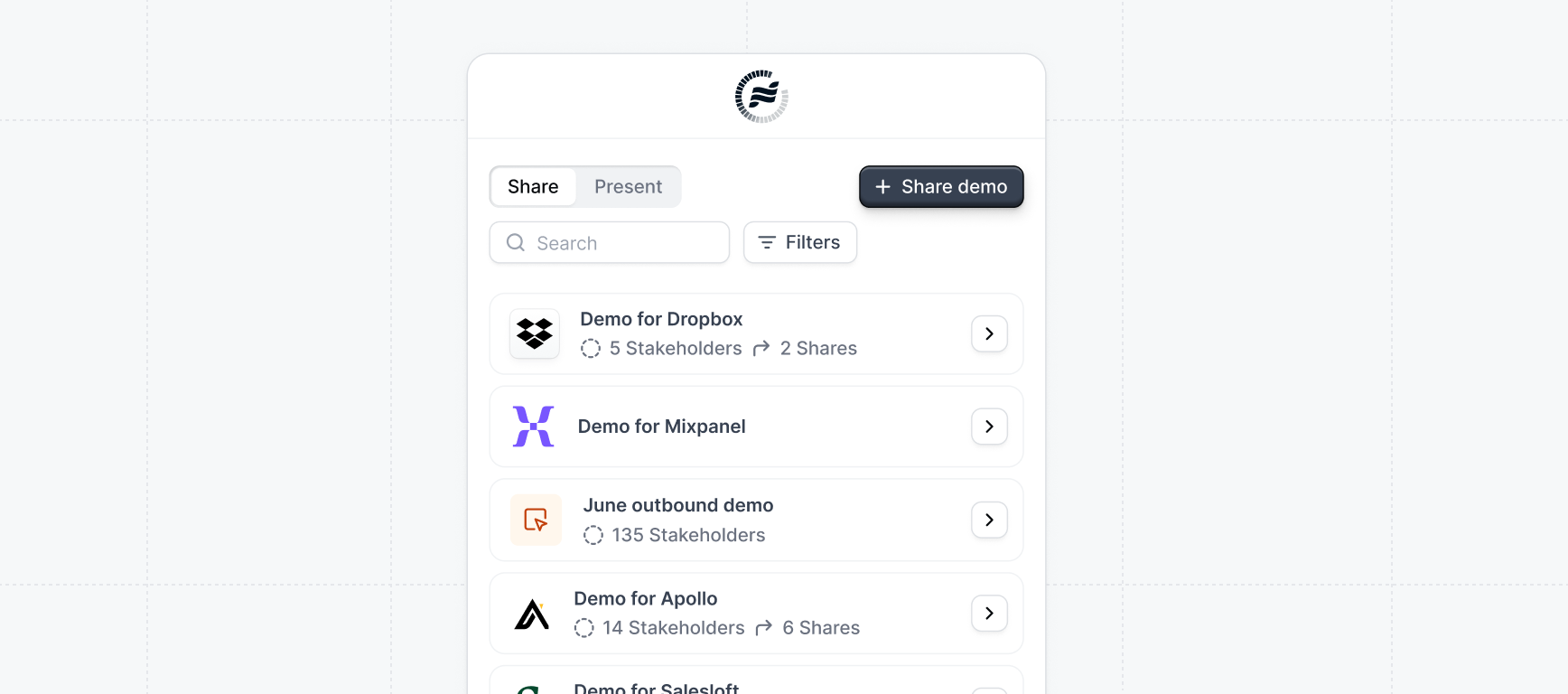
The extension integrates with Salesforce, LinkedIn, Gmail, and other tools you use daily, making
it easy to share demos right where you’re working.
Sharing Demos
You can access and share demos from several places. Follow these steps to create a personalized demo link for your prospect.Access Your Demos
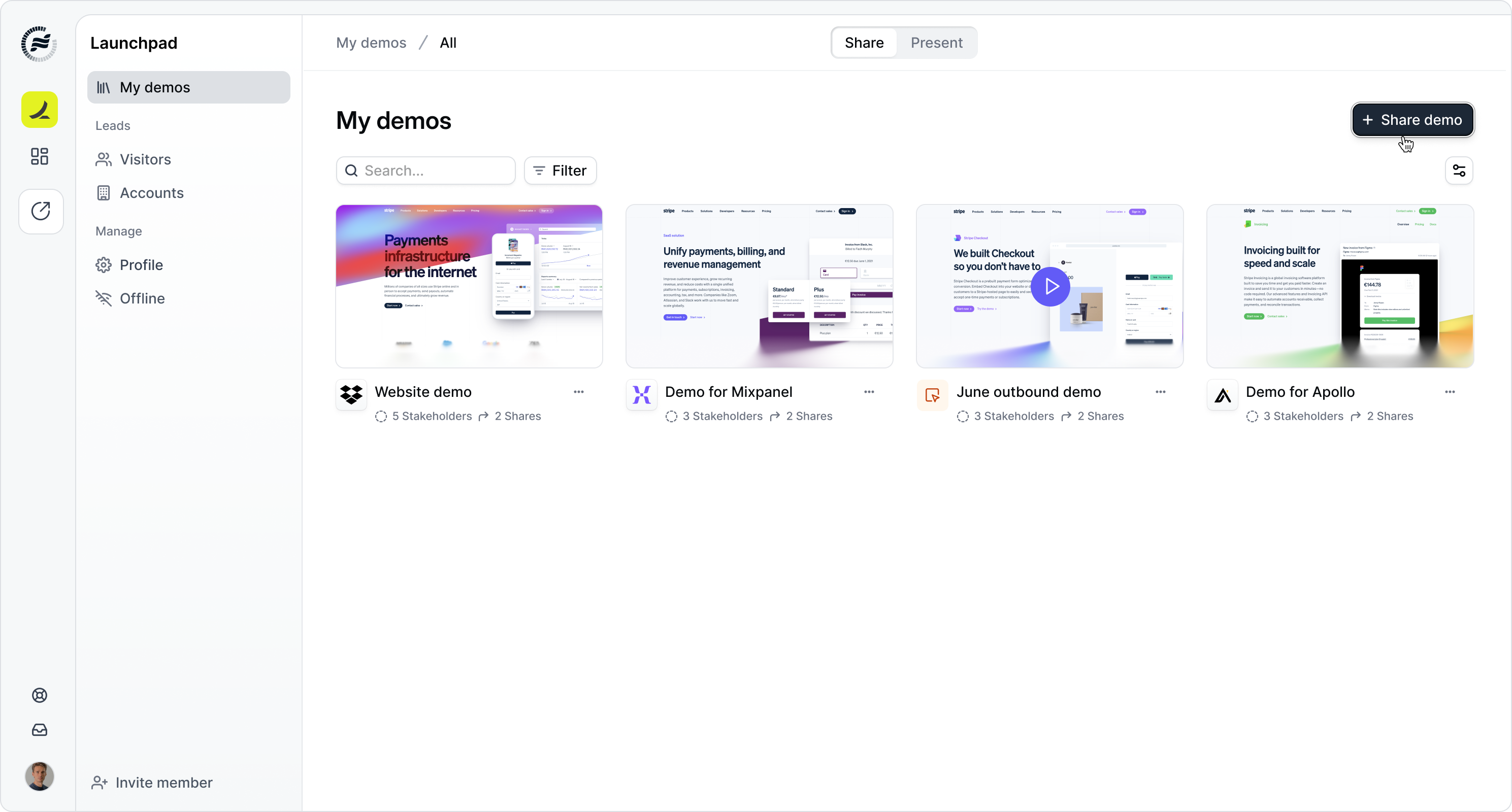
From the Chrome Extension Click the Launchpad icon in your browser toolbar and click+ Share demo to get started.
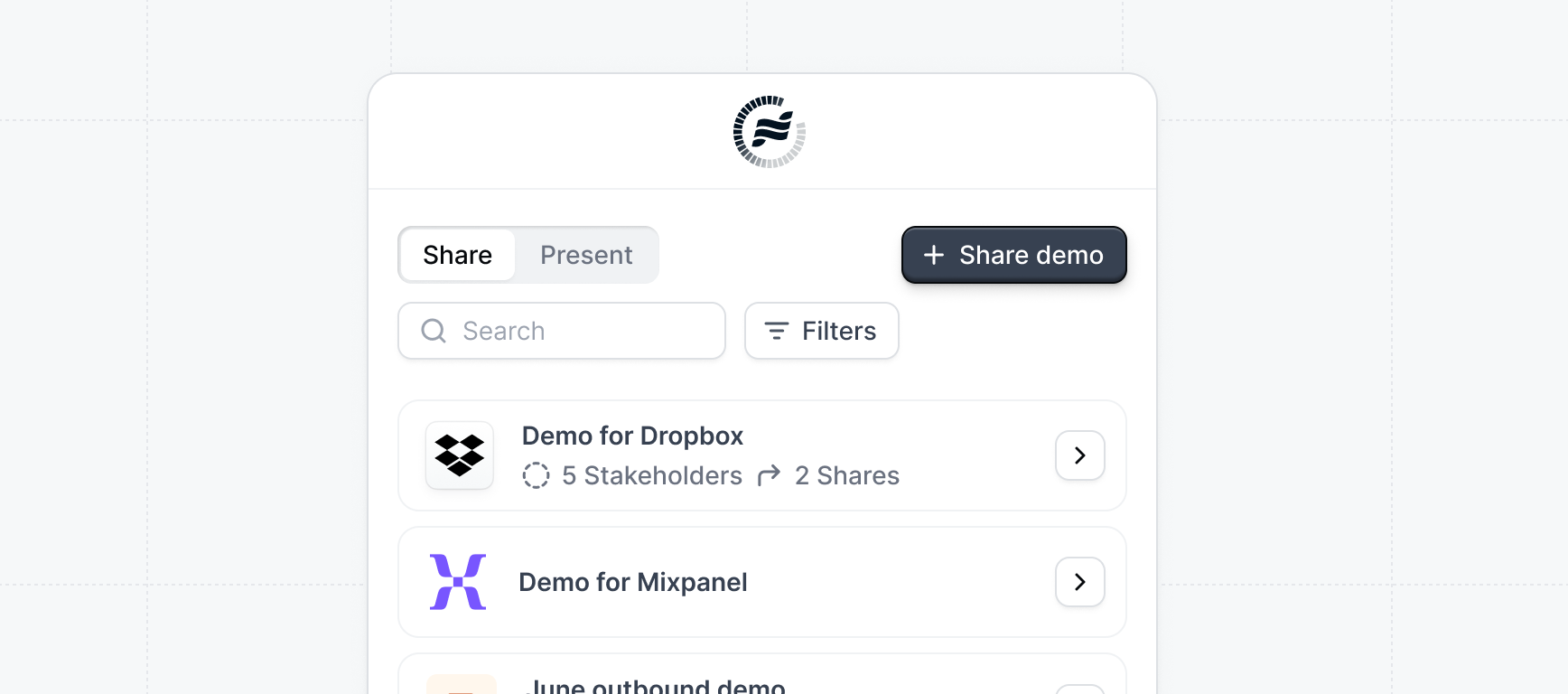
+ Share demo to create a new demo link.
Learn more about integrations
See all available integrations
How to Share
Follow these steps to create a personalized demo link:1
Click "+ Share demo"
Open the Launchpad extension or go to the Launchpad app and click
+ Share demo.2
Select demo type
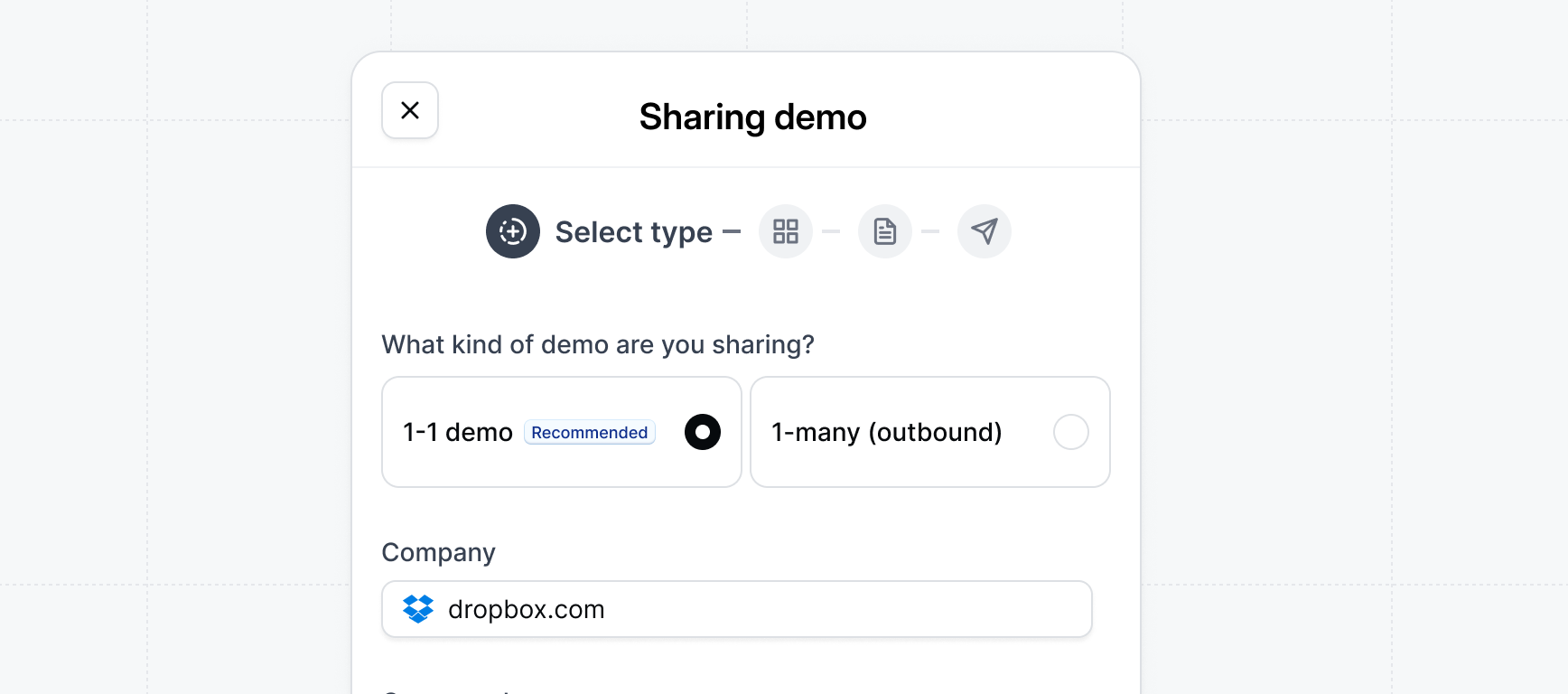
- 1-1 demo: Specify the company domain for personalized content and tracking (recommended for most deals)
- 1-many (outbound): For sharing with multiple prospects in campaigns
In most cases, we recommend sharing 1-1 demos as this allows you to share more relevant content and better track engagement.
3
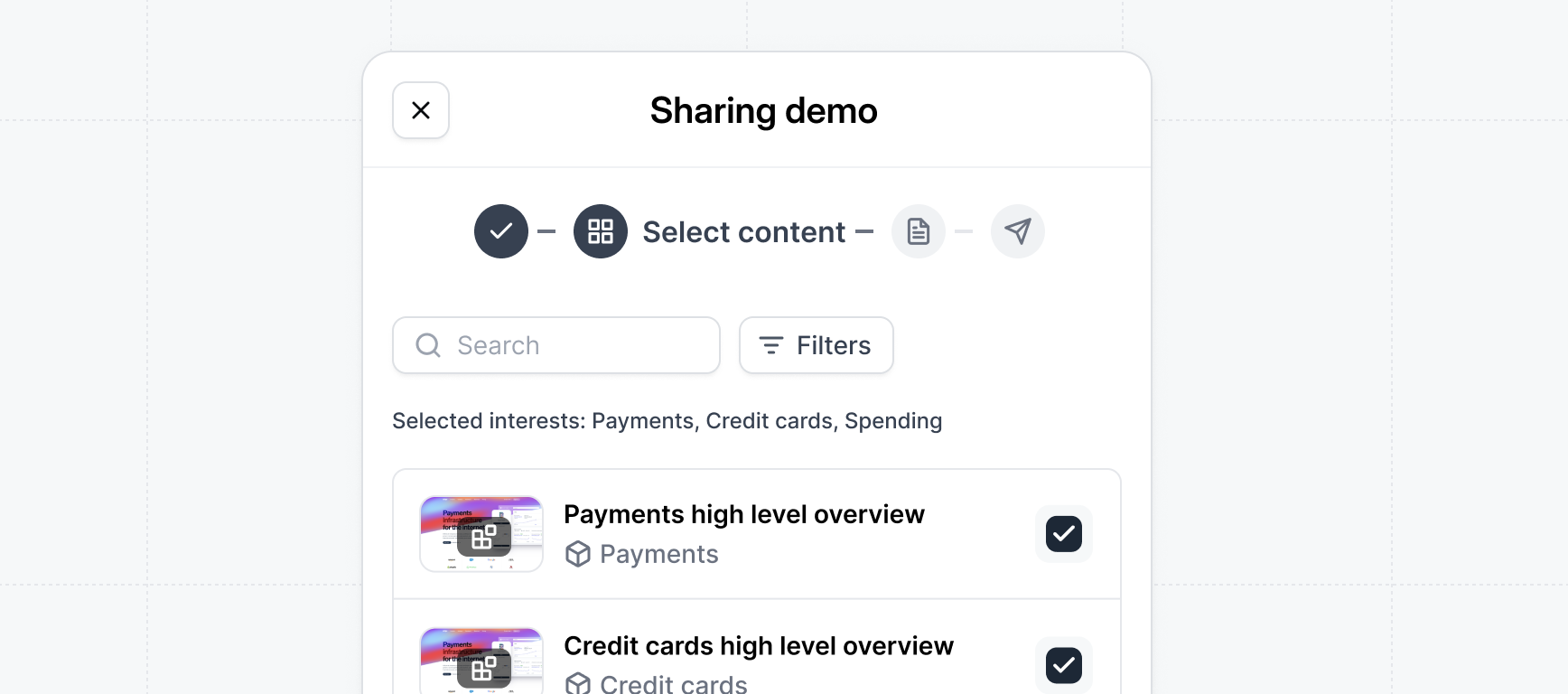
Select content
4
Customize settings (optional)
Customize your demo to match your needs:
- Personal intro video - Include a personal welcome to your demo
- Interests form - Allow visitors to select their areas of interests
- Recipient form gate - Require visitors to fill out a form before accessing the demo to identify new stakeholders
- Expiration date - Set when the demo link expires to control access (can be updated after sharing)
- Custom URL - Customize the URL path for your demo
- Downloadable files - Include case studies, pricing docs, or other resources
5
Add invites
Add your prospect’s details and any relevant stakeholders. This ensures everyone receives a personalized invite and their engagement is tracked.If prospects forward the demo to other stakeholders, you’ll be notified and can track their engagement. Learn more in the Tracking Engagement section.
6
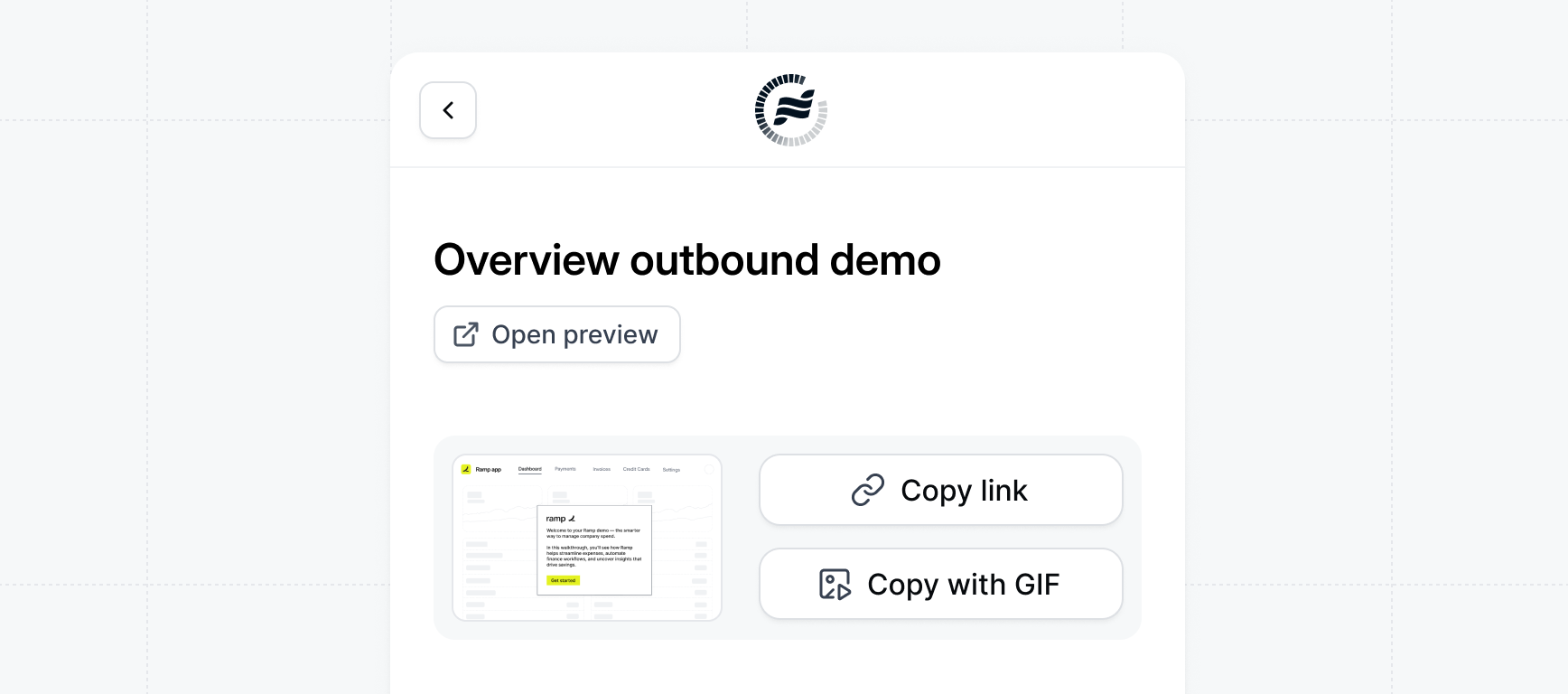
Copy and send
Learn more about sharing
Detailed guide on sharing demos
When to share demos
Best practices for timing
Tracking Engagement
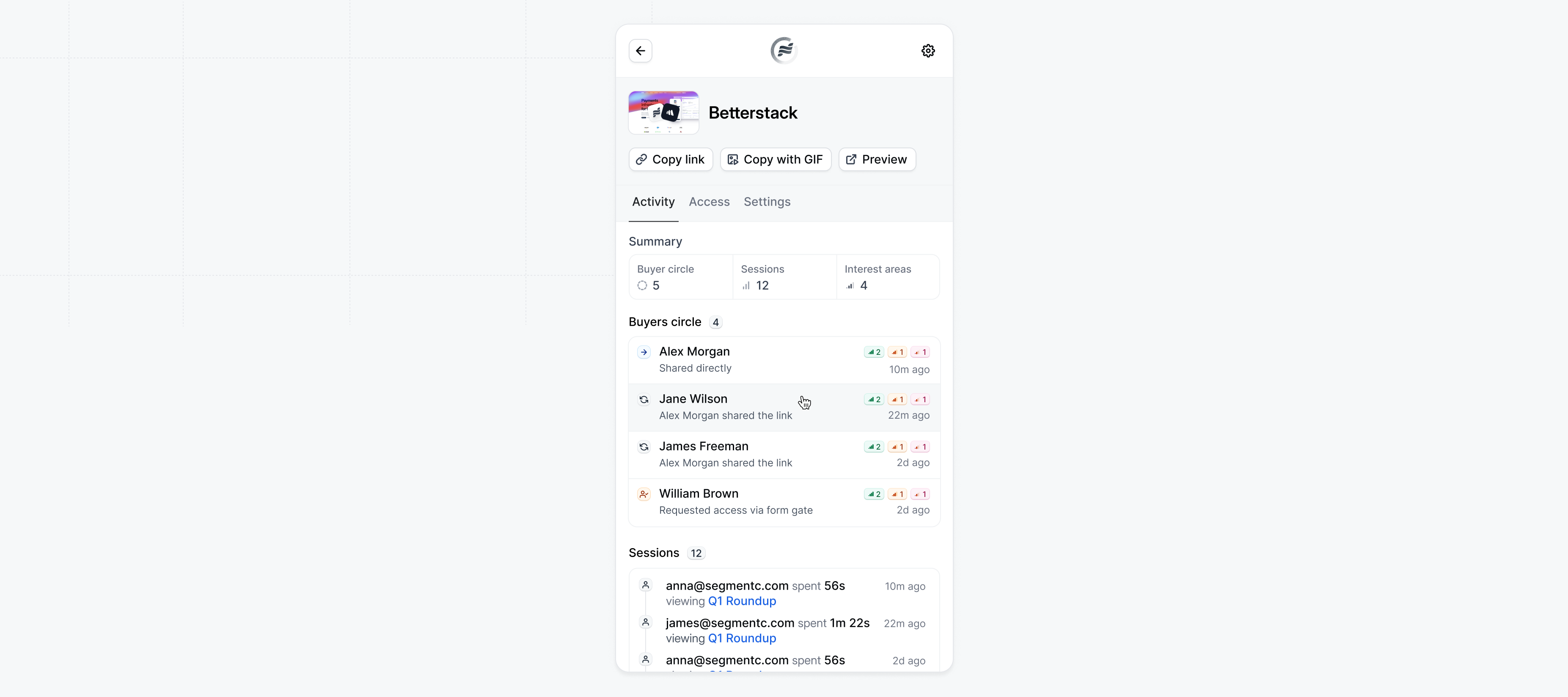
Monitoring Your Activity
View your demo performance in the Launchpad app:- Buyer Circle: See how many stakeholders have engaged with your demos
- Sessions: Track total viewing sessions and engagement time
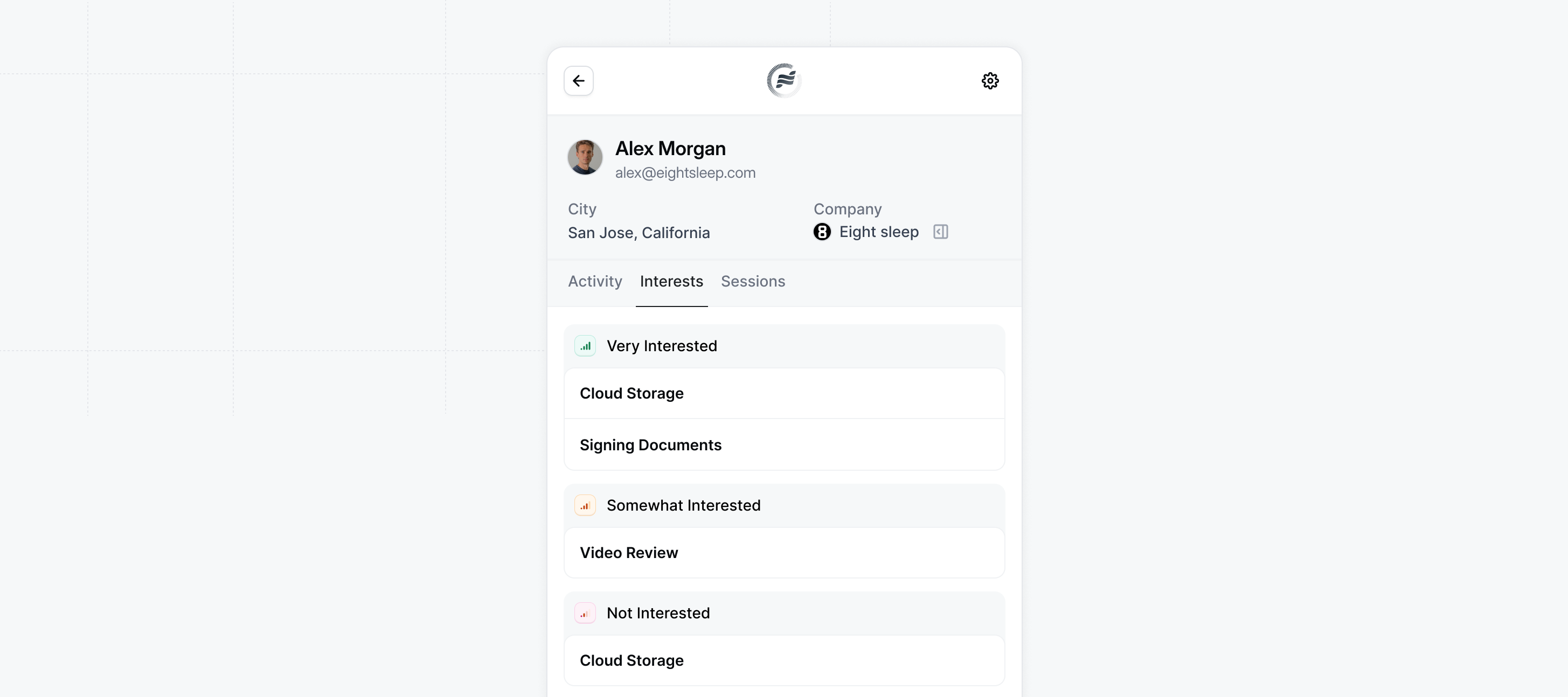
- Interest Areas: Discover what features prospects care about most
What to Do When You Receive an Alert
After you send the demo link, here’s what happens and what to do: What happens:- Prospect receives the link - They can view the demo at their convenience
- You get an email alert - When they finish viewing, you’ll receive a notification with engagement details. You can also receive Slack notifications for real-time updates.
- Alert shows engagement - The alert includes what they viewed, interest levels, and engagement metrics. You’ll also get alerts when new stakeholders are discovered as the demo is shared internally across the organization, updating your buyer circle.
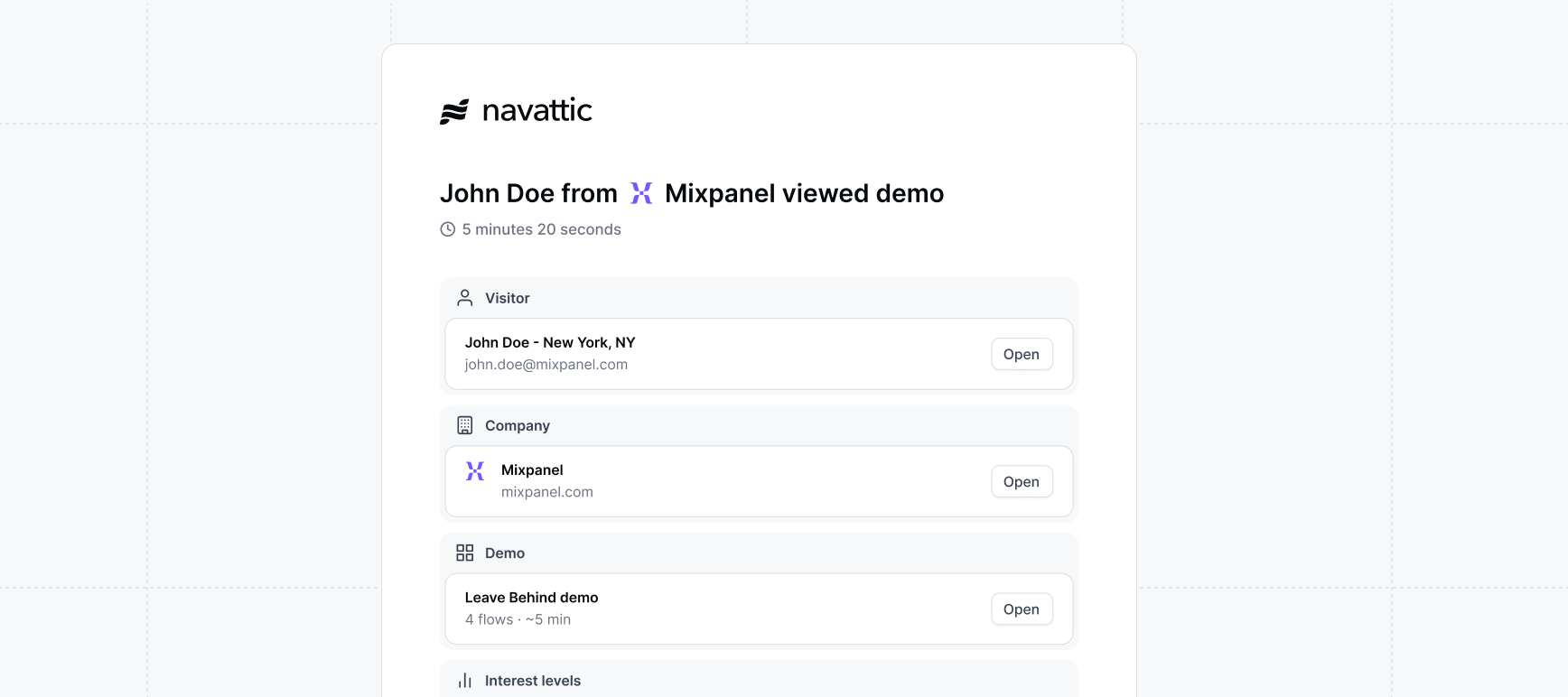
Email alerts are sent at the end of the visitor session, so you’ll know exactly when someone has
finished viewing your demo.
Presenting Demos
You can present demos during live calls, on-site with prospects, or at events to provide a consistent, interactive, hands-on product experience.How to Present
When creating a share link, you can enable Presenter mode to use demos in live calls. Key features include:- Presenter Notes - Add talking points to each step so you can stay on message without switching screens
- Keyboard Navigation - Use arrow keys (
← →) to move forward and backward through demo steps - Click to Progress - Click anywhere in Presenter mode to advance steps, making presentations more fluid
- Keyboard Shortcuts - Use
⌘Pto launch Presenter mode and⌘Nto toggle presenter notes
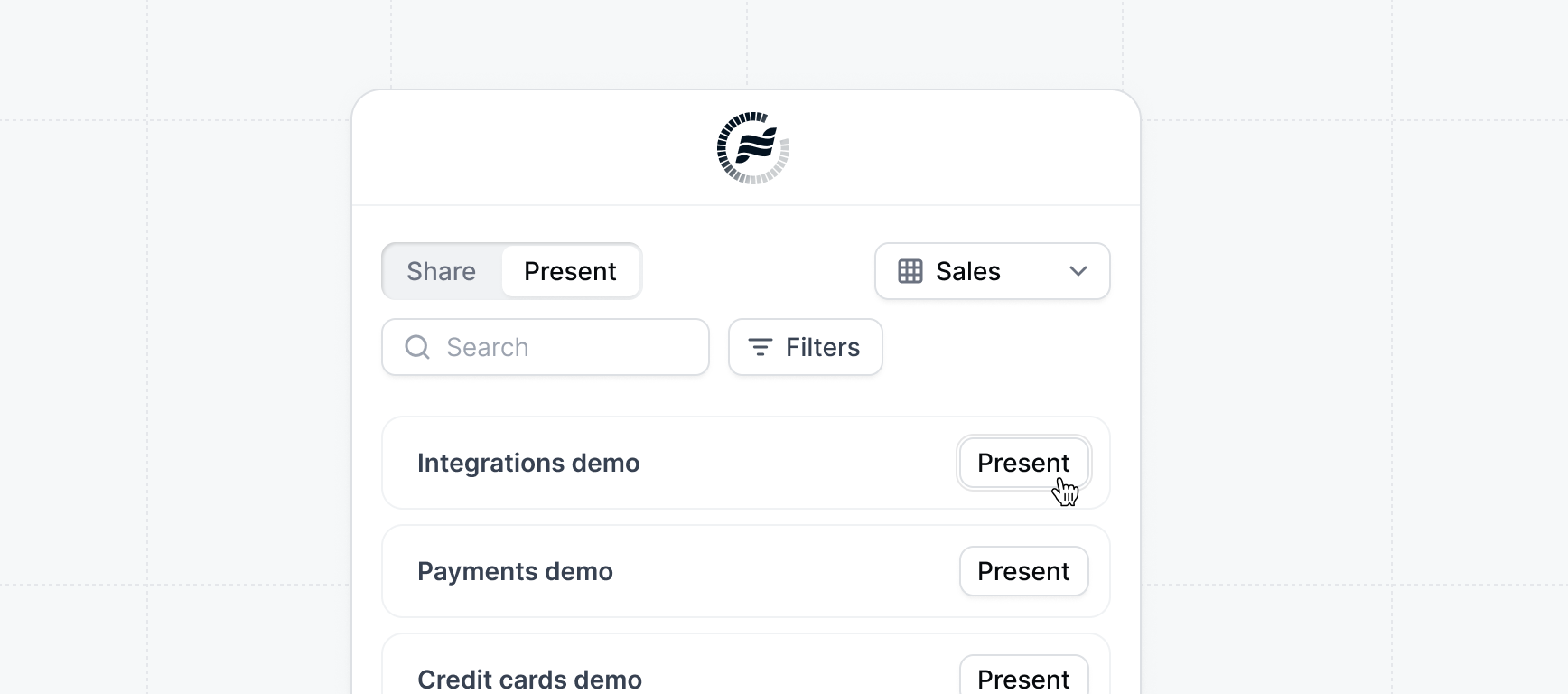
Present demos
Learn more about presenting demos
Next Steps
Now that you’re set up, here are some ways to get the most out of Launchpad:- Share demos before calls - Send demos before scheduled meetings to help prospects qualify themselves and bring in stakeholders
- Use interest demos - Learn what features prospects care about most
- Follow up quickly - Act on email alerts promptly to keep momentum going
- Share feedback - Let your team know which demos work best and how prospects respond
Pre-call discovery
Learn about sharing demos before calls
Post-call followup
Send followup demos after meetings
Outbound campaigns
Use demos in outbound emails