

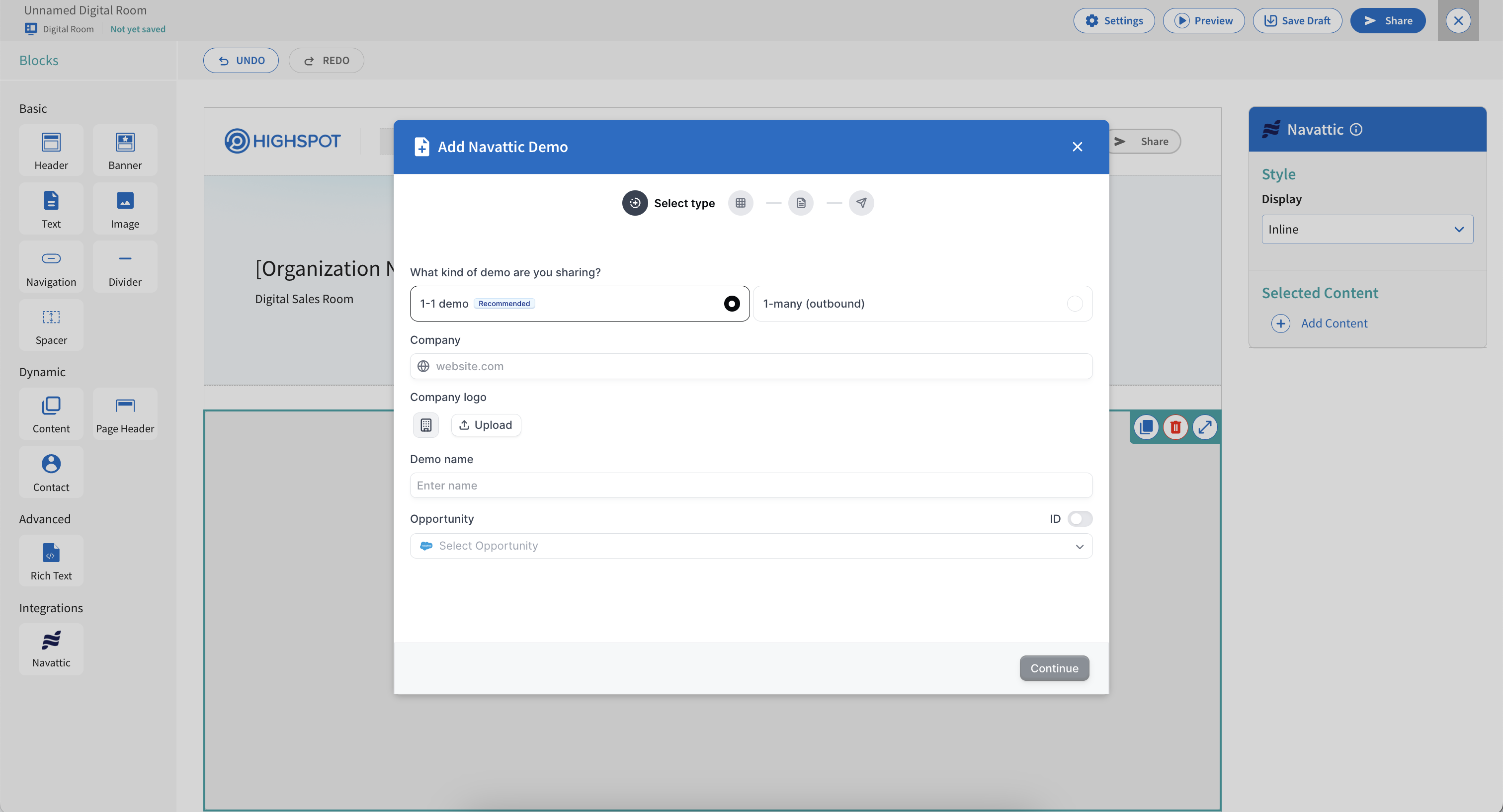
 Highspot Digital Sales Rooms.
The Highspot integration lets you create Navattic demo share links directly from your Highspot Digital Sales Rooms. Use it to add interactive demos to your sales content.
Highspot Digital Sales Rooms.
The Highspot integration lets you create Navattic demo share links directly from your Highspot Digital Sales Rooms. Use it to add interactive demos to your sales content.
The Highspot integration requires admin-level setup in Highspot. Once configured, users can access
the Navattic integration button within Highspot Digital Sales Rooms.
Admin setup
Make sure you enable Navattic integration first by navigating to:Company Settings → Cloud Services → Navattic
Then a new Navattic block will be visible in Digital Room
Only workspace admins can perform the initial Highspot integration setup. Once configured, all
workspace members can access the integration within their Digital Sales Rooms.
How to create a demo in Highspot
1
Open a Highspot Digital Sales Room
Open a Highspot Digital Sales Room where you want to add the demo.
2
Choose Integrations → Navattic
Choose Integrations → Navattic from the Digital Room Builder.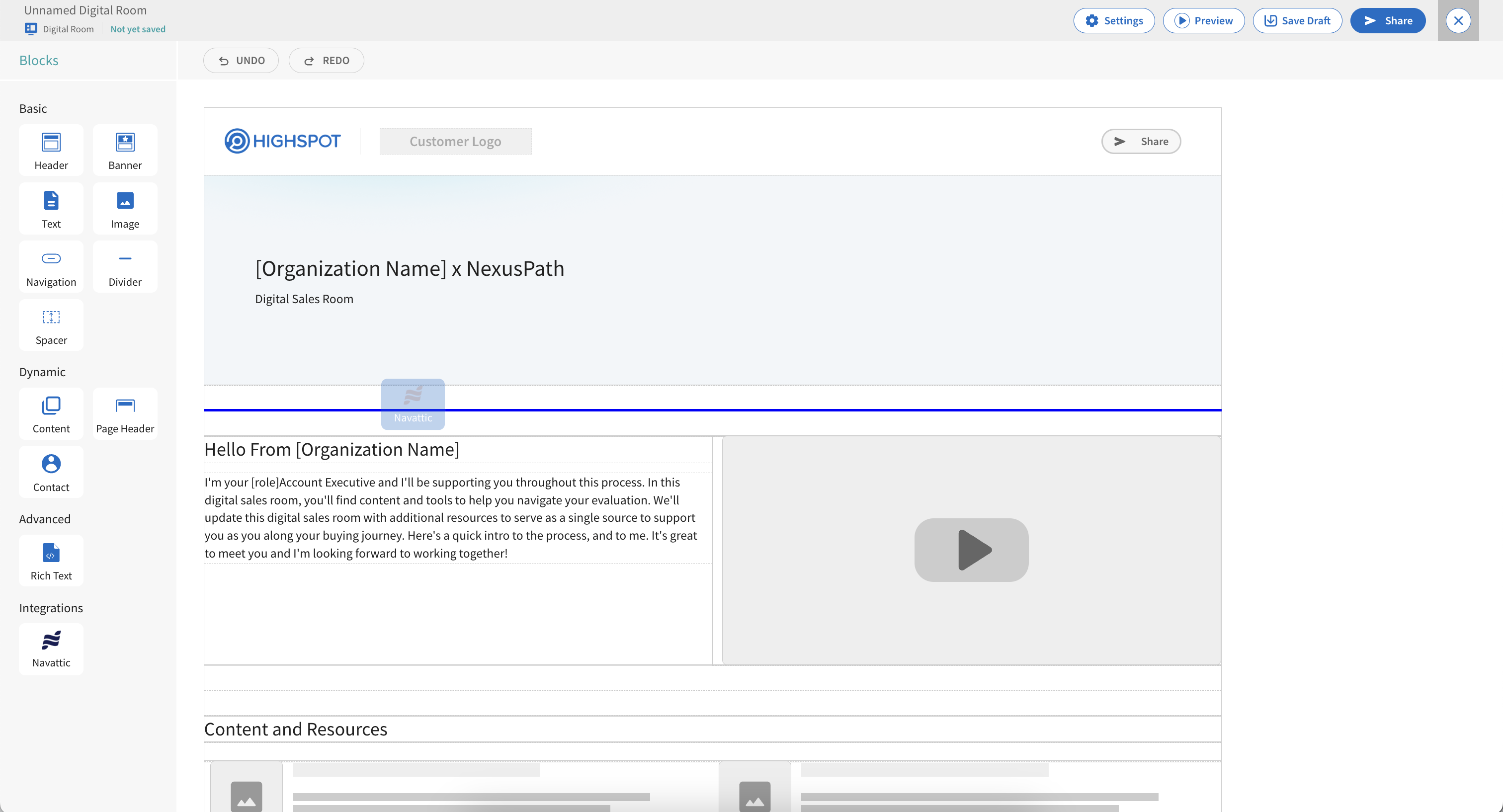
3
Launch the Navattic iframe
This will launch the Navattic authenication window. Select Link Account to authenticate.
4
Create a demo link within Navattic
Create a demo share link within Navattic.
5
Assign the demo to a Spot
Once a demo has been created, assign it to a Spot using the Spot dropdown. Select Add once completed.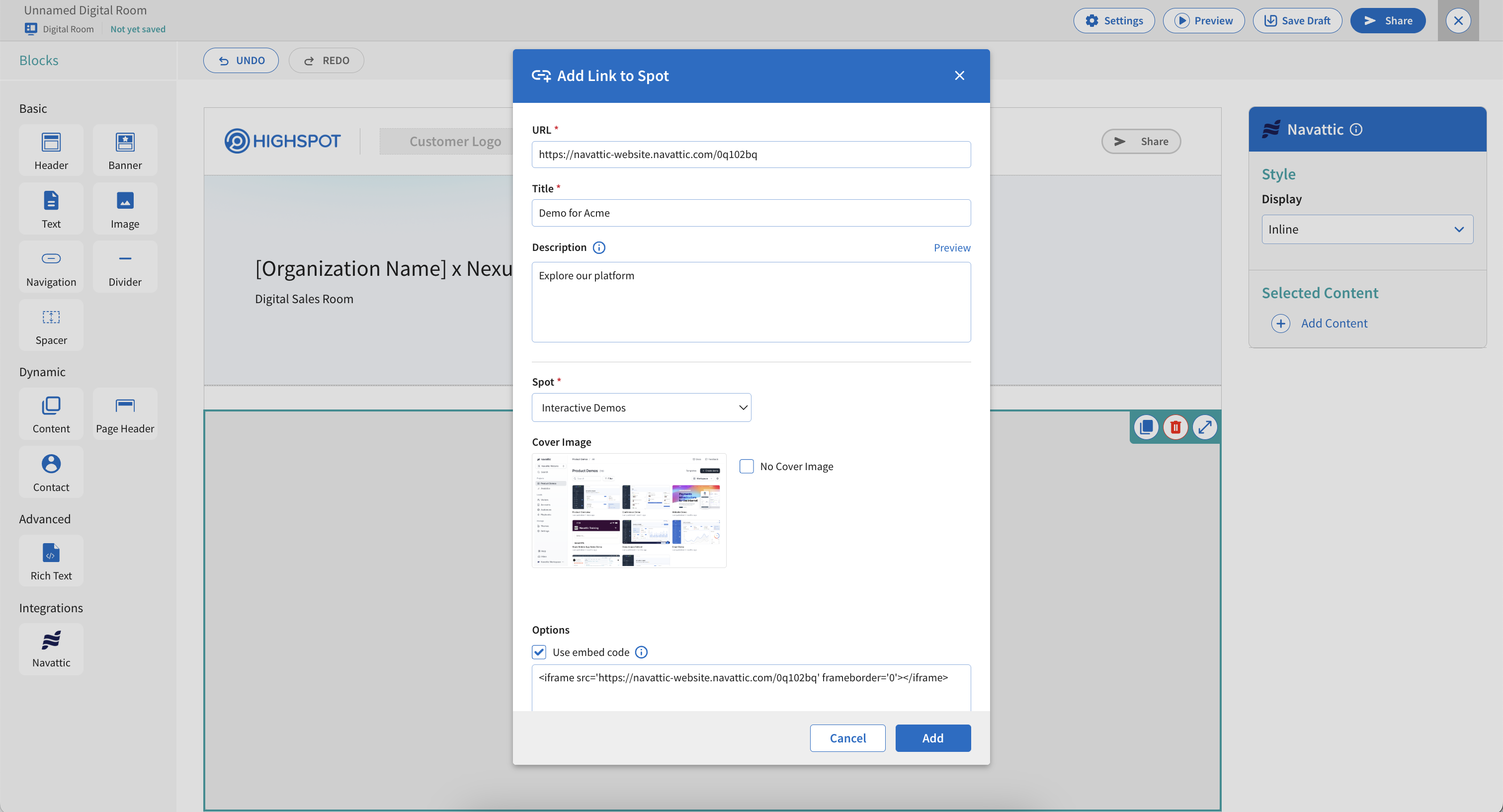
6
Demo added to Digital Room
Once created, the demo will be added to your Digital Sales Room.
Common Use Cases
- Sales Enablement: Sales reps add interactive product demos to their Highspot Digital Sales Rooms, making demos accessible to prospects browsing the room.
- Personalized Sales Rooms: Create personalized demo experiences within Highspot rooms for different prospects or segments, enhancing engagement and relevance.
- Content Organization: Organize interactive demos alongside other sales materials in Highspot Digital Sales Rooms for comprehensive sales enablement.
- Prospect Engagement: Prospects can interact with demos directly within the Highspot Digital Sales Room, providing a seamless experience without leaving the room.
FAQs
Failed to connect or authenticate
Failed to connect or authenticate
This can occur due to several reasons: 1. Authentication issues: Verify you can log into
Navattic normally 2. Session issues: Try clearing browser cookies and retrying 3. Network
issues: Check your internet connection 4. Popup blockers: Ensure popup blockers aren’t
interfering 5. CSP errors: Check browser console for Content Security Policy errors - the
integration requires proper CSP configuration If you see “app.navattic.com refused to connect”
errors, this indicates a Content Security Policy issue that needs to be resolved by your admin.
Demo doesn't appear in my room
Demo doesn't appear in my room
Troubleshooting steps: 1. Check browser console for JavaScript errors 2. Verify the demo was
created successfully 3. Try refreshing the Highspot Digital Sales Room 4. Ensure you completed all
steps in the demo creation process 5. Check that the demo link was successfully generated
Content Security Policy (CSP) errors
Content Security Policy (CSP) errors
If you see CSP errors in the browser console like “Refused to frame ‘https://app.navattic.com/’”,
this means: 1. The integration requires proper CSP configuration in Highspot 2. The CSP must allow
framing from
https://*.highspot.com 3. Contact your Highspot admin to configure the CSP headers
correctly 4. The CSP configuration should include: frame-ancestors 'self' https://*.highspot.comCan I create multiple demos in one room?
Can I create multiple demos in one room?
Yes, you can create multiple demos and add them to your Highspot Digital Sales Room. Each demo
will be independent and can be placed in different sections of your room as needed.
What happens to my demo data?
What happens to my demo data?
Demo data remains in your Navattic account. The integration creates share links that are added
to your Highspot Digital Sales Room. Engagement data is tracked in Navattic, and you can monitor
demo performance through Navattic’s analytics.
Crafting emails with demos best practices
Read best practices for crafting emails based on use cases:Outbound
Pre-call discovery
Post-call followup
Related resources
Share demos
Learn how to create and share demos in Launchpad
Monitoring activity
Track and monitor demo engagement activity
Email alerts
Learn about email notifications for demo engagement