

Key Features
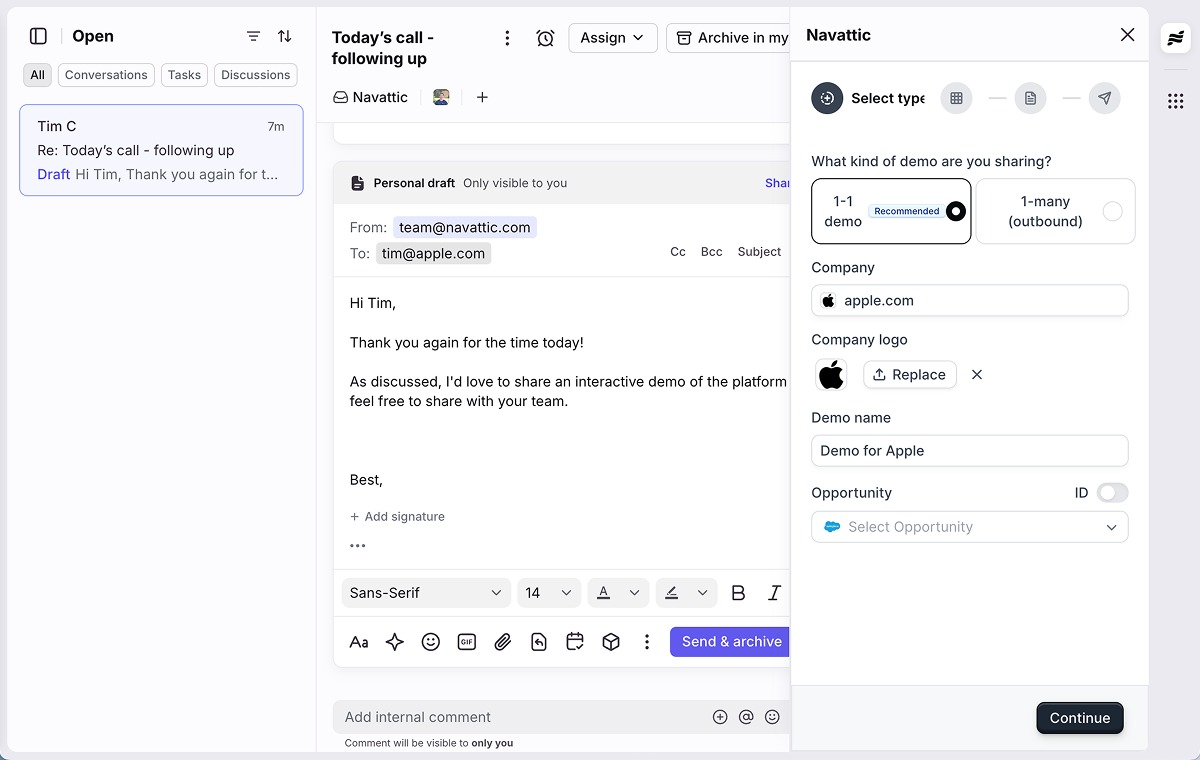
Message Composer Plugin: Create custom demos while drafting emails in Front. The integration automatically inserts demo links and previews directly into your message body. Sidebar Plugin: Access Navattic from the conversation sidebar when viewing individual conversations. Create personalized demos based on the context of your ongoing discussions. Automatic Recipient Detection: The integration automatically identifies email recipients from your Front conversation or draft, streamlining the demo creation process. Demo Previews: Each demo link includes an eye-catching image or GIF preview to increase click-through rates and engagement.How it works
The Front integration uses conversation or sidebar plugins so you can create and insert interactive Navattic demos without leaving Front. Demos include image previews to catch recipients’ attention.The Front integration requires both admin-level setup and user-level authentication. Admins must
configure the OAuth app in Front and enable the feature flag, while individual users connect their
Front accounts to enable the conversation composer feature.
Setup overview
The Front integration requires setup on both the Front and Navattic sides. Follow these steps to get started:1
Install from Front Marketplace
First, install the Navattic integration in your Front workspace:
- Navigate to the Front integration marketplace
- Click Install to add Navattic to your Front workspace
- Follow Front’s authentication prompts to authorize the integration
- Once installed, the Navattic plugin will be available in both your message composer and conversation sidebar
You need admin permissions in Front to install integrations for your workspace.
2
Connect Navattic Account
After installing in Front, connect your Navattic account:
- Log in to your Navattic account as an administrator
- Go to Navattic and navigate to Integrations > Front
- Click Connect to link your Navattic account with Front
- This will open a Front authorization page requesting permissions:
- App Name: Navattic
- Required Scopes:
conversations:write- For inserting demos into Front conversationschannels:read- For accessing Front channels and inboxes
- Click Allow in Front to grant permissions
- You’ll be redirected back to Navattic
- The integration status should show as “Connected”
3
Enable for Your Team
Once connected, individual users can access the integration:
- Each user needs to ensure they’re logged into both Front and Navattic
- The Navattic icon will appear in the Front composer toolbar and sidebar
- Users can start creating and inserting demos directly from Front conversations
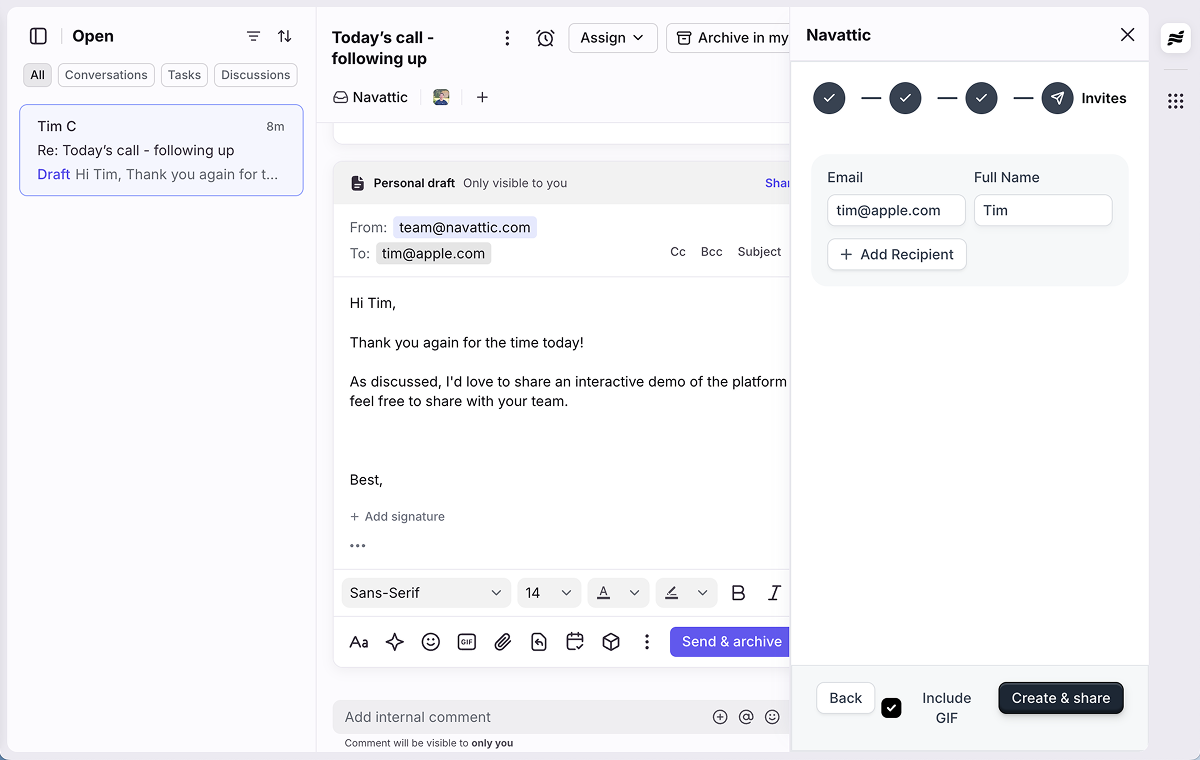
The integration automatically detects recipients from your Front conversation or draft, streamlining the demo creation process.
Conversation and Sidebar Plugins
The conversation and sidebar plugins require the Front integration to be connected at the user
level. Ensure you’ve completed the setup steps above before using this feature.
Using the Message Composer Plugin
The message composer plugin works when you’re drafting new emails or replies in Front:- While composing an email, locate the Navattic icon in your composer toolbar
- Click the icon to launch the demo creation interface
- Select a demo from your library or create a new custom demo
- Configure any personalization options for your recipient
- Click Insert to add the demo link and preview to your email
The integration automatically identifies email recipients from your Front conversation or draft,
streamlining the demo creation process.
Using the Sidebar Plugin
The sidebar plugin provides access to Navattic while viewing conversations:- Open any conversation in Front
- Look for the Navattic icon in the right sidebar
- Click the icon to open the integration
- The integration will automatically detect recipients from the active conversation
- Create or select a demo to share
- Insert the demo into your draft message
The sidebar plugin requires an active draft in the conversation. If no draft exists, you’ll see a
message prompting you to create one first.
Common Use Cases
The Front integration uses conversation or sidebar plugins to add demos directly into your Front workflows:Outbound Campaigns
Insert demos into initial outreach emails to showcase your product’s value immediately. The demo preview catches attention and encourages recipients to engage with the interactive experience.Pre-Call Discovery
Send a tailored demo before scheduled calls to help prospects explore relevant features at their own pace. This makes your actual meeting more productive and focused.Post-Call Follow-Up
After discovery calls or product demos, send a custom demo that reinforces the specific features and use cases you discussed. This keeps your solution top-of-mind and provides a resource prospects can share internally.Response Tracking
Enable email notifications in your Navattic workspace to receive alerts when recipients view your demos. Use this engagement signal to inform your follow-up timing and messaging.FAQs
How do I insert a demo into a Front conversation?
How do I insert a demo into a Front conversation?
Once the integration is connected, you can access Navattic through the conversation or sidebar
plugins in Front. Look for the Navattic plugin in the conversation composer or sidebar to browse
and insert your interactive demos.
Plugin not appearing
Plugin not appearing
Ensure the integration is installed for your Front workspace and that you’re using a supported
browser (Chrome, Firefox, Safari, or Edge).
Recipients not detected
Recipients not detected
The integration pulls recipient information from the email draft. Make sure your Front
conversation email has recipient information available.
Demo won't insert
Demo won't insert
Verify that you have an active draft open in Front. The integration requires a draft to insert
content.
Authentication issues
Authentication issues
If you’re prompted to authenticate repeatedly, clear your browser cache and cookies for Front, then reconnect your Navattic account through the integration settings.
Related resources
Sharing demos
Learn how to share demos with prospects
Crafting emails
Best practices for including demos in emails