

Admin
Allow reps to customize per link
Allow reps to customize per link
Enable this setting to allow reps to override the default settings configured on this page when they are sharing demos.
Email template media
Email template media
Choose the type of preview media to include in copied email templates: Image or GIF.
Some email clients may not support GIFs in email templates.
Access
Recipient form gate
Recipient form gate
Require visitors to provide information before accessing the demo. This allows you to verify the receiver of the demo and receive insight about engaged stakeholders.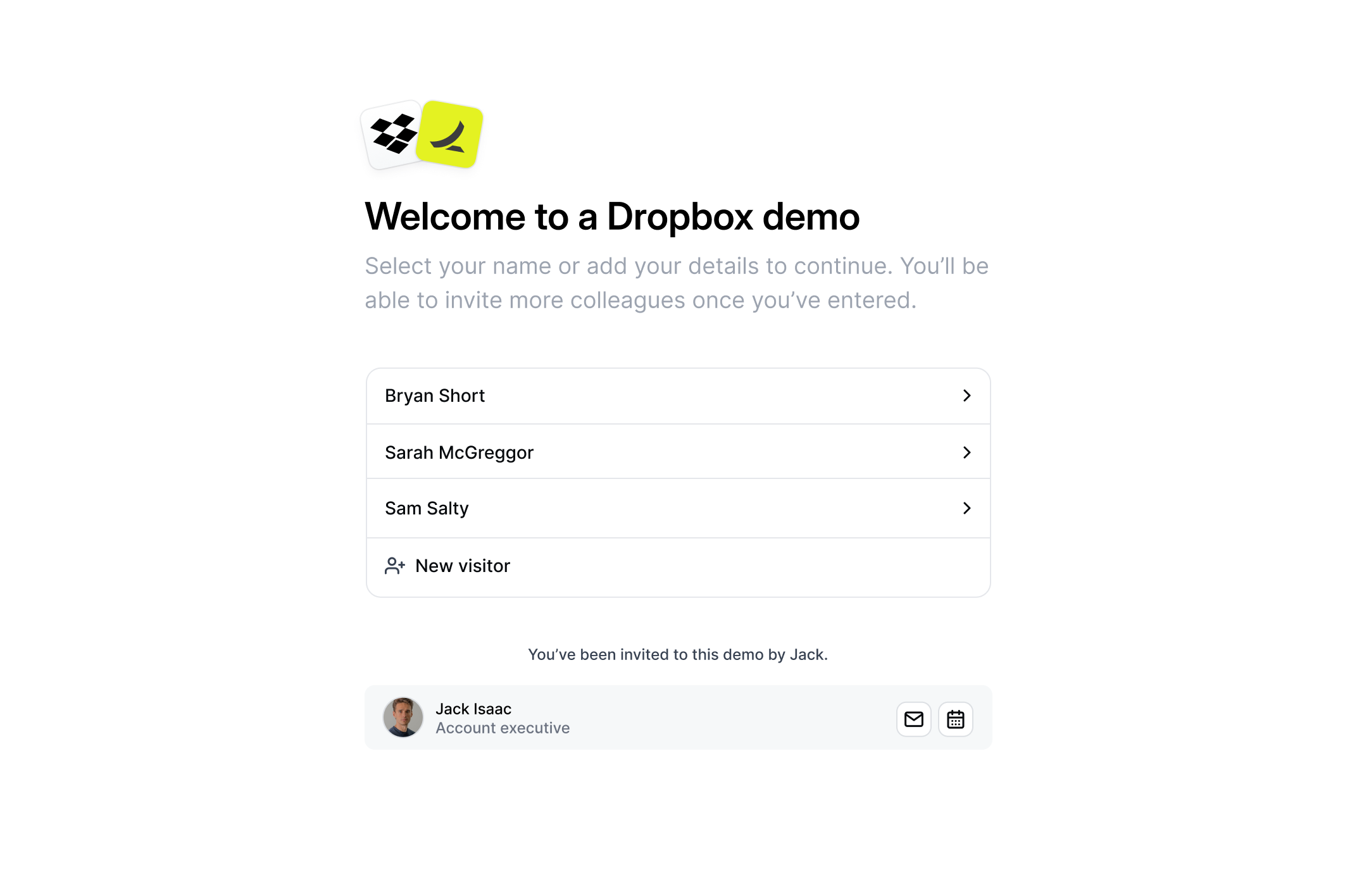
- Name form
- Email form
We recommend using the Recipient name form to increase the personalized-feel of the demo and unlocking more stakeholders.
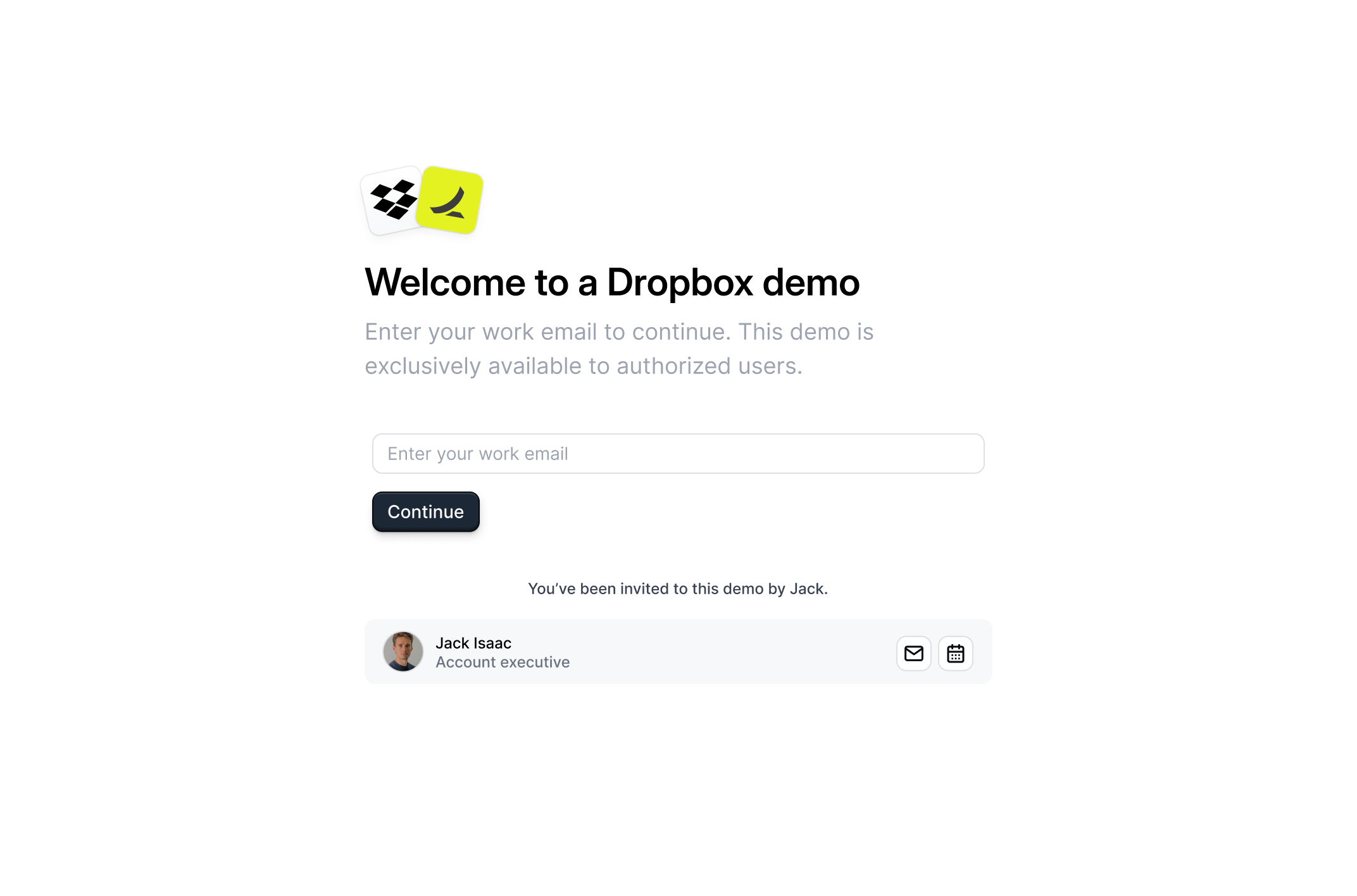
Access code
Access code
To add an additional layer of identity verification, you can require a unique access code for each recipient. Under the recipient form gate setting, enable 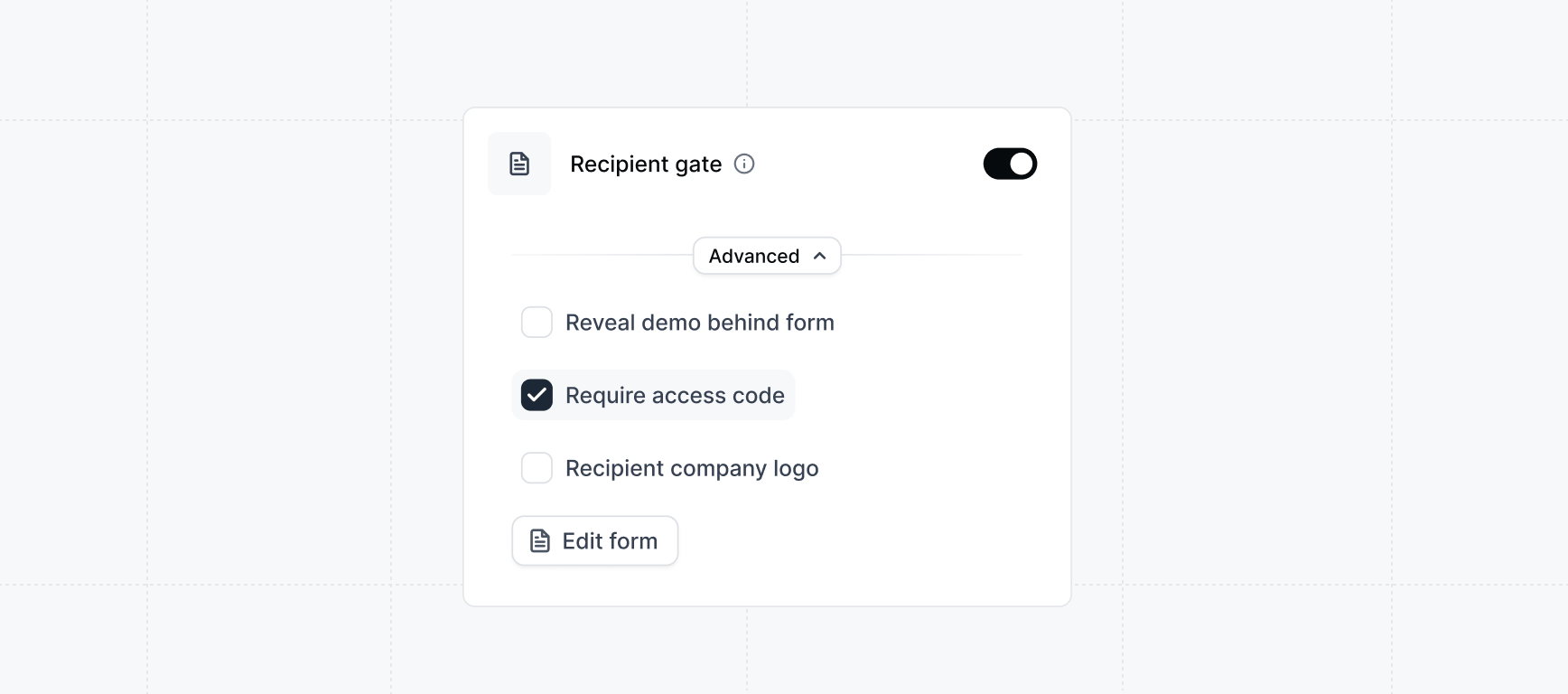
Require access code. After the recipient enters their email address, they will be prompted to enter a unique access code sent to their email.Requiring an access code adds another layer of verification at the expense of friction for the buyer. Consider if this tradeoff is worth it for your use case.Expiration date
Expiration date
Set an expiration date for the demo.
The demo share button is a powerful tool to allow your recipient to re-share your demo with other stakeholders. This powers the insight of Buyer’s Circle which alerts reps about new stakeholders involved in the buying process.When enabled, the demo share button will appear on the 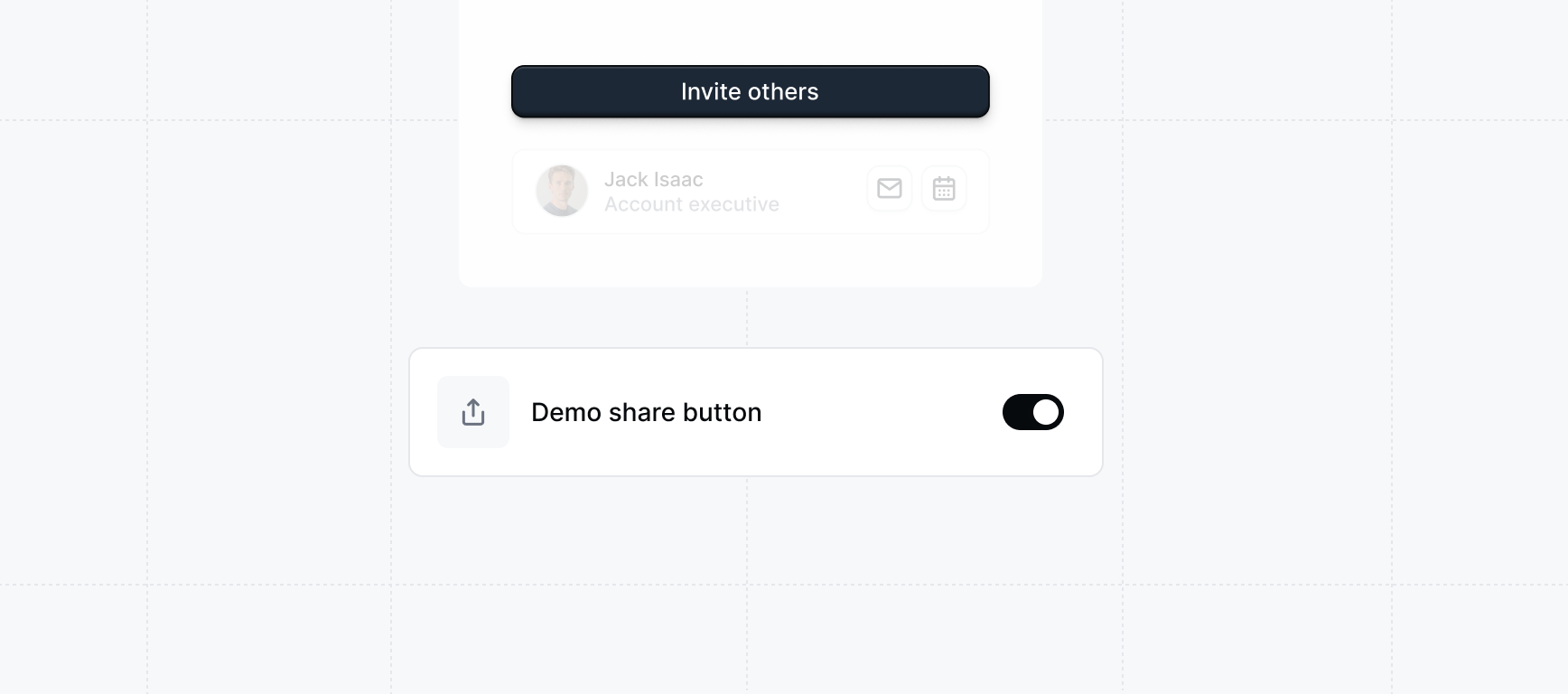
Sidebar Checklist or as a top banner if the Checklist is not available.Demo
Interests form
Interests form
Customize the settings of the interests form.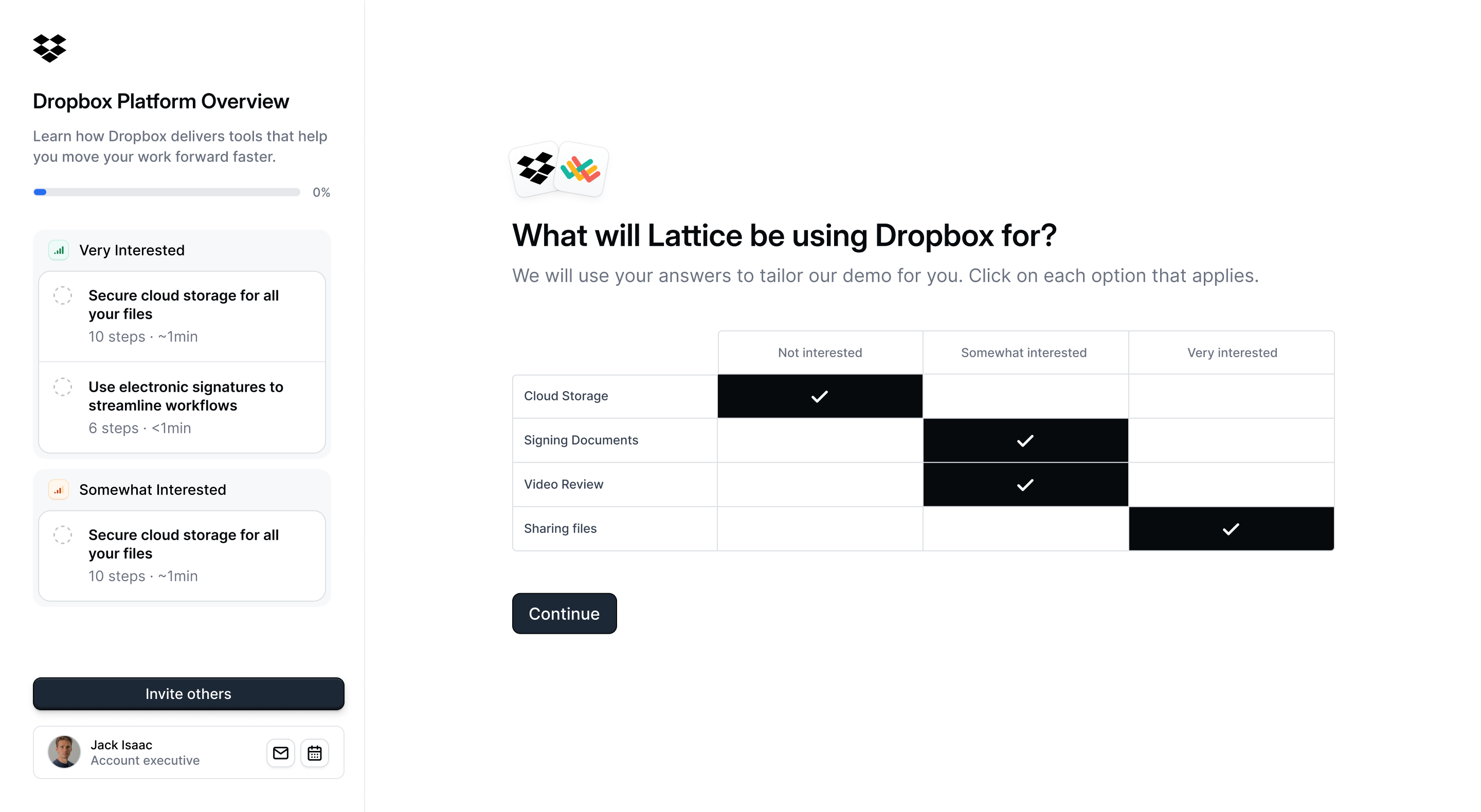
Learn about interest demos
Unlock a powerful insight - what features prospects are interested in seeing.
Downloadable resources
Downloadable resources
Include additional files inside of the demo with a CTA button for the button to download them.These could be additional slide decks, custom pricing quotes, or other deal room material.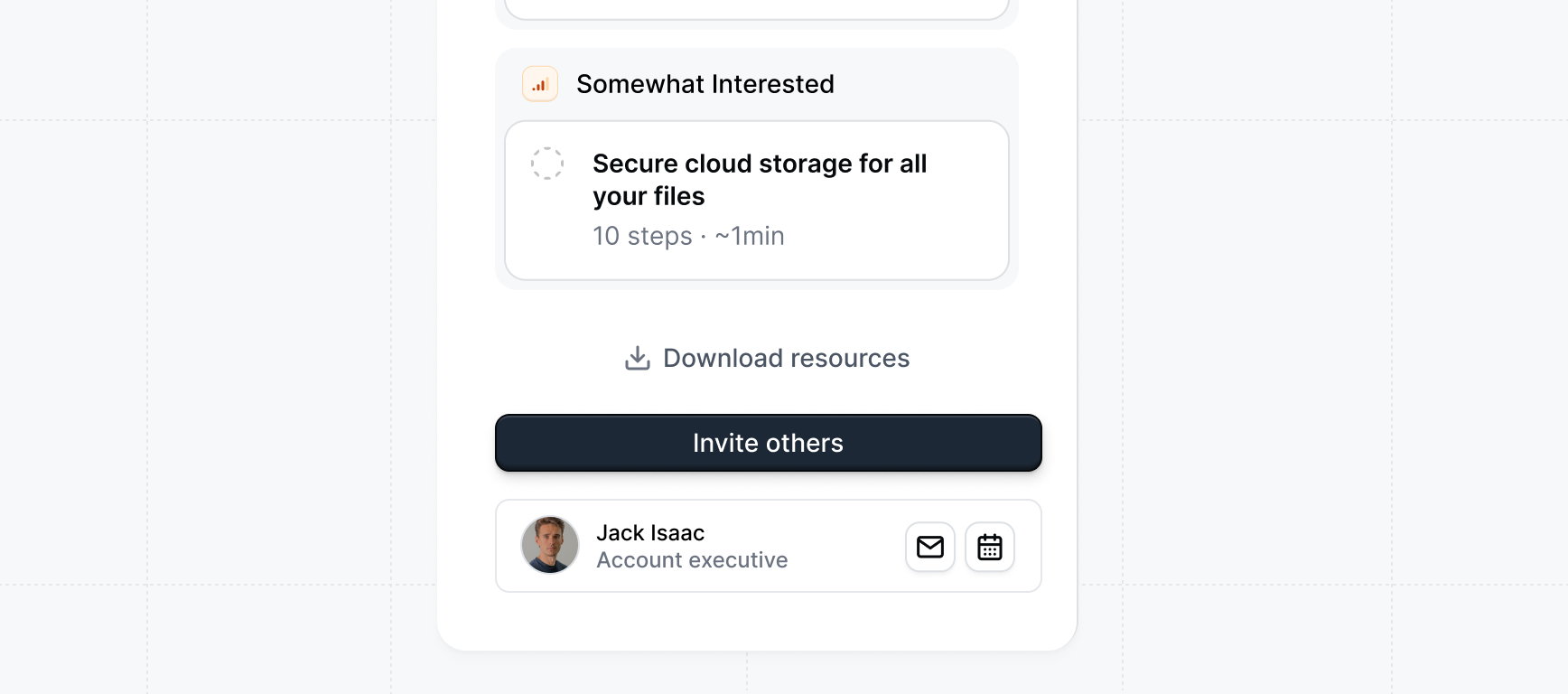
Demo closing action
Demo closing action
Configure what happens when a visitor reaches the end of a demo: the final step of the final flow with no next step to navigate to.Choose from three options:
- Open share modal (default): Shows the demo’s share screen so the visitor can save or forward the link.
- Navigate to url: Sends the visitor to a URL of your choice, such as a booking page or your website.
- Navigate to calendar: Opens a calendar link so the visitor can book a follow-up directly.
Alerts
Email alerts
Email alerts
Manage the default email alerts that reps will recieve from their demos:
Visitor notifications, Re-share notification, Salesforce opportunity alerts.Slack alerts
Slack alerts
Manage the default Slack alerts that reps will receive from their demos:
Visitor notifications, Re-share notification.Slack notifications require both admin-level workspace setup and per-rep authentication. Reps
must authenticate their individual Slack account before they can receive notifications, even
if these defaults are enabled.
Set up Slack notifications
Learn how to configure Slack notifications for your Launchpad reps
Presentation settings
Show beacons by default
Show beacons by default
When enabled, beacons start visible. Use Ctrl+B to toggle visibility.
Keyboard shortcuts
Keyboard shortcuts
Turn on quick-access shortcuts, such as launching Presenter mode (
⌘P) or toggling beacons (⌘B), to speed up navigation.Click anywhere to progress
Click anywhere to progress
Allow demo steps to advance with a simple click anywhere in Presenter mode, making live presentations more fluid and interactive.
Presenter notes
Presenter notes
(
⌘N) Display your speaker notes alongside the demo so you can stay on track without switching screens.Allow presentation customization
Allow presentation customization
Control whether reps can adjust presentation settings when creating a share link.When enabled, reps can change settings such as keyboard navigation, keyboard shortcuts, click to progress, and presenter notes before presenting.When disabled, those settings are locked to the workspace defaults. Reps can still see the controls, but they appear greyed out and cannot be changed.