

How Navattic Agents work
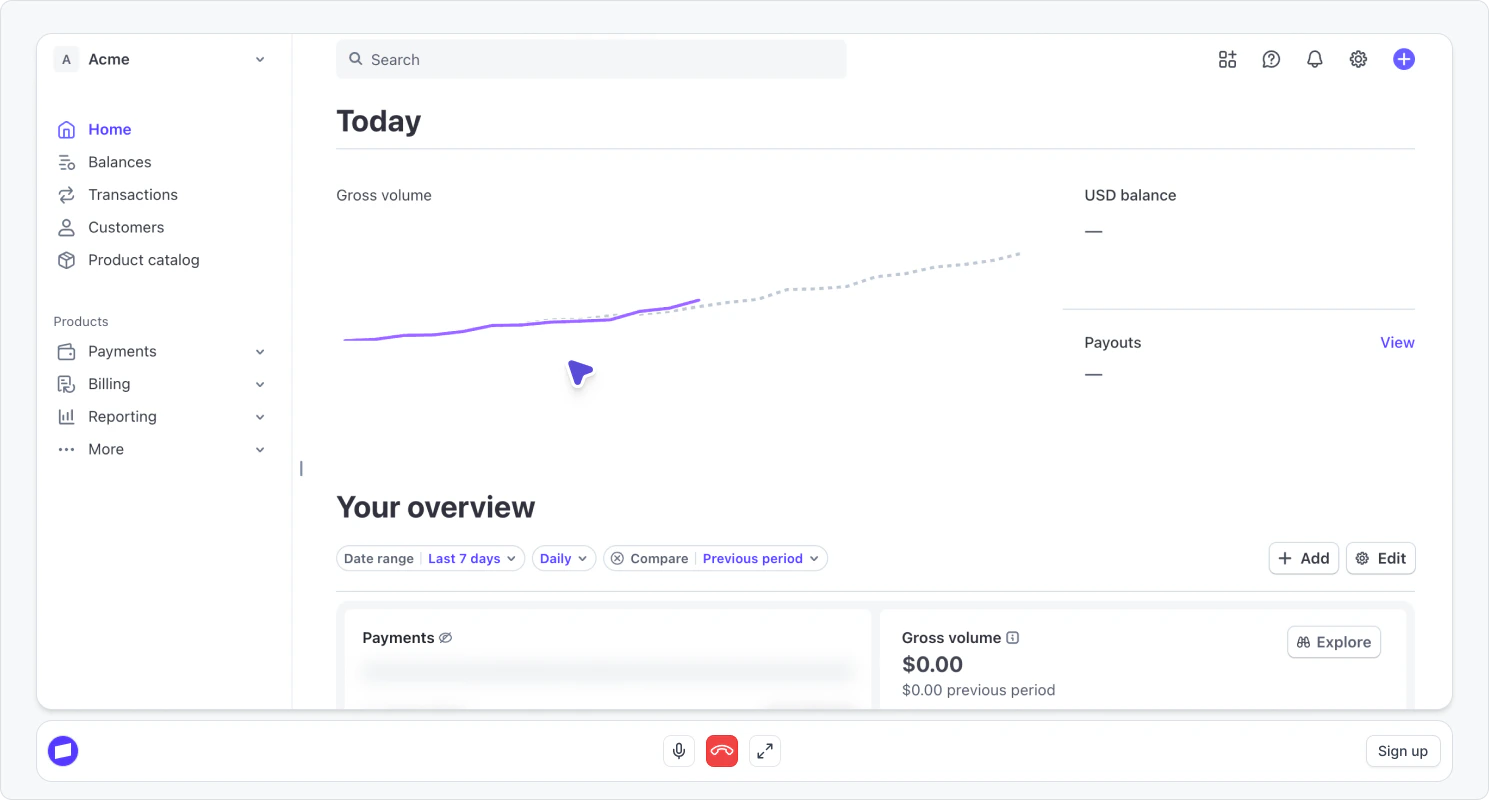
Navattic Agents combine several capabilities to create interactive product demonstrations:- Voice conversation - Visitors speak naturally with an AI agent that understands questions and responds in real-time
- Text input - Visitors can type their questions and responses instead of speaking. This makes demos accessible in quiet environments or for visitors who prefer not to use their microphone
- Capture playback - The agent navigates through pre-recorded captures of your application, guiding visitors through relevant features and flows
- Personalized guidance - Each demo adapts based on the conversation, showing relevant features and answering specific questions
Use cases for Navattic Agents
Navattic Agents are particularly effective for scenarios where personalization and interactivity matter most:24/7 demo availability
24/7 demo availability
The problem: Your sales team can’t be available around the clock, causing you to miss prospects in different time zones.How Navattic Agents help: Provide live product demonstrations around the clock, even when your sales team is offline. Add a Navattic Agent option alongside your demo request form so prospects can choose an instant AI-guided demo instead of waiting. Configure after-hours routing to direct visitors to a Navattic Agent rather than a “we’ll get back to you” message, capturing high-intent traffic that would otherwise go cold.
International demo requests
International demo requests
The problem: Language barriers limit your ability to engage global prospects without hiring multilingual sales staff.How Navattic Agents help: Deliver demos in any language and engage global prospects without adding operational overhead. The agent localizes explanations, answers questions, and runs the demo environment in the visitor’s language. Create localized landing pages for key markets, use geo-detection to route visitors to demos in their preferred language, or equip regional sales teams with multilingual Navattic Agent links for outbound prospecting.
Qualifying leads before sales calls
Qualifying leads before sales calls
The problem: Sales teams spend too much time on discovery calls with prospects who aren’t familiar with the product basics.How Navattic Agents help: Let the agent handle initial product education and qualification, so your sales team can focus on high-value conversations. Send Navattic Agent links before scheduled calls so prospects arrive already familiar with your product. Use engagement data like session duration, questions asked, and features explored to enrich lead scores and prioritize follow-ups. Prompt engaged prospects to book a call immediately after their demo session while interest is at its peak.
Feature-specific deep dives
Feature-specific deep dives
The problem: Complex workflows or technical features are difficult to explain without real-time interaction and demonstration.How Navattic Agents help: Guide prospects through complex workflows or technical features that benefit from real-time explanation. Link Navattic Agents from your documentation so users can see features in action as they read. CSMs can share feature-specific demos to help customers unlock value from underutilized parts of your product, scaling customer education without requiring live walkthroughs for every request.
SMB sales support
SMB sales support
The problem: High-touch demos don’t scale for smaller deals, and technical sales bandwidth is too limited to cover every prospect.How Navattic Agents help: Enable SMB customers to have a stellar sales experience, as if they had a demo from a top SE, without requiring dedicated sales engineering resources. Route demo requests from smaller companies (e.g., fewer than 15 employees) to an automated email with the Navattic Agent link, or direct them to a thank you page with an embedded demo for instant access. Equip SMB reps with Navattic Agent links they can share directly, delivering consistent, high-quality demonstrations while maintaining a personal touch.
Build your first Navattic Agent
Building a Navattic Agent involves setting up an environment, configuring the agent’s behavior, and publishing it for visitors:Set up an environment
Create and manage the captures and flows your agent navigates during demos.
Create a Navattic Agent
Configure the agent’s objective, personality, guidelines, and guardrails.
Design the conversation
Structure the demo into stages with topics, starters, and outcomes.
Provide knowledge
Give the agent product context, documentation, FAQs, and shareable resources.
Configure settings
Customize the avatar, welcome screen, calls to action, and scheduling.
Test and publish
Preview your agent, manage versions, and publish it to visitors.
Best practices
Follow these guidelines to create effective Navattic Agents: Start with clear objectives: Define specific goals for your agent before configuring behavior. What should prospects learn? What actions should they take? Provide comprehensive product context: The more information you give the agent about your product, the better it can answer questions and demonstrate relevant features. Test thoroughly before sharing: Run through several demo sessions yourself to ensure the agent behaves as expected and can handle common questions. Review session transcripts regularly: Check actual conversations to identify gaps in the agent’s knowledge or opportunities to improve responses. Update content as your product evolves: When you add features or change pricing, update your Navattic Agent’s product context to keep information current. Set appropriate guardrails: Be specific about what the agent should not promise or claim, especially around pricing, custom features, and implementation timelines.Frequently asked questions
What happens if the agent doesn't know the answer to a question?
What happens if the agent doesn't know the answer to a question?
The agent will acknowledge uncertainty and, based on your guardrails, either redirect to documented information or suggest connecting with your sales team for specific questions.