

Copilot Prompt is available on Base, Growth, and Enterprise plans. Please reach out to your
account manager or support@navattic.com to learn more.
How to Use Copilot Prompt
- Open a flow in the builder
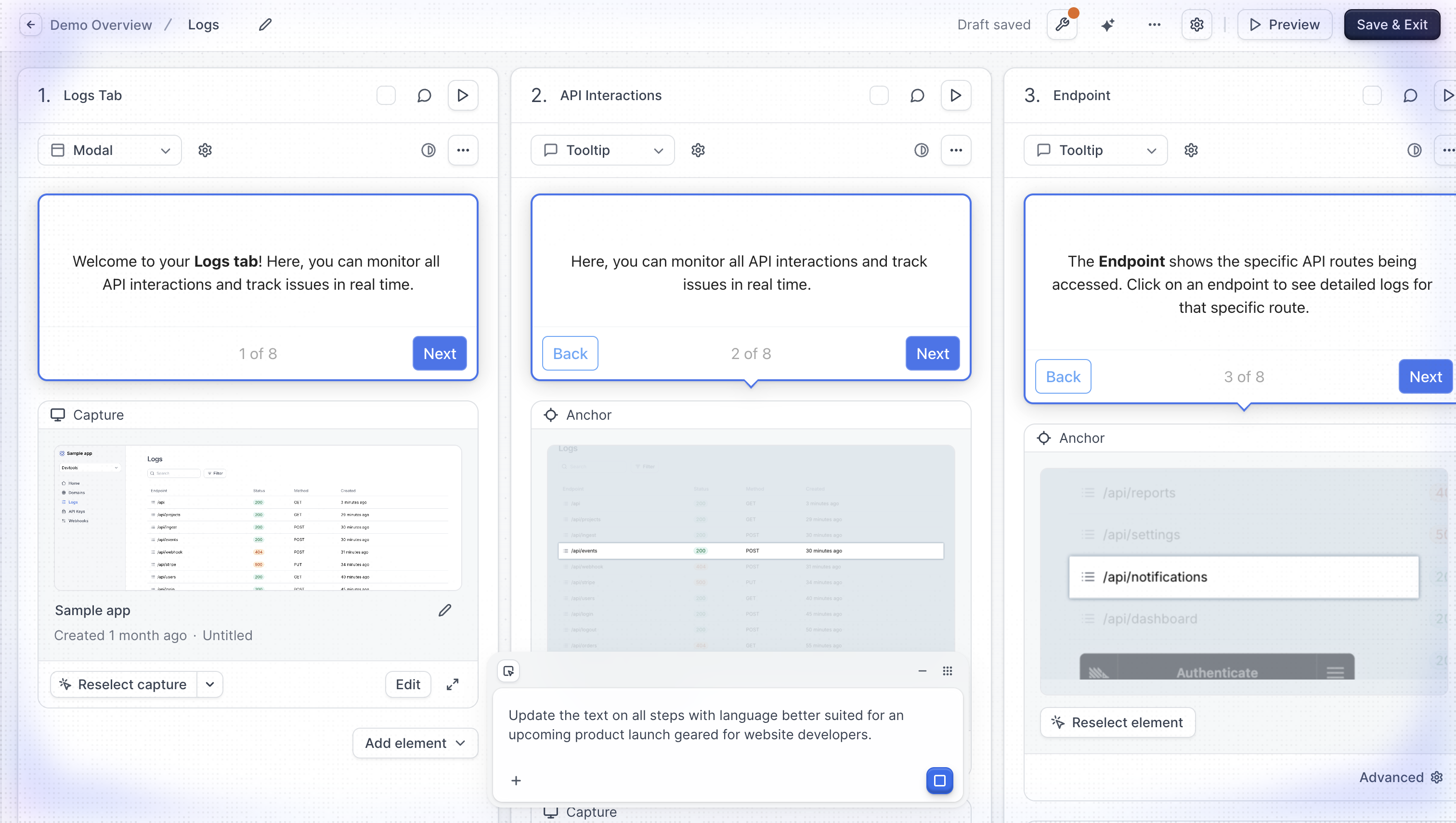
- Click the More actions menu (three dots) > Copilot Prompt or use the keyboard shortcut Cmd/Ctrl + ; to open the prompt interface
- Type your request in natural language (e.g., “Make the button text more engaging” or “Add a welcome step at the beginning”)
- Optionally, select specific steps to target your changes
- Press Enter to submit your prompt
- Review the suggested changes and apply or discard each one
Targeting Specific Steps
You can scope your prompts to specific steps:- Click Select steps in the prompt bar or type @ to mention a step
- Click on the steps you want to target in the flow preview
- Selected steps appear as chips in the prompt bar
- Your prompt will only affect the selected steps
- Update content on just a few steps
- Rename specific steps
- Modify buttons on particular steps
Adding Files for Context
You can upload documents to give Copilot additional context when making changes. This is useful when you want to align demo content with existing materials like product briefs, messaging guides, or feature documentation. To add a file:- Click the menu in the prompt bar
- Select Add file for context
- Choose a file from your computer
What Copilot Prompt can do
Step content
- Rewrite or update the text in a modal or tooltip
- Rename steps
- Change tone (professional, casual, technical, etc.)
- Translate content to another language
- Shorten or expand descriptions
- Add or update presenter notes
Steps
- Add a new step at any position in the flow
- Remove a step
- Reorder steps
- Change a step’s type (modal, tooltip, video, capture only)
- Move a modal to a different screen position (center, corner, etc.)
- Move a tooltip to a different position relative to its anchor
Buttons
- Add or remove buttons on a step
- Update button text
- Change a button’s action (go to a specific step, open a URL, close the flow, complete the flow)
- Change button style (primary or secondary)
- Reorder buttons
- Show or hide the Next and Back navigation buttons per step, or enable/disable them for the entire flow
Backdrop
- Add or remove a backdrop on a tooltip step
- Set backdrop intensity (light, medium, or heavy)
Beacons and triggers
- Add or remove beacons (pulsing hotspot indicators)
- Add or remove click, hover, or timer triggers
Voiceover
- Add voiceover narration to a step from text
- Update or remove voiceover from a step
Video
- Add a video to a step from a URL (YouTube, Vimeo, Loom, Wistia, or Vidyard)
- Remove a video from a step
Flow-level settings
- Update the escape view message and buttons
- Add or update the complete button text
- Enable or disable presenter mode for the flow
Reviewing Suggested Changes
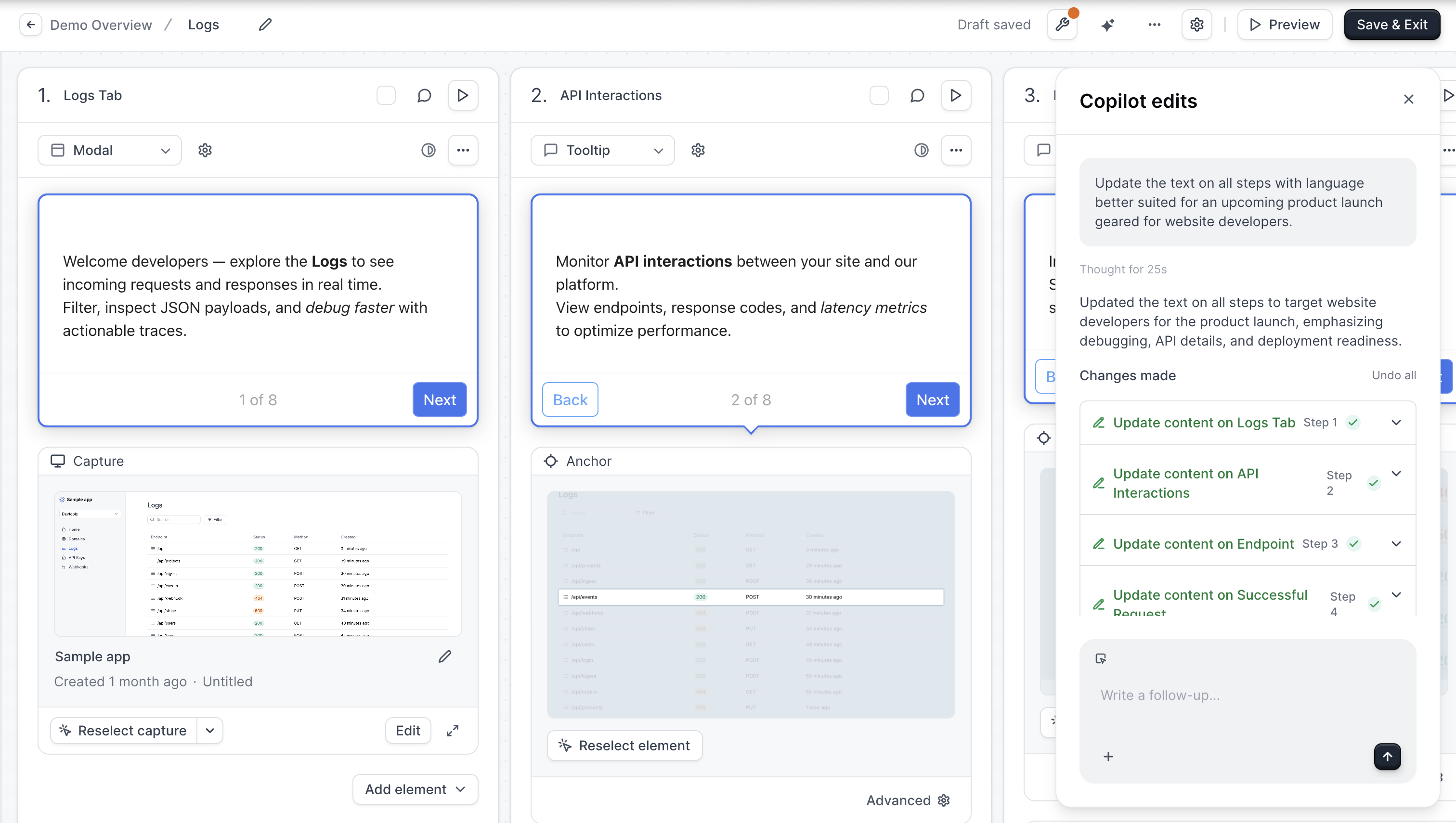
After submitting a prompt, Copilot presents its suggestions in a panel:- Summary - A brief explanation of what Copilot understood and planned
- Changes list - Each proposed change as an expandable item showing:
- The type of change (content update, new step, rename, etc.)
- Which step is affected
- A preview of the before/after content
- Apply and Discard buttons
Applying Changes
For each suggestion:- Apply - Implements the change immediately in your flow
- Discard - Ignores the suggestion
- Apply all - Accepts all pending changes at once
- Discard all - Dismisses all pending changes
Multi-Turn Conversations
Copilot Prompt supports follow-up messages, so you can:- Refine suggestions (“Make it shorter”)
- Request additional changes (“Now do the same for the next step”)
- Ask for alternatives (“Try a different approach”)
Example prompts
- “Rewrite all the step content to be more concise”
- “Add a welcome modal at the beginning that introduces the product”
- “Make the button text more action-oriented”
- “Change the tone to be more professional”
- “Rename steps 2-4 to better describe what they show”
- “Remove the last step”
- “Update the CTA on step 3 to say ‘Get Started’”
- “Generate copy for a new use case targeting enterprise buyers”
- “Add a beacon to step 4”
- “Add voiceover to step 2 explaining this feature”
- “Turn step 3 into a tooltip”
- “Hide the back button on the first step”
- “Enable navigation buttons for the whole flow”
- “Add a medium backdrop to step 5”