

Copilot Review is available on Base, Growth, and Enterprise plans. Please reach out to your
account manager or support@navattic.com to learn more.
How to Run a Review
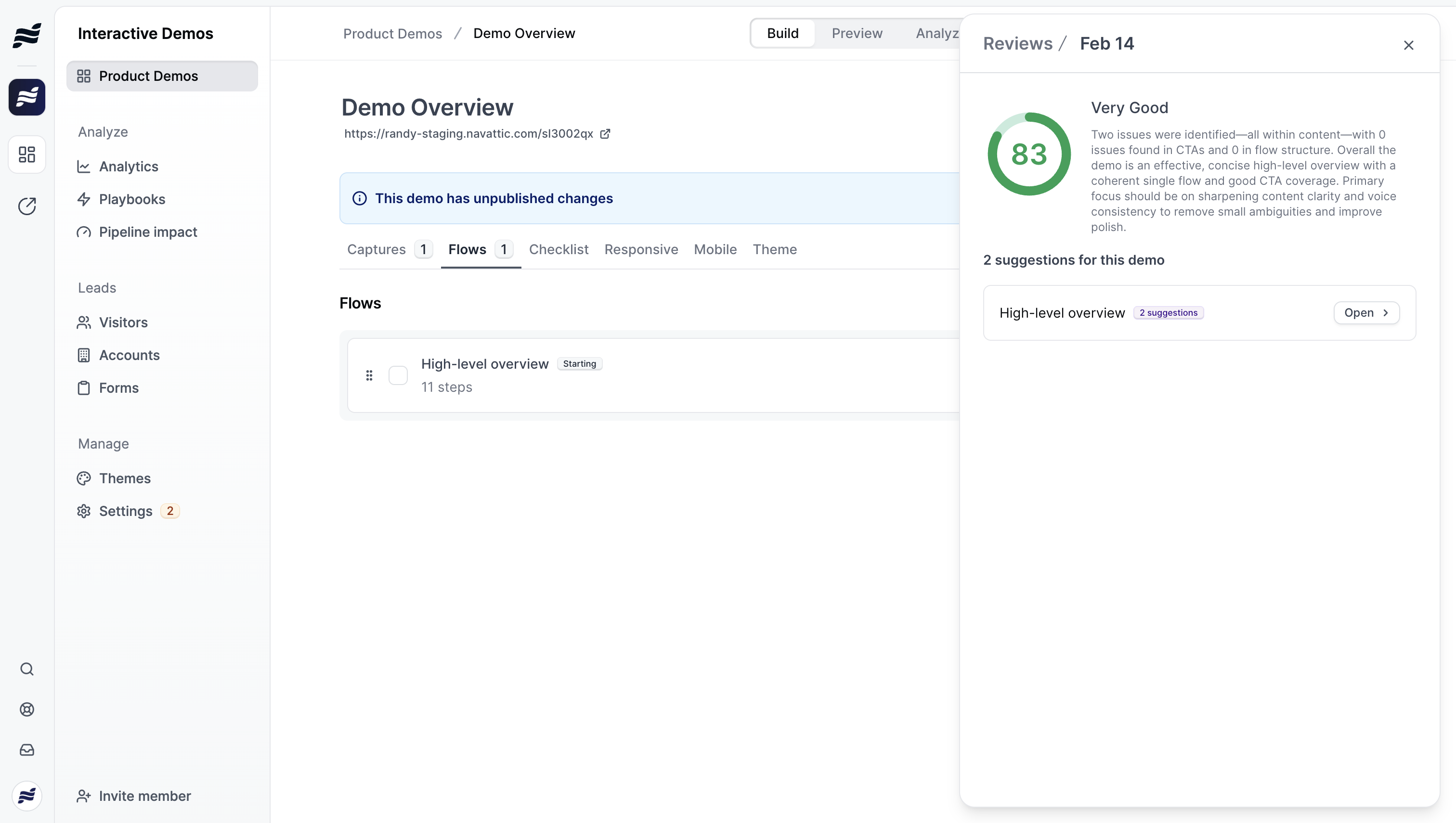
You can run reviews at two levels:- Product Demo level - Review all flows in your demo at once from the demo overview
- Flow level - Review a single flow from within the flow builder
- Open your demo or flow in the builder
- Click the Review button in the header
- Click Start review to begin the analysis
- Copilot will analyze your content and generate a quality score along with specific suggestions
Understanding Your Review
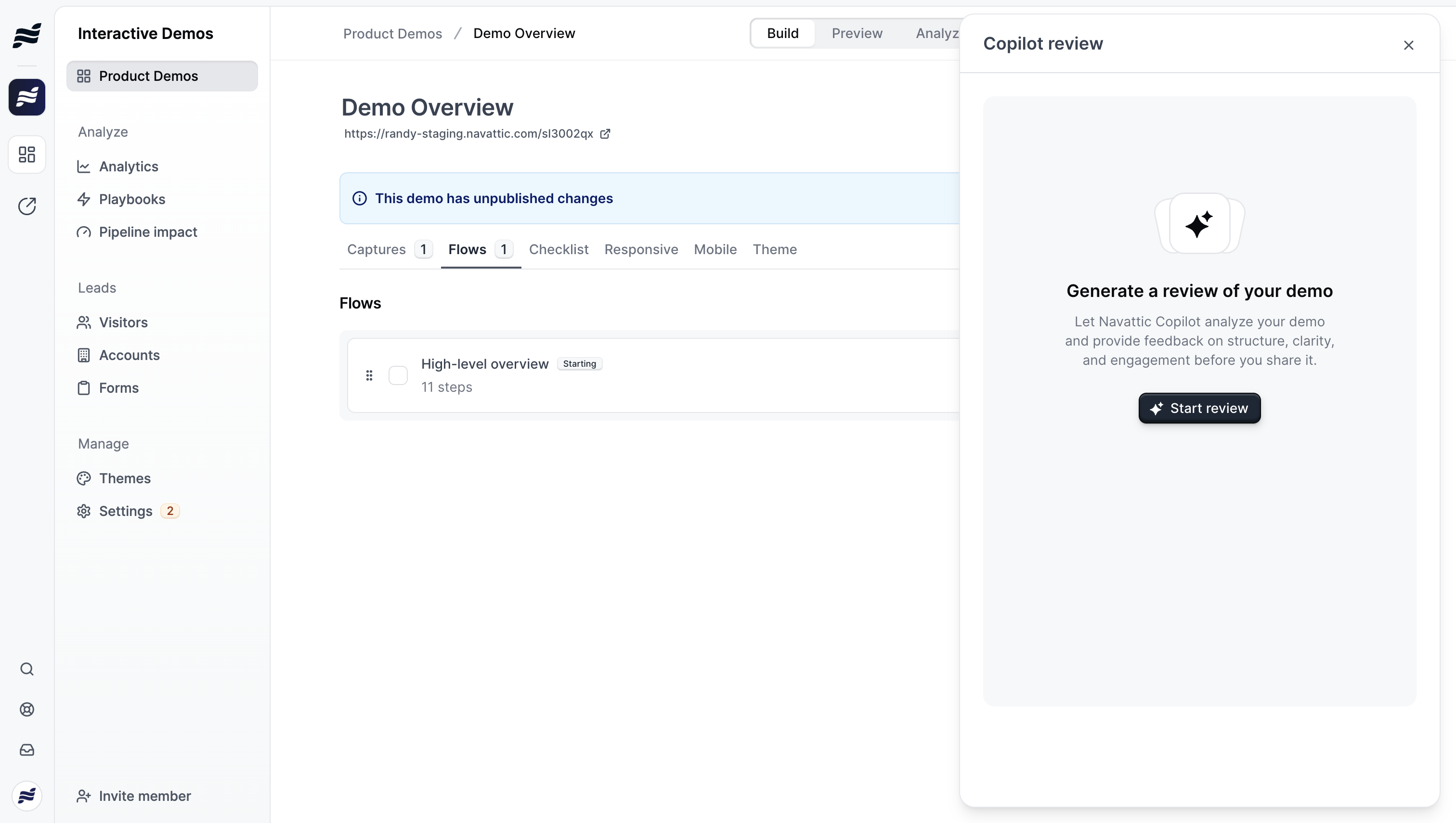
Quality Score
Your demo receives an overall quality score based on our highest-performing benchmarks, reflecting structure, clarity, and engagement potential. Scores are categorized as:- Excellent
- Good
- Needs Improvement
Summary
A brief overview of your demo’s strengths and areas for improvement.Suggestions by Flow
Suggestions are organized by flow, showing how many are pending, accepted, or rejected for each. Click into any flow to see and act on specific suggestions.Types of Suggestions
Copilot Review identifies opportunities across several categories:Content Improvements
- Improve writing - Suggestions to make text more concise and action-oriented
- Fix spelling & grammar - Corrections for grammatical errors
- Change tone - Adjustments to match your desired professional or casual tone
- Add CTA - Better call-to-action text for buttons
Data & Personalization
- Personalize Content - Opportunities to add personalization variables (like company name or user name)
- Refresh Dates - Outdated dates that should show relative or current times
Visual & Technical
- Remove Overlay - Distracting elements (like cookie banners) that should be hidden
- Animate Text - Elements that would benefit from typewriter-style animations
- Edit Table/Chart - Data visualizations that could be improved
Acting on Suggestions
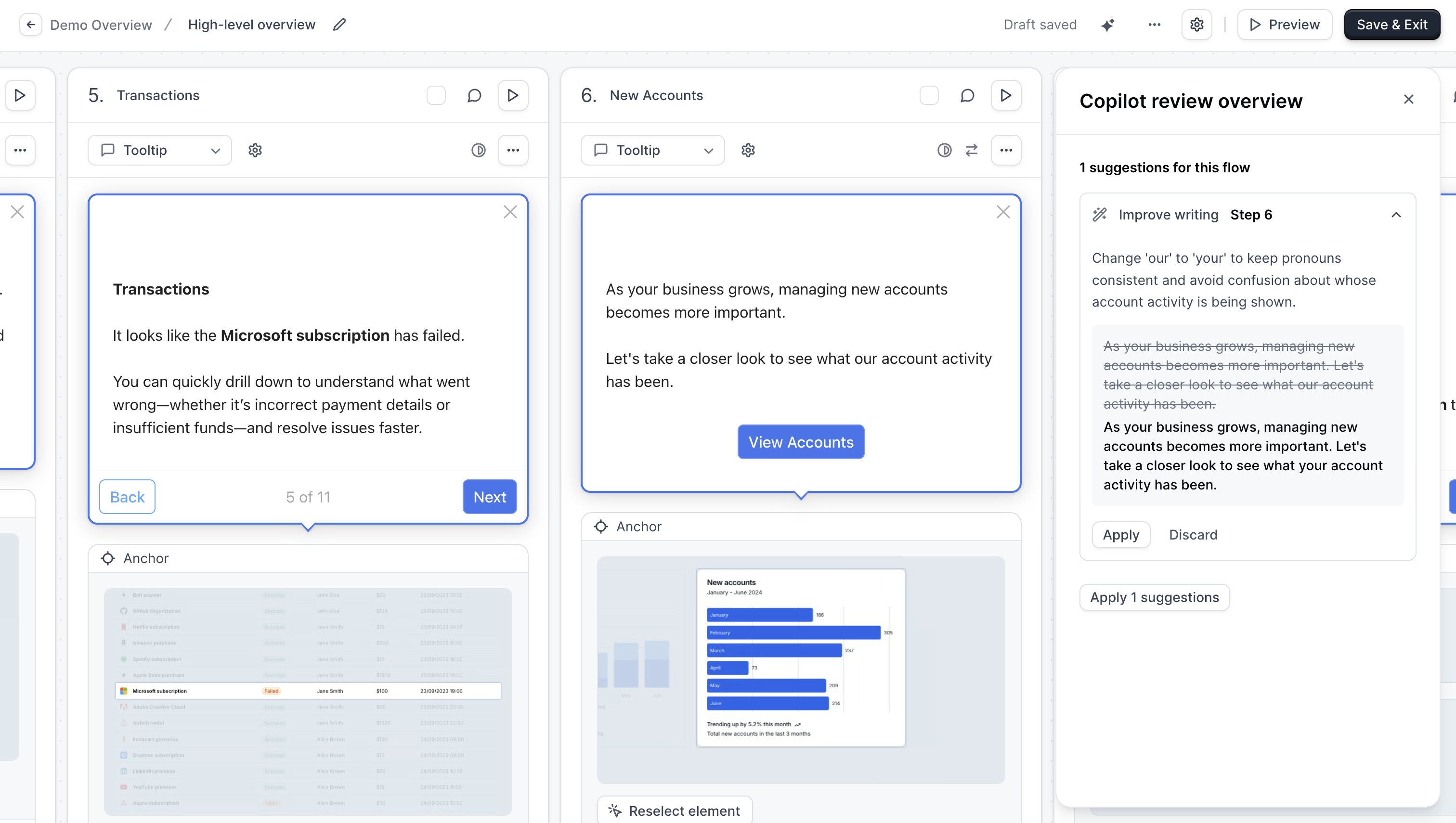
- Accept - Apply the recommended change to your demo
- Dismiss - Ignore the suggestion if it doesn’t apply
- Apply All - Accept all pending suggestions at once
- Dismiss All - Clear all pending suggestions
Review History
Copilot saves your review history, so you can:- Compare quality scores over time
- See which suggestions you’ve acted on
- Run new reviews after making changes to track improvement