

Understanding the layout
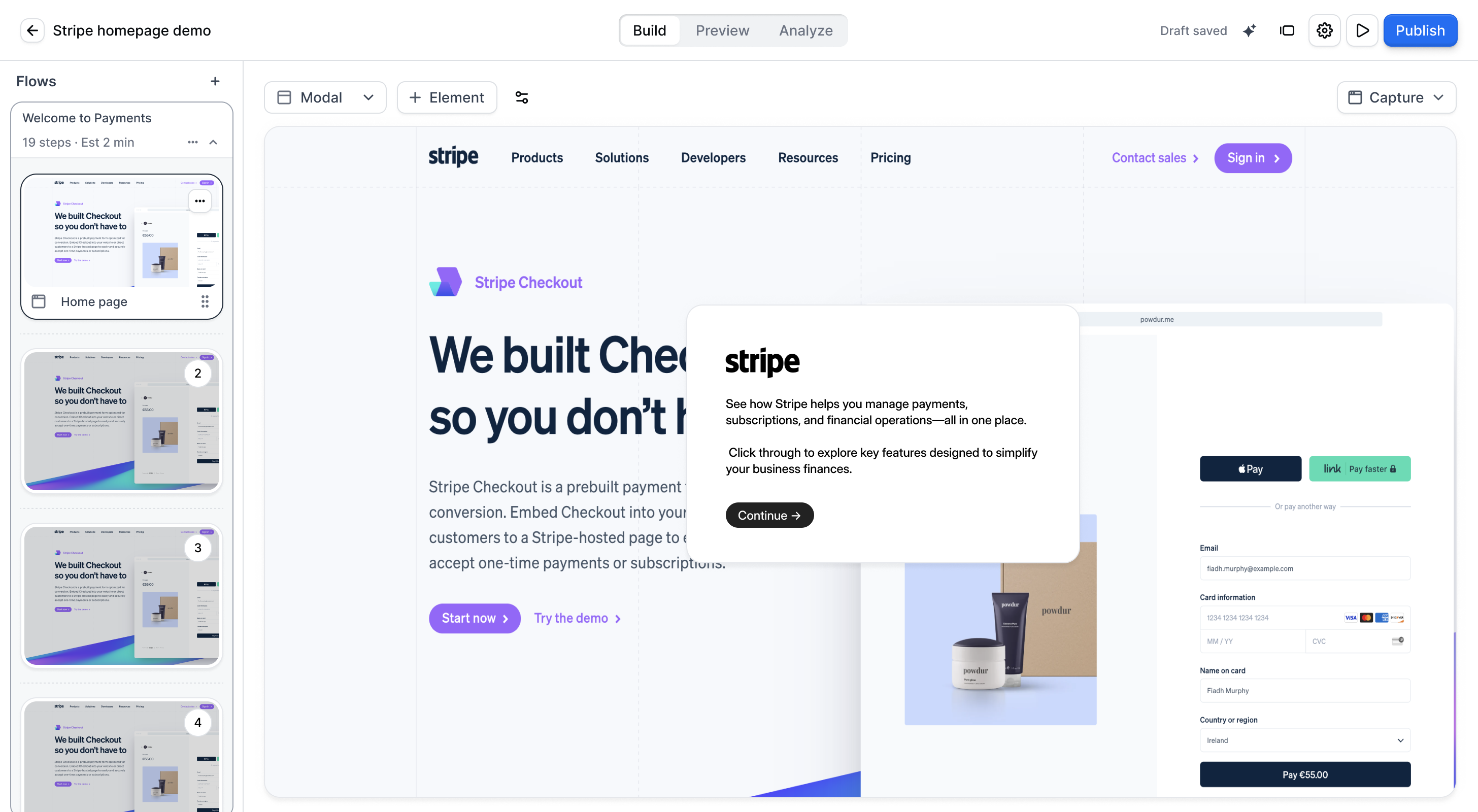
When you open the Demo builder, there are four main areas:Main navigation tabs
At the top of the page, you can switch between three tabs: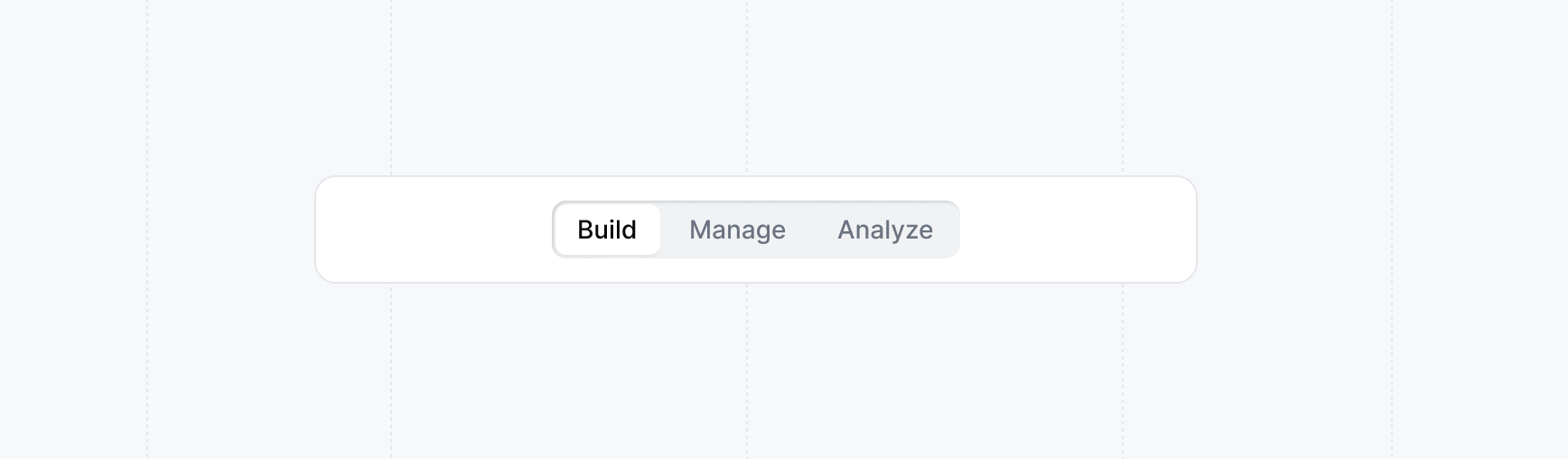
- Build - Design your interactive demo with steps, tooltips, and media
- Manage - Configure sharing settings, organize flows, publish your demo, and access version history
- Analyze - Track visitor engagement, completion rates, and performance
Flows list sidebar
On the left side of the Build tab, you’ll find a list of all the Flows and steps in your demo. Click on any step in any Flow to edit it in the main canvas.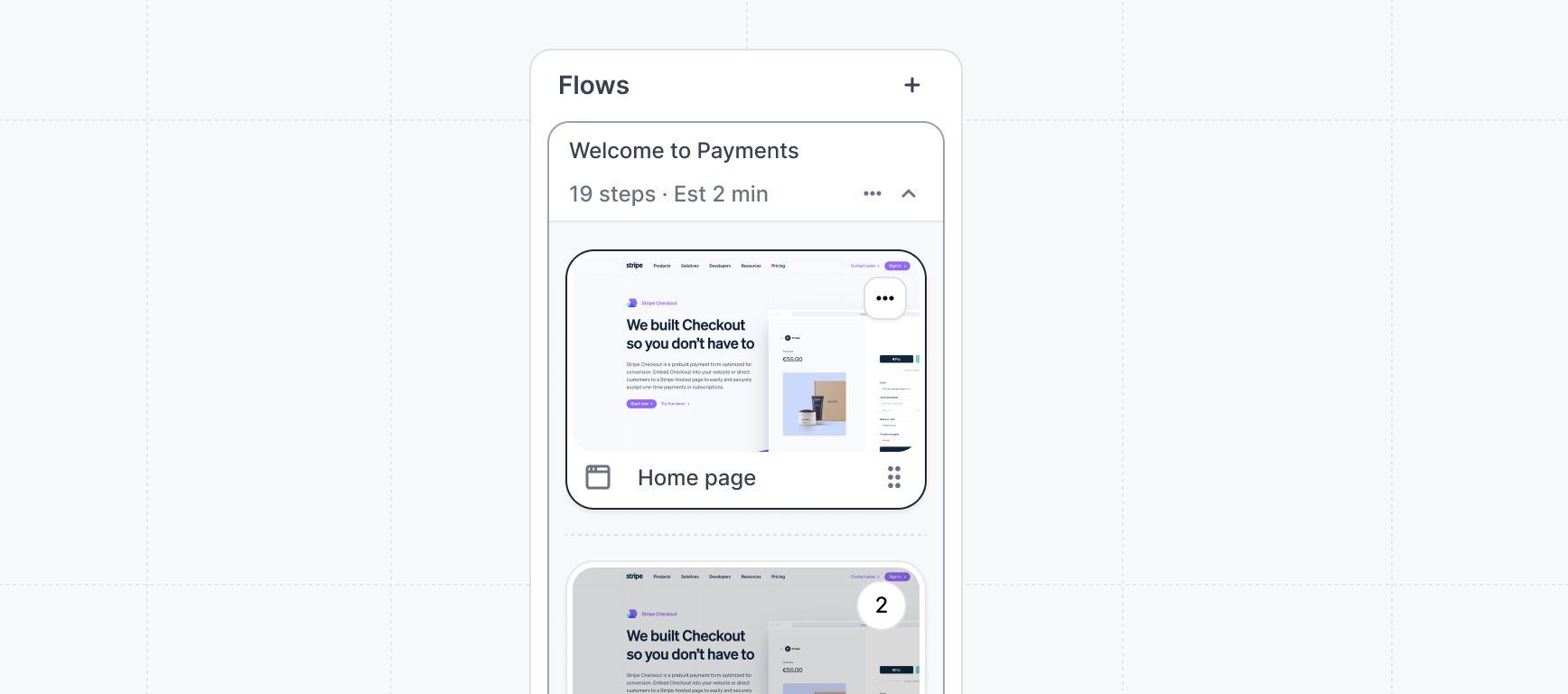
Step editor
The central area where you edit the content, appearance, and behavior of a selected step.Theme panel
On the right, you can adjust the look and feel of your demo by applying and customizing themes. Changes here apply across your entire demo.Preview
Switch to the Preview tab at any time to see how your demo will appear to viewers. Your latest changes are always reflected in the preview.Switch builder layout
The Demo builder offers two layouts for editing. Switch between them using the toggle in the top navigation, or press Shift + . to toggle from the keyboard.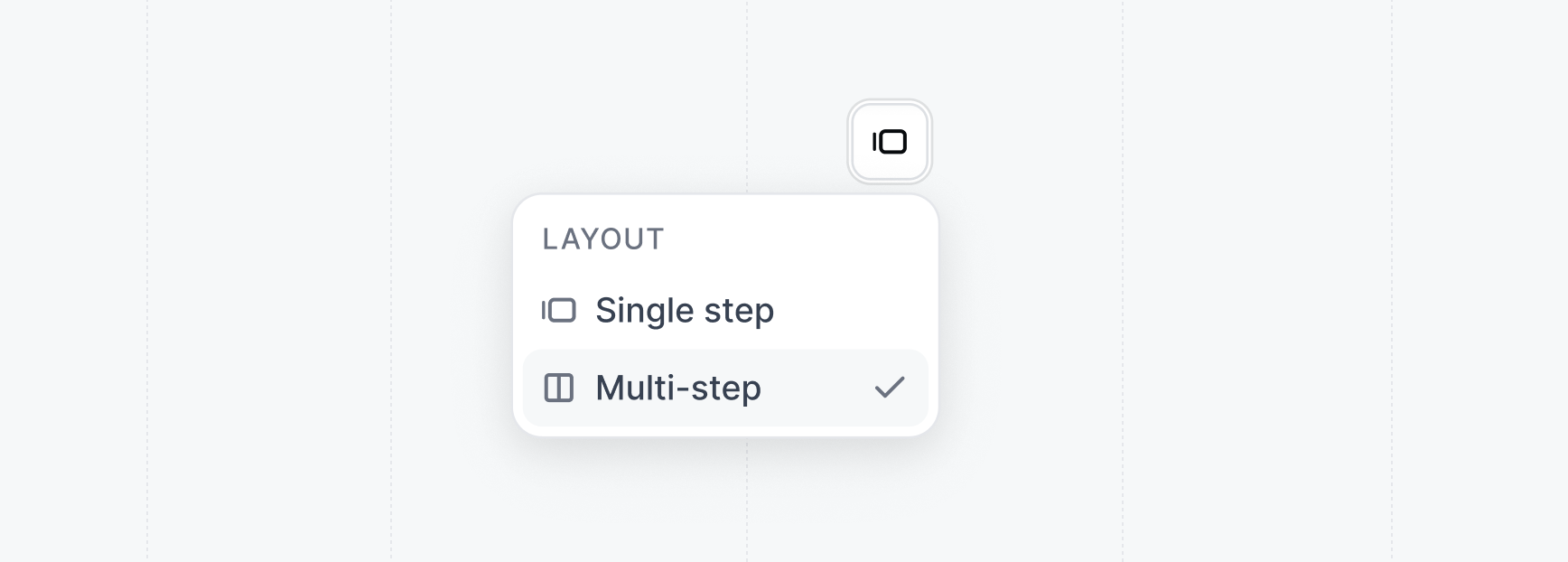
- Single step view
- Multi-step view
The default view, designed for editing one step at a time. It works with the Flows list sidebar, so you can focus on a single step while navigating to any other step in your demo.When to use single step view:
- You want to focus on individual steps
- You need to jump between steps across different Flows
- You’re making detailed edits to specific elements
Feature differences between views
Most editing capabilities are available in both views, but a few behaviors differ depending on which layout you’re using.If you need to configure Interest routing for a form step, switch to single step view to
access the full InterestConditions settings.
What you can edit
The Demo builder provides a unified experience for building Flows. You can edit the following directly in the Build tab:- Checklist builder
- Responsiveness settings
- Language and tracking settings
- Themes
Version history is accessible from any tab. Open the options menu in the top navigation bar and
select Version history.
Reordering buttons
In the Build tab, you can change the order of buttons within a step by dragging them. Click and hold the drag handle to the left of any button, then move it up or down to reposition it. The new order is saved automatically.Managing captures from the Build tab
You can open your workspace’s captures and collections without leaving the Build tab. The capture menu appears in different places depending on which view you are using:- Single step view: click the capture menu in the step controls panel on the right side of the step editor.
- Multi-step view: click the capture block menu that appears on any capture block in the flow.
Deleting a demo
To permanently delete an archived demo, open it in the Demo builder. Select Delete demo from the options menu in the top navigation bar.FAQs
What is the main difference between single step and multi-step view?
What is the main difference between single step and multi-step view?
Single step view is designed for editing one step at a time and works with the Flows list sidebar, making it easy to navigate across your entire demo. Multi-step view shows the entire sequence of a single Flow, which is helpful for understanding the story and reordering steps within that Flow by drag and drop.Most editing features work the same in both views, but a few differ. Video step options appear directly on the canvas in multi-step view rather than in the settings panel. Interest routing configuration (for form steps using the “Run Interests” action) is only visible in single step view. If you need to configure those settings, switch to single step view.
Can I still use the classic Flow builder?
Can I still use the classic Flow builder?
Yes. The classic Flow builder is available as multi-step view. Use the toggle in the top navigation (or press Shift + .) to switch from single step view to multi-step view.
How do I switch between different Flows?
How do I switch between different Flows?
In single step view, use the Flows list sidebar on the left to see all your Flows and click on any step to edit it. In multi-step view, use the Flow dropdown to switch between different Flows.
Will my existing demos work in the Demo builder?
Will my existing demos work in the Demo builder?
Yes. All your existing demos work in the Demo builder. You can edit them using either single step or multi-step view.
Next steps
Creating flows
Learn how to create engaging step-by-step flows in your demos.
Themes
Customize the look and feel of your demos with themes.