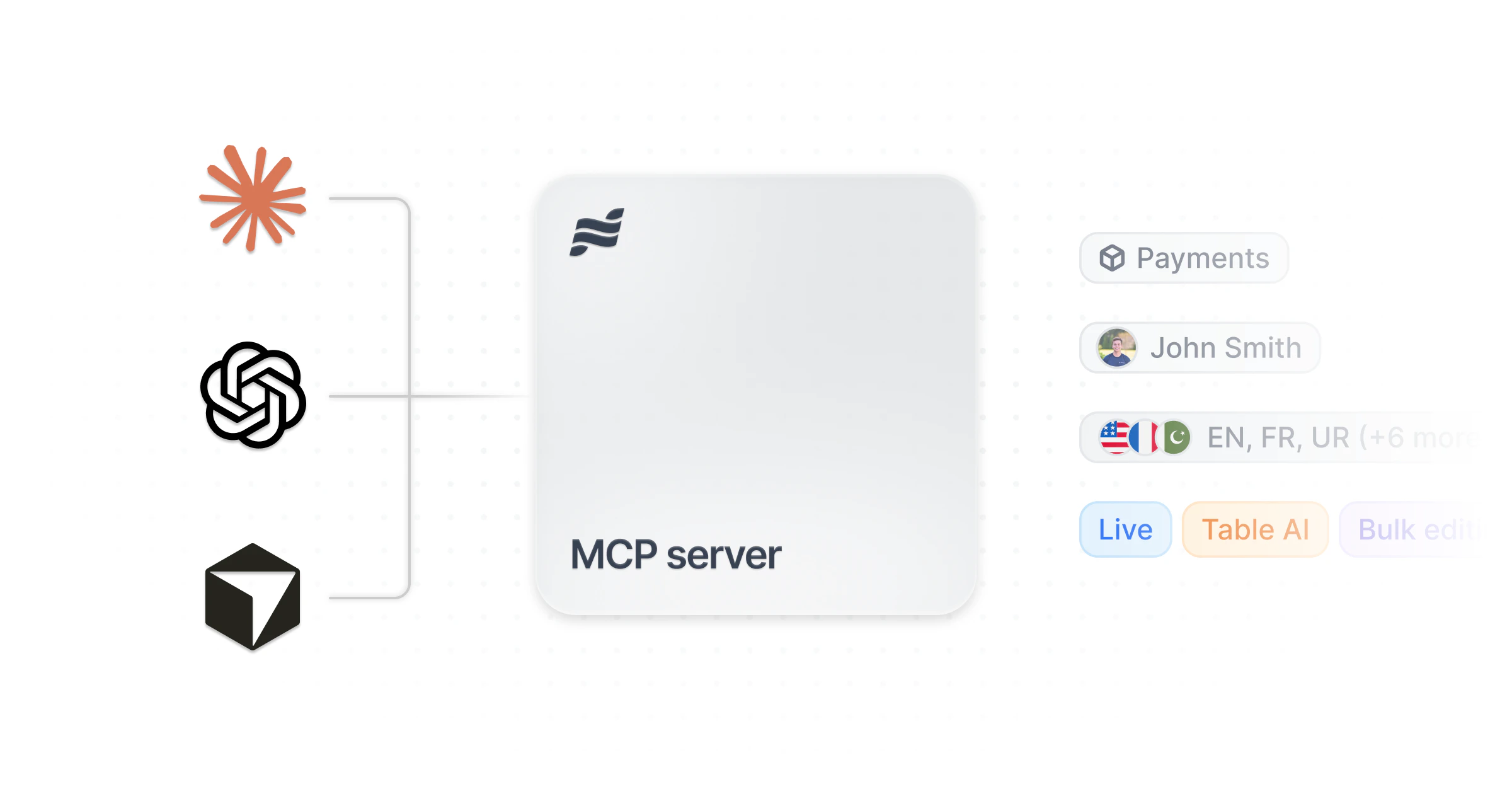
The Navattic MCP server gives AI coding agents (such as Claude Desktop, Cursor, VS Code Copilot, Windsurf, ChatGPT, and Codex) structured access to your workspace. Agents can read analytics, browse and build demos, manage Launchpad share links, and query personalization data, all scoped to your workspace.
The MCP server is available on the Startup plan and above.
How it works
The Navattic MCP server supports two authentication methods depending on your AI client:
- OAuth (Claude Desktop, Claude Code, ChatGPT, Gemini Enterprise): sign in to Navattic when prompted. No Personal Access Token required.
- Bearer token (Cursor, VS Code, Windsurf, Codex, IBM Bob, Microsoft Copilot Studio): create a Personal Access Token. Add it to your client’s config file.
All operations are scoped to your workspace. Agents cannot access data from other workspaces, even with a valid resource ID from another workspace.
Go to Settings > AI > MCP in your workspace to find your MCP server URL and the full
setup guide for every client in one place.
Step 1: Create a Personal Access Token (bearer token clients only)
If you’re using Cursor, VS Code, Windsurf, Codex, IBM Bob, or Microsoft Copilot Studio, you need a Personal Access Token. Skip this step if you’re using Claude Desktop, Claude Code, ChatGPT, or Gemini Enterprise.
Only workspace Admins can create Personal Access Tokens. Builders can view existing tokens in
Settings > Workspace > Access Tokens but cannot create or revoke them. Each workspace
supports up to 25 active tokens per user.
Go to MCP settings
Navigate to Settings > AI > MCP in your Navattic workspace.
Create a new token
Click Manage personal access tokens, then click Create token. Enter a name for the token (for example, “Cursor agent”).
Select scopes
Choose the scopes your agent needs. Each scope grants access to a specific set of tools:The Navattic Agents and Agent Environments scopes only appear in workspaces with Navattic Agents enabled. The Launchpad scope is only available in workspaces with Launchpad enabled and is only shown to users with the Launchpad app role.
Start with Analytics and Demo Browsing. These cover read-only operations. Add write scopes only if your agent needs to create or modify demos.
Set an expiration
Choose a token lifetime: 7, 30, 60, 90, or 180 days. Tokens expire automatically; you’ll need to create a new token when one expires.
Copy the token
After creating the token, copy it immediately. You won’t be able to see it again.Store your token securely. Anyone with the token can access your workspace within the granted scopes.
ChatGPT
Claude Desktop
Claude Code
Codex
Cursor
VS Code
Windsurf
IBM Bob
Gemini (Enterprise)
Microsoft Copilot Studio
ChatGPT uses OAuth, so no Personal Access Token is needed.Open ChatGPT settings
Open ChatGPT on the web → your profile → Settings → Connectors.
Enable developer mode
Open Advanced and enable Developer mode.
Create a connector
Go to Connectors → Create.
Add the Navattic MCP URL
Enter a name, choose OAuth, and paste the Navattic MCP URL: https://app.navattic.com/api/mcp.
Authorize
Click Create, then sign in to Navattic when prompted.
Claude Desktop uses OAuth, so no Personal Access Token is needed.Open Claude Desktop settings
In Claude Desktop, go to Settings → Connectors.
Add a custom connector
Click + Add custom connector.
Enter the Navattic MCP URL
Paste https://app.navattic.com/api/mcp and click Add.
Authorize the connection
Claude Desktop will open a Navattic authorization page. Sign in and grant access.
Alternative: edit the config file manually
If you prefer to configure Claude Desktop by editing the config file directly, add the following to ~/Library/Application Support/Claude/claude_desktop_config.json (macOS):Replace YOUR_TOKEN with the Personal Access Token you created in Step 1. Restart Claude Desktop after saving. Claude Code uses OAuth. Run this command in your terminal:Then run /mcp in your Claude Code session and select navattic to authenticate.Alternative: add to settings.json manually
Add to ~/.claude/settings.json:Replace YOUR_TOKEN with the Personal Access Token you created in Step 1. Add to ~/.codex/config.toml:Then set the environment variable in your shell (or add it to your shell profile):Replace your_token_here with the Personal Access Token you created in Step 1. Add to ~/.cursor/mcp.json:Replace YOUR_TOKEN with the Personal Access Token you created in Step 1. Add to your VS Code settings (the mcp section):Replace YOUR_TOKEN with the Personal Access Token you created in Step 1. Add to ~/.codeium/windsurf/mcp_config.json:Replace YOUR_TOKEN with the Personal Access Token you created in Step 1. Add to ~/.bob/mcp.json for a global config, or .bob/mcp.json in your project root for a project-specific config:Replace YOUR_TOKEN with the Personal Access Token you created in Step 1. You can configure MCP from the Bob settings menu under the MCP tab. Gemini for Google Workspace Enterprise uses OAuth, so no Personal Access Token is needed. Setup requires admin access to your Google Workspace account.Open Gemini Enterprise settings
In the Google Cloud Console, navigate to Gemini Enterprise → Data stores.
Create a data store
Click Create data store, then search for Custom MCP Server and select it.
Add the Navattic MCP URL
Enter a name for the connection and paste the Navattic MCP URL: https://app.navattic.com/api/mcp. Set the transport to StreamableHTTP.
Configure authentication
Under Authentication settings, select OAuth 2.0 and complete the authorization flow to connect your Navattic account.
Gemini Enterprise MCP integration requires a Google Workspace Enterprise plan with Gemini Enterprise add-on. Contact your Google Workspace admin if you do not have access.
Microsoft Copilot Studio supports connecting to MCP servers via its onboarding wizard.Open Copilot Studio
In Microsoft Copilot Studio, open your agent and navigate to Actions → Add an action → Connect an MCP server.
Fill in server details
Enter a name (for example, “Navattic”) and the Navattic MCP URL: https://app.navattic.com/api/mcp.
Add your token
In the API key field, enter your Personal Access Token.Enter only the raw token value. Do not include Bearer or any other prefix. Copilot Studio automatically sends the request as Authorization: Bearer <your-token>. Including the prefix yourself will cause authentication to fail.
Save and test
Click Save. The Navattic tools will appear in your agent’s action list.
What you can do
Once connected, your agent can perform actions based on the scopes granted to its Personal Access Token. The available capabilities depend on which scopes you selected when creating your token.
Analytics
View demo engagement metrics and visitor data. Ask your agent to surface views, session counts, and click-through rates across all active demos. It can also drill into individual visitors and company accounts, including session history, demos viewed, and firmographic details. Filter by demo, company, location, industry, employee count, and custom properties.
Demo browsing
Search and read your workspace library. Your agent can list all demos, find demos by name or keyword, and read flow step content. It can list a demo’s share links with their public URLs and check whether a demo has unpublished draft changes. It can also read the workspace’s product knowledge base and browse the captures available to anchor new or edited steps, including identifying which captures have editable web content.
Demo building
Create new demos, add new flows to an existing demo, and edit existing flows. When your workspace organizes demos into boards, the agent asks which board to add a new demo to. In those workspaces, every demo must be on at least one board. Agents can edit all aspects of a flow’s content:
- Steps: Add, remove, move, or update steps; change tooltip text, overlay style, and progress indicator behavior.
- Buttons: Change button labels, URLs, and click actions.
- Navigation and exit views: Update navigation behavior between steps and configure what viewers see at the end of a demo.
- Beacons and triggers: Add or update hotspot beacons and the click triggers that advance viewers through the flow.
- Media and voiceover: Swap out capture images or videos, and add or remove voiceover audio.
- Presenter settings: Update presenter notes and presenter mode configuration.
Edits are validated and applied atomically: if any action fails, nothing is saved.
You can also copy captures from one demo into another, and duplicate existing flows for reuse across demos.
Demo management
Rename demos and organize them with boards and labels.
Demo publishing
Publish demos, archive demos, and restore archived demos. Publishing makes any draft changes immediately visible to all visitors on the demo’s share links and embeds. Archiving takes the demo offline: its share links and embeds stop resolving until it is restored. Restoring an archived demo brings it back to active status. Restore fails if the workspace is already at its demo limit. Some workspaces restrict publishing to the demo’s creator or admins.
Personalization
List custom properties set up for visitor personalization.
Navattic Agents (Navattic Agents workspaces only)
View your Navattic Agents and session data. Your agent can list agents, retrieve agent details, and browse stages and topics. It can search and retrieve individual session records, summarize sessions by sentiment or outcome, and update conversation settings or qualification configuration on an existing agent.
Edits apply to the agent’s draft. Publishing an agent is only possible from the Navattic app. There is no publish tool available through MCP.
This scope also grants access to Brain asset management. The Brain is the knowledge base an agent draws on during conversations. Your agent can:
- List all Brain assets in the workspace or a specific agent’s brain, including each asset’s type (URL, file, or text), scope (workspace-wide or agent-specific), and abilities.
- Create a new URL, file, or text asset in the shared workspace brain or an individual agent’s brain.
- Update the content of an existing Brain asset.
- Set abilities on an asset: whether the agent can present it on screen, share it with a visitor, or retrieve answers from it. Turning off an ability that a conversation topic still uses surfaces an error naming the conflict.
- Move an asset between the shared workspace brain and an individual agent’s brain.
- Delete a Brain asset permanently.
Session filters in the session search tool (sentiment, outcome, duration, turn count, flag) apply
to the page selected by take, not the entire workspace. A narrow filter over a workspace with
many sessions needs a larger take value to avoid silently under-reporting results.
- Workspace overview: current demo count, member count, and plan type
- Navattic concepts: a reference guide to the Navattic data model (demos, flows, steps, share links)
- Flow editing guide: explains the read→edit loop, step and button locators, the entity_tag concurrency token, and how index positions shift after structural changes
When asking your agent to edit a flow, have it read the current flow document first to get the
step structure and a version token. Pass that version token when requesting edits. If the flow has
been changed since the read, the edit is rejected to prevent conflicts. After any structural
change (inserting, moving, or removing a step), step indices shift; re-read the flow before
sending the next batch. All edits in a batch apply atomically. If any action fails, nothing is
saved.
Suggested prompts
Copy any of these prompts into your AI agent to get started. Replace the placeholder text in brackets with your own values.
Analytics
- “Which of our demos has the highest engagement rate over the past 30 days?”
- “List the top 10 visitors by total time spent across all demos this month.”
- “Show me all visitors from [company name] who have viewed our demos.”
- “Which companies in the [industry] sector have engaged with our demos recently?”
- “How many unique visitors did [demo name] get last week, and what was the average session duration?”
Demo library
- “List all demos in the workspace and show how many flows each one has.”
- “Find all demos related to [product area or keyword].”
- “List all share links for [demo name] and show their public URLs.”
- “Does [demo name] have any unpublished changes?”
- “Publish [demo name] so the latest changes go live.”
- “List all archived demos in the workspace.”
- “Restore the archived demo [demo name] so its links are live again.”
Demo editing
- “Read the flow document for [flow name] in [demo name] and summarize what each step says.”
- “Update step 3 of [flow name] in [demo name] to say: [new text].”
- “Add a new step after step 5 in [flow name] with the title [title] and body text [body].”
- “Rename the demo [current name] to [new name].”
- “Create a new demo called [name].”
- “Duplicate the flow [flow name] in [demo name].”
- “Copy the captures from [source demo name] into [target demo name] so I can reuse them.”
Launchpad share links
- “Create a Launchpad share link for [first name] [last name] at [company] using the [interest flow name] interest flow.”
- “List all Launchpad share links created this week and show which recipients have viewed their demos.”
- “Find the Launchpad share link for [recipient name] and show me their engagement details.”
Brain management (Navattic Agents workspaces only)
- “List all Brain assets for [agent name] and show which ones are set to trainable.”
- “Add a new URL to the shared workspace brain: [URL].”
- “Turn off the trainable ability for the Brain asset [asset name].”
- “Move the Brain asset [asset name] from the shared workspace brain to [agent name]‘s brain.”
- “Delete the Brain asset [asset name] from [agent name]‘s brain.”
Personalization
- “List all custom properties configured in the workspace.”
Use cases
Analyze demo performance in your coding environment
Ask your AI agent questions about demo engagement and visitor behavior. For example: “Which of
our demos got the most engagement last quarter?”, “Who from Acme Corp has viewed our demos
recently?”, or “What companies are showing the most interest this month?” The agent uses the
analytics tools to query your workspace data and present results directly in your editor.
Build demos programmatically
Use your agent to create new demos and flows, duplicate existing flows, or copy captures between
demos. Describe the steps you want in natural language and let the agent structure and create
them for you. This is useful when building many similar demos, scaling a template across
multiple demos, or automating demo creation as part of a deployment workflow.
Ask the agent to list all demos and find specific demos by name or description. The agent has
access to your full workspace library, including flow structure and share links.
Automate demo maintenance
Use the agent to rename, archive, or restore demos as part of a release workflow. For example,
archive old version demos when a new version is deployed, or restore a demo that was
temporarily taken offline. The restore tool returns an error if the workspace is at its demo
limit, so the agent can surface that constraint before you act.
Manage Launchpad share links and track engagement (Launchpad)
Use the Launchpad capabilities to automate 1-1 share link creation and track which recipients
have visited their demos. For example, ask the agent: “List all share links sent to prospects
this week and show which ones have been viewed.” You can also ask the agent to find the right
interest flow for a prospect before generating a personalized link.
Use the Demo Building scope to read and update steps in an existing flow. The agent first reads
the current flow to understand the step structure, then applies a batch of ordered edits:
updating text, buttons, beacons, voiceover, and more. All edits in the batch apply atomically,
so a partial failure leaves the flow unchanged. After any structural change (inserting, moving,
or removing a step), the agent re-reads the flow because step indices shift. This approach makes
it straightforward to apply consistent changes across many steps or flows at once.
Managing tokens
You can view all active tokens from Settings > Workspace > Access Tokens. From there you can:
- See each token’s name, scopes, creation date, and expiration
- Revoke a token at any time; revocation takes effect immediately
When a token expires or is revoked, any agent using it will receive authentication errors until you update its configuration with a new token.
Frequently asked questions
Can I create multiple tokens for different agents?
Yes. Create a separate token for each agent or environment, and name them to make revocation
easier. For example, “Cursor - local dev” or “VS Code - production”.
Is there a limit to how many tokens I can have?
Yes. Each user can have up to 25 active (non-expired, non-revoked) tokens per workspace. If you
reach the limit, revoke unused tokens from Settings > Workspace > Access Tokens
before creating new ones.
What happens if my token is compromised?
Revoke the token immediately from Settings > Workspace > Access Tokens. Then create
a new token and update your agent configuration. The revoked token stops working as soon as you
revoke it.
Who can create Personal Access Tokens?
Only workspace Admins can create Personal Access Tokens. Builders have view-only access to the
tokens list and cannot create or revoke tokens. Viewer and Launchpad Rep roles cannot access the
tokens settings at all.
Can a Viewer-role user create a token with write scopes?
No. The scope picker automatically disables write scopes (Demo Building, Demo Management, Demo
Publishing) for users with Viewer-only roles.
Does the agent see all my workspace data?
The agent can only access data within the scopes you selected when creating the token. All data
is also restricted to your workspace. The agent cannot access data from other workspaces.
Why don't I see the Launchpad scope when creating a token?
The Launchpad scope is only available to workspaces with Launchpad enabled and only shown to
users with the Launchpad app role. If you don’t see it, confirm your workspace has Launchpad and
that your account has the Launchpad role. Contact your workspace admin if you need access.
Do I need a Personal Access Token for Claude Desktop or Claude Code?
No. Claude Desktop, Claude Code, ChatGPT, and Gemini Enterprise authenticate via OAuth. You
simply sign in to Navattic when prompted. Personal Access Tokens are only needed for Cursor, VS
Code, Windsurf, Codex, IBM Bob, and Microsoft Copilot Studio.
Can I use an MCP client that isn't listed above?
Yes. MCP is an open, standardized protocol, so any MCP-compatible client can connect to the
Navattic MCP server, even if it isn’t listed on this page or in-app. The clients listed above
are the ones Navattic has directly tested and accepts support requests for. They are not an
exhaustive allowlist.