This glossary covers the core terms and concepts you’ll encounter while using Navattic.

Core concepts

Your Navattic workspace is the central hub for organizing product demos, analytics, visitors, and team members. Each workspace has a unique URL following the format app.navattic.com/your-company.
A product demo is an interactive demonstration that you can share as a direct link or embed on a webpage. Each demo consolidates all flows, checklists, and capture collections needed for a single demo experience.
An AI-powered feature that automatically generates demo flows from captures you take. When enabled, Navattic intelligently arranges and sets up your demo content.
An AI-powered voice agent that can walk prospects through your product in real-time. Agent demos combine voice conversation, live browser control, and personalized guidance to present your application interactively.

Building demos

Navattic supports two types of captures:
  • Web captures are interactive copies of your application that form the foundation of your demo
  • Media captures include static screenshots, videos, or GIFs
A capture collection is a group of captures used to build a demo. Once created, capture collections can be reused across multiple demos or flows. Web captures and media captures can exist in the same collection.
The capture editor lets you make no-code adjustments to HTML-based captures. You can open the editor in three ways:
  1. From a capture collection, click any capture and select Edit
  2. From a capture collection, select the three dots and click Edit capture
  3. From the flow builder, click any capture in a step and select Edit
A capture method that automatically creates new captures each time you click an element. Best used for demos that primarily use tooltips, beacons, or triggers, as it saves time by avoiding manual navigation between steps.
A flow is what a product demo is composed of. Flows are interactive step-by-step demonstrations that users navigate at their own pace. They typically combine captures with dialog boxes to create a narrative that showcases your product.
The flow builder is where you create and update your flows. Access it by going to any demo, then Build > Flows > click the flow you want to edit.
A feature that lets you apply edits across multiple steps at once. Use it to update beacons, convert modals to tooltips, delete multiple items, or copy and move steps between flows or demos.
If you’re building a longer demo (15+ steps) or demoing multiple solutions, split it into multiple flows. A checklist lets viewers choose which flow to engage with.

Demo types

A product or feature category that visitors can select to explore in a demo. Interest area demos are designed for marketing sites where visitors choose which features to see, capturing what topics resonate most with your audience.
A rating that captures how interested a prospect is in specific features (e.g., high, medium, low). Interest level demos are designed for sales use cases where reps need to understand buyer intent and prioritize follow-up conversations.
A lightweight interactive demo that allows clicking elements to navigate different parts of an application. Designed for presenter-led scenarios rather than public sharing, sandbox demos provide a more exploratory experience.

Step types

A tooltip is a small dialog box that anchors to a specific onscreen element. Clicking the selected element automatically advances users to the next step. Tooltips can be positioned above, below, left, or right of the selected element and can include a backdrop to highlight the target.
An invisible step has no dialog boxes present. These are combined with triggers or beacons to support live presentation and sales enablement use cases, but are rarely used for marketing demos.
Demos with invisible steps are not recommended for sharing directly with viewers as they provide a mostly unguided experience.
A form step is the quickest way to collect visitor information such as name and email during your demo. Forms can be placed on any step and include checkboxes and custom text fields.
An embed step lets you embed third-party content directly in your demo:
  • Calendar tools: Embed Calendly or ChiliPiper to let visitors schedule appointments without leaving your demo
  • Forms: Embed Marketo or HubSpot forms directly into your demo
A video step displays a video with text below it. Upload videos from your device or link from YouTube, Vimeo, Loom, Wistia, or Vidyard.

Flow features

A pulsing indicator that draws attention to a specific element on the screen. Beacons can be customized in themes and are commonly used in invisible steps to guide viewers without modal or tooltip prompts.
An interactive hotspot that advances the demo when clicked. Triggers can be placed on capture elements to create a more exploratory, self-guided demo experience.
A darkened overlay that appears behind tooltips and modals to highlight the focused area. Backdrops help direct viewer attention to the relevant part of the screen.
Escape view gives users direct access to a CTA at any point in your demo. When a user clicks the “X” on a modal or tooltip, they’re taken to the escape view modal.
Presenter mode lets you control the visibility of modals and tooltips when presenting an interactive demo. When enabled, dialog boxes can be hidden or shown using the keyboard shortcut Ctrl + P.To enable, go to Flow settings and toggle on Presenter mode.
Talking points added to individual demo steps that are visible only to the presenter during live presentations. Presenter notes help maintain consistency and keep presenters on message.
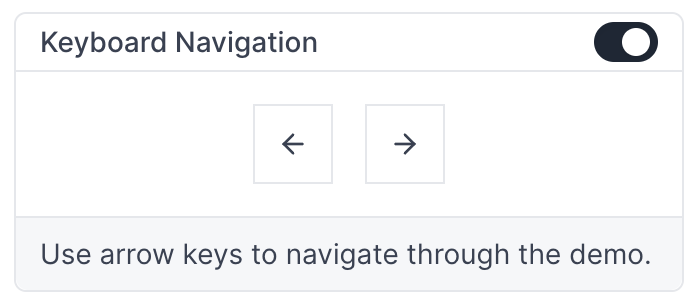
Keyboard navigation lets you progress through your demo using arrow keys. When combined with presenter mode, it gives presenters greater control over live demonstrations.To enable, go to Flow settings and toggle on Keyboard navigation.Keyboard navigation settings

Personalization

A placeholder that dynamically inserts visitor-specific information (like name, company, or custom properties) into demo content. Variables are formatted as {{property_name}}.
Default text displayed when a personalization variable has no data for a specific visitor. Ensures demos display properly even without complete visitor information.

Responsive options

Shrinks or expands the capture proportionally to the width of the viewer’s viewport. This is a good option for embedding demos in smaller iframes or when you expect viewing on various devices.
Shrinks or expands the capture proportionally to fit the viewer’s entire viewport.
The default setting for new demos. Applies your application’s default styles for different viewports, providing the most realistic look and feel. Recommended when sharing a demo link directly with viewers.
Presents captures at their original dimensions, regardless of the viewer’s viewport. Visitors scroll if there is overflow.

Mobile options

Mobile options control how your demo appears on devices smaller than 800px wide, including most smartphones and smaller tablets.
A short, visual experience that mobile visitors can swipe through. This is the recommended mobile option.
Displays a customizable alert for mobile visitors.
Shows the capture on top of any dialog while maintaining the proportions of your original app.

Sharing demos

Preview lets you view recent edits without collecting analytics data. Use preview links for internal review before sharing demos with your audience.
Publishing generates your demo share link and website embed code. Once published, your demo begins gathering viewer data that can be sent to other platforms via integrations.
Demos can be added as an embedded iframe within a webpage. Embed options include:
  • Inline embed: Scales to the size of its parent element
  • Full page embed: Takes up the full height and width of the screen
  • Pop up: Opens a Navattic pop up to reveal the demo
An overlay that appears over an embedded demo to improve page load times. The overlay displays a background image and CTA, requiring viewers to click before the full demo loads.
A security feature that requires viewers to enter a password before accessing a demo share link. Useful for restricting access to sensitive or confidential demo content.
A setting that automatically disables a share link after a specified date. Useful for time-sensitive demos or ensuring outdated content isn’t accessed.

Tracking and integrations

Tracking scripts send demo engagement data to other platforms. Commonly used to record page views on existing HubSpot or Marketo contacts for sales or marketing reports. Unlike direct integrations, visitor identification occurs outside of Navattic.
Direct integrations pass engagement, visitor, and account data from Navattic to other tools. This lets you view and report on Navattic data in platforms you already use to track demo ROI and guide outreach. See integrations to learn more.
A feature that reveals companies and firmographic information of visitors who engage with demos, even without form submissions. Uses Clearbit data to identify accounts—no separate Clearbit license required.
A field of information stored on a visitor or account record. Properties are captured through forms, integrations, or JavaScript identification and can be used for personalization and reporting.
A Navattic JS feature that automatically captures page query parameters (like UTM parameters) from the parent page as visitor attributes for attribution tracking.
A Navattic JS setting that automatically captures visitor information from external forms embedded outside of Navattic demos.
An automated workflow that sends visitor or account data to integrations when specific conditions are met. Playbooks can trigger on session close, form submission, or other engagement events.
An individual execution of a playbook action triggered when a matching visitor or account session is detected. Runs are logged for monitoring and troubleshooting.
A feature that retroactively executes a playbook to send past visitor and account data to integrations. Useful when setting up new integrations or recovering from sync issues.

Analytics

The total number of visitors to step 1 of your demo.
Unique visitors who advance 1+ steps in your demo or manually click on a checklist.
The total number of visitor engagements with a CTA in your demo.
The percentage of engaged visitors who click a CTA during your demo.
The percentage of engaged visitors who reach the final step of a demo or flow. Helps measure how effectively demos hold viewer attention.
The point in a demo where viewers stop progressing. Analyzing drop-off patterns helps identify steps that may need improvement or where viewers lose interest.
How long the average user spends on a browser tab containing your demo.
The total number of demo steps viewed across your workspace.
A feature that splits traffic between two demo variations to determine which performs better. Helps optimize demos based on actual viewer engagement data.
A dashboard that shows how demos influence pipeline creation and revenue by connecting engagement data to CRM opportunities and business outcomes.
An event indicating a visitor navigated to an external URL or clicked a CTA that redirected them outside the demo. Used to track when viewers take desired actions.

Visitors and accounts

Anyone who has engaged with your demos. Identified visitors include their name and email; anonymous visitors are assigned a unique ID tied to their browser profile.
Visitors who advance 1+ steps in your demo or manually click on a checklist.
Visitors who have completed a step tagged “Mark as converted.”
Visitors who have been identified by filling out a form, clicking a unique share link, query strings, or JavaScript. Identified visitors typically include a name and email.
A company identified through demo engagement. Navattic uses Clearbit data to reveal visitors’ company and firmographic information—no separate Clearbit license required. Each account includes an engagement rating based on actions taken, unique visitors, time spent, and more.
A saved filter within Visitors or Accounts. You can search by saved audiences and use them in playbooks.

Workspace organization

Themes let you customize demos with your company brand. Navattic includes Light and Dark themes by default. You can duplicate existing themes or create new ones. Themes control fonts, colors, button styles, beacons, progress bars, and more.
Boards organize product demos in your workspace. Add demos to boards to help team members find relevant content.
Labels categorize individual demos with tags. You can filter product demos by labels.
Teams manage access to workspace assets. Workspace admins can add members to different teams, each with access to assigned boards. Teams include managers and members—managers can add more members to their team.
Every time you publish a demo, a new version is created. Visit Versions to restore a previous version of your demo.

Workspace settings

Default settings applied to new demos, including language, responsive strategy, app URL, theme, and checklist layout.
Default settings for flows, including step appearance, backdrop, beacon, navigation buttons, and more.
Serve your Navattic demos from a domain of your choice, like demo.yourcompany.com. See custom domains for setup instructions.
Download demos locally to present without an internet connection. Useful for trade shows and conferences.
A dedicated portal for sales teams to access and share product demos and view analytics. See Launchpad for more details.
A centralized collection of approved demos available to sales team members in Launchpad. Admins can organize demos by category and control which teams have access.
Exclude certain domains (including internal users) from Visitors, Accounts, and Analytics to declutter workspace reporting.

User roles

RoleCreate & edit demosView & share demosInvite teammatesUpdate billing
AdminYesYesYesYes
BuilderYesYesNoNo
ViewerNoYesNoNo
BillingNoNoNoYes