

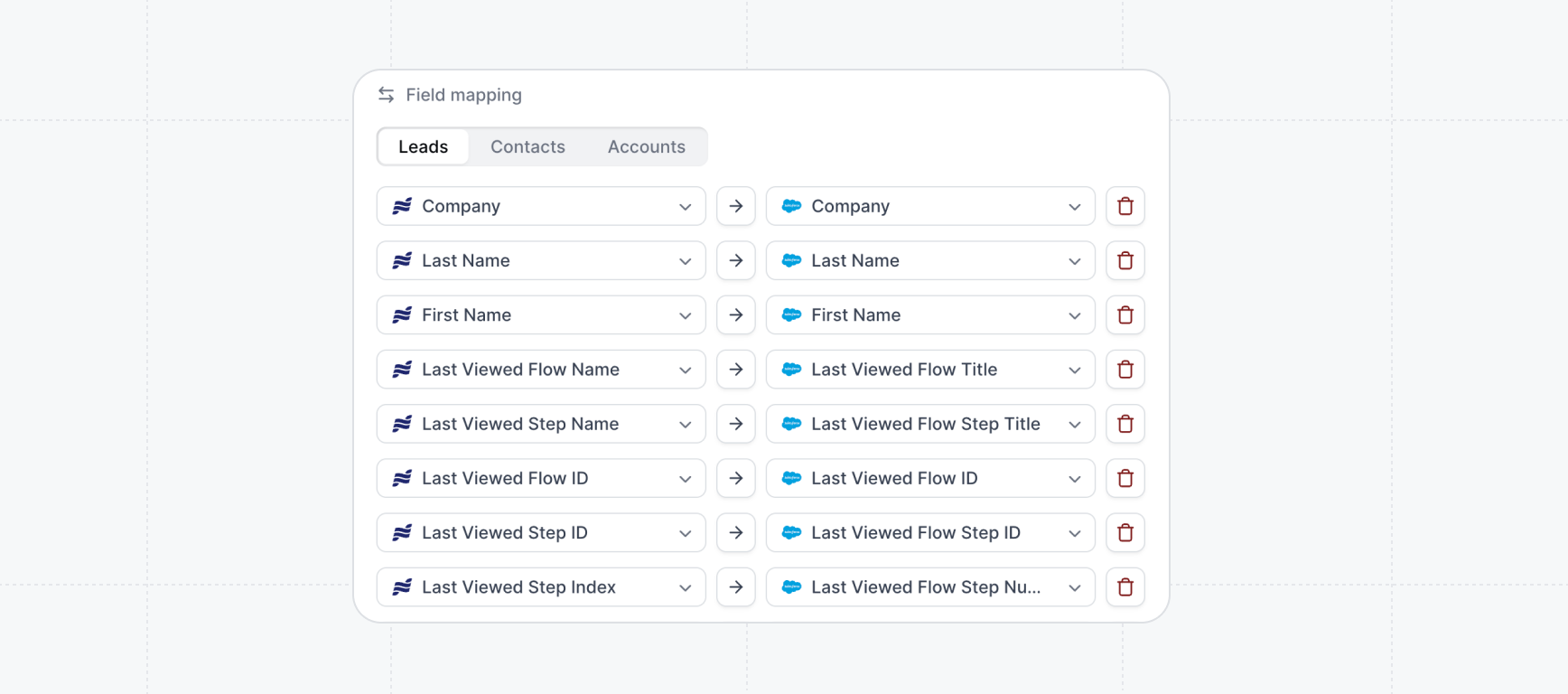
How to configure field mappings
Field mappings are configured directly within each integration’s settings:- Navigate to Integrations in your Navattic workspace
- Select your connected CRM integration
- Click the Settings tab
- Select Field Mapping from the dropdown menu
Default field mappings
Default field mappings are the default properties that come mapped to standard CRM fields when you connect an integration. For the full list, see Default properties.Map custom properties
You can map any property to a CRM field.- Create the property in Settings > Properties. See Custom properties.
- Open the field mapping settings for your integration.
- Map the property to the matching CRM field.
Best practices for field mappings
- Keep field names consistent between Navattic and your CRM
- Test form mappings with sample submissions
- Consider required vs. optional fields in both systems
Next steps
For integration-specific setup details, see:
HubSpot
Sync engagement data with HubSpot Contacts, and Companies.

Salesforce
Sync engagement data to Salesforce Leads, Contact, and Accounts.

Marketo
Sync engagement data with Marketo programs.
Pardot
Sync engagement data with Pardot leads, accounts, dashboards, and workflows.