> ## Documentation Index
> Fetch the complete documentation index at: https://docs.navattic.com/llms.txt
> Use this file to discover all available pages before exploring further.
# Workspace captures
> Share capture collections across multiple demos from a central workspace library.
Workspace captures are available on the **Base** plan and above.
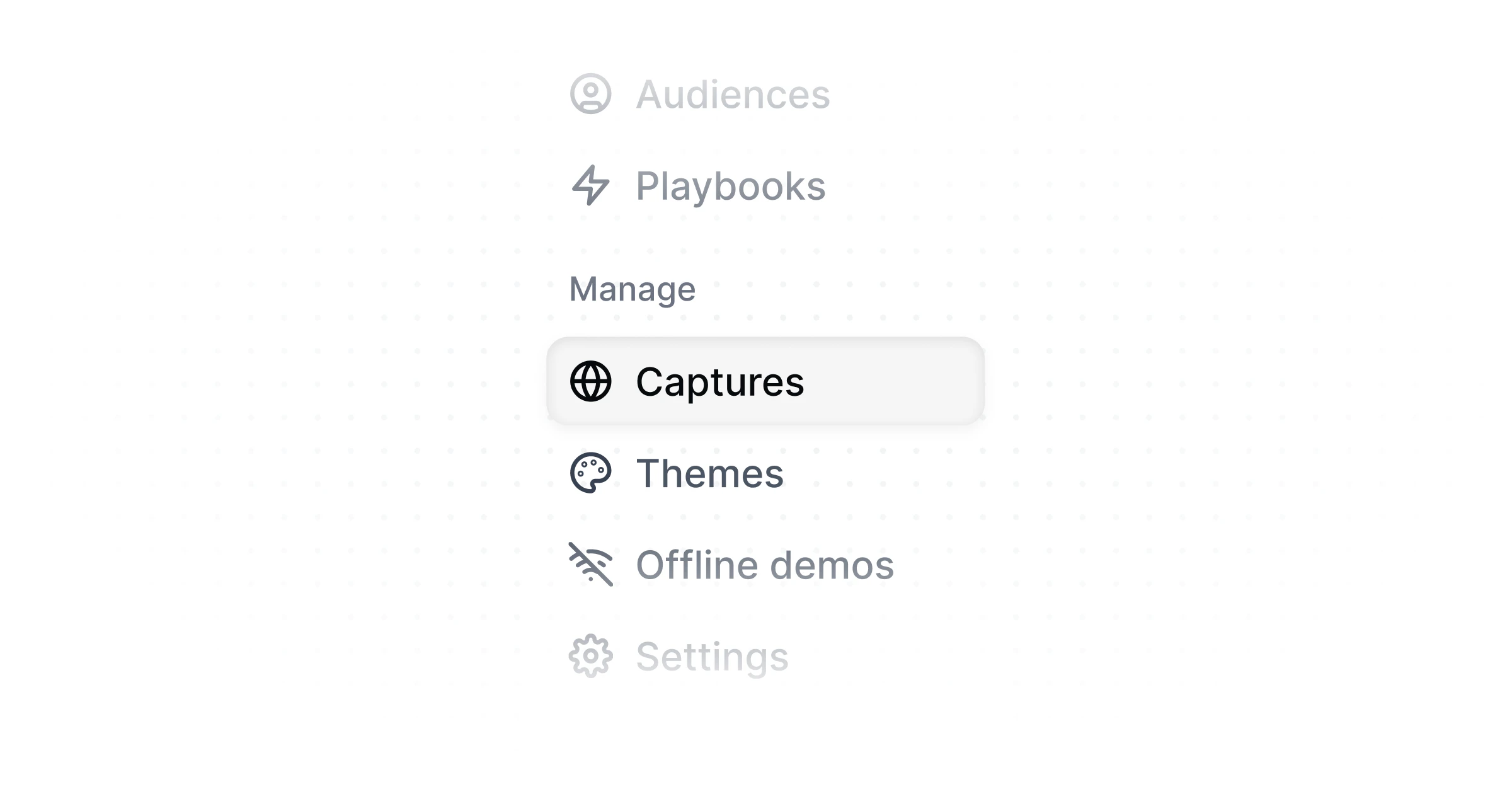 Workspace captures let you maintain a single library of capture collections that can be reused across multiple demos. Instead of recreating the same screens in each demo, you promote a collection to the workspace level once and link it wherever you need it.
## The workspace captures page
Navigate to **Workspace Captures** in the main sidebar to see all capture collections that have been promoted to the workspace level. From here you can:
* Browse and search your shared capture library
* Add new captures to an existing workspace collection
* Promote project-scoped collections to the workspace
* See which demos each collection is linked to
## Collection types
Capture collections exist at two scopes, indicated by icons in the captures list:
| Icon | Type | Scope |
| ----------------------------- | ---------------------------- | ---------------------------- |
| Globe | Workspace capture collection | Shared across multiple demos |
| Folder | Project capture collection | Scoped to a single demo |
A workspace capture collection (globe icon) can be linked to any number of demos. A project capture collection (folder icon) belongs to one demo only.
## Promoting a collection to the workspace
Promoting a collection moves it from a single demo to your shared workspace library, where it can be linked to other demos.
Navigate to the demo that contains the collection you want to share. Open the **Captures** tab.
Find the collection and click the three-dot menu next to it.
Choose **Promote to workspace** from the menu. The collection is moved to the workspace library and its icon changes from a folder to a globe.
After promoting, the collection remains linked to the original demo. Any edits to the collection will now affect all demos it is linked to.
## Linking a workspace collection to a demo
Once a collection is in the workspace library, you can add it to any demo from that demo's Captures tab.
Navigate to the demo you want to add the collection to and open the **Captures** tab.
Click **Add collection** and choose **Add from workspace**. Select the workspace collection you want to link.
## Unlinking a collection from a demo
Unlinking removes the shared collection from a specific demo and replaces it with a local copy. The workspace collection itself is not affected, and other demos that use it are unchanged.
In the demo's Captures tab, click the three-dot menu on the workspace collection (globe icon) you want to unlink.
Choose **Unlink** from the menu. A local copy of the collection is created for this demo, and the demo is no longer connected to the workspace version.
After unlinking, changes to the workspace collection no longer apply to this demo. If you want to keep the demo in sync with updates, link it back to the workspace collection instead of unlinking.
## Editing a shared capture
When you open a capture that belongs to a workspace collection, a banner appears at the top of the editor:
> **Edits to this capture will affect \[N] demos across your workspace.**
The banner shows how many demos are currently using the collection. You can dismiss it by clicking **Dismiss**.
This warning is a reminder that any change you save—editing a tooltip, removing a step, updating a highlight—will appear in every demo linked to that workspace collection. If you only want to change one demo, [unlink the collection](#unlinking-a-collection-from-a-demo) first to create a local copy.
Workspace captures let you maintain a single library of capture collections that can be reused across multiple demos. Instead of recreating the same screens in each demo, you promote a collection to the workspace level once and link it wherever you need it.
## The workspace captures page
Navigate to **Workspace Captures** in the main sidebar to see all capture collections that have been promoted to the workspace level. From here you can:
* Browse and search your shared capture library
* Add new captures to an existing workspace collection
* Promote project-scoped collections to the workspace
* See which demos each collection is linked to
## Collection types
Capture collections exist at two scopes, indicated by icons in the captures list:
| Icon | Type | Scope |
| ----------------------------- | ---------------------------- | ---------------------------- |
| Globe | Workspace capture collection | Shared across multiple demos |
| Folder | Project capture collection | Scoped to a single demo |
A workspace capture collection (globe icon) can be linked to any number of demos. A project capture collection (folder icon) belongs to one demo only.
## Promoting a collection to the workspace
Promoting a collection moves it from a single demo to your shared workspace library, where it can be linked to other demos.
Navigate to the demo that contains the collection you want to share. Open the **Captures** tab.
Find the collection and click the three-dot menu next to it.
Choose **Promote to workspace** from the menu. The collection is moved to the workspace library and its icon changes from a folder to a globe.
After promoting, the collection remains linked to the original demo. Any edits to the collection will now affect all demos it is linked to.
## Linking a workspace collection to a demo
Once a collection is in the workspace library, you can add it to any demo from that demo's Captures tab.
Navigate to the demo you want to add the collection to and open the **Captures** tab.
Click **Add collection** and choose **Add from workspace**. Select the workspace collection you want to link.
## Unlinking a collection from a demo
Unlinking removes the shared collection from a specific demo and replaces it with a local copy. The workspace collection itself is not affected, and other demos that use it are unchanged.
In the demo's Captures tab, click the three-dot menu on the workspace collection (globe icon) you want to unlink.
Choose **Unlink** from the menu. A local copy of the collection is created for this demo, and the demo is no longer connected to the workspace version.
After unlinking, changes to the workspace collection no longer apply to this demo. If you want to keep the demo in sync with updates, link it back to the workspace collection instead of unlinking.
## Editing a shared capture
When you open a capture that belongs to a workspace collection, a banner appears at the top of the editor:
> **Edits to this capture will affect \[N] demos across your workspace.**
The banner shows how many demos are currently using the collection. You can dismiss it by clicking **Dismiss**.
This warning is a reminder that any change you save—editing a tooltip, removing a step, updating a highlight—will appear in every demo linked to that workspace collection. If you only want to change one demo, [unlink the collection](#unlinking-a-collection-from-a-demo) first to create a local copy.