> ## Documentation Index
> Fetch the complete documentation index at: https://docs.navattic.com/llms.txt
> Use this file to discover all available pages before exploring further.
# Inviting members
> Invite members to your workspace and manage their access.
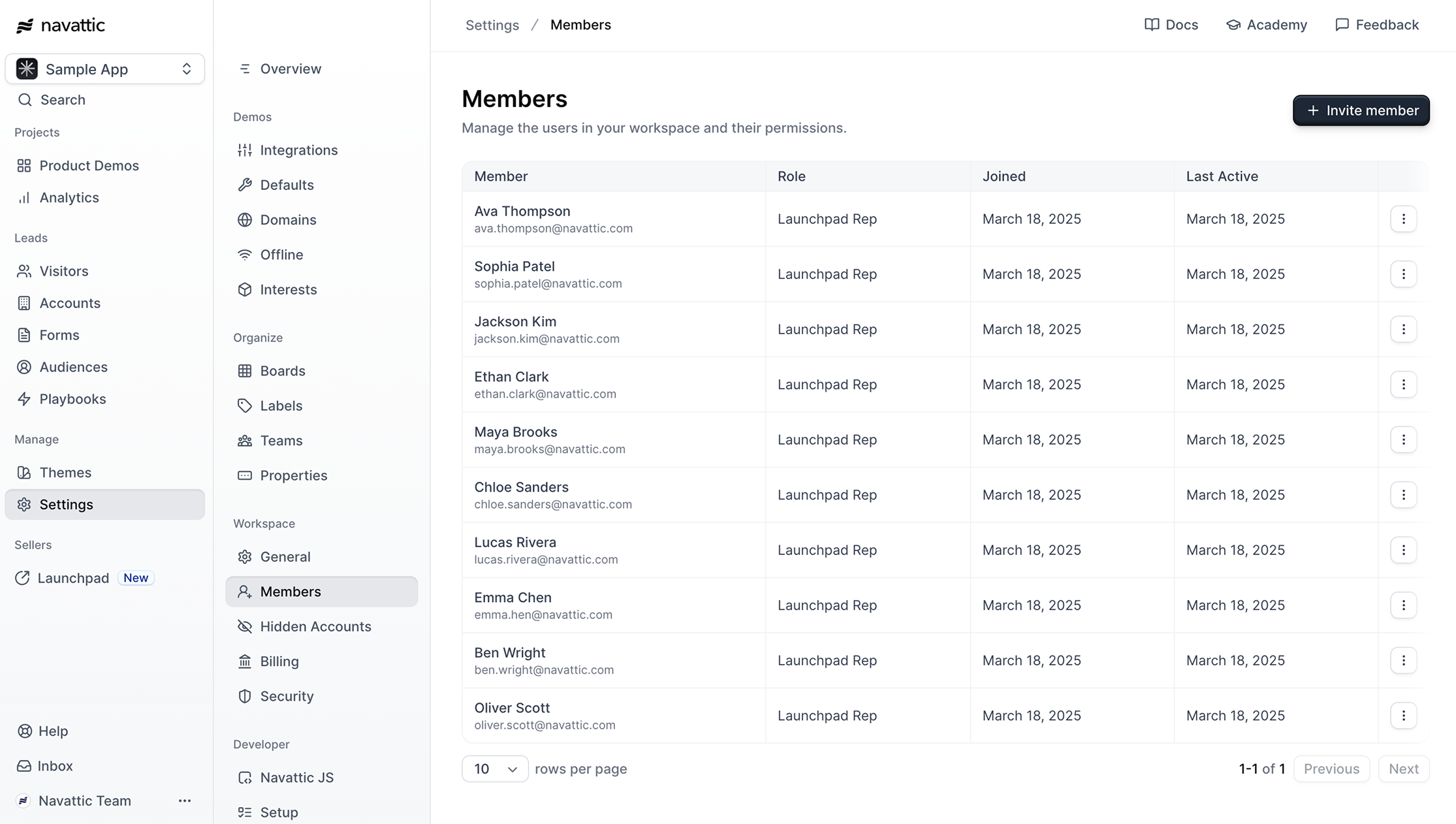 You've set up your workspace for your team -- **Congratulations**! Now it's time to invite your sales team.
## Invite members
To invite a new colleague to your workspace:
1. Navigate to your workspace **Settings** and select **Members**.
2. Click the **Invite member** button.
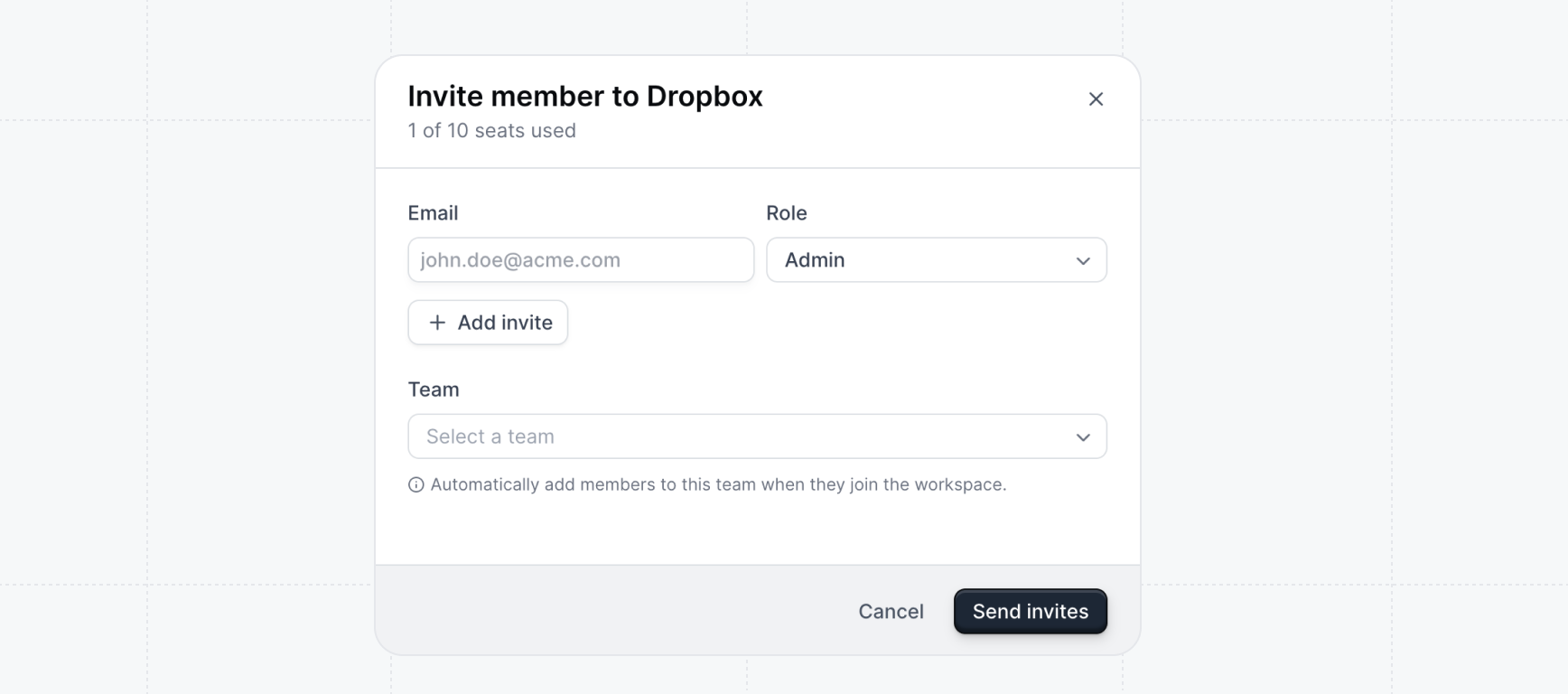
3. Enter the new member's **Email** and select their **Role** (e.g., Admin, Builder, Viewer, or Launchpad Rep).
4. Choose their **Platform** access. You can grant access to **Interactive Demos** (for building and editing demos), **Launchpad**, or both.
5. Click **Add invite** to invite more users at once, then click **Send invites**.
*Note: Shared email accounts (like hello@ or team@) are not permitted.*
You've set up your workspace for your team -- **Congratulations**! Now it's time to invite your sales team.
## Invite members
To invite a new colleague to your workspace:
1. Navigate to your workspace **Settings** and select **Members**.
2. Click the **Invite member** button.
3. Enter the new member's **Email** and select their **Role** (e.g., Admin, Builder, Viewer, or Launchpad Rep).
4. Choose their **Platform** access. You can grant access to **Interactive Demos** (for building and editing demos), **Launchpad**, or both.
5. Click **Add invite** to invite more users at once, then click **Send invites**.
*Note: Shared email accounts (like hello@ or team@) are not permitted.*
 ### Bulk invite users
If you are onboarding a large team, you can invite multiple users at once using a CSV upload:
1. On the Members page, click the dropdown arrow next to the "Invite member" button and select **Bulk invite users**.
### Bulk invite users
If you are onboarding a large team, you can invite multiple users at once using a CSV upload:
1. On the Members page, click the dropdown arrow next to the "Invite member" button and select **Bulk invite users**.
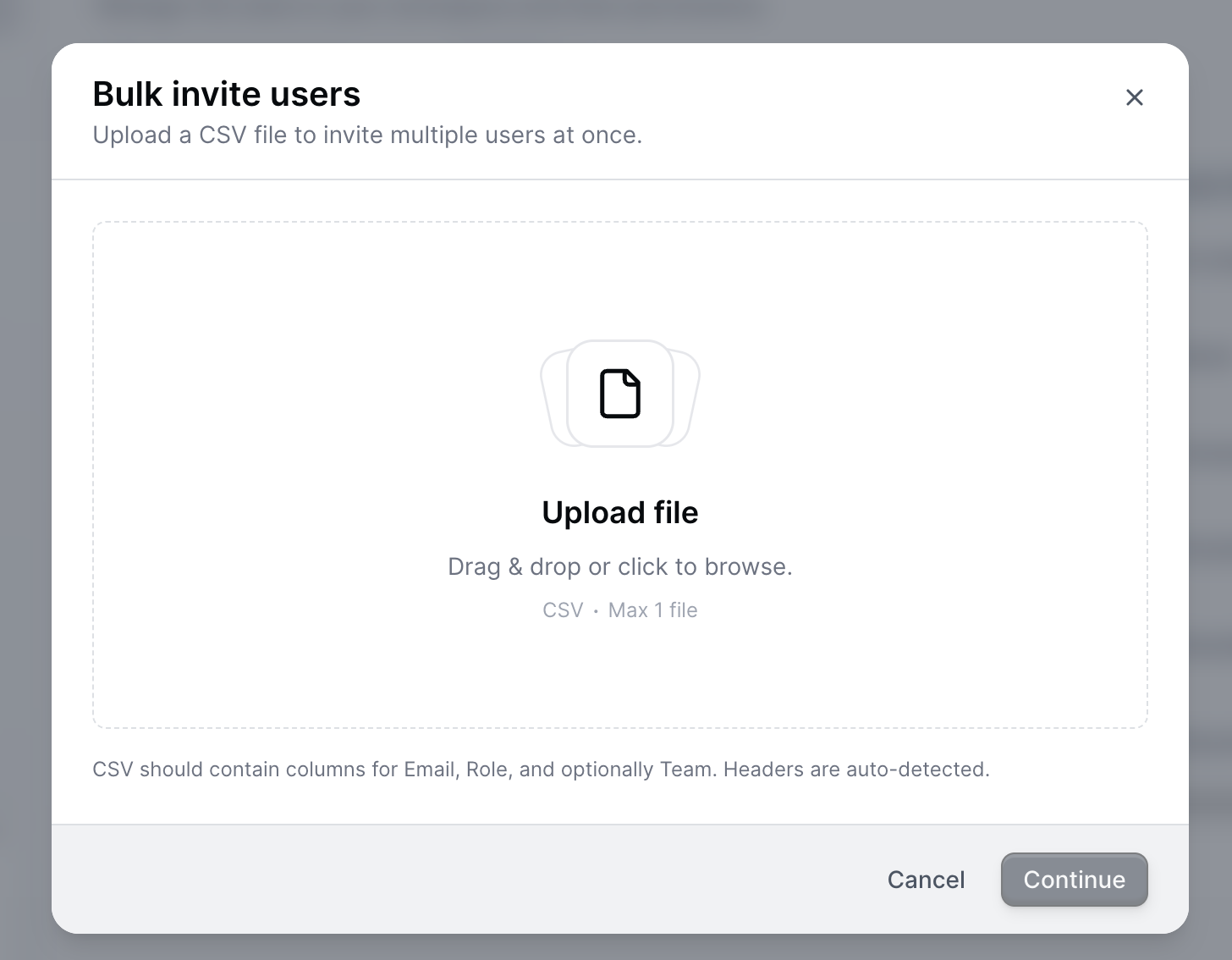
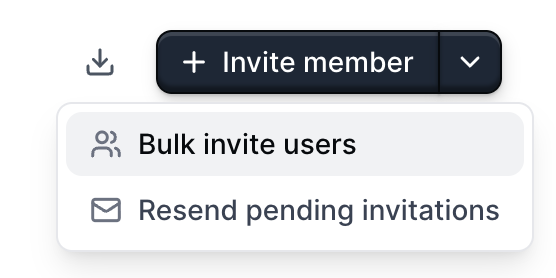 2. Upload a CSV file that includes columns for **Email**, **Role**, and optionally **Team**.
 3. The system will automatically attempt to map your CSV columns. You can manually adjust them if needed.
4. Review the mapped users. The platform will flag any duplicate emails, invalid roles, or missing teams so you can correct them before proceeding.
5. Click **Invite users** to send the invitations in the background.
### Resend pending invitations
If you have members who haven't accepted their invitation yet, you can easily resend them:
1. On the Members page, click the dropdown arrow next to the "Invite member" button.
2. Select **Resend pending invitations**.
3. Confirm the action.
This will send a new invitation email to all pending members. Each new link will automatically refresh to be valid for 7 days.
## Roles
Select the appropriate role for each member based on their responsibilities and access requirements.
**Admin** — Full workspace access. Admins can create and edit demos, manage workspace settings, invite and remove members, configure integrations, manage billing, and access all analytics. Use this role for team leads and workspace owners.
**Builder** — Build and publish demos. Builders can create, edit, and publish demos, manage captures, and customize themes. They have view-only access to analytics, integrations, billing, and API keys. Builders cannot invite members or update workspace settings. Use this role for anyone who creates or maintains demos.
**Viewer** — View and share demos. Viewers can browse the demo library and share demos with others, but cannot build or edit demos. Use this role for stakeholders who need visibility without editing access.
**Launchpad Rep** — Access demos through Launchpad only. Launchpad Reps can view and share demos from their Launchpad, but cannot access the demo builder or workspace settings. Use this role for sales reps and other external-facing team members.
## Permissions matrix
| Permission | Admin | Builder | Viewer | Launchpad Rep |
| ------------------------- | :------: | :------: | :------: | :---------------: |
| Create and edit demos | ✓ | ✓ | | |
| View and share demos | ✓ | ✓ | ✓ | ✓ (via Launchpad) |
| Manage captures | ✓ | ✓ | | |
| Customize demo themes | ✓ | ✓ | | |
| View analytics | ✓ | ✓ | | |
| Manage analytics settings | ✓ | | | |
| View integrations | ✓ | ✓ | | |
| Manage integrations | ✓ | | | |
| View API keys | ✓ | ✓ | | |
| Manage API keys | ✓ | | | |
| Add labels | ✓ | | | |
| Create and manage boards | ✓ | | | |
| Invite and manage members | ✓ | | | |
| Update workspace settings | ✓ | | | |
| View billing | ✓ | ✓ | | |
| Manage billing | ✓ | | | |
| Configure SSO | ✓ | | | |
| Access Launchpad | Optional | Optional | Optional | ✓ |
Launchpad access is available to all roles but is required for the Launchpad Rep role. When inviting a member, enable **Launchpad** under Platform access to grant it alongside any role.
## Setting up Directory Sync
Rolling out Navattic to a larger teams? Use directory sync to automate the provisioning and deprovisioning of users.
Automatically provision users and configure their roles using your organization's identity provider, such as Okta.
3. The system will automatically attempt to map your CSV columns. You can manually adjust them if needed.
4. Review the mapped users. The platform will flag any duplicate emails, invalid roles, or missing teams so you can correct them before proceeding.
5. Click **Invite users** to send the invitations in the background.
### Resend pending invitations
If you have members who haven't accepted their invitation yet, you can easily resend them:
1. On the Members page, click the dropdown arrow next to the "Invite member" button.
2. Select **Resend pending invitations**.
3. Confirm the action.
This will send a new invitation email to all pending members. Each new link will automatically refresh to be valid for 7 days.
## Roles
Select the appropriate role for each member based on their responsibilities and access requirements.
**Admin** — Full workspace access. Admins can create and edit demos, manage workspace settings, invite and remove members, configure integrations, manage billing, and access all analytics. Use this role for team leads and workspace owners.
**Builder** — Build and publish demos. Builders can create, edit, and publish demos, manage captures, and customize themes. They have view-only access to analytics, integrations, billing, and API keys. Builders cannot invite members or update workspace settings. Use this role for anyone who creates or maintains demos.
**Viewer** — View and share demos. Viewers can browse the demo library and share demos with others, but cannot build or edit demos. Use this role for stakeholders who need visibility without editing access.
**Launchpad Rep** — Access demos through Launchpad only. Launchpad Reps can view and share demos from their Launchpad, but cannot access the demo builder or workspace settings. Use this role for sales reps and other external-facing team members.
## Permissions matrix
| Permission | Admin | Builder | Viewer | Launchpad Rep |
| ------------------------- | :------: | :------: | :------: | :---------------: |
| Create and edit demos | ✓ | ✓ | | |
| View and share demos | ✓ | ✓ | ✓ | ✓ (via Launchpad) |
| Manage captures | ✓ | ✓ | | |
| Customize demo themes | ✓ | ✓ | | |
| View analytics | ✓ | ✓ | | |
| Manage analytics settings | ✓ | | | |
| View integrations | ✓ | ✓ | | |
| Manage integrations | ✓ | | | |
| View API keys | ✓ | ✓ | | |
| Manage API keys | ✓ | | | |
| Add labels | ✓ | | | |
| Create and manage boards | ✓ | | | |
| Invite and manage members | ✓ | | | |
| Update workspace settings | ✓ | | | |
| View billing | ✓ | ✓ | | |
| Manage billing | ✓ | | | |
| Configure SSO | ✓ | | | |
| Access Launchpad | Optional | Optional | Optional | ✓ |
Launchpad access is available to all roles but is required for the Launchpad Rep role. When inviting a member, enable **Launchpad** under Platform access to grant it alongside any role.
## Setting up Directory Sync
Rolling out Navattic to a larger teams? Use directory sync to automate the provisioning and deprovisioning of users.
Automatically provision users and configure their roles using your organization's identity provider, such as Okta.