> ## Documentation Index
> Fetch the complete documentation index at: https://docs.navattic.com/llms.txt
> Use this file to discover all available pages before exploring further.
# Custom Domains
> Host demos on your own domain such as `demo.acme.com`
export const MediaCard = ({title = '', url, type = 'demo'}) => {
const attributes = type === 'demo' ? {
'data-navattic-open': url,
'data-navattic-title': title
} : {
'data-video': url
};
return
{type === 'video' ? 'Watch video' : 'Try a demo'}
{title}
;
};
Enabled in workspaces on the Growth plan and above.
Setting up a **Custom Domain** will allow your Navattic demos to be served from a domain of your choice, like `demo.acme.com`.
### How to add a Custom Domain
Follow these steps to add a custom domain to your demos:
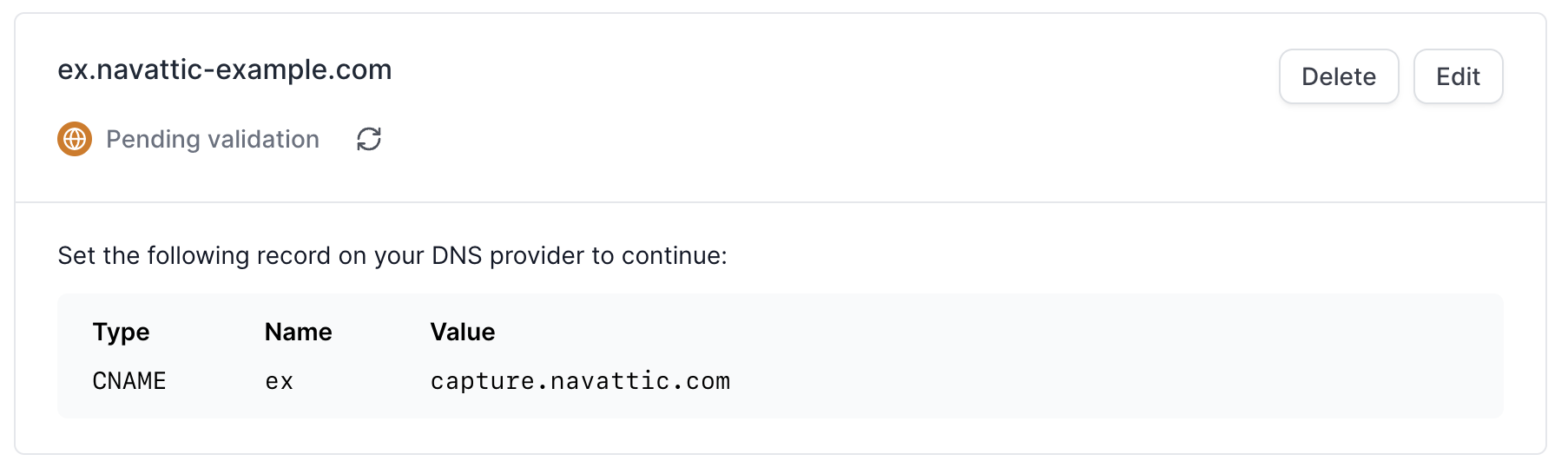
Go into your account settings page, and click on the Domains tab > + Add Domain > type in your preferred domain. We recommend the format `demo.company.com`.
If you have access to your DNS provider (like Domain.com or GoDaddy), add the CNAME record below. If you do not have access, forward this to a member of your engineering team and they can do it for you.
> CNAME demo.acme.com capture.navattic.com
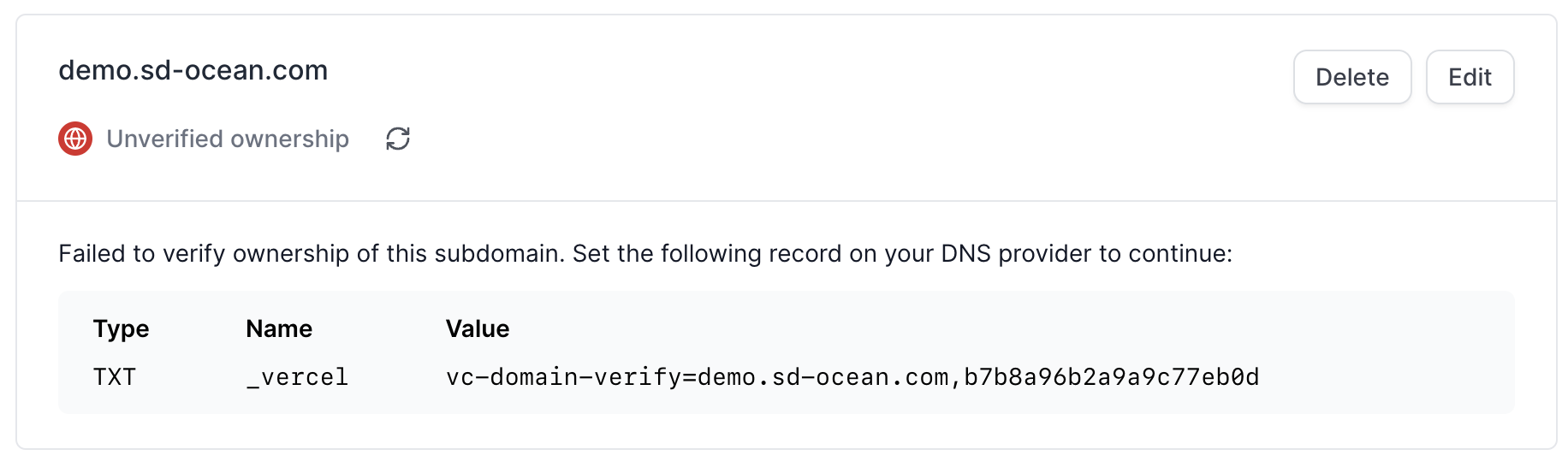
If you use Vercel as your hosting provider, you may see the below message. In order to finish setting up your domain, verify ownership of the subdomain by setting the given record on your DNS provider.
For example, if your Custom Domain is [demo.navattic-example.com](http://demo.navattic-example.com/), complete verification by adding a TXT record for `_vercel.navattic-example.com` where the value is provided in-app.
Once ownership is verified, you will see a similar message to the image below.
Your demos will now be served under `demo.acme.com`! This applies to share links, direct demo links, and iframe embeds.
### FAQs
Adding a custom domain will not impact your existing demo links. Here’s how it works:
* **Existing links**: Any demo share links created before adding the custom domain will continue to work exactly as they are—no need to re-share or update them.
* **New links for existing demos**: If you generate new share links for demos that were created before the custom domain was added, those links will now use the custom domain.
* **New demos**: All share links for newly created demos will use the custom domain exclusively.
 Once ownership is verified, you will see a similar message to the image below.
