> ## Documentation Index
> Fetch the complete documentation index at: https://docs.navattic.com/llms.txt
> Use this file to discover all available pages before exploring further.
# Audit Logs
> View an event stream of notable actions that members take in your workspace.
Enabled in workspaces on the Enterprise plan.
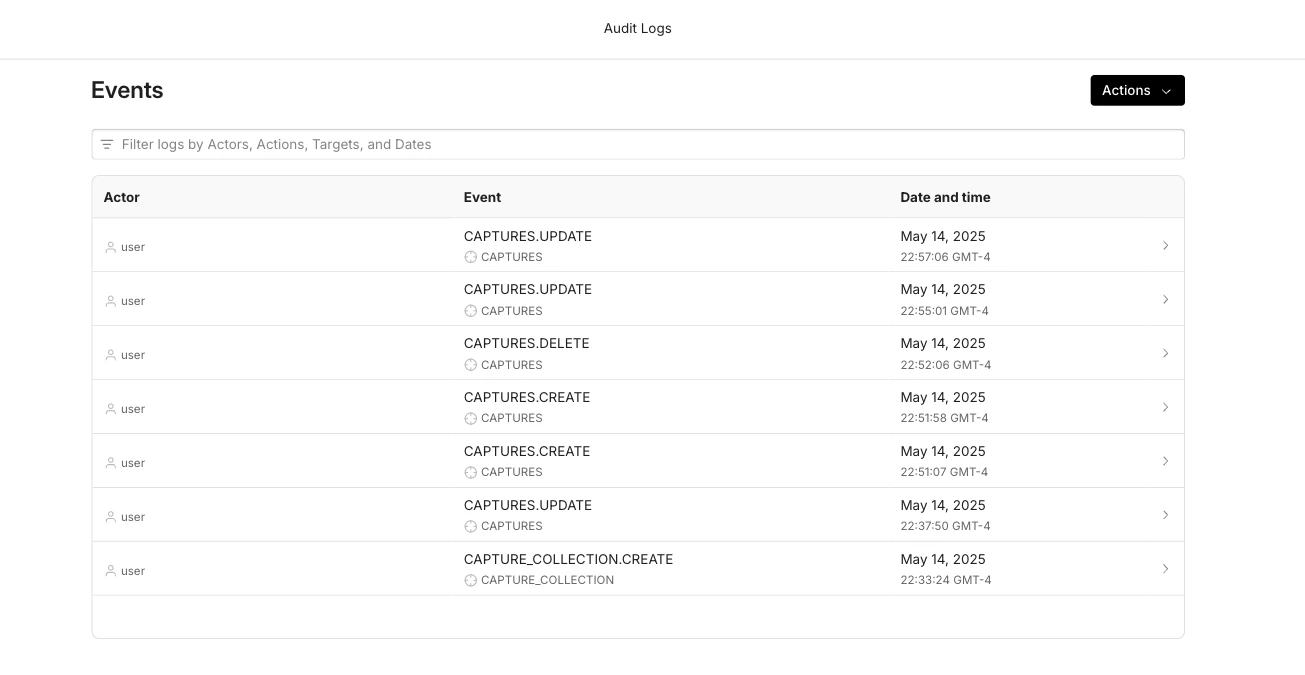 **Audit Logs** are a powerful tool for tracking and monitoring activity within
your workspace.
They provide a comprehensive record of all significant actions taken by members, helping you maintain security, ensure compliance, and support your business needs.
## How to Use Audit Logs
Audit logs help you track key activities across your workspace, making it easier to monitor changes, ensure security, and support compliance needs.
To access your Workspace’s audit logs, go to **Settings > Audit Logs** and open the **Admin Portal**. This portal, powered by **WorkOS**, displays a list of recent activity within your workspace. You can filter logs by **Actor** (workspace member), **Action** or **Date** to quickly find what you need. Click any log entry to view detailed information, including who performed the action. Need a record? Export the log data anytime as a CSV file.
## What’s tracked
The audit log records significant actions across your workspace, including:
* **Workspace setting changes**: When an admin updates a workspace setting, the log records the change with both the previous value and the new value, so you can see exactly what was changed and by whom.
* Member invitations and role changes
* Integration connections and disconnections
* Other notable administrative actions
Updating workspace settings requires **Admin** permissions. Members with Builder, Viewer, or
Launchpad Rep roles cannot modify workspace settings.
**Audit Logs** are a powerful tool for tracking and monitoring activity within
your workspace.
They provide a comprehensive record of all significant actions taken by members, helping you maintain security, ensure compliance, and support your business needs.
## How to Use Audit Logs
Audit logs help you track key activities across your workspace, making it easier to monitor changes, ensure security, and support compliance needs.
To access your Workspace’s audit logs, go to **Settings > Audit Logs** and open the **Admin Portal**. This portal, powered by **WorkOS**, displays a list of recent activity within your workspace. You can filter logs by **Actor** (workspace member), **Action** or **Date** to quickly find what you need. Click any log entry to view detailed information, including who performed the action. Need a record? Export the log data anytime as a CSV file.
## What’s tracked
The audit log records significant actions across your workspace, including:
* **Workspace setting changes**: When an admin updates a workspace setting, the log records the change with both the previous value and the new value, so you can see exactly what was changed and by whom.
* Member invitations and role changes
* Integration connections and disconnections
* Other notable administrative actions
Updating workspace settings requires **Admin** permissions. Members with Builder, Viewer, or
Launchpad Rep roles cannot modify workspace settings.