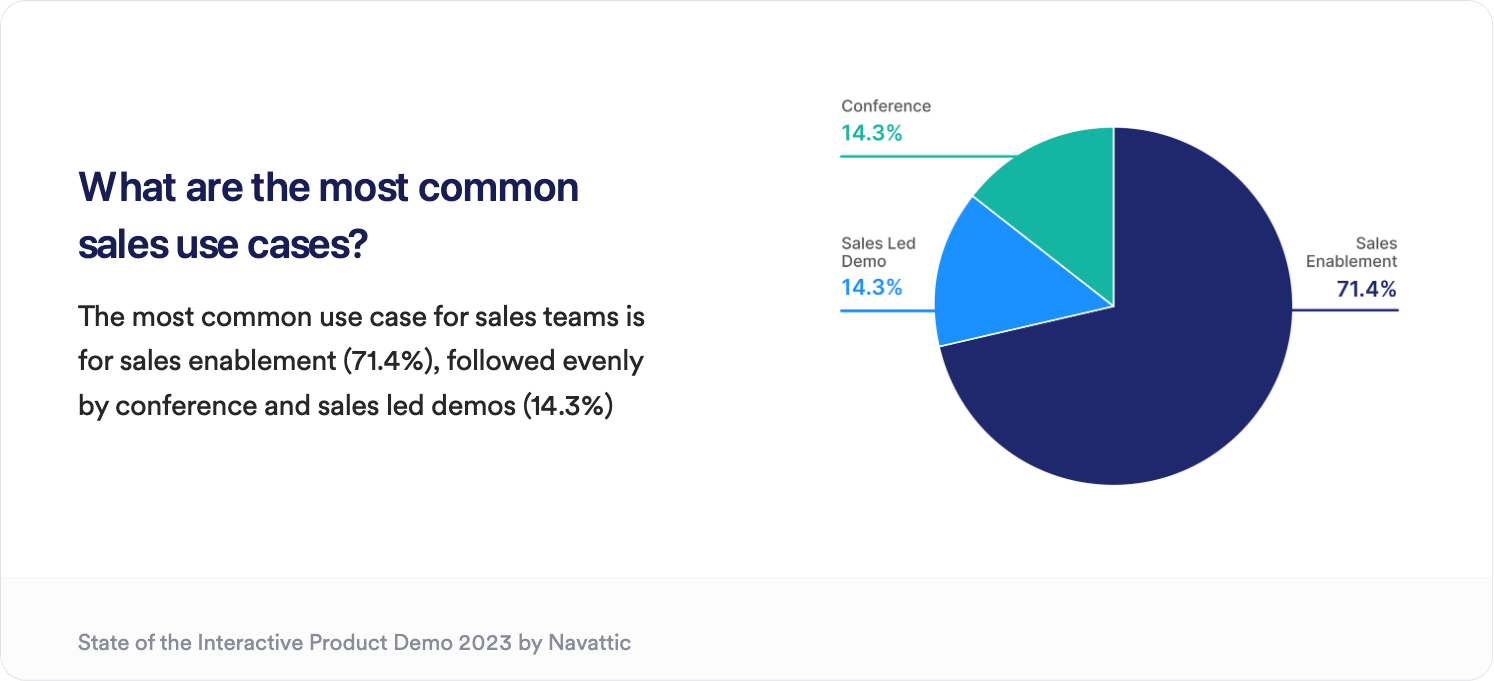
{quote}
 ## 1. Content
**Share context**: Include a short introduction on step 1 of your demo to help viewers understand the objective and time commitment. For example, "See how Navattic supports customers in fintech with a 2-minute interactive demo."
**Try ungating**: Remember, sales outreach demos are used to garner interest in the product. Consider ungating to reduce friction and the Visitor Tracking methods below to identify your audience.
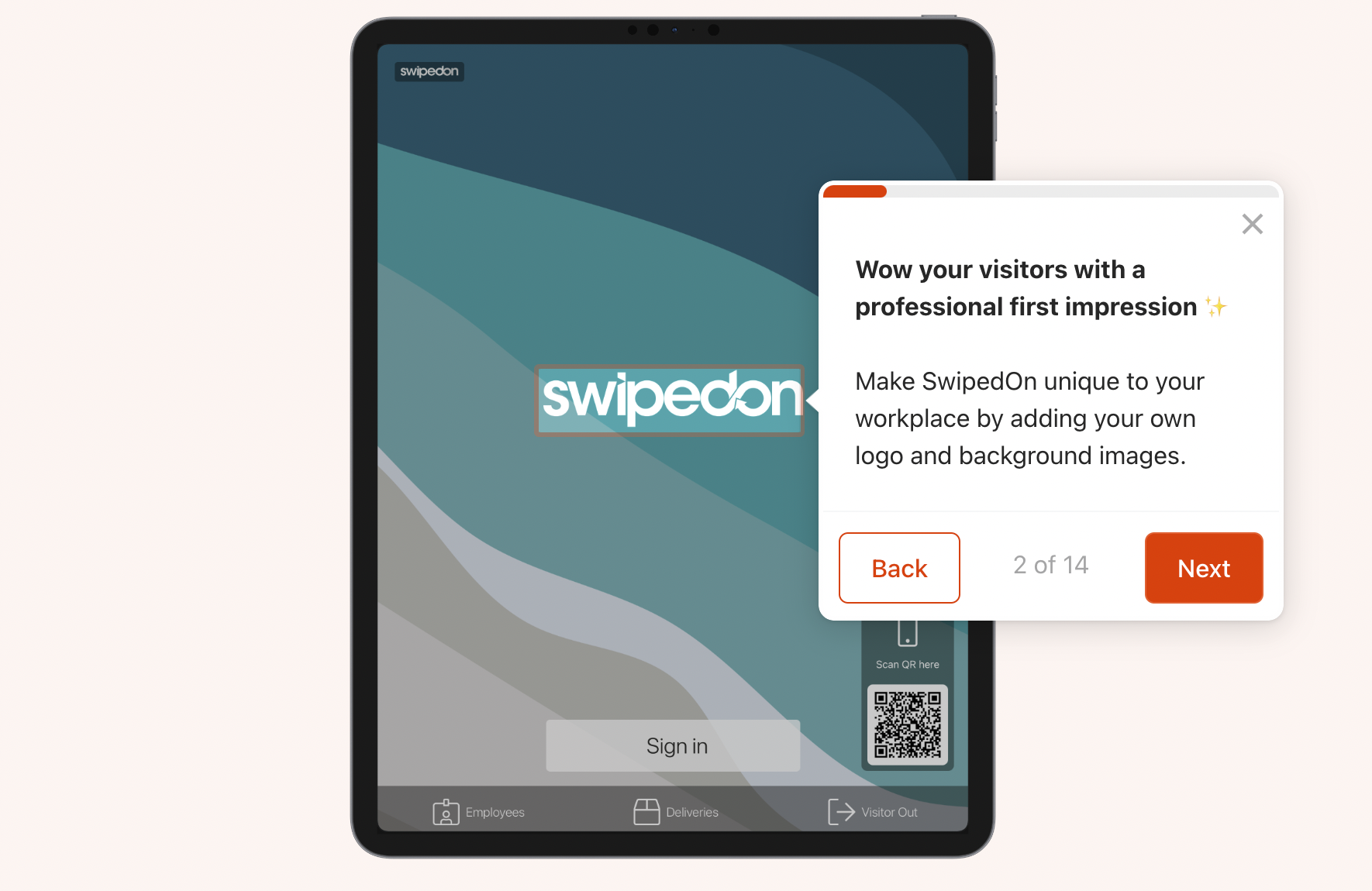
**Make it personal**: Consider presenting [multiple options](https://swipedon.navattic.com/product-tour-2023) in your demo to accommodate different stakeholder personas, features, or use cases. You can also add a [watermark](/product-updates#Sci_l), personal video greeting, or [personalization variables](/personalize).
**Make it user-friendly**: Your audience in this use case may be time-constrained. Include [navigation buttons](https://www.loom.com/share/dde828c52d4e4e4e820ddf64b2db5550) and value-driven copy to convey important points quickly. Keep each flow under 15 steps to encourage completion.
## 1. Content
**Share context**: Include a short introduction on step 1 of your demo to help viewers understand the objective and time commitment. For example, "See how Navattic supports customers in fintech with a 2-minute interactive demo."
**Try ungating**: Remember, sales outreach demos are used to garner interest in the product. Consider ungating to reduce friction and the Visitor Tracking methods below to identify your audience.
**Make it personal**: Consider presenting [multiple options](https://swipedon.navattic.com/product-tour-2023) in your demo to accommodate different stakeholder personas, features, or use cases. You can also add a [watermark](/product-updates#Sci_l), personal video greeting, or [personalization variables](/personalize).
**Make it user-friendly**: Your audience in this use case may be time-constrained. Include [navigation buttons](https://www.loom.com/share/dde828c52d4e4e4e820ddf64b2db5550) and value-driven copy to convey important points quickly. Keep each flow under 15 steps to encourage completion.
 ## 2. Visitor Tracking
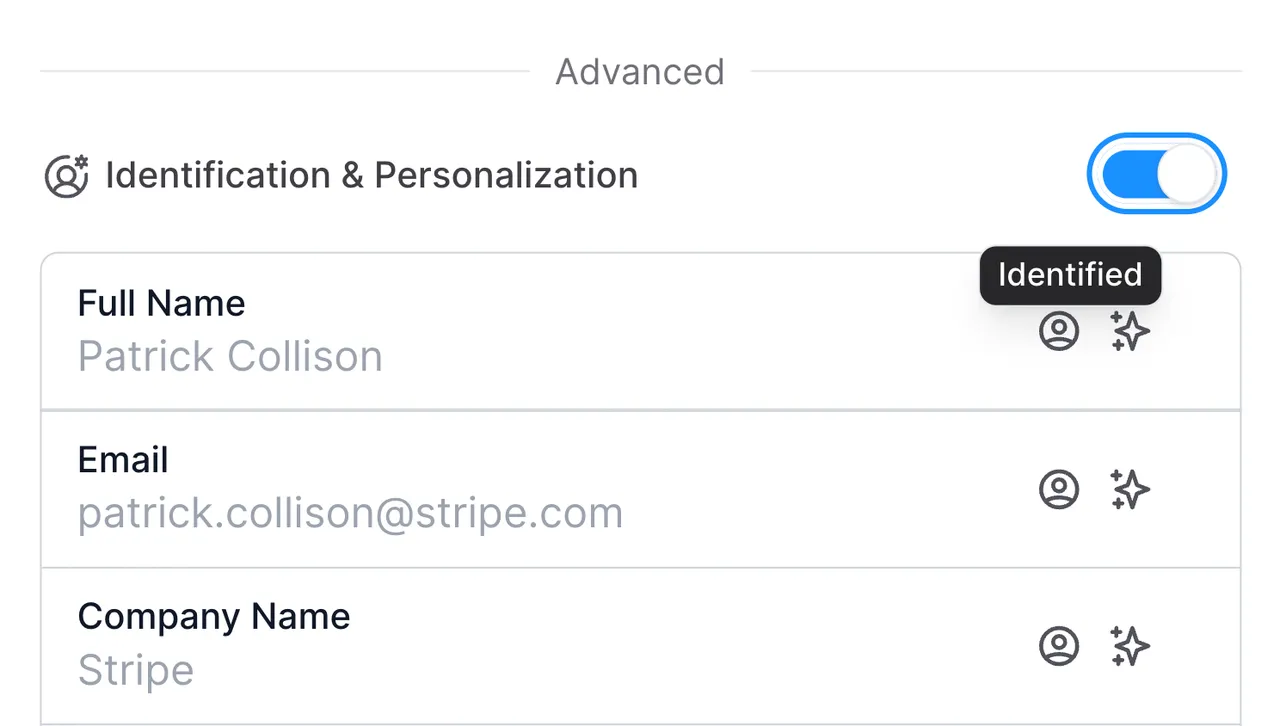 **Track recipient engagement with query strings:**
Query strings are a quick and easy way to identify visitors without a form fill. Simply add the string `?user.email=XXX@domain.com` to the end of your existing demo share link. This will tie the stated email to the browser that opens the link.
Be careful not to open the link yourself, as this will identify your own browser as your recipient instead.
You can combine this method with a tool like SalesLoft, Hubspot, Outreach, etc. to add query strings automatically by following the format: `navattic-demo-link``?user.email={{EMAIL_VARIABLE}}&user.fullName={{NAME_VARIABLE}}`
Take care to use the correct attribute name as these may vary between platforms. Here are a few common examples:
| Platform | Value | Attribute Name | Complete query string for outreach |
| ----------------------------------------------------------------------------------------------------- | ----- | --------------------- | --------------------------------------------------- |
| [HubSpot](https://knowledge.hubspot.com/website-pages/personalize-your-content) | Email | \{\{contact.email}} | navattic-demo-link?user.email=\{\{contact.email}} |
| [Outreach](https://support.outreach.io/hc/en-us/articles/226680368-Outreach-Variables-Overview) | Email | \{\{email}} | navattic-demo-link?user.email=\{\{email}} |
| [Salesloft](https://help.salesloft.com/s/article/Available-Dynamic-Fields?language=en_US#Person_Tags) | Email | \{\{email\_address}} | navattic-demo-link?user.email=\{\{email\_address}} |
| [Pardot](https://help.salesforce.com/s/articleView?id=sf.pardot_handlebars_merge_fields.htm\&type=5) | Email | \{\{Recipient.Email}} | navattic-demo-link?user.email=\{\{Recipient.Email}} |
## 3. Notifications
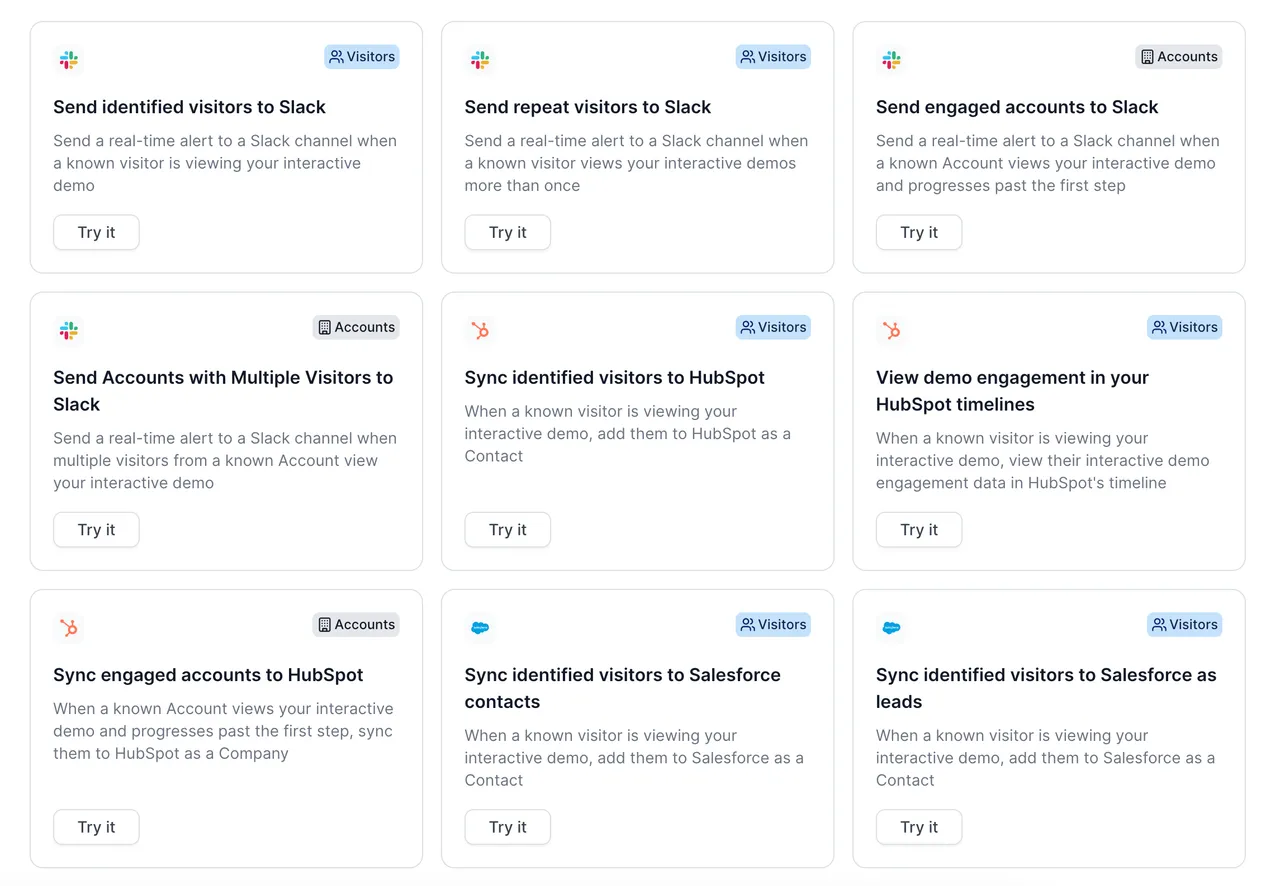
**Get a real-time Slack or Email notification when visitors engage with your demo**. We recommend creating an Audience for "Identified visitors who view 2+ steps" and sending notifications to a Slack channel or individual emails. Visit [Playbooks]() to set this up.
**Tip:** You can even [set up routing to specific sales reps](/integrations/playbooks).
**Track recipient engagement with query strings:**
Query strings are a quick and easy way to identify visitors without a form fill. Simply add the string `?user.email=XXX@domain.com` to the end of your existing demo share link. This will tie the stated email to the browser that opens the link.
Be careful not to open the link yourself, as this will identify your own browser as your recipient instead.
You can combine this method with a tool like SalesLoft, Hubspot, Outreach, etc. to add query strings automatically by following the format: `navattic-demo-link``?user.email={{EMAIL_VARIABLE}}&user.fullName={{NAME_VARIABLE}}`
Take care to use the correct attribute name as these may vary between platforms. Here are a few common examples:
| Platform | Value | Attribute Name | Complete query string for outreach |
| ----------------------------------------------------------------------------------------------------- | ----- | --------------------- | --------------------------------------------------- |
| [HubSpot](https://knowledge.hubspot.com/website-pages/personalize-your-content) | Email | \{\{contact.email}} | navattic-demo-link?user.email=\{\{contact.email}} |
| [Outreach](https://support.outreach.io/hc/en-us/articles/226680368-Outreach-Variables-Overview) | Email | \{\{email}} | navattic-demo-link?user.email=\{\{email}} |
| [Salesloft](https://help.salesloft.com/s/article/Available-Dynamic-Fields?language=en_US#Person_Tags) | Email | \{\{email\_address}} | navattic-demo-link?user.email=\{\{email\_address}} |
| [Pardot](https://help.salesforce.com/s/articleView?id=sf.pardot_handlebars_merge_fields.htm\&type=5) | Email | \{\{Recipient.Email}} | navattic-demo-link?user.email=\{\{Recipient.Email}} |
## 3. Notifications
**Get a real-time Slack or Email notification when visitors engage with your demo**. We recommend creating an Audience for "Identified visitors who view 2+ steps" and sending notifications to a Slack channel or individual emails. Visit [Playbooks]() to set this up.
**Tip:** You can even [set up routing to specific sales reps](/integrations/playbooks).
 ## 4. CTAs
**Be direct**: Include a single CTA at the end of the demo that pushes prospective customers towards the next step in your sales cycle.
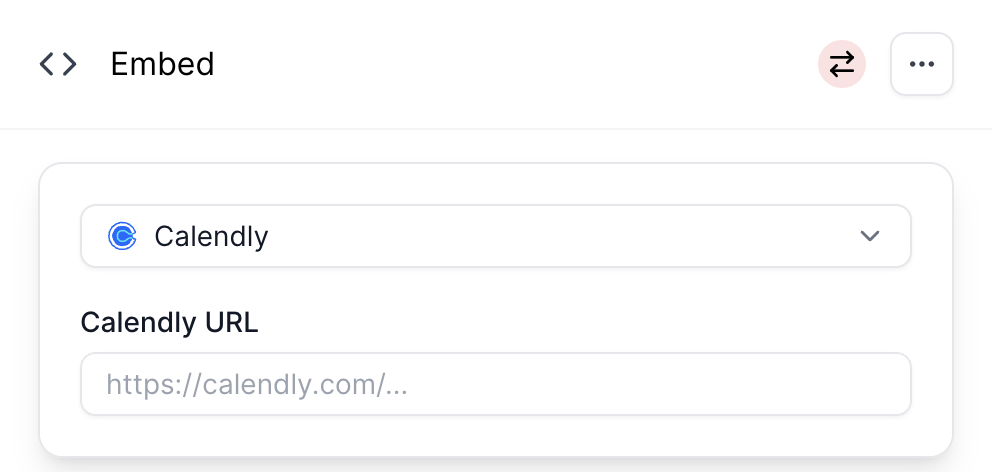
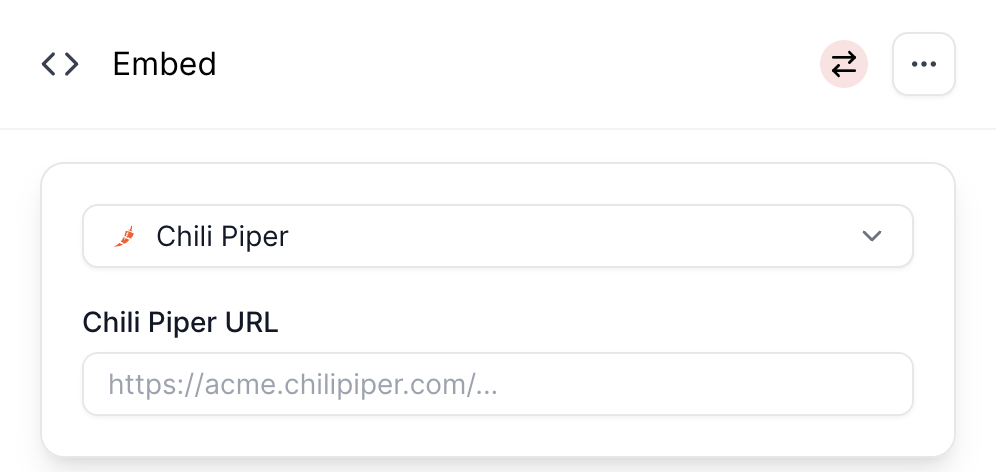
**Embed your calendar**: Embed a Calendly or Chili Piper booking page directly in your demo. When choosing your step type, select **Embed** > **Calendly** or **Chilipiper** > **Enter the URL.** Try [this demo](https://training.navattic.com/0u13e0bqe)to see a Calendly embed in action.
## 4. CTAs
**Be direct**: Include a single CTA at the end of the demo that pushes prospective customers towards the next step in your sales cycle.
**Embed your calendar**: Embed a Calendly or Chili Piper booking page directly in your demo. When choosing your step type, select **Embed** > **Calendly** or **Chilipiper** > **Enter the URL.** Try [this demo](https://training.navattic.com/0u13e0bqe)to see a Calendly embed in action.
 ## 5. Recommended Structure
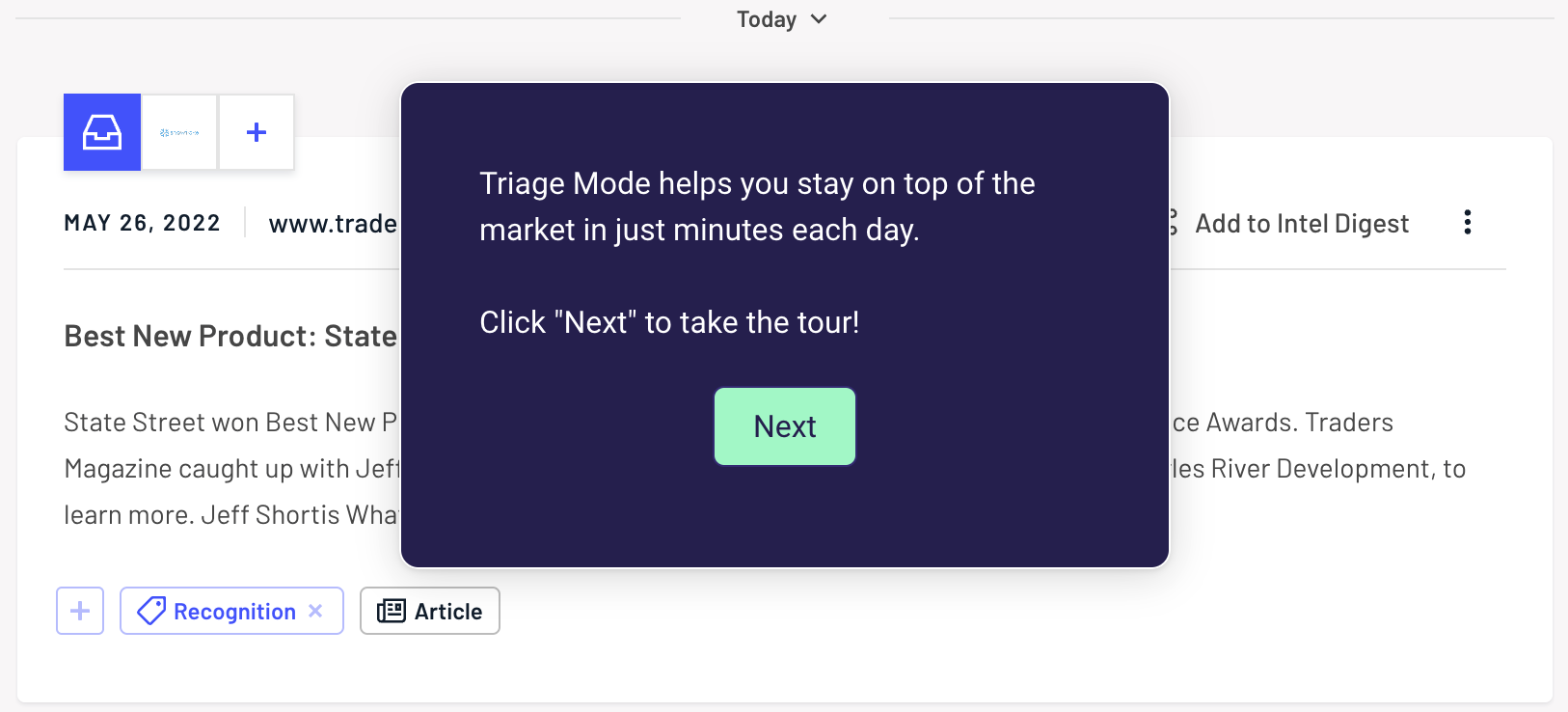
**Steps 1-2:** Share the context for your demo. What does this product do? When is it used? ([Klue's Triage Mode demo](https://klue.com/blog/introducing-triage-mode?utm_campaign=triage%20mode\&utm_source=linkedin\&utm_medium=social\&utm_content=employees#navatic-iframe) is a great example)
## 5. Recommended Structure
**Steps 1-2:** Share the context for your demo. What does this product do? When is it used? ([Klue's Triage Mode demo](https://klue.com/blog/introducing-triage-mode?utm_campaign=triage%20mode\&utm_source=linkedin\&utm_medium=social\&utm_content=employees#navatic-iframe) is a great example)
 **Steps 3-9:** Use Tooltips, Beacons, and Triggers to create an interactive experience. Keep text minimal to keep the focus on your product and reinforce those "wow" moments from your previous conversation.
**Steps 10-12:** What is the next step for qualified prospects? Conclude your demo with 1 direct CTA that is related to the next step in your sales process.
**Steps 3-9:** Use Tooltips, Beacons, and Triggers to create an interactive experience. Keep text minimal to keep the focus on your product and reinforce those "wow" moments from your previous conversation.
**Steps 10-12:** What is the next step for qualified prospects? Conclude your demo with 1 direct CTA that is related to the next step in your sales process.