> ## Documentation Index
> Fetch the complete documentation index at: https://docs.navattic.com/llms.txt
> Use this file to discover all available pages before exploring further.
# HubSpot JS
> Integrate demo engagement with the HubSpot CRM
export const MediaCard = ({title = '', url, type = 'demo'}) => {
const attributes = type === 'demo' ? {
'data-navattic-open': url,
'data-navattic-title': title
} : {
'data-video': url
};
return
{type === 'video' ? 'Watch video' : 'Try a demo'}
{title}
;
};
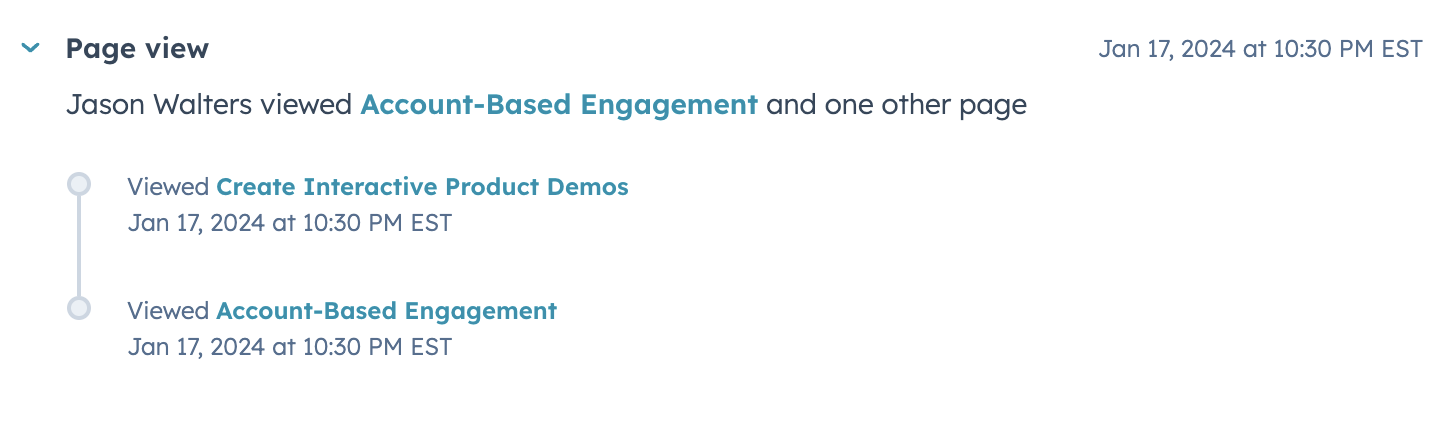
The **HubSpot** tracking script provides a very low-lift way to start with Navattic integrations. Once enabled, the script shows demo activity as "page view" events under the correct HubSpot contact. This works even when the viewer is not identified in Navattic.
**The HubSpot tracking script is great for:**
* Sales teams that share demo landing pages or demo centers as leave-behind
* Quickly tagging contacts with a Navattic page view event.
This differs from the direct HubSpot integration which documents demo activity as Contact
Properties; features like field mapping for UTMs and form fills, and activity timeline events are
only available with the direct HubSpot integration.
### Add HubSpot tracking to your demos
Follow these steps to add HubSpot tracking to your Navattic demos:
HubSpot will track the various activities that occur on a dedicated domain (ex. "stripe.com" or "arc). To configure this, first setup a [Custom Domains](/workspace/custom-domains).
To enable this tracking script, you'll need to find your HubSpot Account ID (or "HubSpot ID"). To find this, log into HubSpot. Then, open the Account dropdown in the top right corner. Your Account ID will be listed just under your HubSpot account name.
Visit your **Navattic demo** > select the three dots next to the Share button > **Tracking
scripts**. Paste your HubSpot ID into the HubSpot input field. Once the HubSpot ID is added,
publish your demo in Navattic.
Once tracking scripts are enabled, you will see Page Views start to appear in HubSpot. Use the tutorial below to create our recommended HubSpot report attributing MQLs, Opps or Closed Won revenue to your interactive demos.
 **The HubSpot tracking script is great for:**
* Sales teams that share demo landing pages or demo centers as leave-behind
* Quickly tagging contacts with a Navattic page view event.
**The HubSpot tracking script is great for:**
* Sales teams that share demo landing pages or demo centers as leave-behind
* Quickly tagging contacts with a Navattic page view event.