> ## Documentation Index
> Fetch the complete documentation index at: https://docs.navattic.com/llms.txt
> Use this file to discover all available pages before exploring further.
# Google Analytics (GA4)
> Track demo events in Google Analytics 4 for comprehensive user behavior analysis.
Follow these steps to integrate Navattic JS events with  **Google Analytics 4**:
Follow these instructions to install [Navattic JS](/tracking/navattic-js). This JS snippet should be installed *after* your [existing GA4 tag.](https://support.google.com/analytics/answer/9744165?hl=en#zippy=%2Cin-this-article%2Cinstall-a-google-tag)
Use these instructions if you are using
**Google Analytics 4**:
Follow these instructions to install [Navattic JS](/tracking/navattic-js). This JS snippet should be installed *after* your [existing GA4 tag.](https://support.google.com/analytics/answer/9744165?hl=en#zippy=%2Cin-this-article%2Cinstall-a-google-tag)
Use these instructions if you are using  [Google Tag Manager](/tracking/navattic-js/subscribe-to-events/google-tag-manager) instead.
The above script has some tools to help your website communicate bi-directionally with the embedded demo. To send Navattic event data to GA4, add the following script to the `` right after the script above.
```javascript theme={null}
```
Once the JS snippet is installed on your website, no further configuration is needed in Google Analytics to start seeing Navattic events. You should now see a new event named `navattic_event` under the [events sections](https://support.google.com/analytics/answer/9322688?hl=en#zippy=%2Crealtime-report%2Cdebugview-report) of GA4.
Google Analytics can take [24-48 hours to process
data](https://support.google.com/analytics/answer/9333790?hl=en#:~:text=Many%20of%20your%20reports%20and,your%20website%20or%20app%20successfully)' ' from your website or Navattic demo.
To troubleshoot your integration, use [real-time reporting](https://support.google.com/analytics/answer/9271392?sjid=13083582562165458896-NA). The event `navattic_event` should appear under the **Event count by Event Name** widget in real-time reporting.
[Google Tag Manager](/tracking/navattic-js/subscribe-to-events/google-tag-manager) instead.
The above script has some tools to help your website communicate bi-directionally with the embedded demo. To send Navattic event data to GA4, add the following script to the `` right after the script above.
```javascript theme={null}
```
Once the JS snippet is installed on your website, no further configuration is needed in Google Analytics to start seeing Navattic events. You should now see a new event named `navattic_event` under the [events sections](https://support.google.com/analytics/answer/9322688?hl=en#zippy=%2Crealtime-report%2Cdebugview-report) of GA4.
Google Analytics can take [24-48 hours to process
data](https://support.google.com/analytics/answer/9333790?hl=en#:~:text=Many%20of%20your%20reports%20and,your%20website%20or%20app%20successfully)' ' from your website or Navattic demo.
To troubleshoot your integration, use [real-time reporting](https://support.google.com/analytics/answer/9271392?sjid=13083582562165458896-NA). The event `navattic_event` should appear under the **Event count by Event Name** widget in real-time reporting.
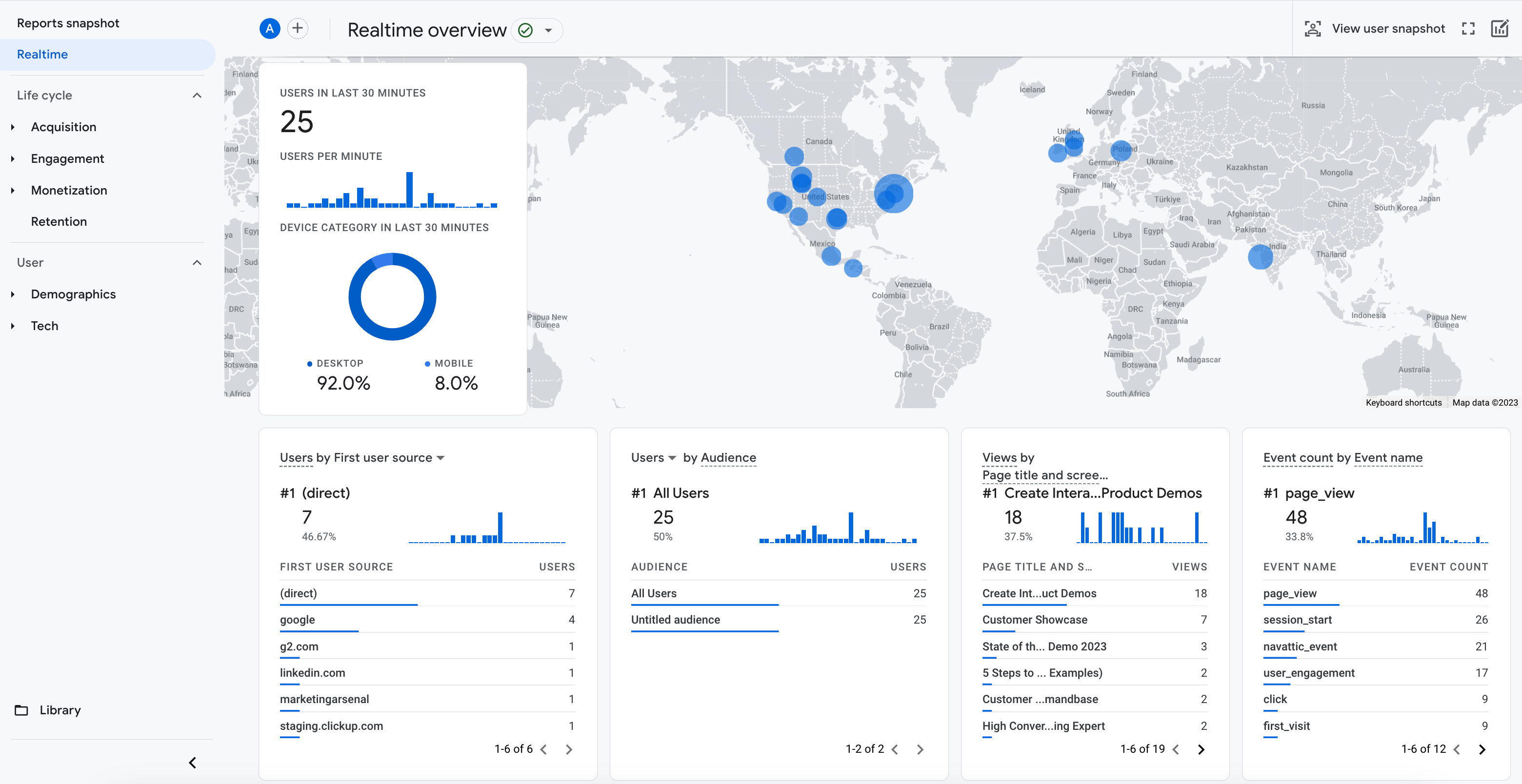 Navattic events include all actions a user takes within a demo such as step viewed, flow completed, checklist started, and various click actions (ex. navigate to URL).
To view the specific action, project, flow, or step of a `navattic_event`, use [Event Parameters](https://support.google.com/analytics/answer/9216061?hl=en\&sjid=13083582562165458896-NA) in Google Analytics 4.
| Navattic Event Trait | in GA |
| -------------------------------------------------------------------------------------------------------------------------------------------------------------------------------- | --------------- |
| Project Name | project\_\_name |
| Flow Name | flow\_\_name |
| Step Number | step\_\_index |
| Event Name (View\_step, Start\_checklist, Navigate, etc.) See [Navattic events ](https://docs.navattic.com/tracking/navattic-js/subscribe-to-events#navattic-events) for a list. | type |
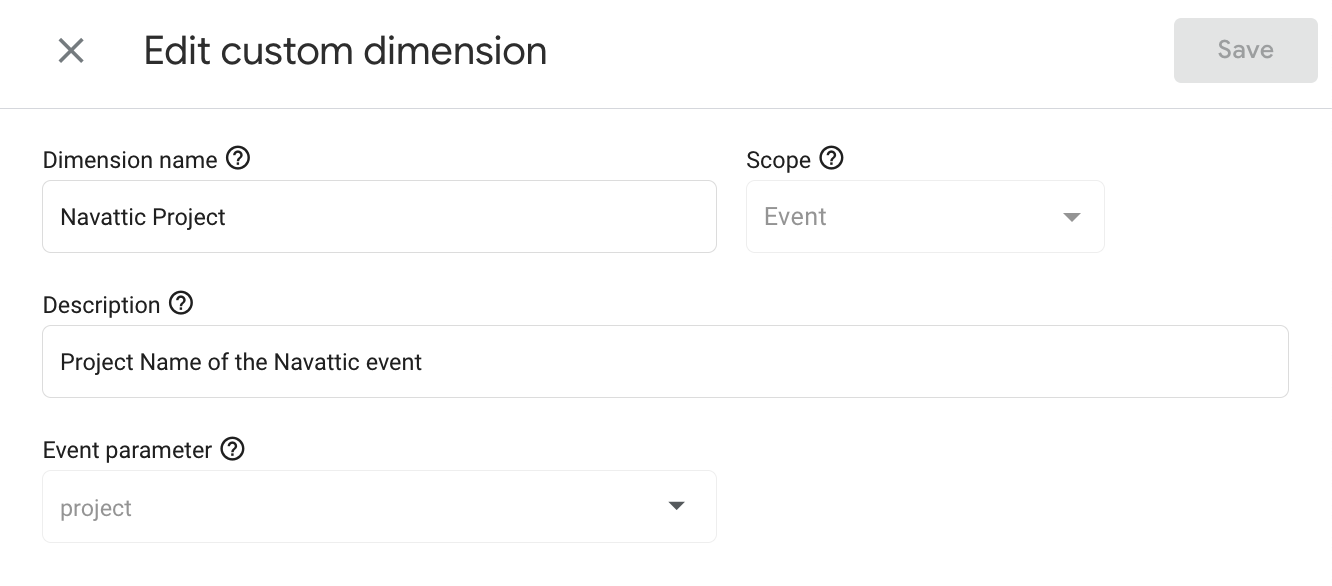
To build reports using these Event Parameters, you can create a [Custom Dimension](https://support.google.com/analytics/answer/10075209?hl=en\&sjid=13083582562165458896-NA) under the Custom Definitions section of Properties. Below is an example of a Custom Dimension for Navattic Projects.
Navattic events include all actions a user takes within a demo such as step viewed, flow completed, checklist started, and various click actions (ex. navigate to URL).
To view the specific action, project, flow, or step of a `navattic_event`, use [Event Parameters](https://support.google.com/analytics/answer/9216061?hl=en\&sjid=13083582562165458896-NA) in Google Analytics 4.
| Navattic Event Trait | in GA |
| -------------------------------------------------------------------------------------------------------------------------------------------------------------------------------- | --------------- |
| Project Name | project\_\_name |
| Flow Name | flow\_\_name |
| Step Number | step\_\_index |
| Event Name (View\_step, Start\_checklist, Navigate, etc.) See [Navattic events ](https://docs.navattic.com/tracking/navattic-js/subscribe-to-events#navattic-events) for a list. | type |
To build reports using these Event Parameters, you can create a [Custom Dimension](https://support.google.com/analytics/answer/10075209?hl=en\&sjid=13083582562165458896-NA) under the Custom Definitions section of Properties. Below is an example of a Custom Dimension for Navattic Projects.
 Tip: For the most helpful tracking, give each Demo and Flow an informative name. This will help organize your data in Google Analytics.