> ## Documentation Index
> Fetch the complete documentation index at: https://docs.navattic.com/llms.txt
> Use this file to discover all available pages before exploring further.
# Exporting a demo
> Export your demo as a PDF, GIF, or MP4 video.
The **Export preview** option in the demo builder lets you generate a shareable file from your demo — as a PDF document, an animated GIF, or an MP4 video.
 ## How to export
1. Open your demo in the builder.
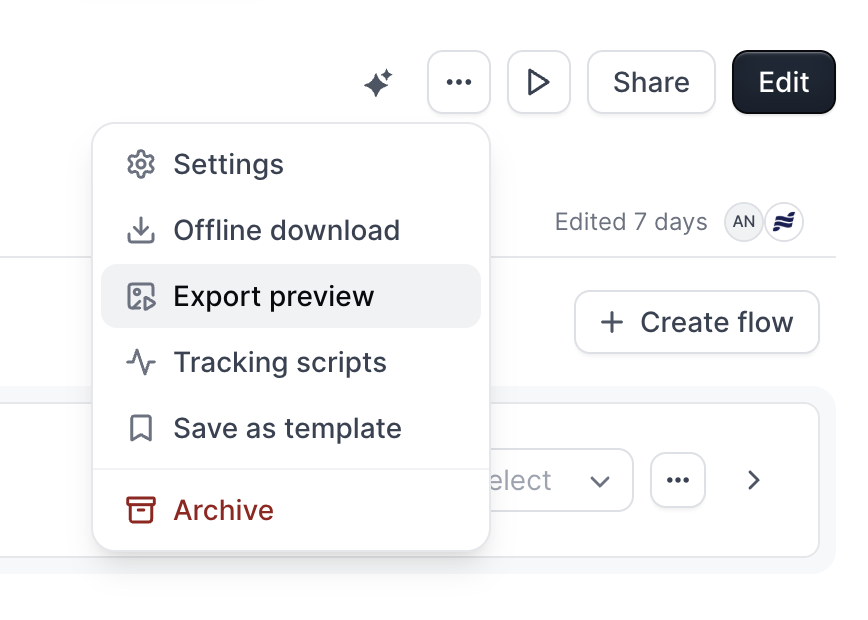
2. Click the **Export preview** button (available from the demo builder toolbar or the **More** menu).
3. Select an export type:
* **Video** — exports an MP4 file you can embed or attach to emails
* **GIF** — exports an animated GIF suited for email and social media
* **Document** — exports a PDF with screenshots and step narration text
## Exporting as a PDF
The Document export type generates a PDF that includes a screenshot and narration text for each step.
### Selecting flows
When you choose **Document**, a multi-select appears listing all flows in the demo. Select one or more flows to include in the PDF. If you select multiple flows, they are combined into a single file named `Demo flows (N).pdf`. A single-flow export is named `[Flow name] (N).pdf`.
### Step limit
PDF exports support up to **60 steps** across all selected flows. If your selection exceeds 60 steps, an inline warning appears and the export is capped at 60 steps.
Only the narration text visible on each step is included in the PDF. Steps without narration still appear as screenshots.
### Copy as text
Instead of downloading a PDF, you can copy the narration text from all selected steps to your clipboard. Click the dropdown arrow next to **Export PDF** and select **Copy as Text**. The text is structured by flow and step, separated by flow dividers.
## Exporting as a video or GIF
For Video and GIF exports, select a single flow and configure:
* **Number of steps** — how many steps to include (up to 15)
* **Time per step** — how long each step displays (1–5 seconds)
The exported file renders each step in sequence and loops (for GIF) or plays once (for MP4).
## How to export
1. Open your demo in the builder.
2. Click the **Export preview** button (available from the demo builder toolbar or the **More** menu).
3. Select an export type:
* **Video** — exports an MP4 file you can embed or attach to emails
* **GIF** — exports an animated GIF suited for email and social media
* **Document** — exports a PDF with screenshots and step narration text
## Exporting as a PDF
The Document export type generates a PDF that includes a screenshot and narration text for each step.
### Selecting flows
When you choose **Document**, a multi-select appears listing all flows in the demo. Select one or more flows to include in the PDF. If you select multiple flows, they are combined into a single file named `Demo flows (N).pdf`. A single-flow export is named `[Flow name] (N).pdf`.
### Step limit
PDF exports support up to **60 steps** across all selected flows. If your selection exceeds 60 steps, an inline warning appears and the export is capped at 60 steps.
Only the narration text visible on each step is included in the PDF. Steps without narration still appear as screenshots.
### Copy as text
Instead of downloading a PDF, you can copy the narration text from all selected steps to your clipboard. Click the dropdown arrow next to **Export PDF** and select **Copy as Text**. The text is structured by flow and step, separated by flow dividers.
## Exporting as a video or GIF
For Video and GIF exports, select a single flow and configure:
* **Number of steps** — how many steps to include (up to 15)
* **Time per step** — how long each step displays (1–5 seconds)
The exported file renders each step in sequence and loops (for GIF) or plays once (for MP4).