> ## Documentation Index
> Fetch the complete documentation index at: https://docs.navattic.com/llms.txt
> Use this file to discover all available pages before exploring further.
# Embed your demo
> Embed your demo on your marketing website or product.
Once you've created your gold-standard demo, it's time to **Embed** the demo on your marketing website or product.
Embedding your demo on your marketing website is a powerful way to generate top of funnel leads, drive demand, or educate new prospects.
## Embedding a demo
Follow these steps to embed your demo on a webpage:
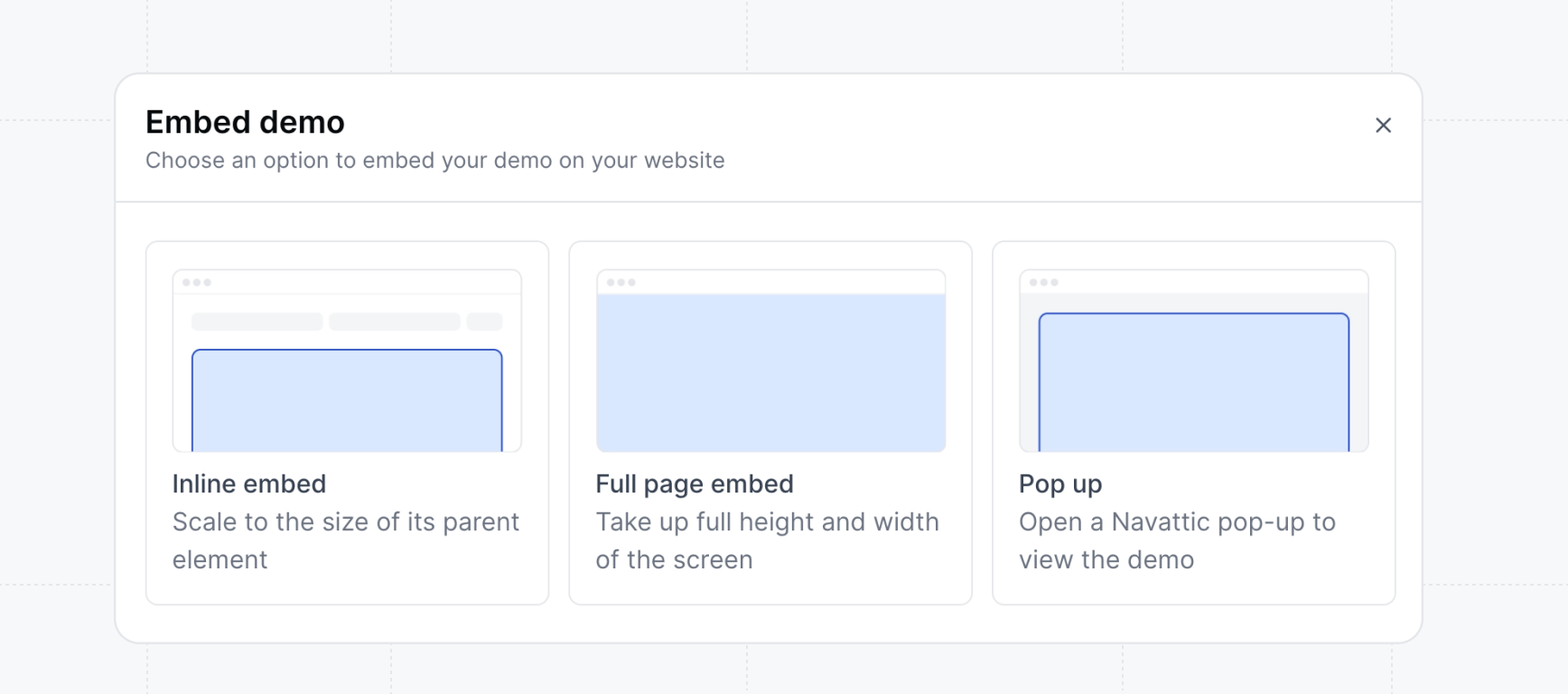
On a Product Demo, select `Share`. For `Share via` select `Website embed`. Select between the
sharing options to embed your demo on your website or product.
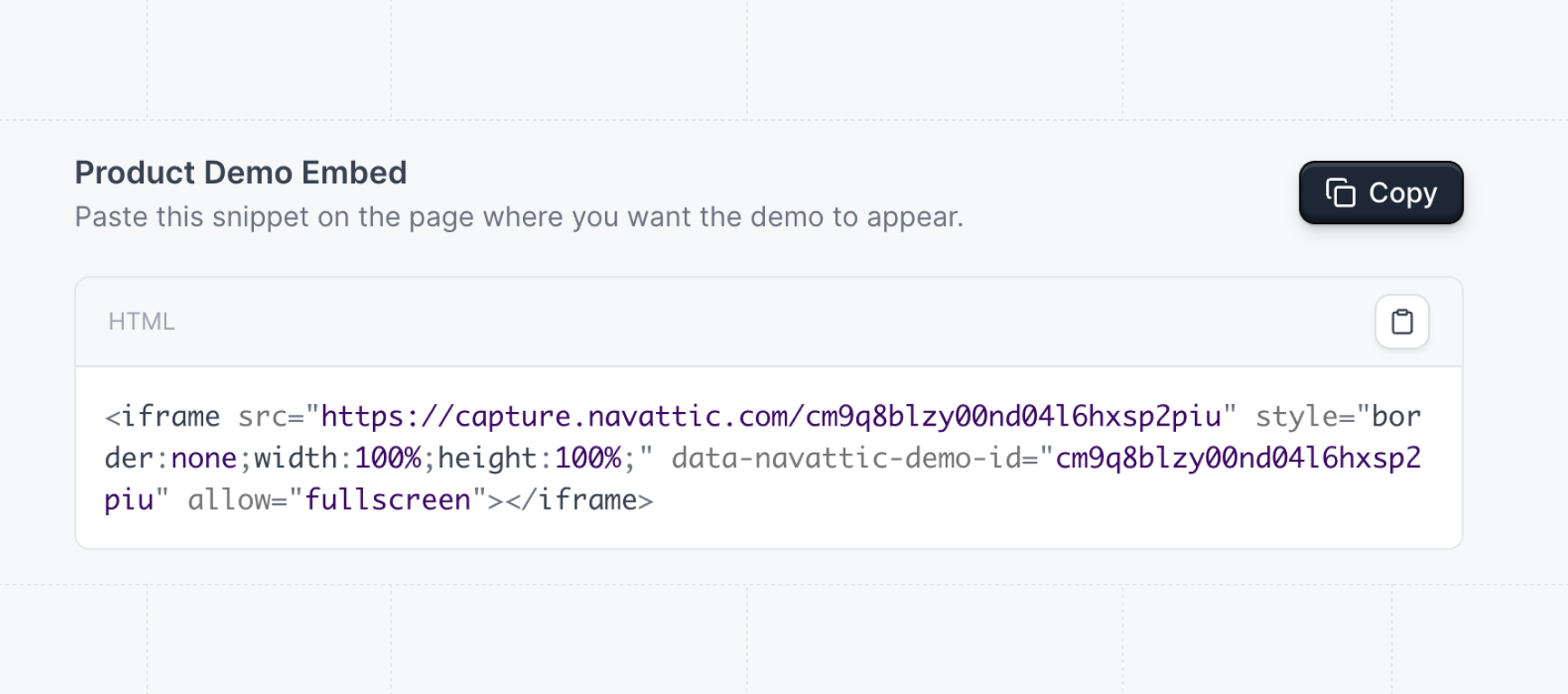
Click `Get Embed Code` to copy the code snippet. Drop this code snippet into your website or
product.
## Embedding an Agent Demo
Agent Demos support the same three embed strategies as product demos — inline, full page, and pop-up.
To get the embed code for an Agent Demo:
1. Open the Agent Demo from the **Agents** section. The demo must be published.
2. Click **Share** in the editor toolbar.
3. Under **Embed on your website**, click **Embed**.
4. Choose an embed strategy (inline, full page, or pop-up) and click **Get Embed Code**.
5. Copy the code and drop it into your website.
The lazy-load overlay option is available for Agent Demo embeds, but the auto-generated background image is not supported. Upload a custom background image in the embed settings instead.
## Choosing an embed type
Navattic offers three embed types. Select the one that best fits where and how you want to present your demo.
The inline embed renders the demo directly on the page, scaling to fit its parent container. Visitors see the demo immediately without needing to click anything.
**When to use:**
* Blog posts and content marketing pages
* Product or feature pages where you want to showcase a workflow
* Landing pages where the demo is the primary content
* Tutorial or documentation pages
```html theme={null}
```
The full page embed takes up the entire browser window with fixed positioning. It provides an immersive, app-like experience with no surrounding content.
**When to use:**
* Dedicated demo pages (e.g., yoursite.com/demo)
* Full-screen experiences where you want maximum visitor focus
* Standalone demo pages linked from email campaigns or ads
```html theme={null}
```
The pop-up embed opens the demo in a modal overlay when a visitor clicks a button. The demo stays hidden until triggered, keeping the page lightweight.
**When to use:**
* Call-to-action buttons on marketing pages
* Navigation menus or site headers
* Pages where the demo should complement, not replace, the existing content
* When you want to minimize initial page load time
**HTML version:**
```html theme={null}
```
**JavaScript version:**
```html theme={null}
```
**Recommendation:** Use **inline embeds** for content-heavy pages where the demo is part of the narrative. Use **full page embeds** for dedicated demo pages where you want an immersive experience. Use **pop-up embeds** for CTA buttons where you want to keep the page lightweight and let visitors choose when to engage.
## Inline sizing options
When using an inline embed, you can choose how the demo scales within its container. Select a sizing strategy in the embed modal after choosing the inline embed type.
The demo fills 100% of the container width, and the height scales automatically to maintain a consistent aspect ratio. The default ratio is **16:10**.
**When to use:** Most marketing pages and landing pages. This option provides responsive width while maintaining consistent proportions across all screen sizes.
```html theme={null}
```
The demo fills 100% of both the width and height of its parent container. This is the default sizing option.
**When to use:** When you're embedding inside a container that already has defined dimensions, such as a fixed-height column or a card component.
The parent container must have an explicit height set, otherwise the iframe may collapse to zero height.
```html theme={null}
```
The demo uses exact pixel dimensions. The default is **1100px x 600px**. The size stays constant regardless of screen size or container.
**When to use:** When you need precise control over the demo size and your layout can accommodate fixed dimensions. Use sparingly, as this doesn't adapt to smaller screens.
```html theme={null}
```
**Recommendation:** Use **Fixed aspect ratio (16:10)** for most marketing pages -- it looks great on desktop and scales down gracefully on mobile. Use **Responsive** when embedding inside a container with a defined height. Use **Fixed dimensions** only when you need exact pixel control.
For more details on how your demo content adapts to different screen sizes, see [Responsive strategies](/build/responsive).
## Customizations
Follow the instructions below to enable Lazy Load, disable demo pre-loading, or manage the embed lifecycle using JavaScript.
**Lazy Load Overlay**
When the lazy load overlay toggle is selected for an embedded interactive demo, an overlay will appear over the top of the demo frame. This can be helpful to improve page load times, reduce load traffic to the demo, or provide better guidance on how to engage with the interactive demo.
The default background image (the first capture in the Product Demo) as well as the call to action to launch the interactive demo can be adjusted by updating the embed code as shown in [this video](https://www.loom.com/share/7c2502238002410592067f2df430943c?sid=a32339c2-9ef6-4575-aa3d-ac7cf2c980b6).
**Disable pre-loading demo**
The pop-up demo embed preloads the demo on the page so that it loads instantly when the visitor opens it. This behavior can be undesirable in some situations like, for example, when there are many demos on a page.
To disable this behavior, add the `data-navattic-preload="false"` data attribute to the button that is opening the demo.
**Control lifecycle of the embed with Javascript**
The default embed code for the lazy-load and pop-up embed types use HTML in order to make the embed process as simple as possible. If more control over the initialization and loading of the embed is required, the embeds.js script includes the Javascript class, `NavatticEmbed` which includes a few methods that can be helpful for controlling the lifecycle of the embed elements:
* `NavatticEmbed.loadEmbeds()`: initializes all lazy-load embeds on the page
* `NavatticEmbed.initPopup(, )`**:** adds the pop-up embed to the page but hides it until the below method is called
* The second argument is an object containing configuration properties for the embed. The following (optional) properties are supported:
* `title`: the title that will appear in the header of the demo
* `preload`: if this is set to false, the demo won't be pre-loaded when it's initialized. It will only start to render the demo when it's opened. Defaults to true.
* `onClose`: a callback that is triggered when the visitor closes the pop-up.
* `NavatticEmbed.openPopup()`: opens the demo so that the modal appears overlayed on the page. This would usually be attached to a click handler on the button that would be opening the pop-up demo.
## Examples
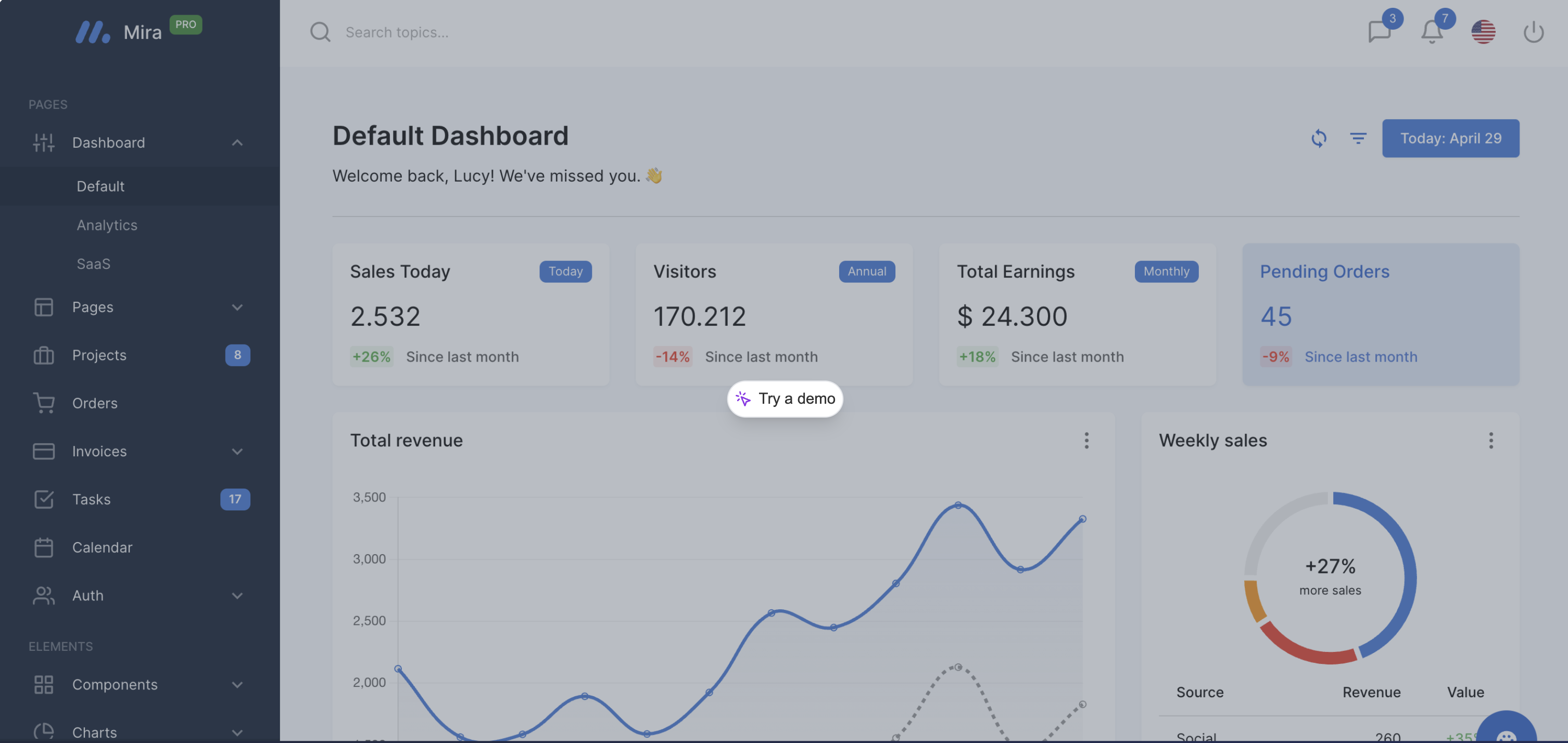
See how leading companies embed Navattic demos on their websites:
Pop-up embed on an academy page
Inline embed on homepage
Inline embed on dedicated tour page
 **Disable pre-loading demo**
The pop-up demo embed preloads the demo on the page so that it loads instantly when the visitor opens it. This behavior can be undesirable in some situations like, for example, when there are many demos on a page.
To disable this behavior, add the `data-navattic-preload="false"` data attribute to the button that is opening the demo.
**Control lifecycle of the embed with Javascript**
The default embed code for the lazy-load and pop-up embed types use HTML in order to make the embed process as simple as possible. If more control over the initialization and loading of the embed is required, the embeds.js script includes the Javascript class, `NavatticEmbed` which includes a few methods that can be helpful for controlling the lifecycle of the embed elements:
* `NavatticEmbed.loadEmbeds()`: initializes all lazy-load embeds on the page
* `NavatticEmbed.initPopup(
**Disable pre-loading demo**
The pop-up demo embed preloads the demo on the page so that it loads instantly when the visitor opens it. This behavior can be undesirable in some situations like, for example, when there are many demos on a page.
To disable this behavior, add the `data-navattic-preload="false"` data attribute to the button that is opening the demo.
**Control lifecycle of the embed with Javascript**
The default embed code for the lazy-load and pop-up embed types use HTML in order to make the embed process as simple as possible. If more control over the initialization and loading of the embed is required, the embeds.js script includes the Javascript class, `NavatticEmbed` which includes a few methods that can be helpful for controlling the lifecycle of the embed elements:
* `NavatticEmbed.loadEmbeds()`: initializes all lazy-load embeds on the page
* `NavatticEmbed.initPopup(