> ## Documentation Index
> Fetch the complete documentation index at: https://docs.navattic.com/llms.txt
> Use this file to discover all available pages before exploring further.
# Outbound
> Send demos in outbound email to book more meetings.
export const Email = ({title = 'Email', children}) => {
return ;
};
Interactive demos can be a powerful asset for **Outbound** by driving engagement and increasing booked meetings. By sending demos to prospects, you can shorten sales cycles by providing hands-on access early in the buying process.
Sales reps responsible for development (SDRs, BDRs) can send demos to a broader list of prospects to quickly identify who is actively engaging and interested in learning more about the product or service. This approach helps prioritize follow-up with the most qualified leads.
## What to send prospects
When reaching out cold, craft a short, personalized email that introduces the demo, includes clear instructions on how to view it, and sets expectations around time investment (e.g., “This interactive demo takes just 3–5 minutes to explore”).
Position the demo as a quick way to get a feel for the product’s value—no meeting required.
**Subject**: 3 minute \{Company} demo
**Hi \{First Name}**,
How are you handling \{Challenge} today?
Wanted to share a 3 minute product demo so you can see how \{Product} can help.
Open to learning more?
**Sarah Almonds**
Business Development | Navattic
I saw that you've had a chance to look at the demo and that you are interested in \{Interest}.
Would it make sense to schedule a call to discuss this further? Here is my calendar link to book time to chat: \{Calendar link}.
#### If the prospect hasn’t viewed the demo
Encourage them to try the demo and offer assistance if they have any questions.
Just wanted to send a quick reminder to check out the demo I shared.
Let me know if you have any questions when you get the chance to check it out!
Following up is *essential* for outbounding -- for targeted outreach, set a reminder to **follow
up two days after sending a demo**.
## What to do when a prospect views the demo
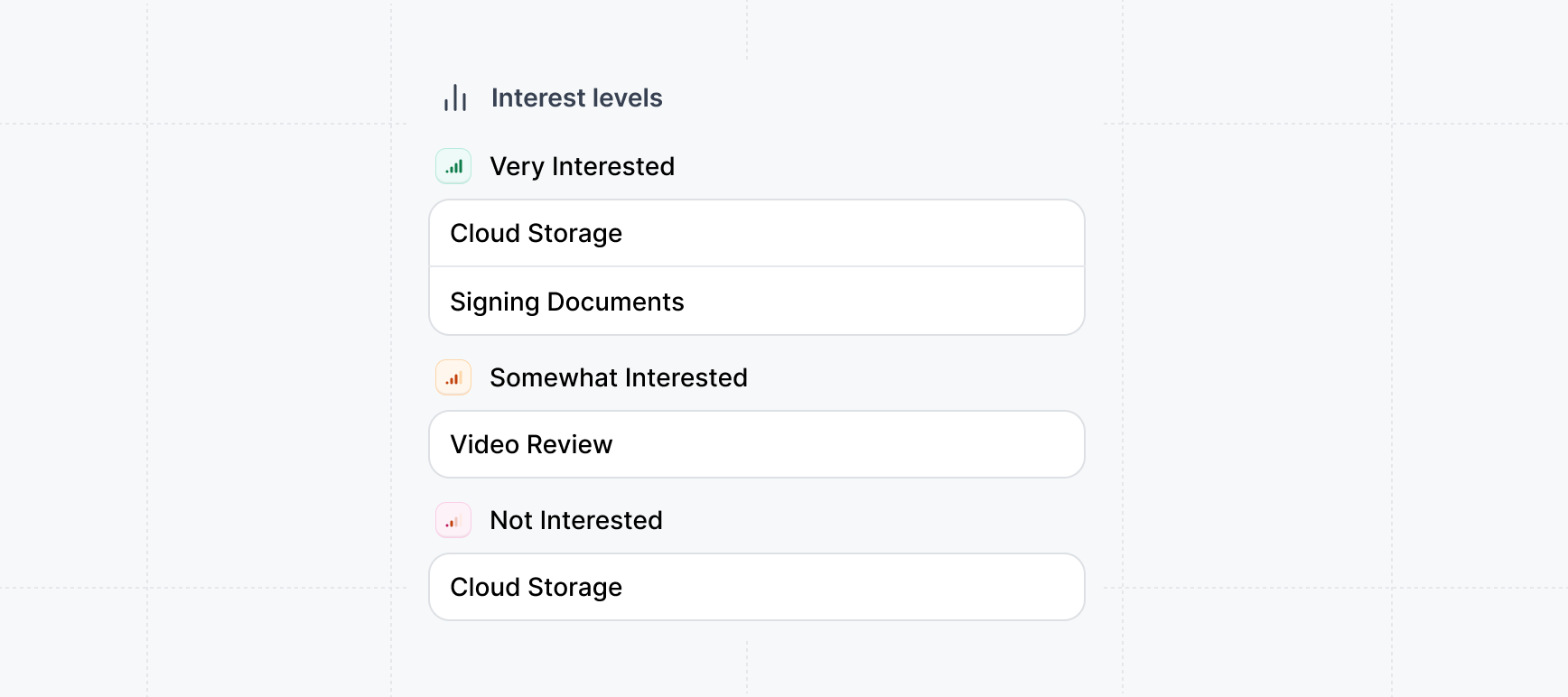
When a prospect views a demo, you'll receive an [Email alert](/launchpad/tracking/email-alerts) as soon as the session has ended. We recommend reaching out to the prospect as soon as you receive this alert either by phone or email. In the email, you'll receive insight of what the prospect is interested in. We recommend focusing your discussion on the prospect's selected interests.
 ## Example outbound plays
Looking for inspiration? Check out our example plays—like competitor takedowns, role-based personalization, or re-engaging churned customers—to spark ideas for your next outbound strategy. These approaches can help you tailor your outreach and stand out in the inbox.
Use Interactive demos to highlight features that previously lost or stalled deals.
## Example outbound plays
Looking for inspiration? Check out our example plays—like competitor takedowns, role-based personalization, or re-engaging churned customers—to spark ideas for your next outbound strategy. These approaches can help you tailor your outreach and stand out in the inbox.
Use Interactive demos to highlight features that previously lost or stalled deals.
**Subject**: We just shipped \{Feature name}
**Hi \{First Name}**,
Since we last spoke, we've shipped \{Feature name}, something I recall was critical to your team. Here's a short walkthrough in case it's worth revisiting:
Use Interactive demos to highlight how your product performs better than your competitors.
**Subject**: We just shipped \{Feature name}
**Hi \{First Name}**,
Thought you’d find this quick demo helpful—it shows how we stack up against \{Competitor} and where we tend to outperform.
* Different roles care about different aspects of your product, SEs want depth, PMMs want storytelling, Demand Gen wants conversions.
* For SEs: a demo that shows how the platform integrates, configures, or scales, i.e. technical proof points.
* For Product Marketing: a demo built to highlight a new feature or message launch, showcasing the story they want to tell.
* For Demand Gen: a short, conversion-focused demo that mirrors the website journey and encourages action.
Outbound to churned customers who churned due to: strategy fit, feature functionality, etc.
**Subject**: We just shipped \{Feature name}
**Hi \{First Name}**,
Teams that left and came back usually cite \{Feature name}, here’s a quick look at how the platform’s evolved since you last used it:
### Example outbound email templates
Try some of other example email templates for outbounding we created to get started. We recommend tailoring them to your product and use case.
**Subject**: Customized demo for \{Company}
**Hi \{First Name}**,
How are you handling \{Challenge} today?
Wanted to share a 3 minute product demo so you can see how \{Product} can help.
Open to learning more?
**Subject**: Interactive demo for \{Company} – no signup needed
**Hi \{First Name}**,
I saw a few people from \{Company} were spending time on our website.
I put together a quick interactive walkthrough of \{Product}—no login, no setup required.
It’s the fastest way to see if it’s a fit.
Open to learning more?
**Subject**: See how {Problem} gets solved in 2 minutes
**Hi \{First Name}**,
We built a quick interactive demo showing how {Product} helps teams like yours solve \{Problem}.
No slides or long videos—just click through and see it in action.
Open to scheduling a call?
**Subject**: A faster way to evaluate \{Product}
**Hi \{First Name}**,
Instead of booking time right away, here’s a quick hands-on demo. It’s an easy way to see what {Product} can do.
If it’s relevant, happy to chat: \{Calendar link}
**Subject**: Thought this demo might be relevant
**Hi \{First Name}**,
Given that you were looking at \{X} on our website, I put together this demo to show how {Product} can help teams like yours solve \{Problem}.
Takes less than 3 minutes to explore.
## Create templates for your emails
Once your happy with your copy, create email templates to save yourself time and effort when sending out emails.
Save email templates in your preferred email outbounding tool