> ## Documentation Index
> Fetch the complete documentation index at: https://docs.navattic.com/llms.txt
> Use this file to discover all available pages before exploring further.
# Monitoring activity
The Rep Activity and Demo Activity pages are visible to workspace admins and team managers. Standard Launchpad Reps do not see these pages. To grant a rep access, designate them as a [team manager](/workspace/teams#designating-a-manager).
Understanding how your team is using demos — and how prospects are engaging with them — is key to optimizing your sales motion. With tools like **Rep Activity** and **Demo Activity**, you can track which demos are being shared, who is sending them, and how they're performing.
Use these insights to identify reps who are driving strong engagement, uncover best practices, and coach your team more effectively. By keeping a close eye on demo activity, view rates, and stakeholder discovery, you can double down on what works and improve what doesn't.
## Rep Activity
You can monitor the activity of your sales reps sharing demos and receiving engagement by viewing **Rep Activity**.
Keep an eye on who is actively sending demos, generating views, and uncovering stakeholders. If a rep is performing exceptionally well, it's a great opportunity to learn from their approach and see if they have best practices that can be shared with the broader team.
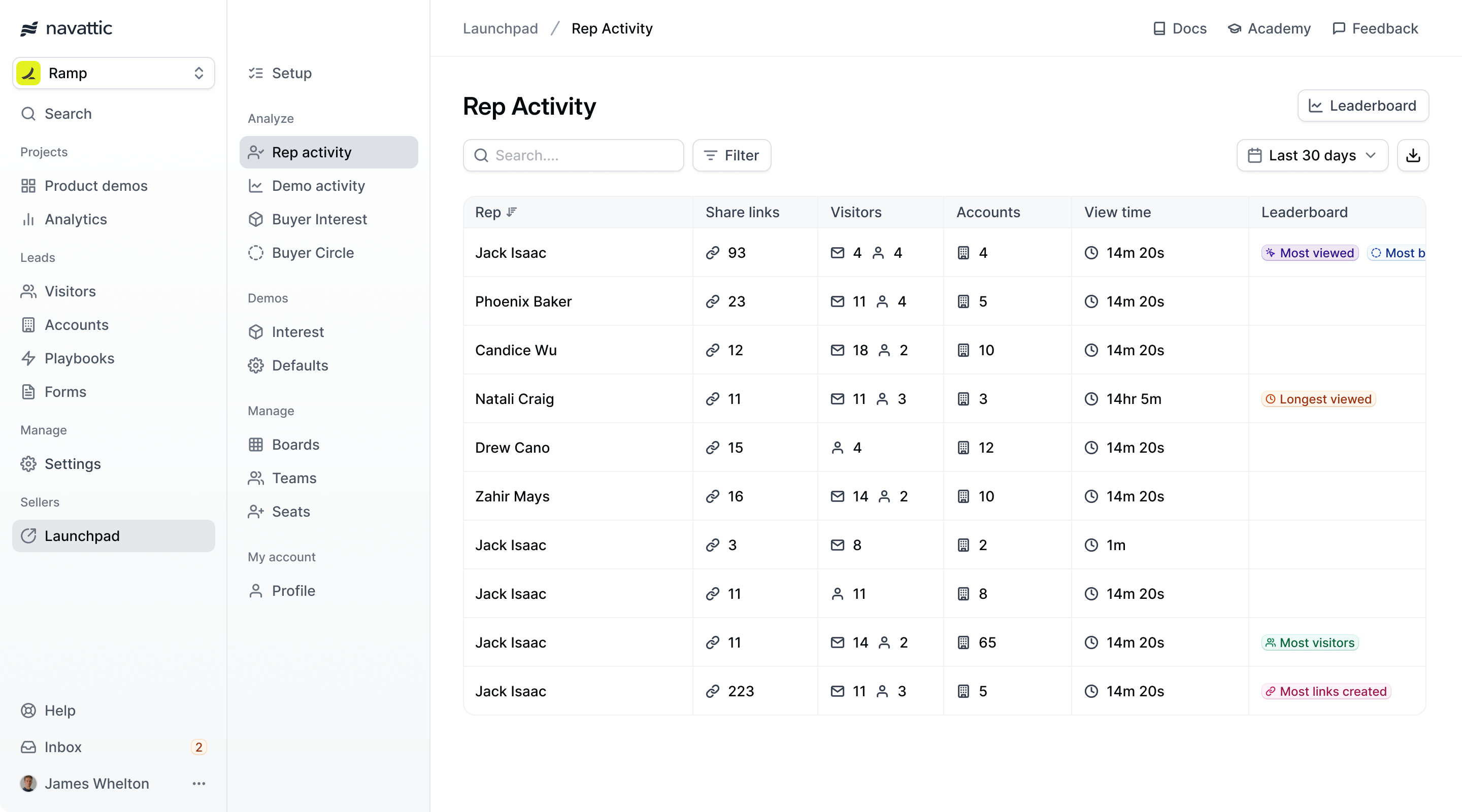 **Activity Benchmarks**: A good benchmark for each rep on a development team is sharing **50–60**
links per month. For closing teams, the number of links should be closer to **10–30**.
### Rep Leaderboard
**Rep Activity** has a Leaderboard that shows the top-performing demo of
different metrics such as `View time`, `Visitor count`, `Number of links created`, etc.
**Activity Benchmarks**: A good benchmark for each rep on a development team is sharing **50–60**
links per month. For closing teams, the number of links should be closer to **10–30**.
### Rep Leaderboard
**Rep Activity** has a Leaderboard that shows the top-performing demo of
different metrics such as `View time`, `Visitor count`, `Number of links created`, etc.
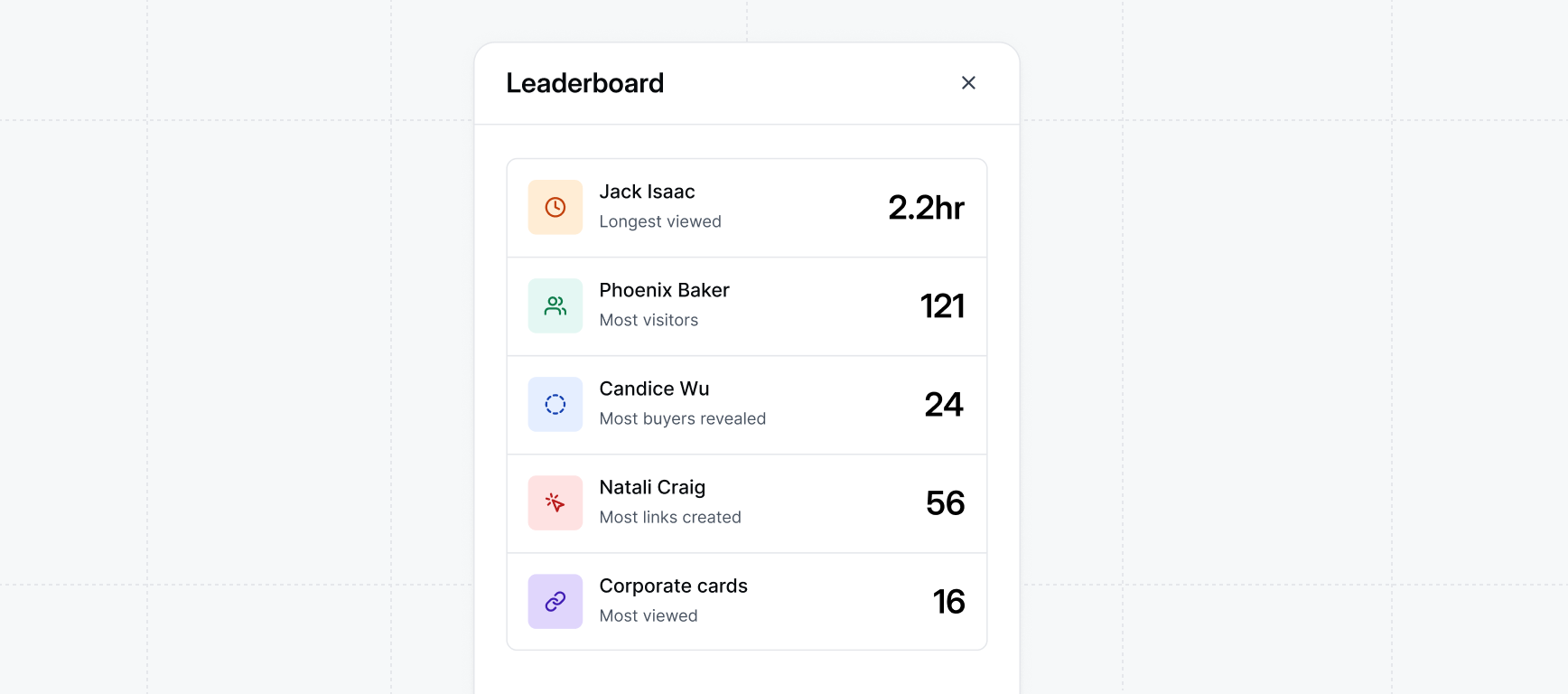 The **Rep Leaderboard** is a great way to gamify the process of reps sharing demos with prospects.
Consider sharing this leaderboard in a shared channel/email with your sales team.
## Demo Activity
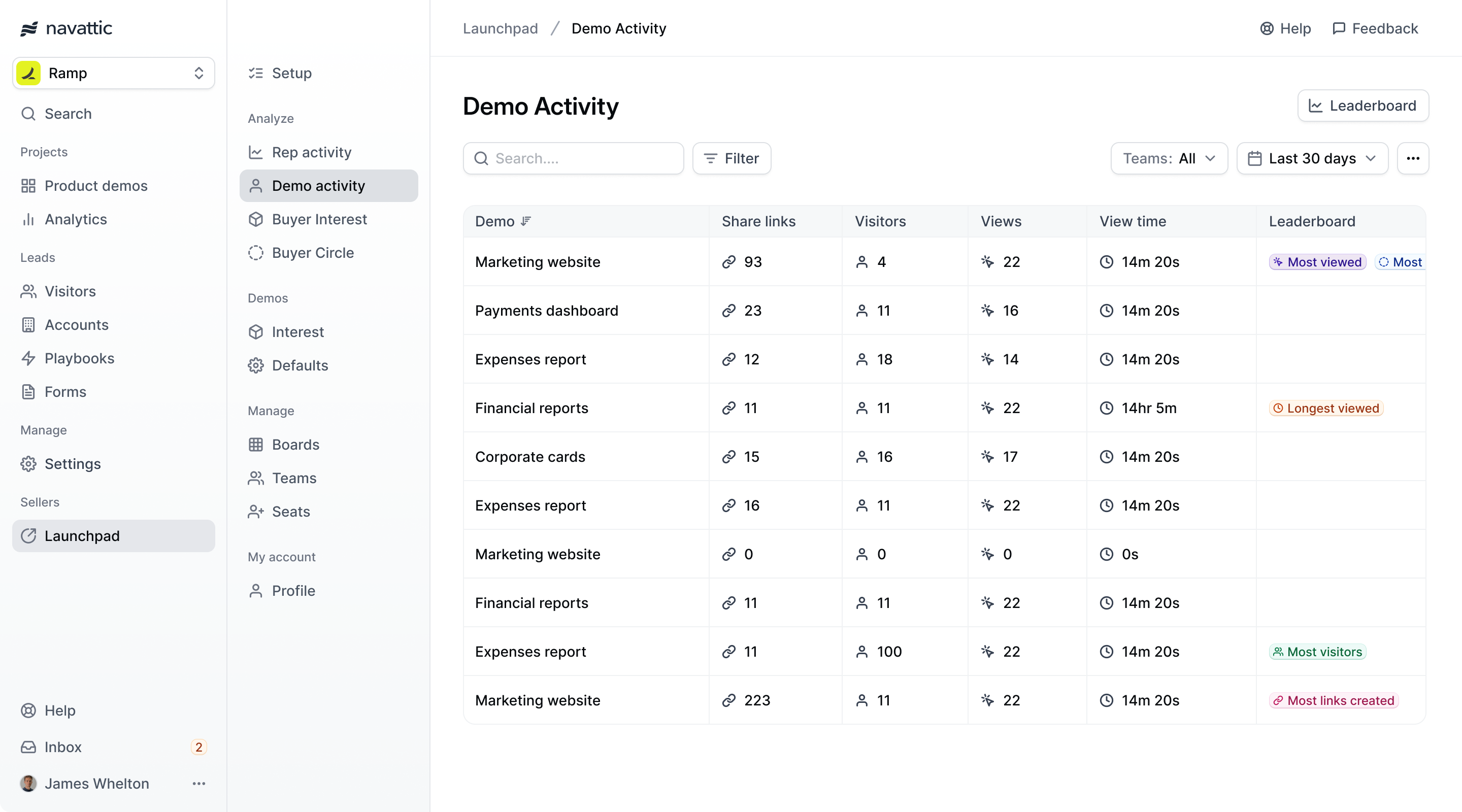
You can monitor which demos are being shared and see their performance by viewing
The **Rep Leaderboard** is a great way to gamify the process of reps sharing demos with prospects.
Consider sharing this leaderboard in a shared channel/email with your sales team.
## Demo Activity
You can monitor which demos are being shared and see their performance by viewing
**Demo Activity**.
Use this dashboard to understand which demos are being sent vs are not, identify top-performing demos, and uncover opportunities to coach reps or scale what's working.
 ### Demo Leaderboard
Similarily, **Demo Activity** has a Leaderboard that shows the top-performing demo of different metrics such as `View time`, `Visitor count`, `Number of links created`, etc.
{" "}
### Demo Leaderboard
Similarily, **Demo Activity** has a Leaderboard that shows the top-performing demo of different metrics such as `View time`, `Visitor count`, `Number of links created`, etc.
{" "}
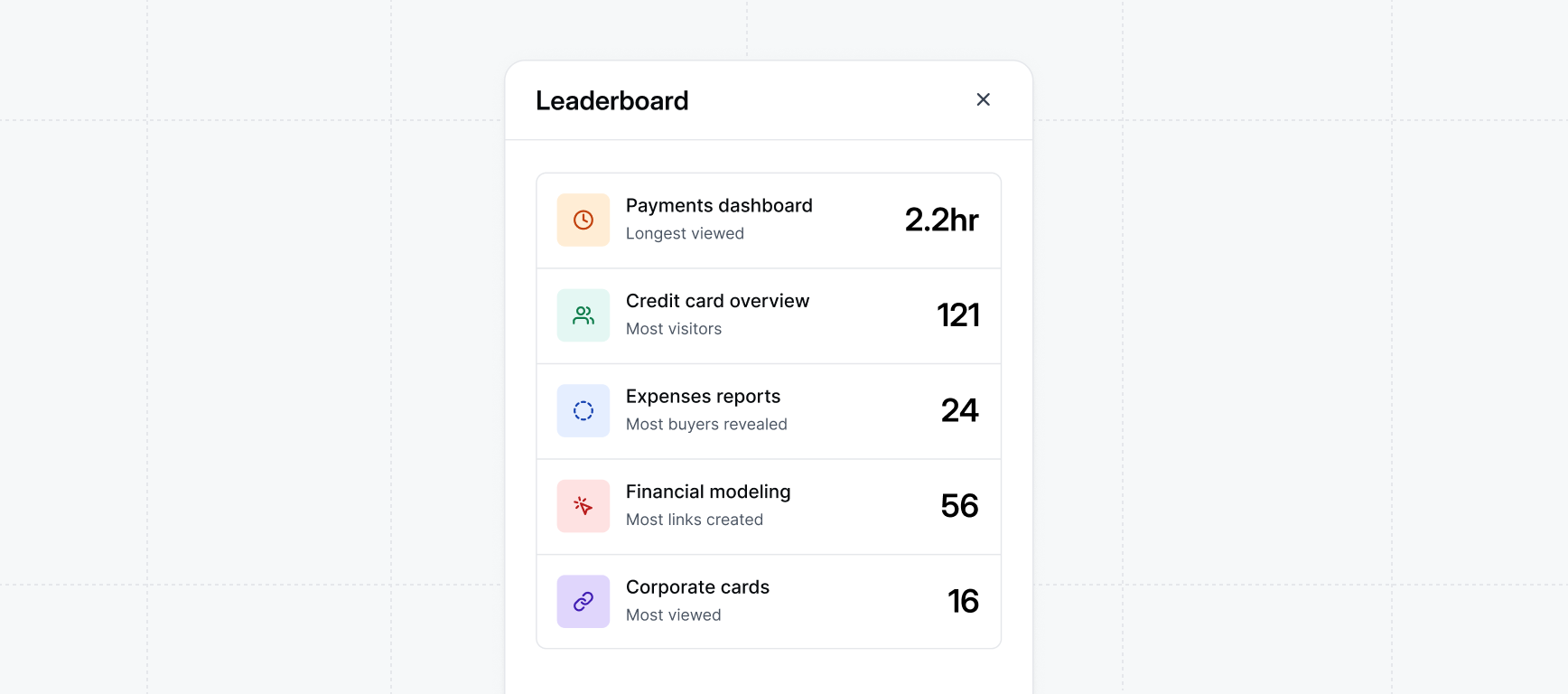 The **Demo Leaderboard** is a great tool to inform decision making around which demos to build
next or which existing demos should be improved upon.
**Congratulations** -- you've learned how to understand how your sales
team is using Launchpad through the **Rep Activity** and
**Demo Activity** Dashboards. We recommend checking in on this dashboard
weekly when you are setting up Launchpad. Sharing learnings with your team about what is working can
be a great way to motivate the team to continue sharing demos.
The **Demo Leaderboard** is a great tool to inform decision making around which demos to build
next or which existing demos should be improved upon.
**Congratulations** -- you've learned how to understand how your sales
team is using Launchpad through the **Rep Activity** and
**Demo Activity** Dashboards. We recommend checking in on this dashboard
weekly when you are setting up Launchpad. Sharing learnings with your team about what is working can
be a great way to motivate the team to continue sharing demos.