> ## Documentation Index
> Fetch the complete documentation index at: https://docs.navattic.com/llms.txt
> Use this file to discover all available pages before exploring further.
# Present demos
> Share and present Navattic demos during live calls
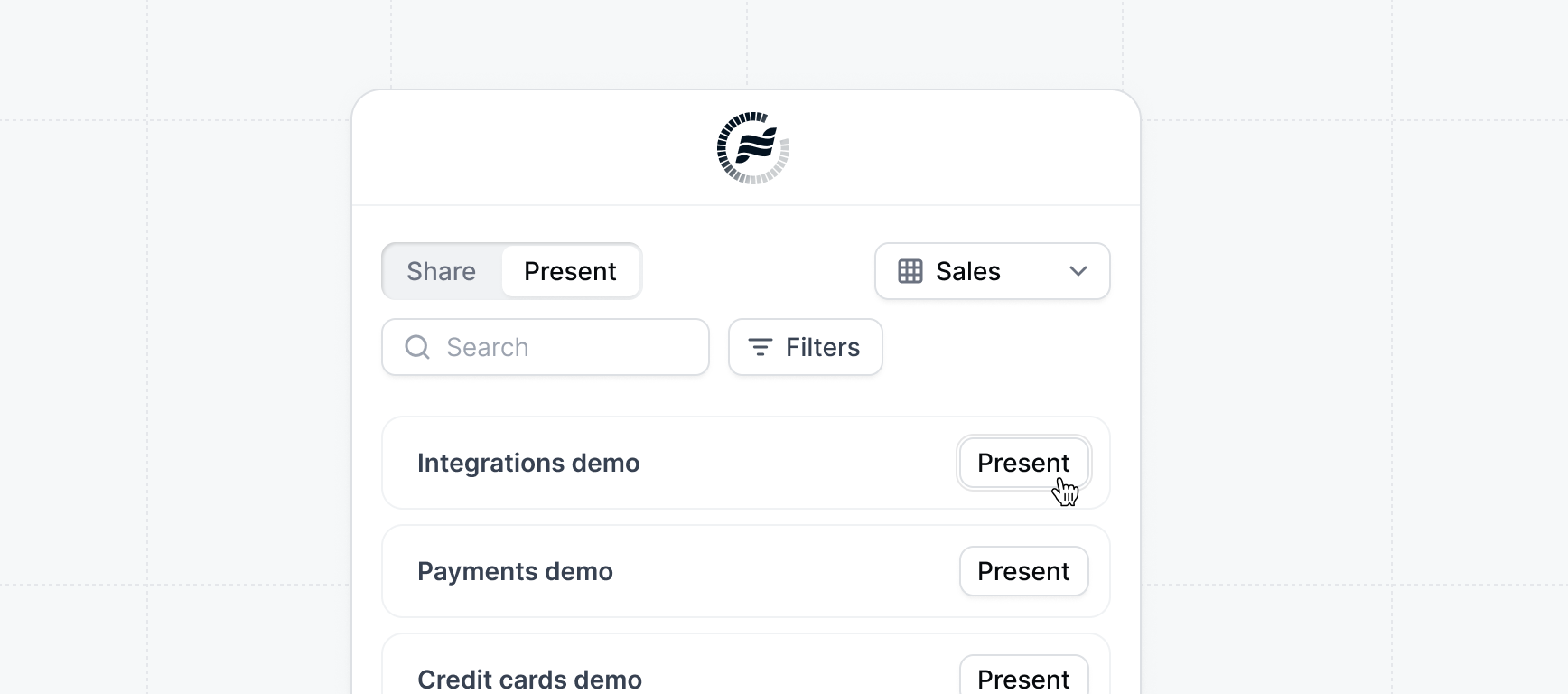 Navattic demos can be **presented** during live calls to provide an interactive, personalized experience that keeps prospects engaged.
With features like **Presenter Notes** to guide your pitch and **Salesforce opportunity connection** to track every demo, your team can deliver with confidence and tie presentations directly to pipeline impact.
## Specifying recipient
When you create a share link, you can choose to specify a **Company** with a `Company domain` or **Visitor** recipient with an `email`.
Navattic demos can be **presented** during live calls to provide an interactive, personalized experience that keeps prospects engaged.
With features like **Presenter Notes** to guide your pitch and **Salesforce opportunity connection** to track every demo, your team can deliver with confidence and tie presentations directly to pipeline impact.
## Specifying recipient
When you create a share link, you can choose to specify a **Company** with a `Company domain` or **Visitor** recipient with an `email`.
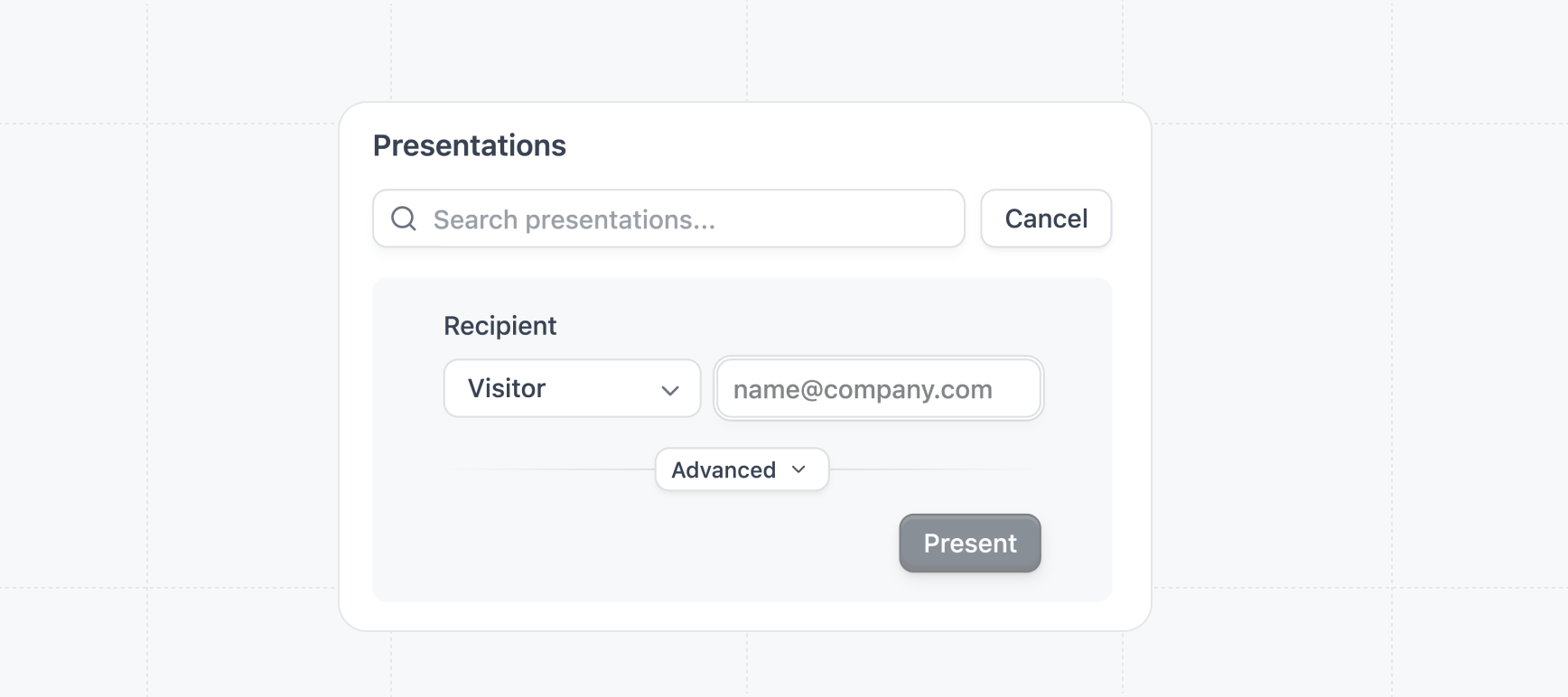 If you are presenting the demo to one recipient, the **Visitor** recipient is recommended. For
most use cases, we recommend sticking to the **Company** recipient.
## Presentation controls
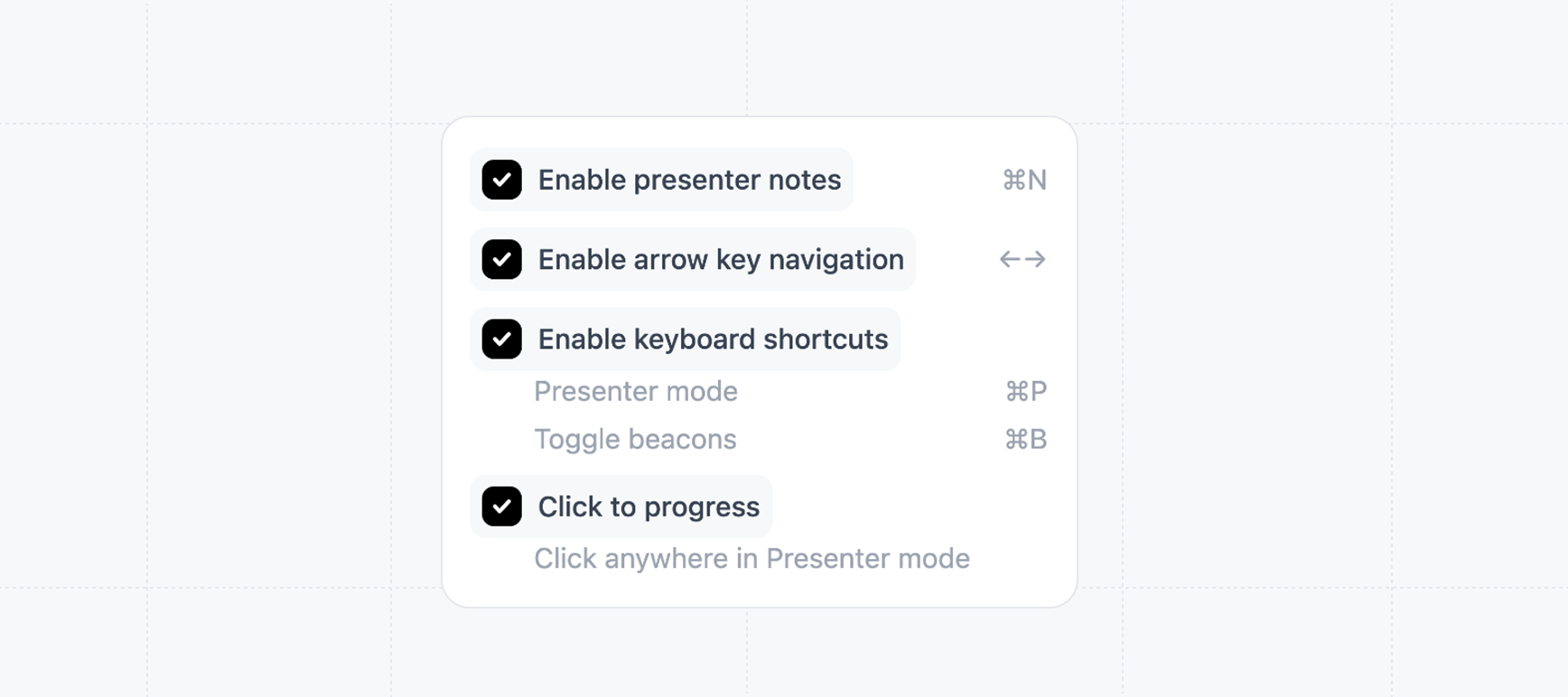
When presenting a demo, you can enable or disable additional controls to fit your live demo workflow:
If your workspace admin has disabled **Presentation customization**, these settings will appear greyed out and reflect your workspace defaults. Contact your admin to change the defaults or re-enable customization.
Use your keyboard's arrow keys (`← →`) to move smoothly forward and backward through demo steps. Presentation clickers that send **Page Up** and **Page Down** signals also work for navigation, making it easy to advance slides hands-free during an in-person or conference presentation.
When enabled, beacons start visible. Use `Ctrl+B` to toggle visibility during the presentation.
Turn on quick-access shortcuts to speed up navigation during a live call:
| Shortcut | Mac | Windows / Linux | What it does |
| --------------- | ---------------------- | ------------------- | ------------------------------- |
| Presenter mode | `Ctrl+P` or `Option+P` | `Ctrl+P` or `Alt+P` | Toggle presenter overlay on/off |
| Presenter notes | `Ctrl+N` or `Option+N` | `Ctrl+N` or `Alt+N` | Show or hide your speaker notes |
| Toggle beacons | `Ctrl+B` or `Option+B` | `Ctrl+B` or `Alt+B` | Show or hide all beacons |
Allow demo steps to advance with a simple click anywhere in Presenter mode, making live presentations more fluid and interactive.
Display your speaker notes alongside the demo so you can stay on track without switching screens.
If you are presenting the demo to one recipient, the **Visitor** recipient is recommended. For
most use cases, we recommend sticking to the **Company** recipient.
## Presentation controls
When presenting a demo, you can enable or disable additional controls to fit your live demo workflow:
If your workspace admin has disabled **Presentation customization**, these settings will appear greyed out and reflect your workspace defaults. Contact your admin to change the defaults or re-enable customization.
Use your keyboard's arrow keys (`← →`) to move smoothly forward and backward through demo steps. Presentation clickers that send **Page Up** and **Page Down** signals also work for navigation, making it easy to advance slides hands-free during an in-person or conference presentation.
When enabled, beacons start visible. Use `Ctrl+B` to toggle visibility during the presentation.
Turn on quick-access shortcuts to speed up navigation during a live call:
| Shortcut | Mac | Windows / Linux | What it does |
| --------------- | ---------------------- | ------------------- | ------------------------------- |
| Presenter mode | `Ctrl+P` or `Option+P` | `Ctrl+P` or `Alt+P` | Toggle presenter overlay on/off |
| Presenter notes | `Ctrl+N` or `Option+N` | `Ctrl+N` or `Alt+N` | Show or hide your speaker notes |
| Toggle beacons | `Ctrl+B` or `Option+B` | `Ctrl+B` or `Alt+B` | Show or hide all beacons |
Allow demo steps to advance with a simple click anywhere in Presenter mode, making live presentations more fluid and interactive.
Display your speaker notes alongside the demo so you can stay on track without switching screens.
 ## Presenter notes
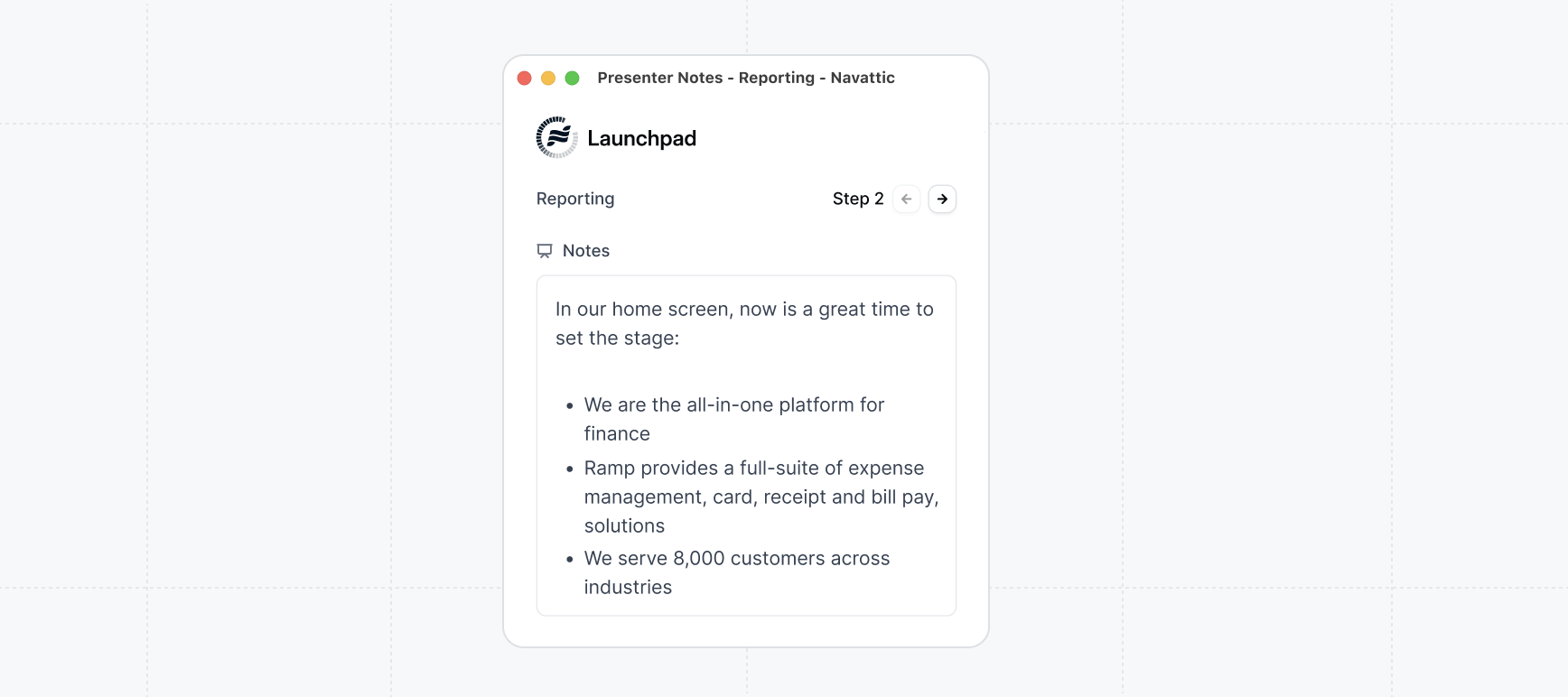
Presenter notes let you add talking points to each step of your demo so you can stay on message during live presentations. These notes are visible only to the presenter, giving your team confidence and consistency without distracting the prospect.
## Presenter notes
Presenter notes let you add talking points to each step of your demo so you can stay on message during live presentations. These notes are visible only to the presenter, giving your team confidence and consistency without distracting the prospect.
 ## Salesforce Opportunity
When creating a presentation, you can connect a Salesforce Opportunity to associate the demo with a specific deal and track which demos are being shown to each opportunity.
## Salesforce Opportunity
When creating a presentation, you can connect a Salesforce Opportunity to associate the demo with a specific deal and track which demos are being shown to each opportunity.
 If you open Launchpad from a Salesforce Opportunity page, the Opportunity field is automatically pre-filled with the current opportunity. This auto-fill persists when you create additional presentations from the same page — you don't need to re-select the opportunity each time.
## Manage present defaults
To standardize the present settings across your workspace, you can set default values for the share settings.
Standardize the demo sharing settings across your workspace
If you open Launchpad from a Salesforce Opportunity page, the Opportunity field is automatically pre-filled with the current opportunity. This auto-fill persists when you create additional presentations from the same page — you don't need to re-select the opportunity each time.
## Manage present defaults
To standardize the present settings across your workspace, you can set default values for the share settings.
Standardize the demo sharing settings across your workspace