> ## Documentation Index
> Fetch the complete documentation index at: https://docs.navattic.com/llms.txt
> Use this file to discover all available pages before exploring further.
# Sharing demos
> Sharing demos from Launchpad.
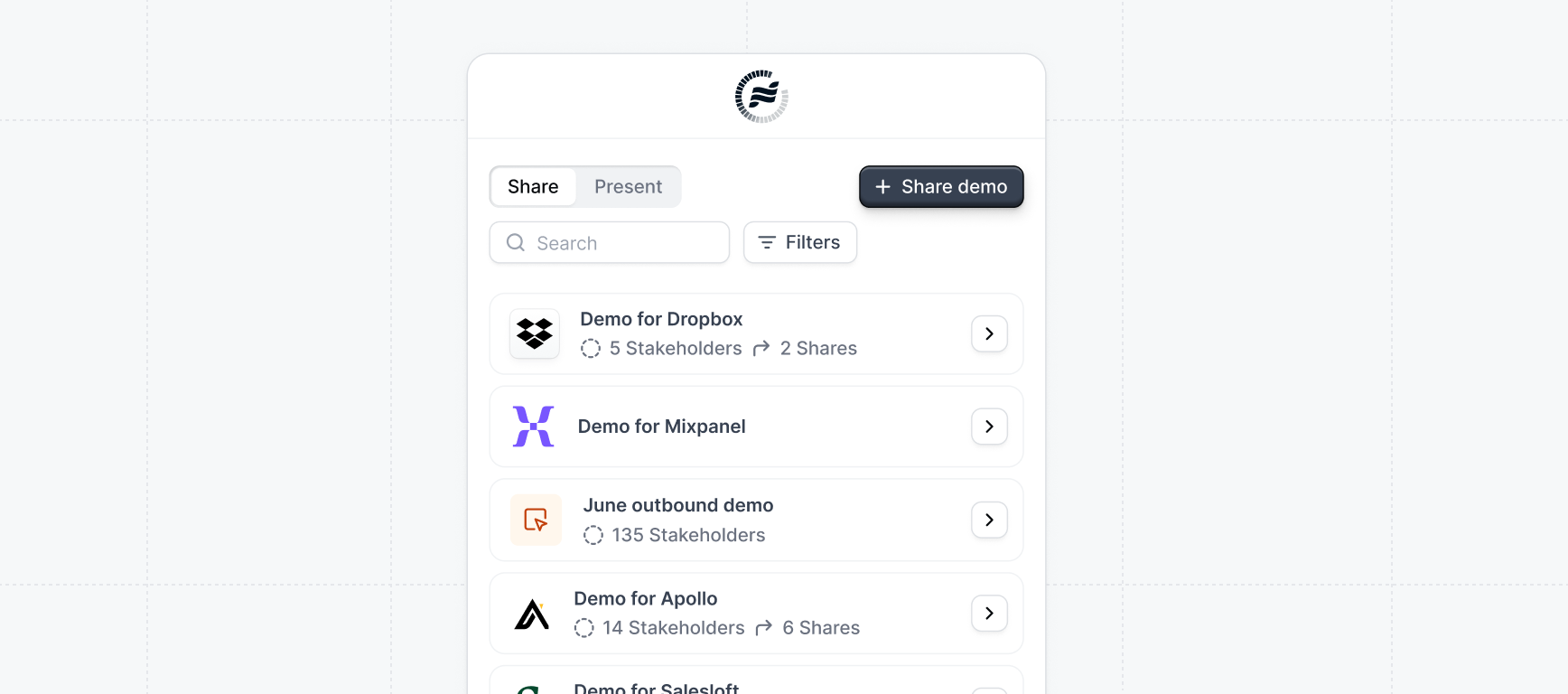 Give every prospect a demo that feels built just for them. Launchpad makes it effortless for reps to share personalized, high-impact demos that speak directly to each buyer's needs.
Follow these steps to learn how to **share demos** with prospects that unlock interest and reveal new stakeholders:
## How to share demos
Give every prospect a demo that feels built just for them. Launchpad makes it effortless for reps to share personalized, high-impact demos that speak directly to each buyer's needs.
Follow these steps to learn how to **share demos** with prospects that unlock interest and reveal new stakeholders:
## How to share demos
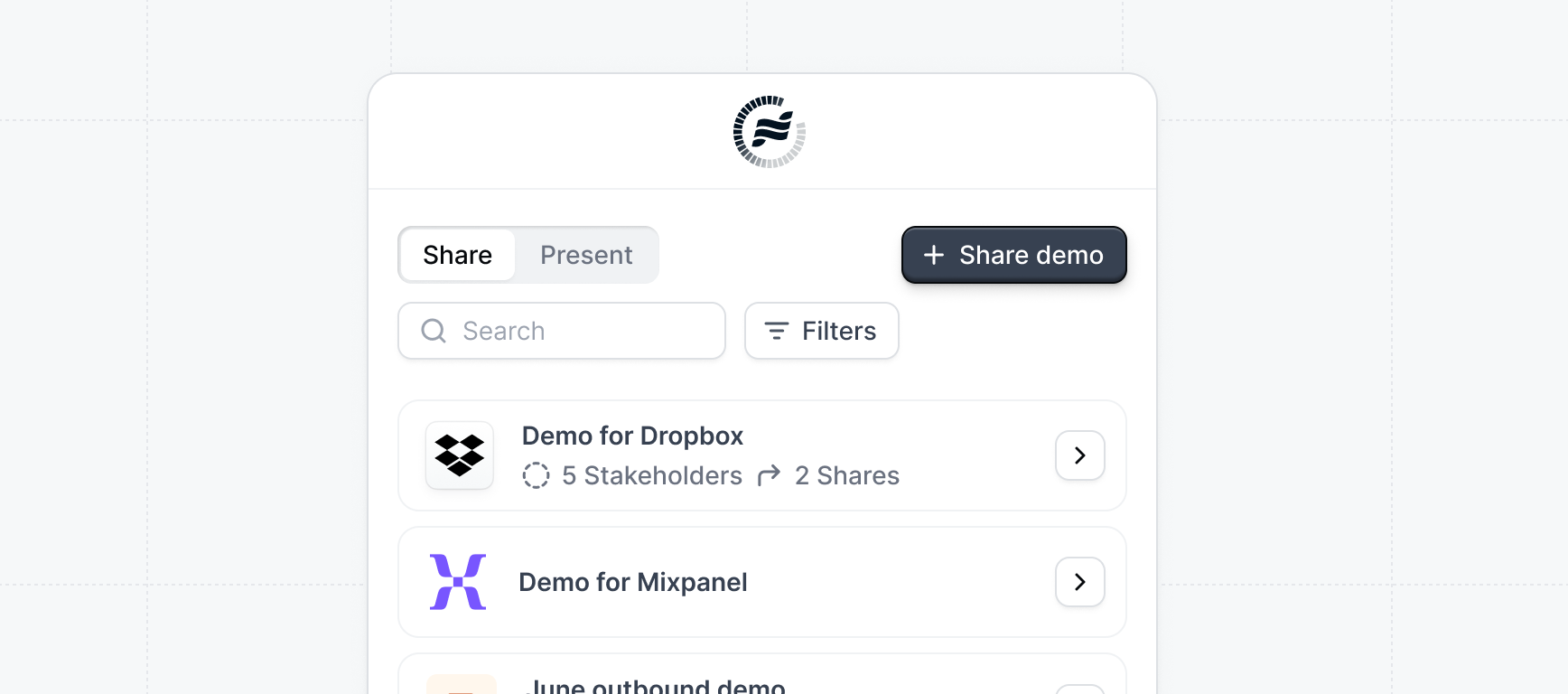 **Sharing demos** through Launchpad is designed to be as frictionless as possible and meet your sales reps in the tools they already use.
The most convient way to share a demo is through the extension which will follow you anywhere on the web. To get started, click the
**Sharing demos** through Launchpad is designed to be as frictionless as possible and meet your sales reps in the tools they already use.
The most convient way to share a demo is through the extension which will follow you anywhere on the web. To get started, click the  [Launchpad extension](/launchpad/invite/launchpad-extension) in your browser and click `+ Share demo`.
**Other places to share demos from:**
Quickly create and send demos seamlessly while you're drafting emails to prospects. Follow the instructions on these pages to get started using these email client integrations:
} />
} />
} />
} />
} title="Share a demo from the Launchpad app">
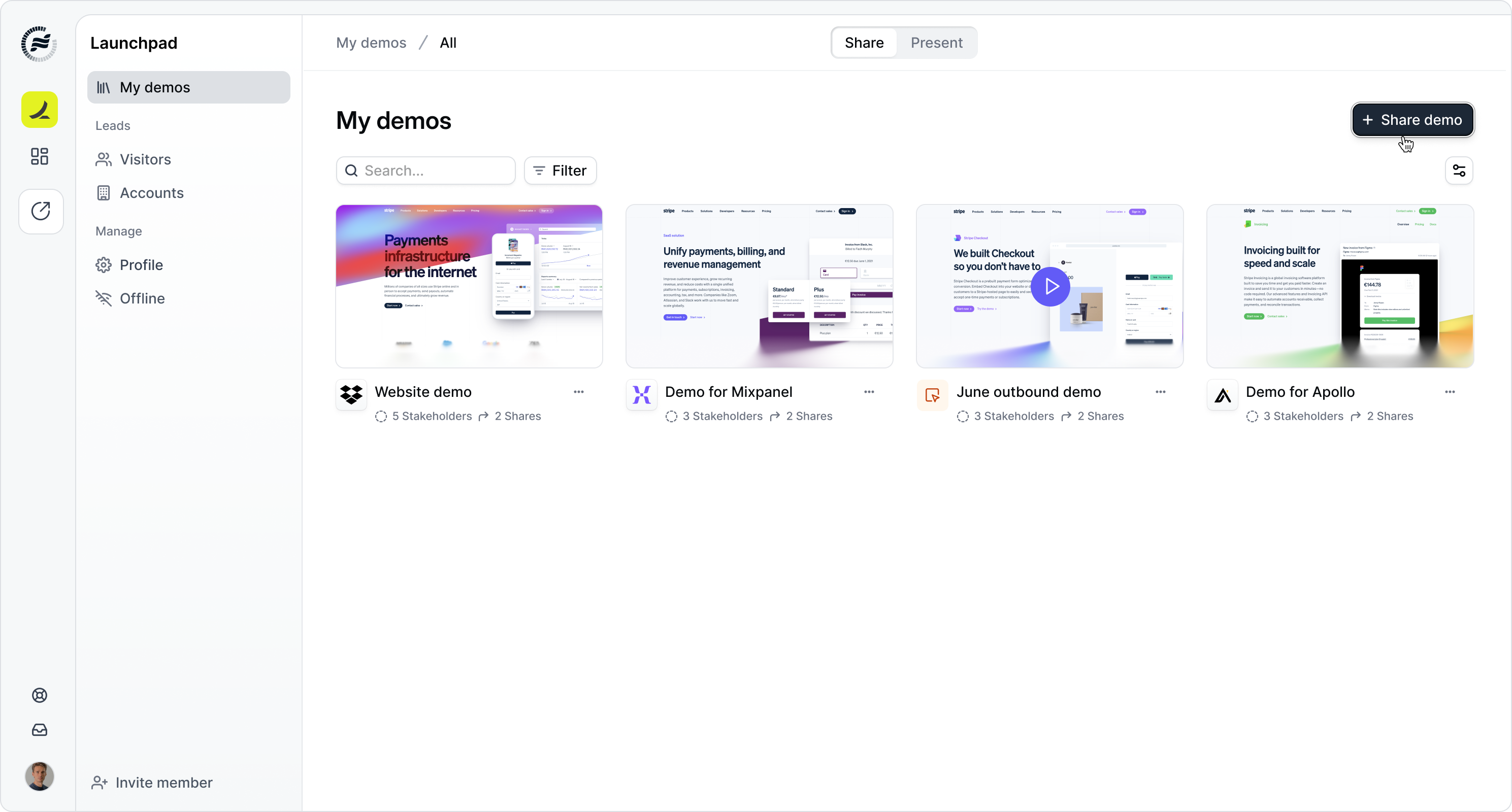
On the **My demos** page in the Launchpad app click `+ Share demo`.
[Launchpad extension](/launchpad/invite/launchpad-extension) in your browser and click `+ Share demo`.
**Other places to share demos from:**
Quickly create and send demos seamlessly while you're drafting emails to prospects. Follow the instructions on these pages to get started using these email client integrations:
} />
} />
} />
} />
} title="Share a demo from the Launchpad app">
On the **My demos** page in the Launchpad app click `+ Share demo`.
 With the Launchpad extension, you can also share demos from:
} />
With the Launchpad extension, you can also share demos from:
} />
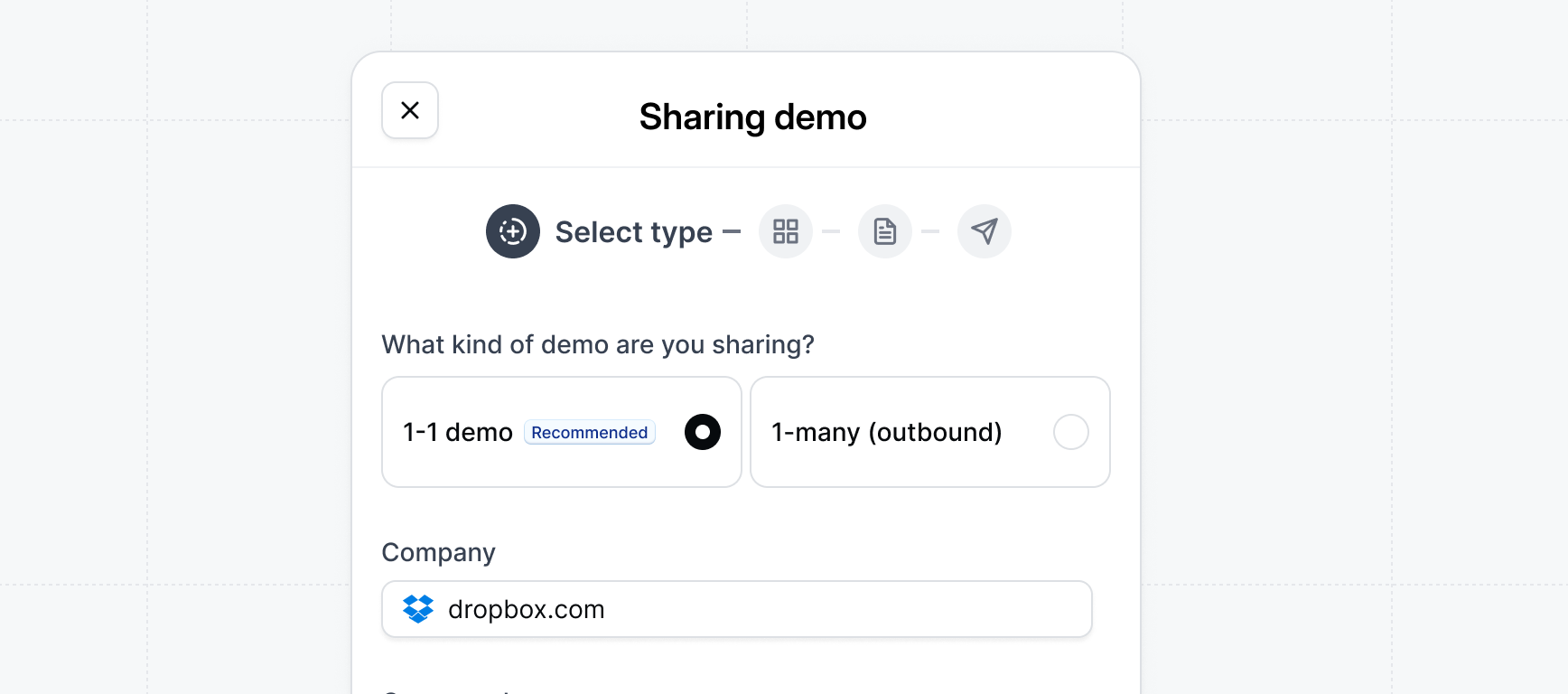 Next, choose the **type of demo** you want to share to match how you're engaging with your prospect.
There are two types of demos sales reps can share:
Specify the **company domain** you are sharing the demo with. This will be used for personalizing the demo with relevant content and for tracking purposes.
In most cases, we recommend sharing **1-1 demos** as this allows you to share more relevant content for each deal and better track engagement.
Company is required by default. If your workspace admin has made Company optional in Launchpad settings, you can leave it blank. When Company is left empty, the recipient email-domain gate is automatically disabled for that link.
1-many demos are intended to be used when you are sharing with multiple prospects / companies (ex in an outbound campaign).
} title="Add Salesforce Opportunity">
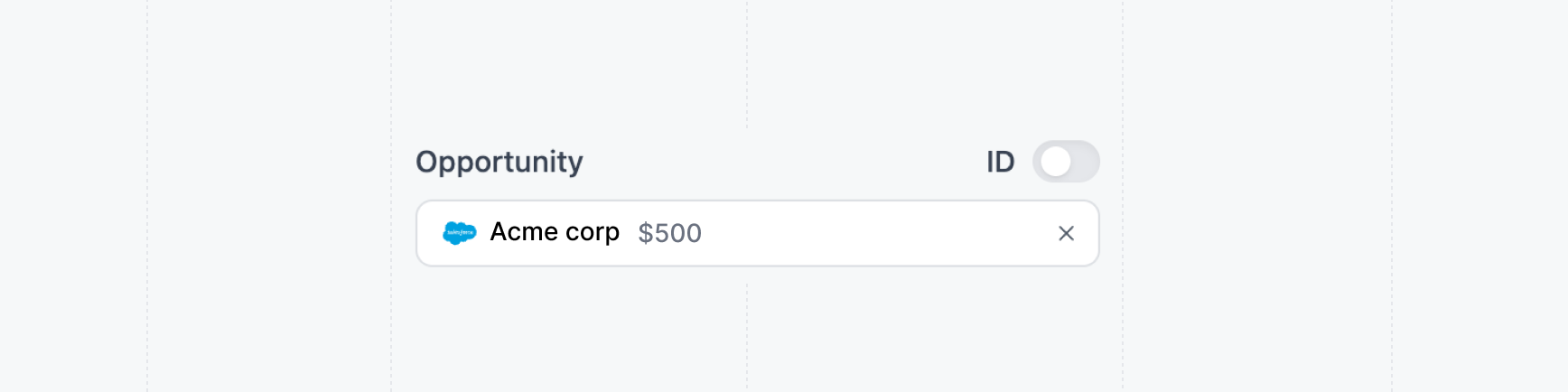
When sharing a demo, you can also include a **Salesforce Opportunity**. This will associate the demo with a specific opportunity in Salesforce, allowing you to track the demo's performance and engagement within the context of the opportunity.
Next, choose the **type of demo** you want to share to match how you're engaging with your prospect.
There are two types of demos sales reps can share:
Specify the **company domain** you are sharing the demo with. This will be used for personalizing the demo with relevant content and for tracking purposes.
In most cases, we recommend sharing **1-1 demos** as this allows you to share more relevant content for each deal and better track engagement.
Company is required by default. If your workspace admin has made Company optional in Launchpad settings, you can leave it blank. When Company is left empty, the recipient email-domain gate is automatically disabled for that link.
1-many demos are intended to be used when you are sharing with multiple prospects / companies (ex in an outbound campaign).
} title="Add Salesforce Opportunity">
When sharing a demo, you can also include a **Salesforce Opportunity**. This will associate the demo with a specific opportunity in Salesforce, allowing you to track the demo's performance and engagement within the context of the opportunity.
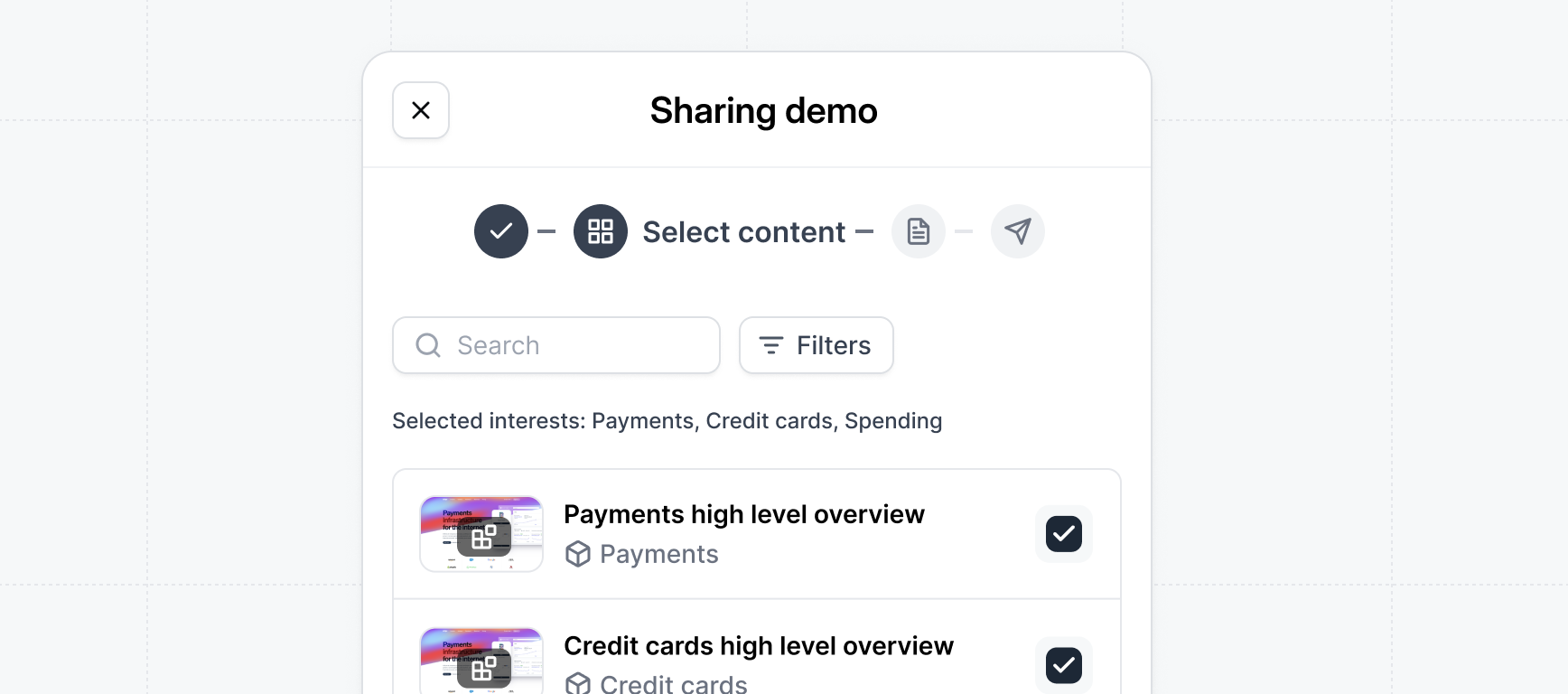 **Selecting content** to craft a demo that resonates with your prospect. Choose the most relevant content to highlight the features and value that matter most to them.
Assemble the content of your demo by selecting flows or select an existing standard demo.
Already know what the prospect is interested in from a demo request form or previous call? Filter by those interests to select flows.
**Selecting content** to craft a demo that resonates with your prospect. Choose the most relevant content to highlight the features and value that matter most to them.
Assemble the content of your demo by selecting flows or select an existing standard demo.
Already know what the prospect is interested in from a demo request form or previous call? Filter by those interests to select flows.
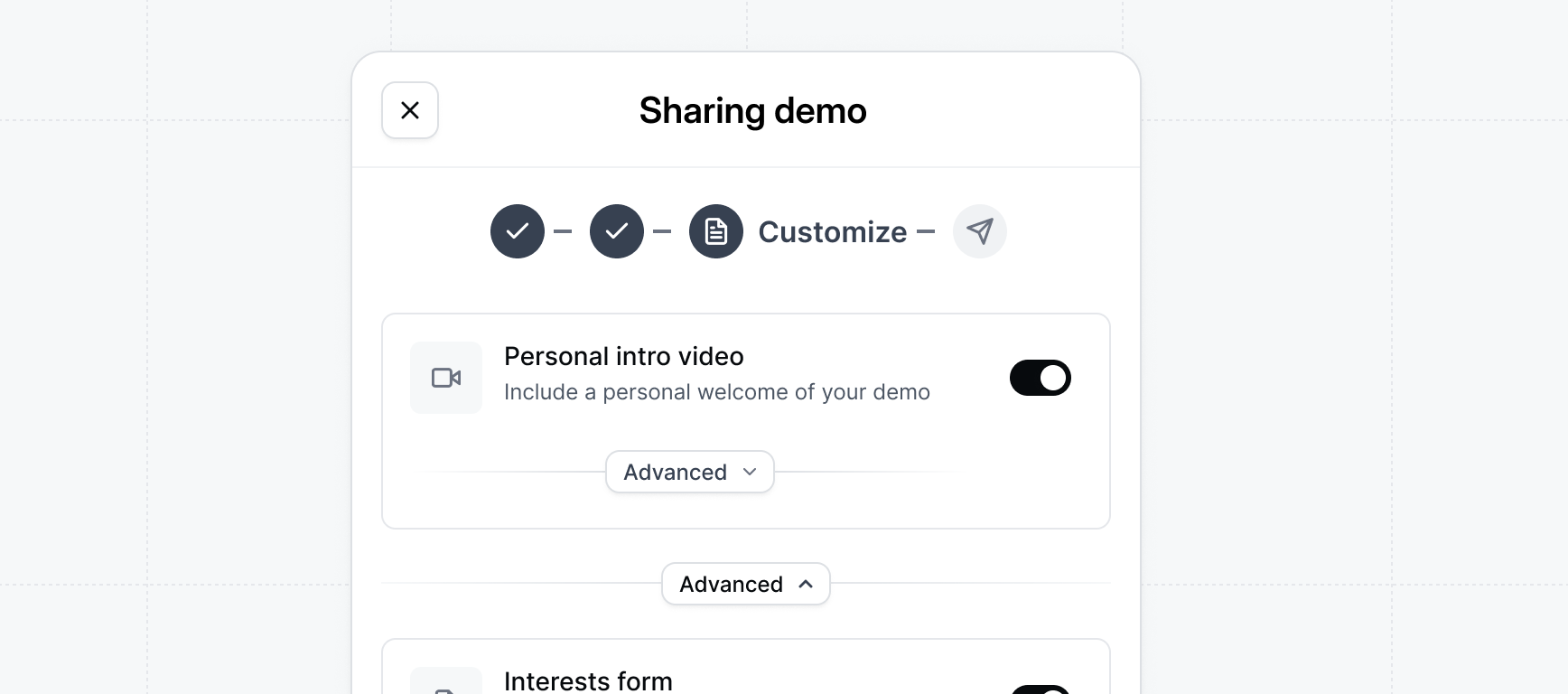 Make your demo feel personal and relevant by **customizing the settings**. Add an intro video, supporting resources, and engagement options to create a tailored experience for every prospect.
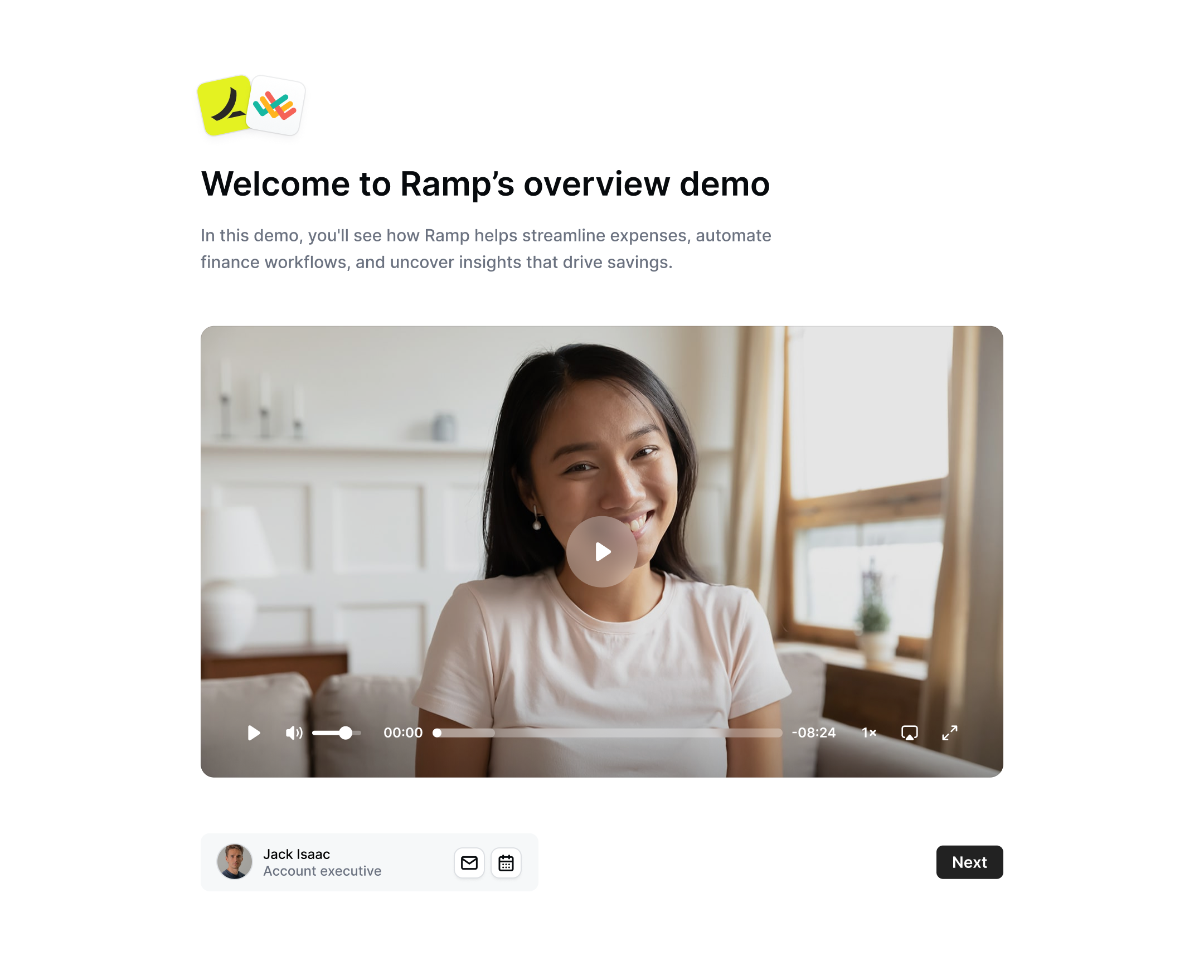
Include a personal welcome of your demo to add a personal touch for the prospect.
To make it feel personalized you could refer to the prospect by name, reference specific talking points from a previous conversation, or generally get them excited about what they are about to see.
Make your demo feel personal and relevant by **customizing the settings**. Add an intro video, supporting resources, and engagement options to create a tailored experience for every prospect.
Include a personal welcome of your demo to add a personal touch for the prospect.
To make it feel personalized you could refer to the prospect by name, reference specific talking points from a previous conversation, or generally get them excited about what they are about to see.
 **Advanced settings**
Customize the settings of the interests form.
**Advanced settings**
Customize the settings of the interests form.
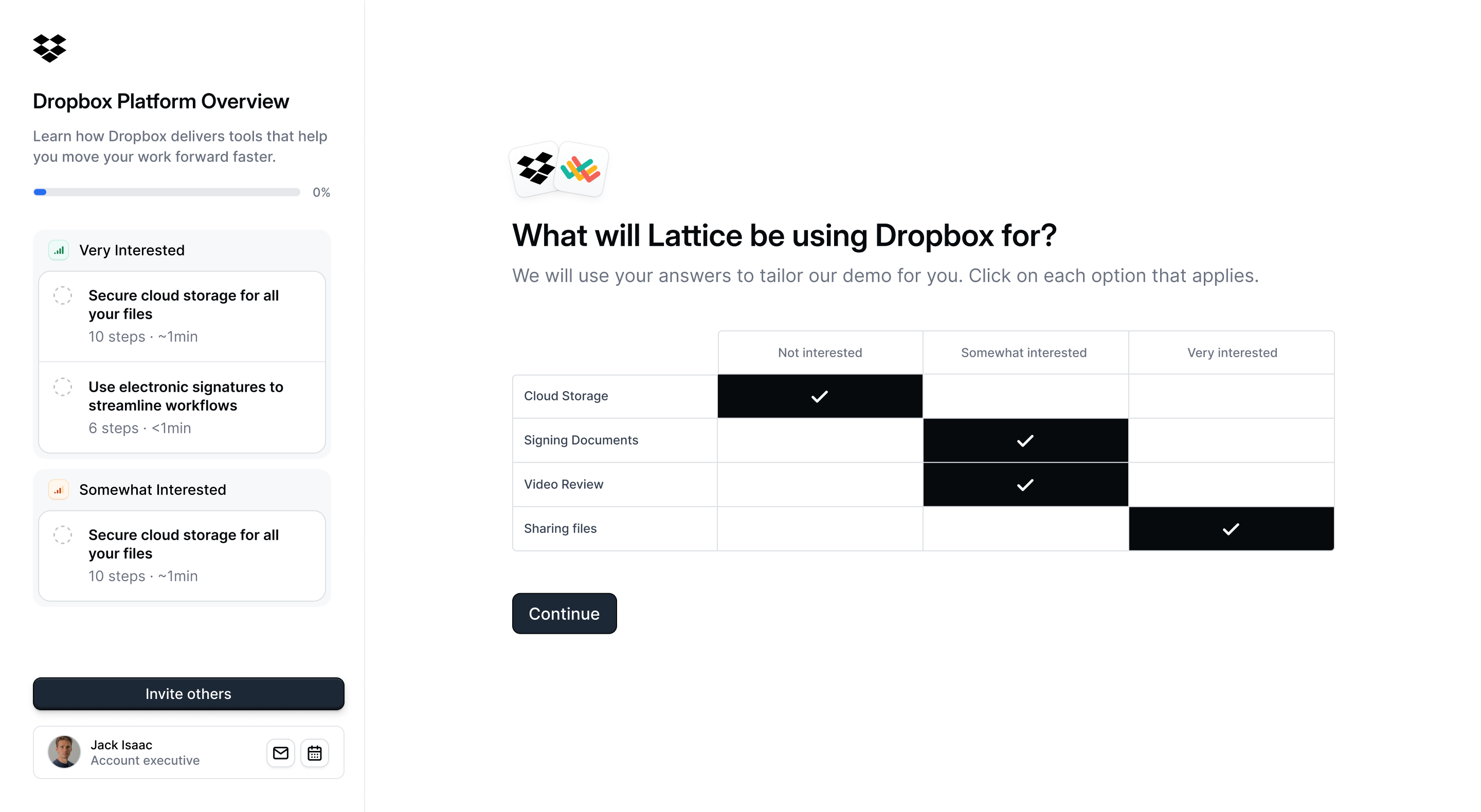 Unlock a powerful insight - what features prospects are interested in seeing.
Include additional files inside of the demo with a CTA button for the button to download them.
These could be additional slide decks, custom pricing quotes, or other deal room material.
Unlock a powerful insight - what features prospects are interested in seeing.
Include additional files inside of the demo with a CTA button for the button to download them.
These could be additional slide decks, custom pricing quotes, or other deal room material.
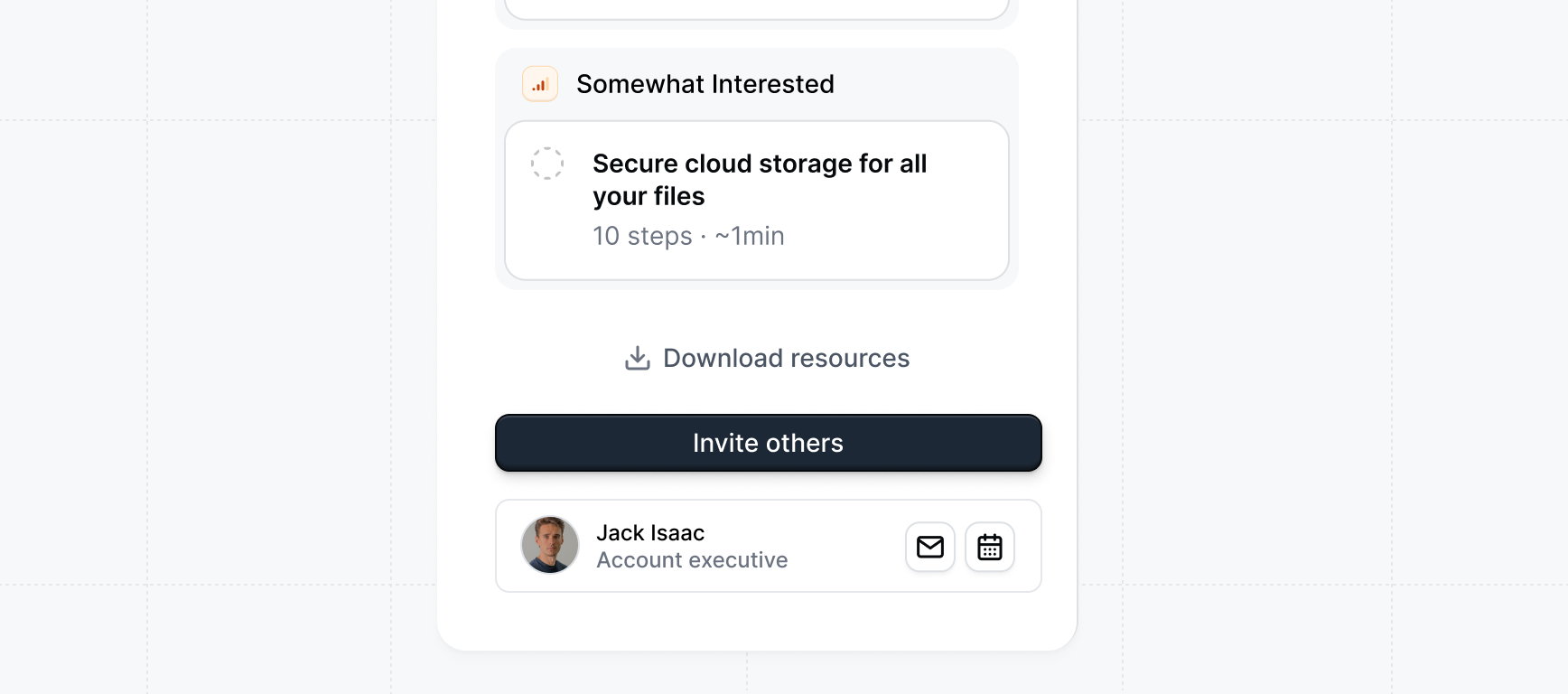 Customize the URL path of the demo. For example you could personalize it with the company name eg `mycompany.navattic.com/yourcompany`
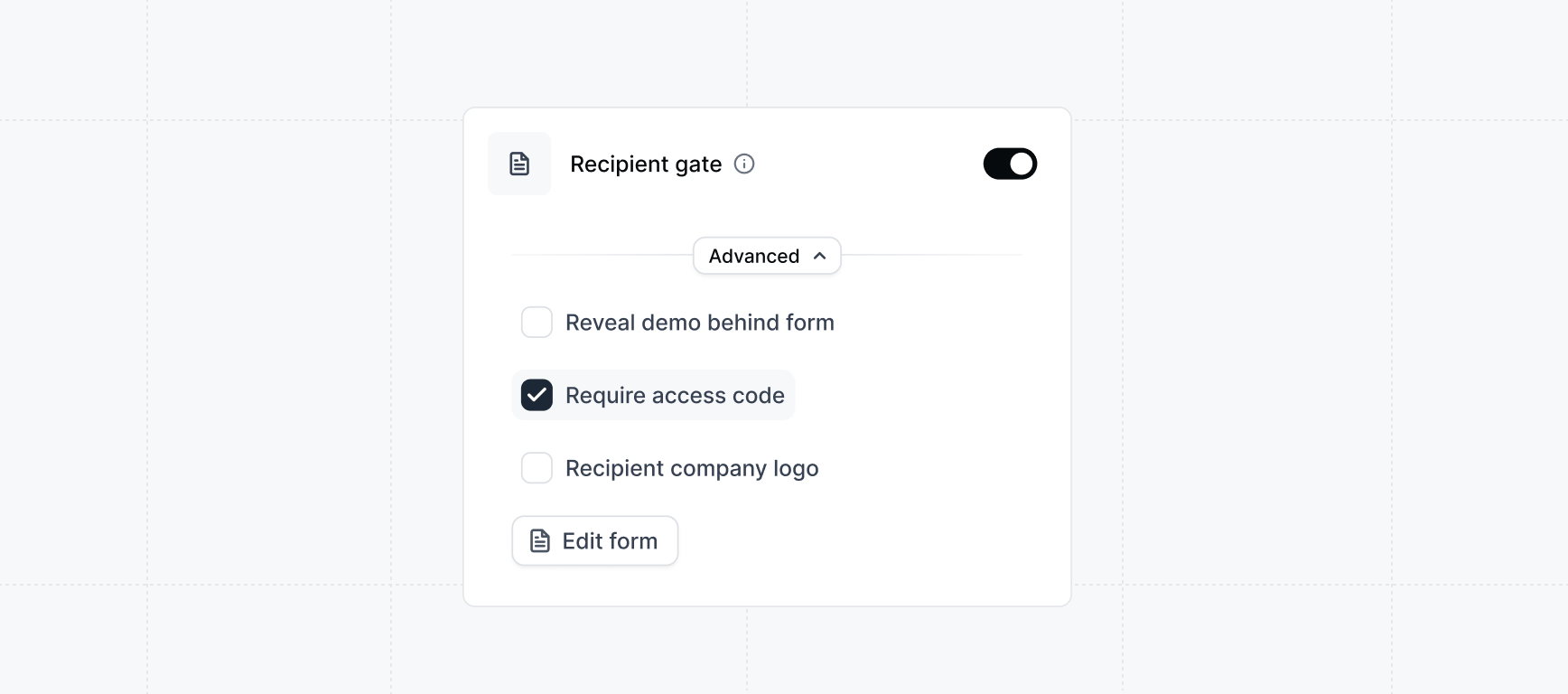
Require visitors to provide information before accessing the demo. This allows you to verify the receiver of the demo and receive insight about engaged stakeholders.
We recommend using the **Recipient name form** to increase the personalized-feel of the demo and unlocking more stakeholders.
Customize the URL path of the demo. For example you could personalize it with the company name eg `mycompany.navattic.com/yourcompany`
Require visitors to provide information before accessing the demo. This allows you to verify the receiver of the demo and receive insight about engaged stakeholders.
We recommend using the **Recipient name form** to increase the personalized-feel of the demo and unlocking more stakeholders.
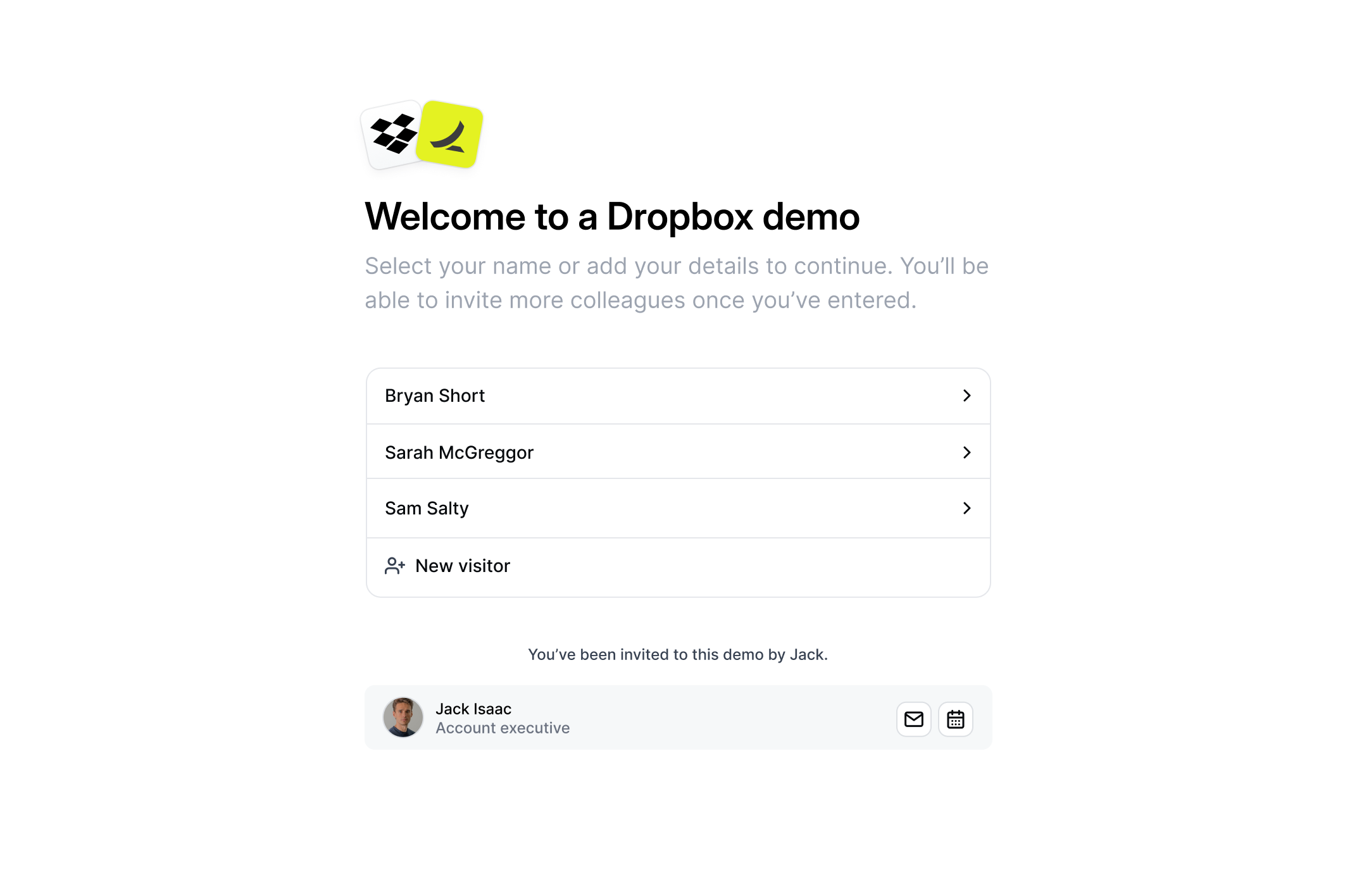
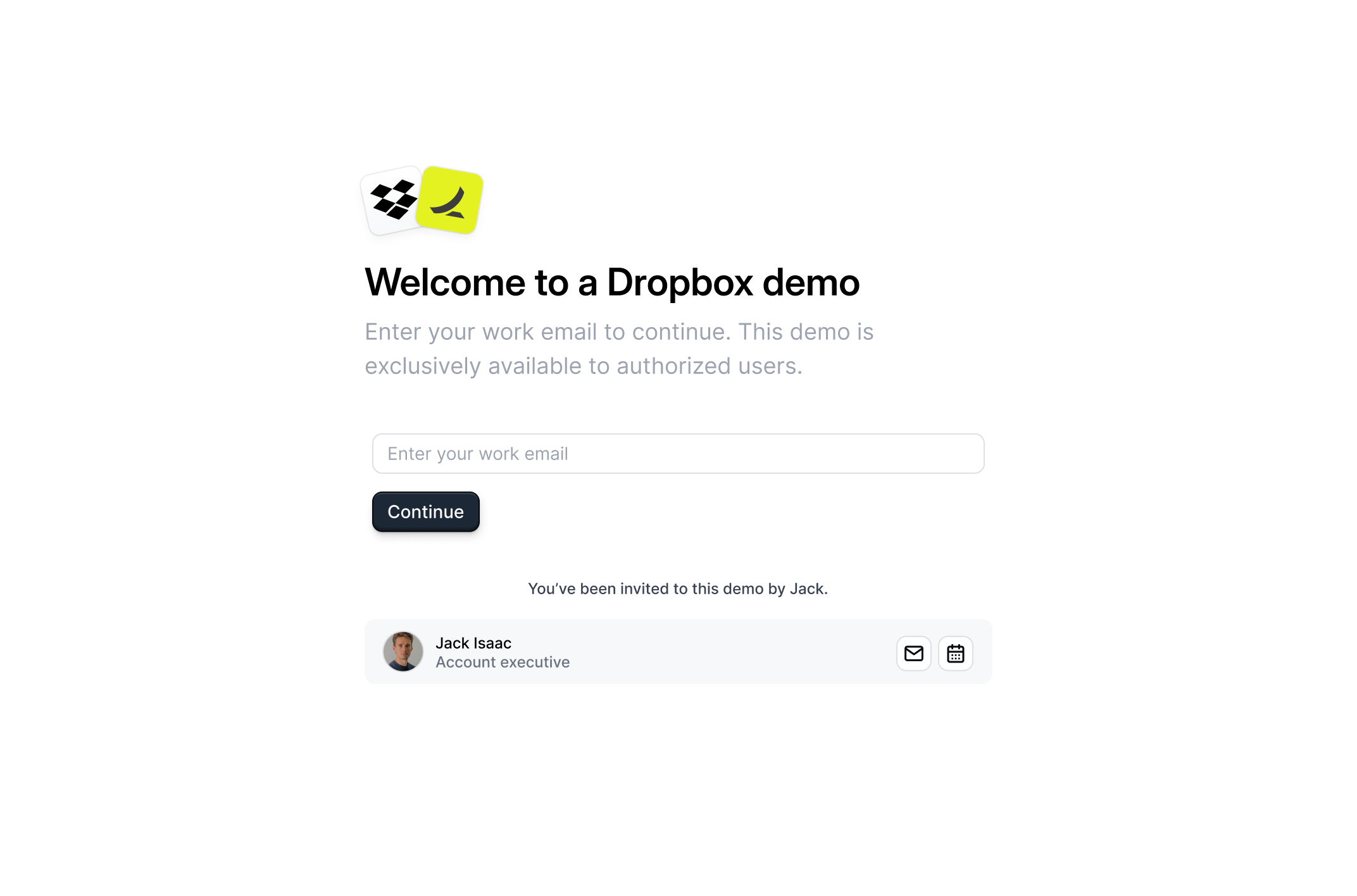 To add an additional layer of identity verification, you can require a unique access code for each recipient. Under the recipient form gate setting, enable `Require access code`. After the recipient enters their email address, they will be prompted to enter a unique access code sent to their email.
Requiring an access code adds another layer of verification at the expense of friction for the buyer. Consider if this tradeoff is worth it for your use case.
To add an additional layer of identity verification, you can require a unique access code for each recipient. Under the recipient form gate setting, enable `Require access code`. After the recipient enters their email address, they will be prompted to enter a unique access code sent to their email.
Requiring an access code adds another layer of verification at the expense of friction for the buyer. Consider if this tradeoff is worth it for your use case.
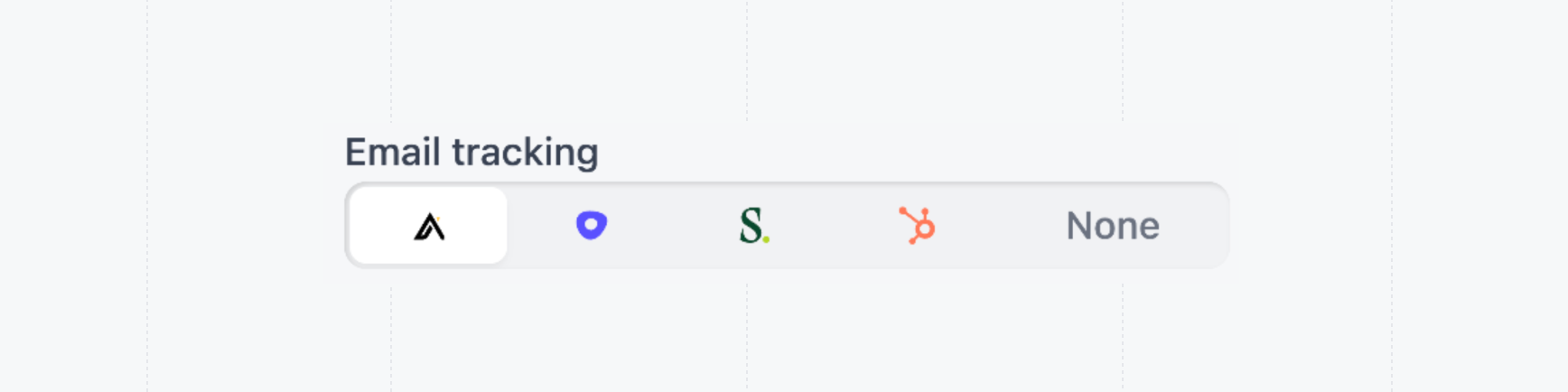
 When sharing a link using an email platform such as Apollo, Outreach, Salesloft, or Hubspot you can using **email tracking** to identify the visitor via query parameters.
 If your demo is available in more than one language, select which language visitors will see when they open this link. This option appears only when [multilingual demos](/demos/multilingual) are configured for your workspace.
Use the **Language** dropdown to choose from the languages already added to this demo. Each share link can have its own language, so you can send targeted links to different audiences.
If your demo is available in more than one language, select which language visitors will see when they open this link. This option appears only when [multilingual demos](/demos/multilingual) are configured for your workspace.
Use the **Language** dropdown to choose from the languages already added to this demo. Each share link can have its own language, so you can send targeted links to different audiences.
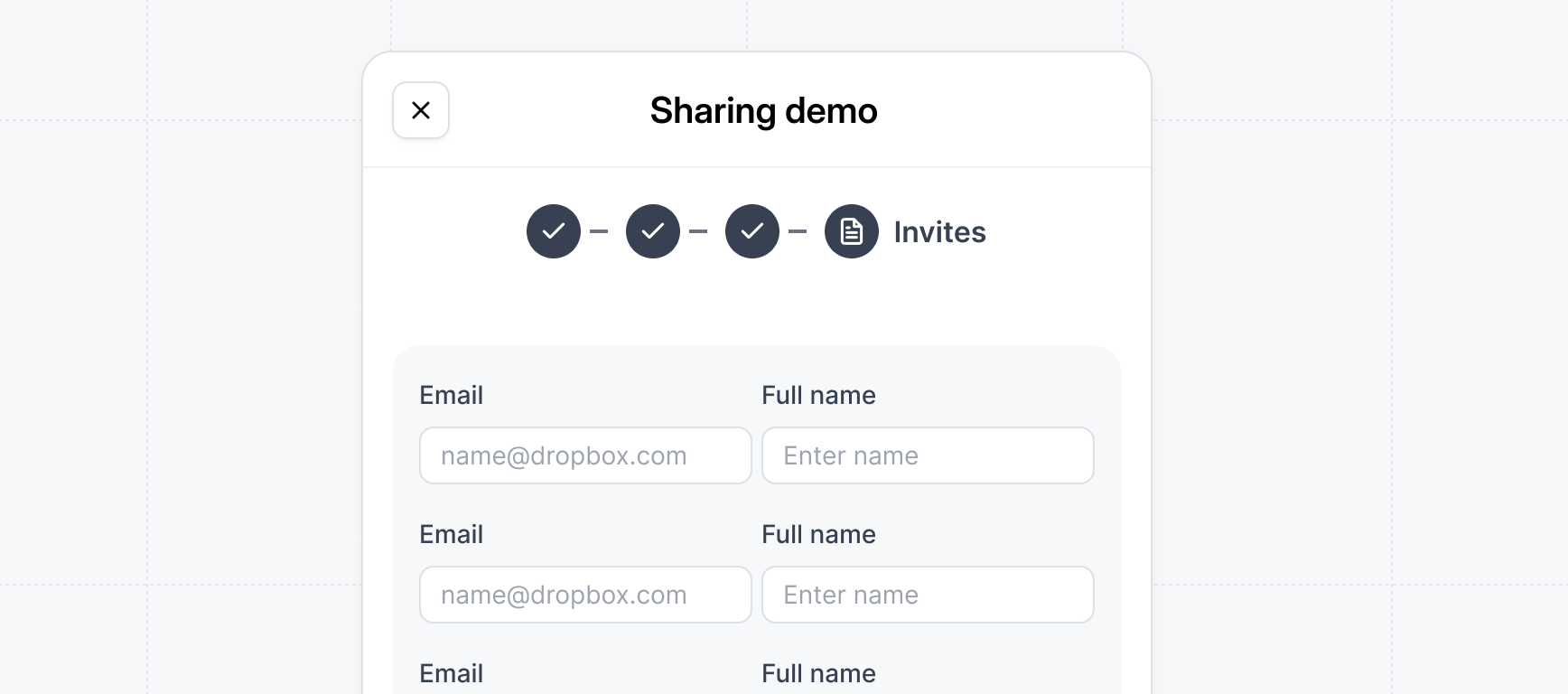 Add your prospect's details and include all relevant stakeholders involved in the deal. This ensures everyone receives a personalized invite and their engagement is tracked within Launchpad.
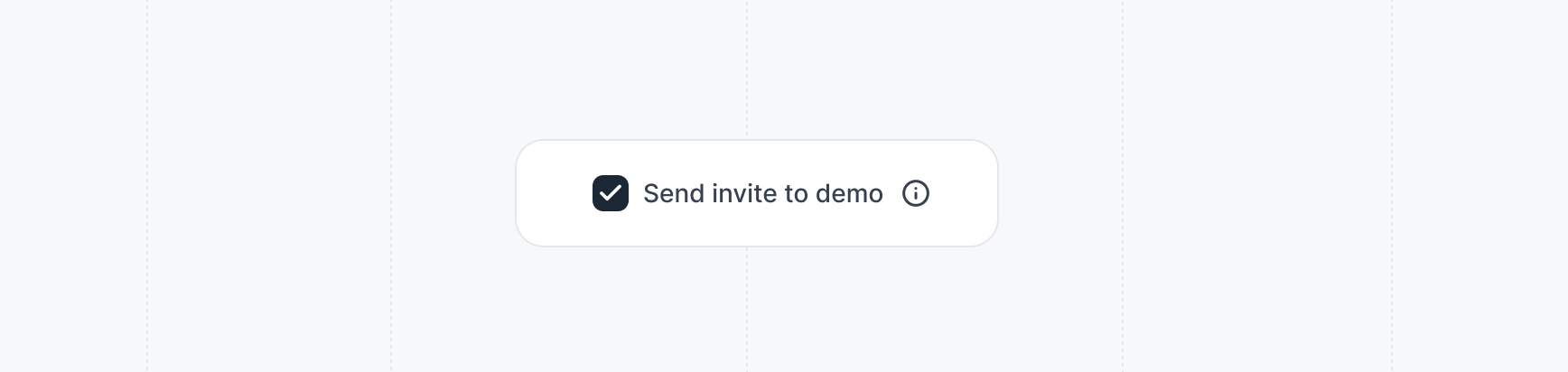
If you enable `Send invite to demo`, an automatic email invite will be sent to all the invited users asking them to visit the demo. Keep this option unchecked if you want to send the email yourself.
Add your prospect's details and include all relevant stakeholders involved in the deal. This ensures everyone receives a personalized invite and their engagement is tracked within Launchpad.
If you enable `Send invite to demo`, an automatic email invite will be sent to all the invited users asking them to visit the demo. Keep this option unchecked if you want to send the email yourself.
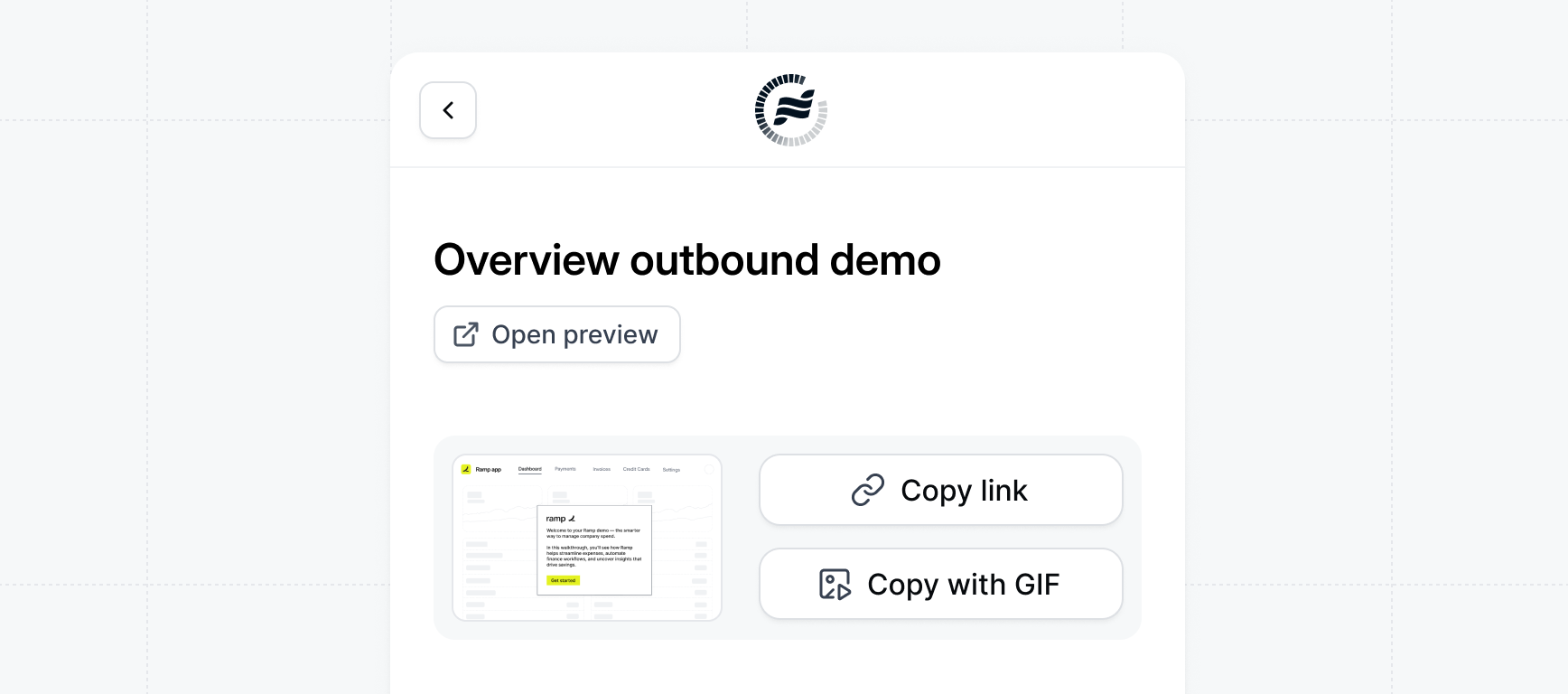 **Congratulations** - your demo is ready to share! Copy the link and include it in your prospect email to deliver a personalized, engaging interactive demo.
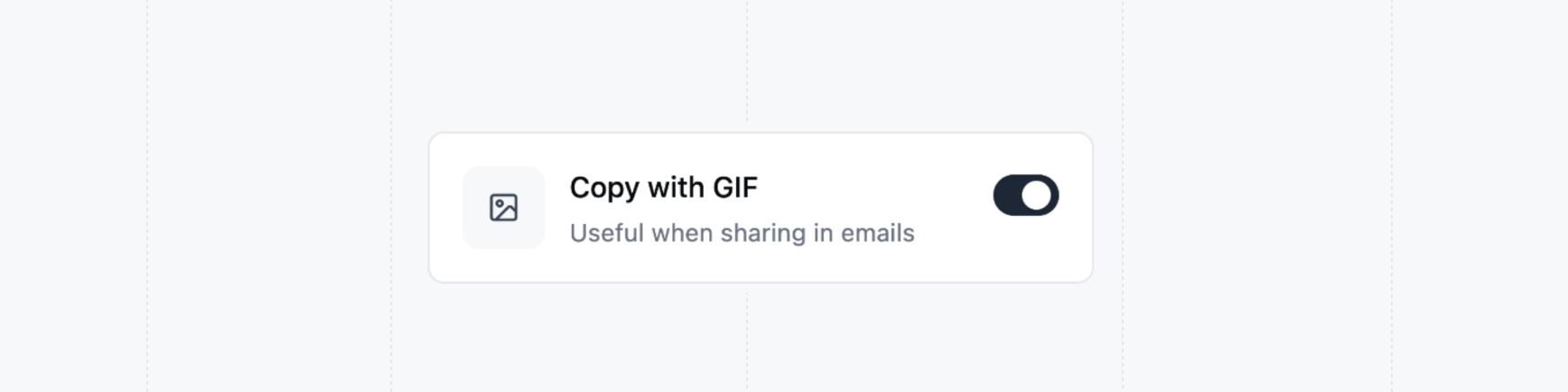
When creating a link, you can also include a preview of the demo. This is particularly useful when sharing the link via email and can be an engaging way to showcase the demo.
**Congratulations** - your demo is ready to share! Copy the link and include it in your prospect email to deliver a personalized, engaging interactive demo.
When creating a link, you can also include a preview of the demo. This is particularly useful when sharing the link via email and can be an engaging way to showcase the demo.
 ## Manage share defaults
To standardize the sharing settings across your workspace, you can set default values for the share settings. This includes the default recipients, personalization properties, and other settings.
Standardize the demo sharing settings across your workspace
## Manage share defaults
To standardize the sharing settings across your workspace, you can set default values for the share settings. This includes the default recipients, personalization properties, and other settings.
Standardize the demo sharing settings across your workspace