> ## Documentation Index
> Fetch the complete documentation index at: https://docs.navattic.com/llms.txt
> Use this file to discover all available pages before exploring further.
# Customize share defaults
> Manage the settings for how reps share demos
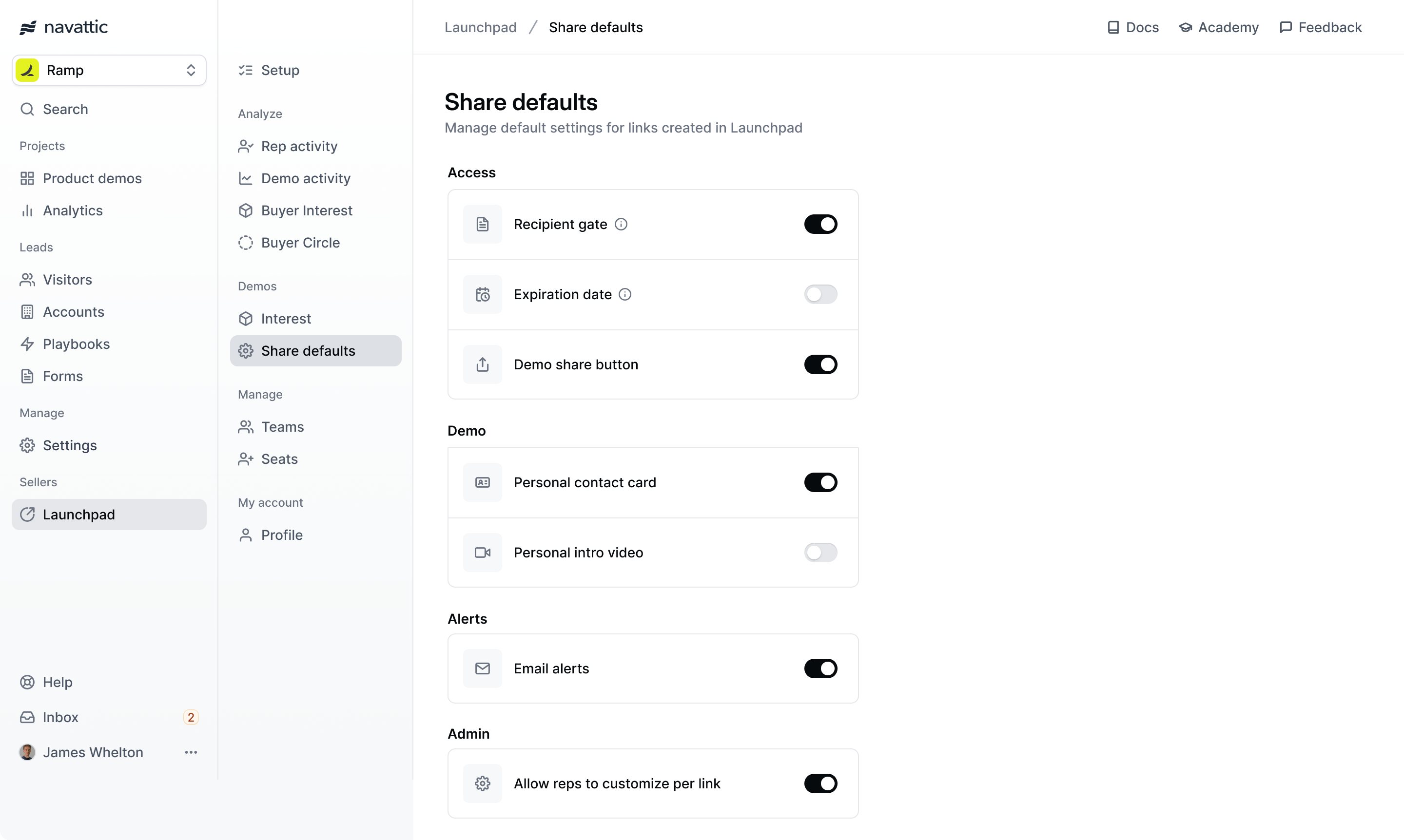 **Launchpad sharing settings** can be configured at the workspace level.
The share defaults allow you to configure settings such as 1) how recipients access demos 2) what is included in the demo link and 3) what types of alerts to receive.
#### Admin
Enable this setting to allow reps to override the default settings configured on this page when they are sharing demos.
Choose the type of preview media to include in copied email templates: **Image** or **GIF**.
Some email clients may not support GIFs in email templates.
#### Access
Require visitors to provide information before accessing the demo. This allows you to verify the receiver of the demo and receive insight about engaged stakeholders.
We recommend using the **Recipient name form** to increase the personalized-feel of the demo and unlocking more stakeholders.
**Launchpad sharing settings** can be configured at the workspace level.
The share defaults allow you to configure settings such as 1) how recipients access demos 2) what is included in the demo link and 3) what types of alerts to receive.
#### Admin
Enable this setting to allow reps to override the default settings configured on this page when they are sharing demos.
Choose the type of preview media to include in copied email templates: **Image** or **GIF**.
Some email clients may not support GIFs in email templates.
#### Access
Require visitors to provide information before accessing the demo. This allows you to verify the receiver of the demo and receive insight about engaged stakeholders.
We recommend using the **Recipient name form** to increase the personalized-feel of the demo and unlocking more stakeholders.
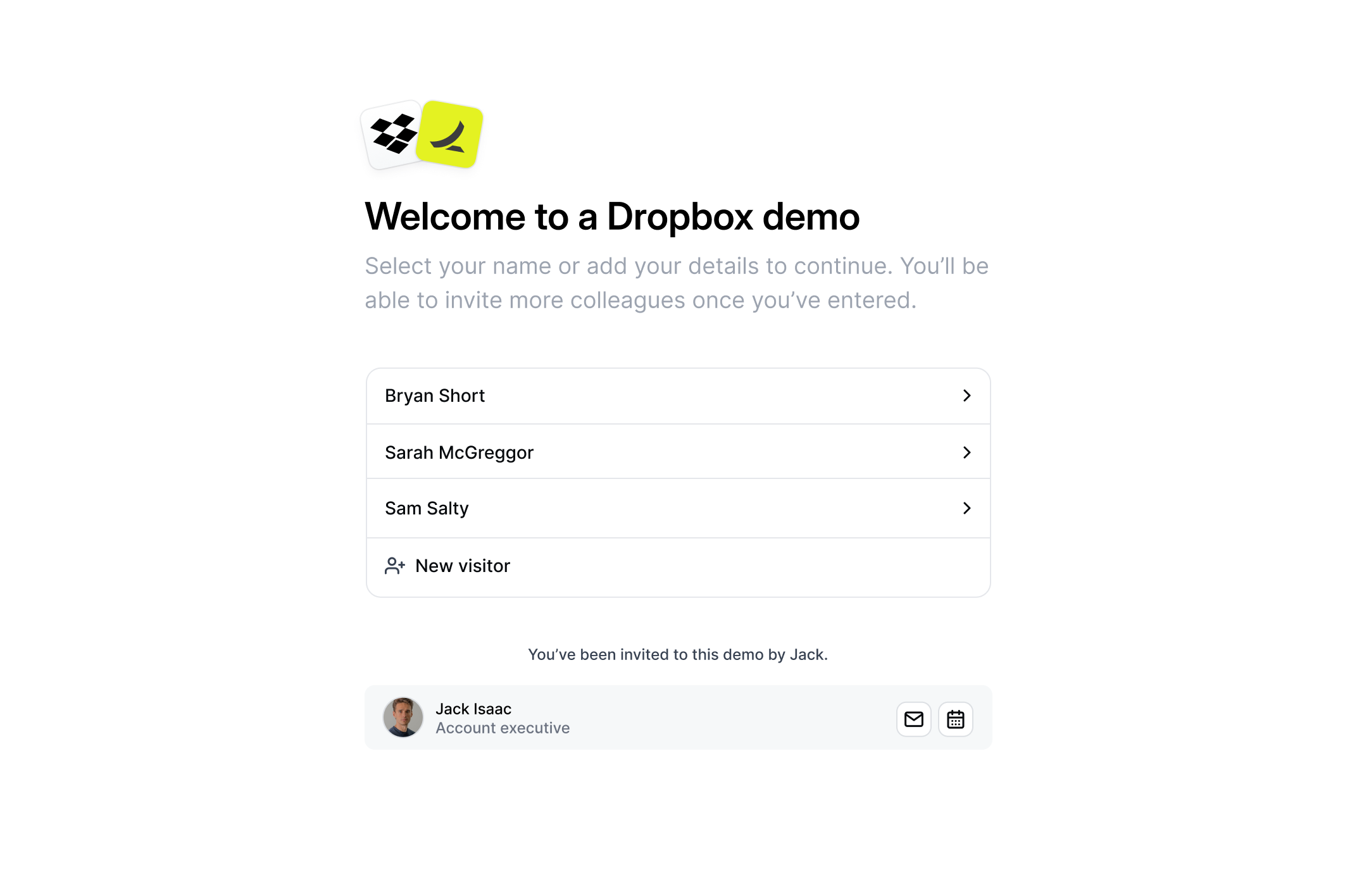
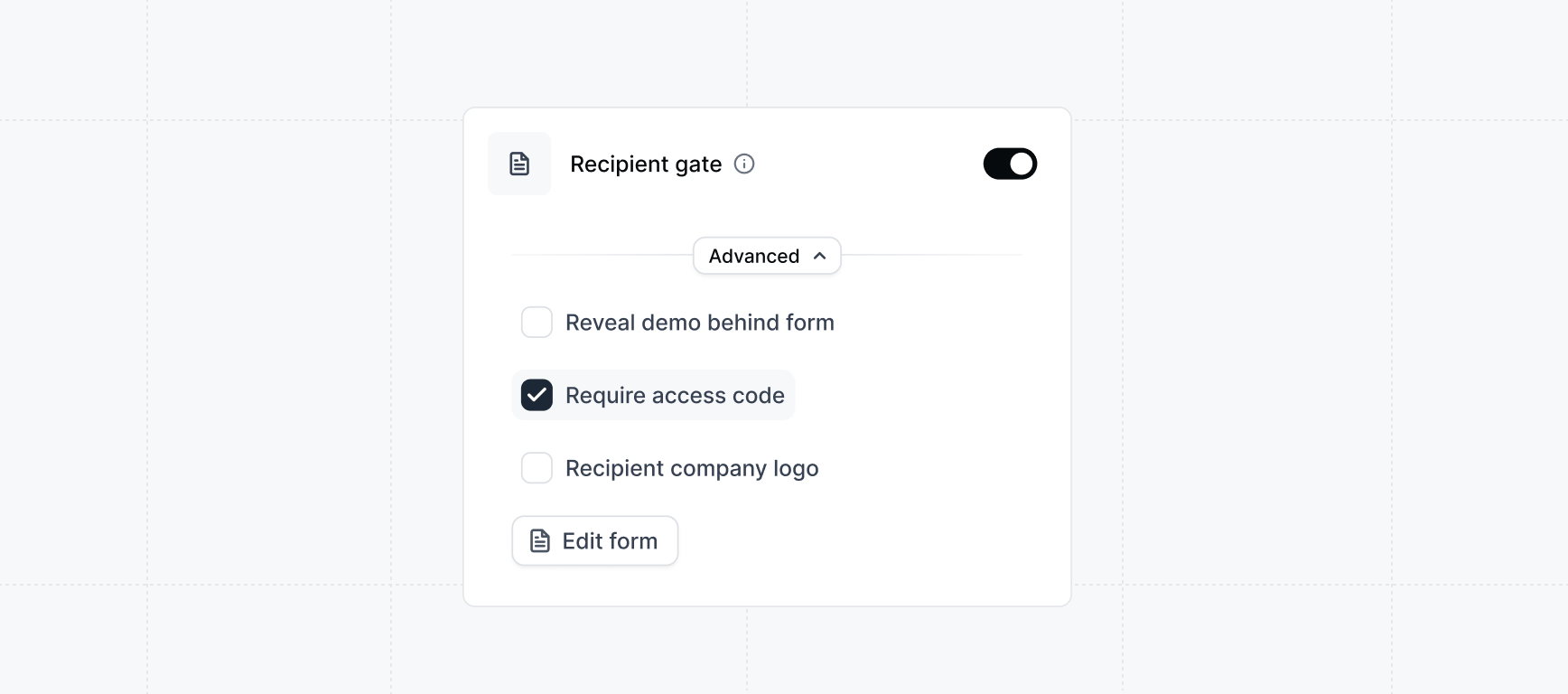
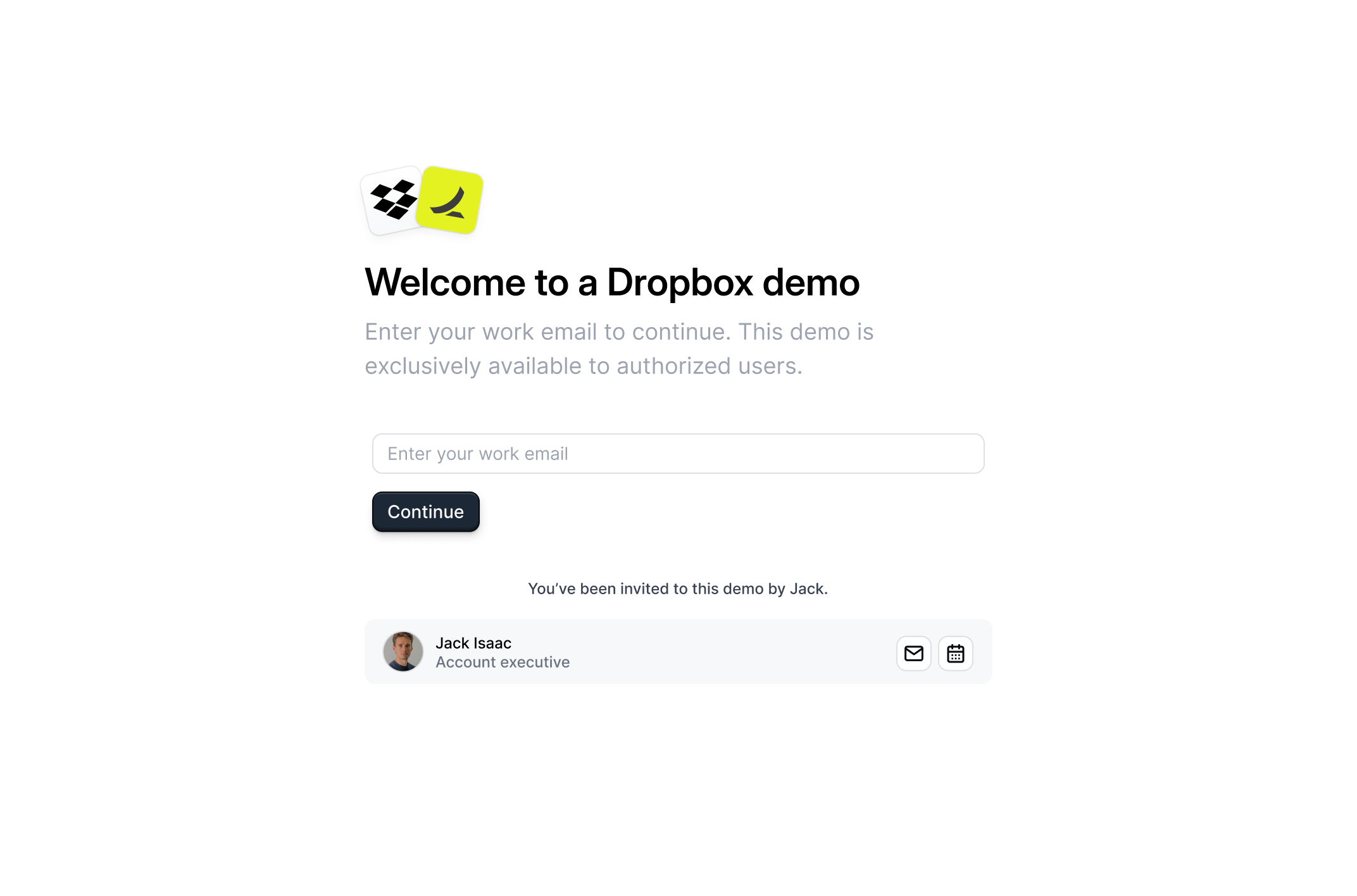 To add an additional layer of identity verification, you can require a unique access code for each recipient. Under the recipient form gate setting, enable `Require access code`. After the recipient enters their email address, they will be prompted to enter a unique access code sent to their email.
Requiring an access code adds another layer of verification at the expense of friction for the buyer. Consider if this tradeoff is worth it for your use case.
To add an additional layer of identity verification, you can require a unique access code for each recipient. Under the recipient form gate setting, enable `Require access code`. After the recipient enters their email address, they will be prompted to enter a unique access code sent to their email.
Requiring an access code adds another layer of verification at the expense of friction for the buyer. Consider if this tradeoff is worth it for your use case.
 Set an expiration date for the demo.
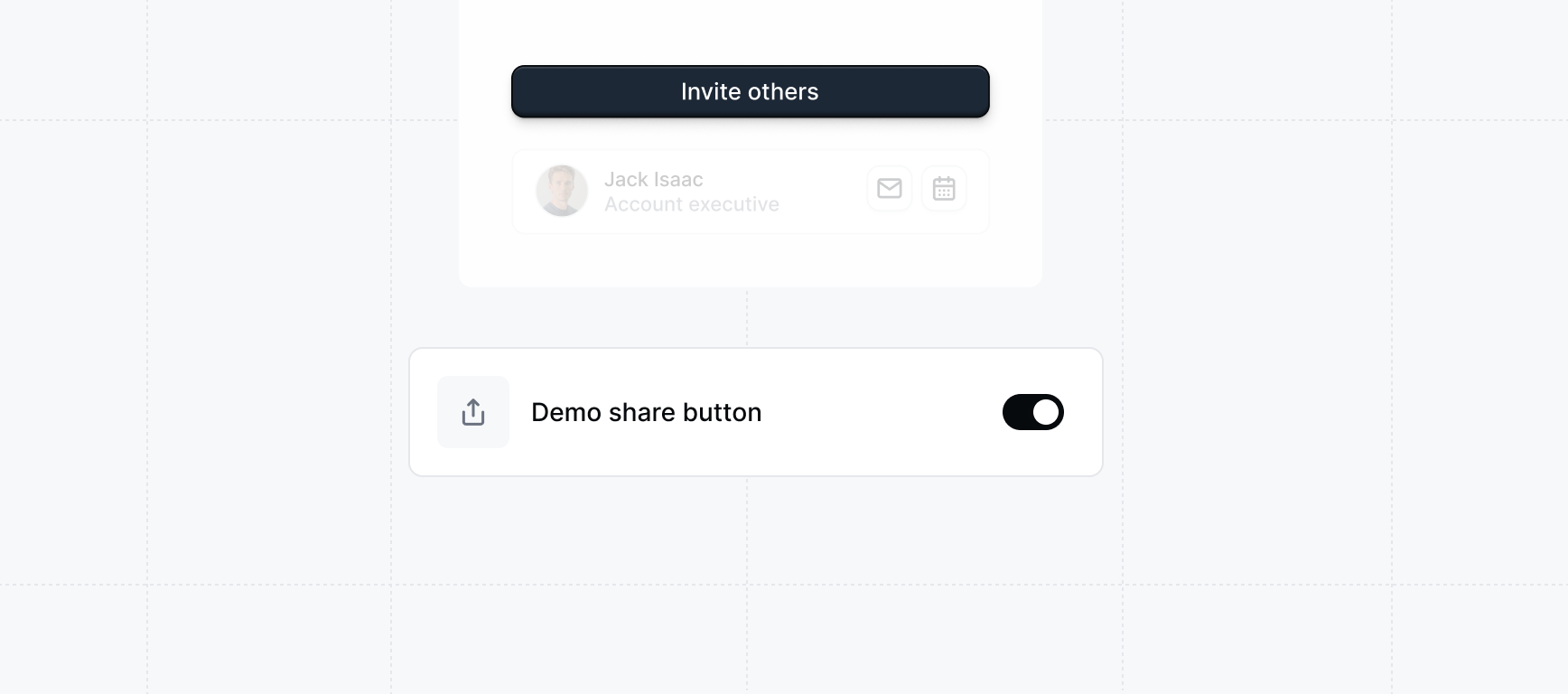
The demo share button is a powerful tool to allow your recipient to re-share your demo with other stakeholders. This powers the insight of Buyer's Circle which alerts reps about new stakeholders involved in the buying process.
When enabled, the demo share button will appear on the `Sidebar Checklist` or as a top banner if the Checklist is not available.
Set an expiration date for the demo.
The demo share button is a powerful tool to allow your recipient to re-share your demo with other stakeholders. This powers the insight of Buyer's Circle which alerts reps about new stakeholders involved in the buying process.
When enabled, the demo share button will appear on the `Sidebar Checklist` or as a top banner if the Checklist is not available.
 #### Demo
Customize the settings of the interests form.
#### Demo
Customize the settings of the interests form.
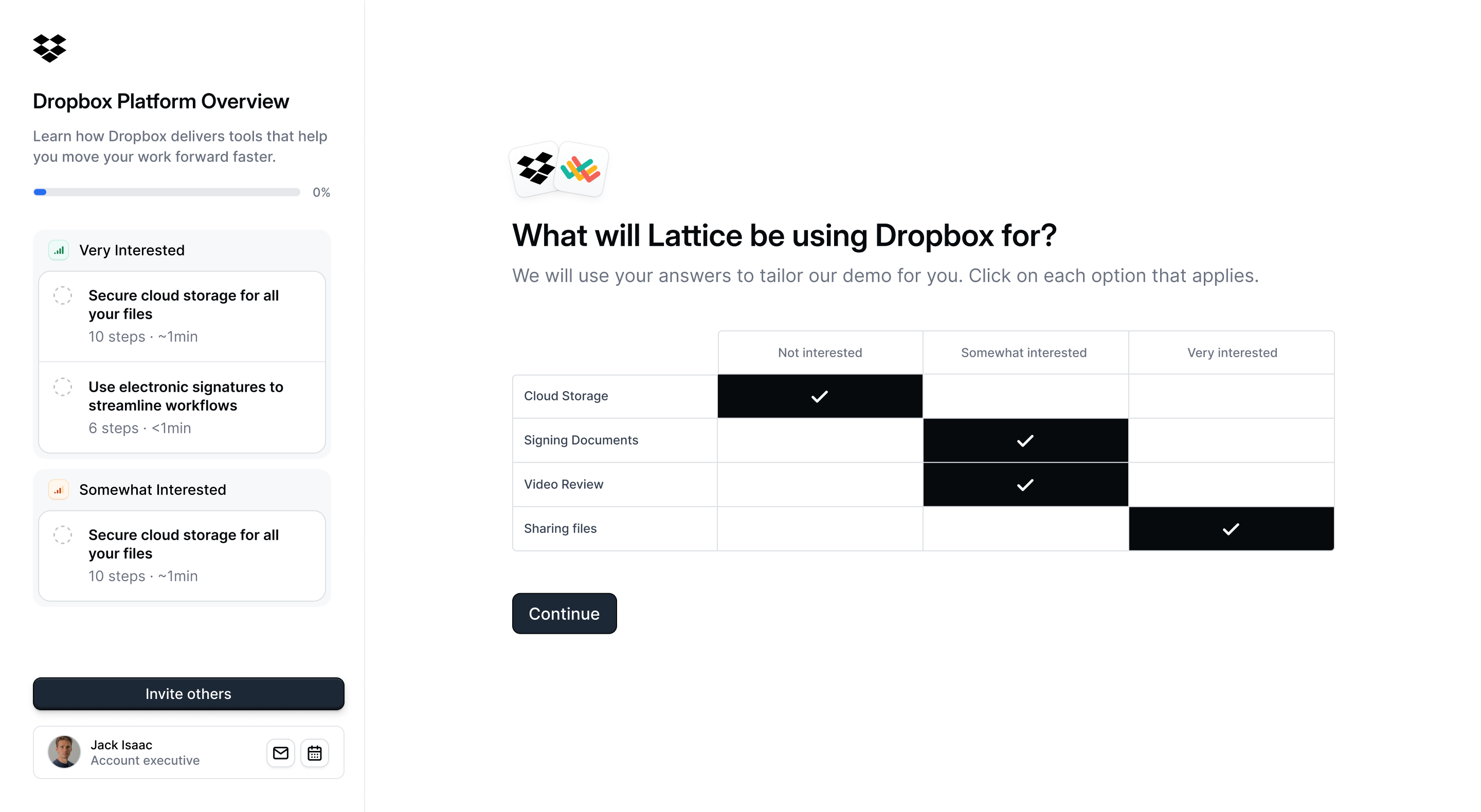 Unlock a powerful insight - what features prospects are interested in seeing.
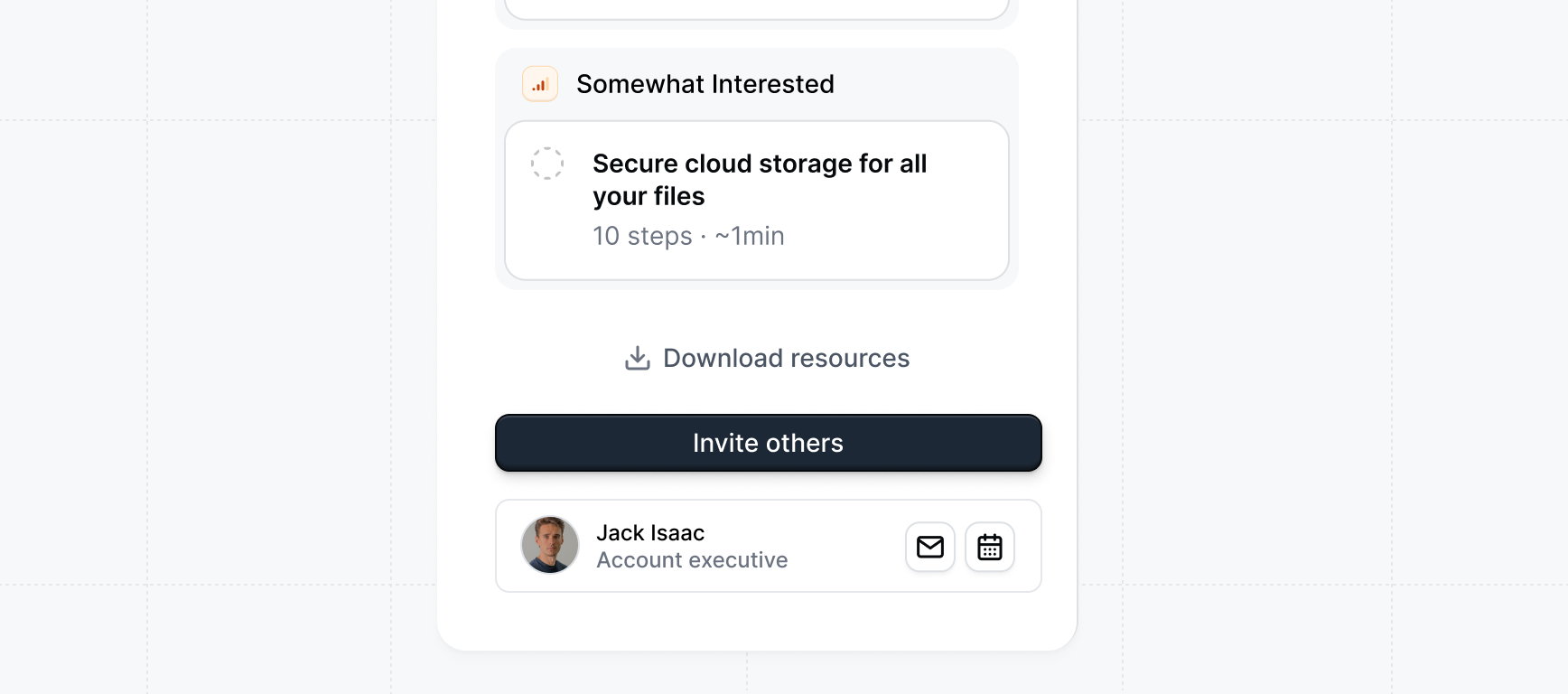
Include additional files inside of the demo with a CTA button for the button to download them.
These could be additional slide decks, custom pricing quotes, or other deal room material.
Unlock a powerful insight - what features prospects are interested in seeing.
Include additional files inside of the demo with a CTA button for the button to download them.
These could be additional slide decks, custom pricing quotes, or other deal room material.
 Configure what happens when a visitor reaches the end of a demo — the final step of the final flow with no next step to navigate to.
Choose from three options:
* **Open share modal** (default) — Shows the demo's share screen so the visitor can save or forward the link.
* **Redirect to URL** — Sends the visitor to a URL of your choice, such as a booking page or your website.
* **Open calendar link** — Opens a calendar link so the visitor can book a follow-up directly.
This setting applies workspace-wide as the default for all Launchpad demos. Reps can override it per share link when **Allow reps to customize settings** is enabled.
#### Alerts
Manage the default email alerts that reps will recieve from their demos: `Visitor notifications`, `Re-share notification`, `Salesforce opportunity alerts`.
Manage the default Slack alerts that reps will receive from their demos: `Visitor notifications`, `Re-share notification`.
Slack notifications require both admin-level workspace setup and per-rep authentication. Reps must authenticate their individual Slack account before they can receive notifications, even if these defaults are enabled.
Learn how to configure Slack notifications for your Launchpad reps
#### Present
Use your keyboard's arrow keys (`← →`) to move smoothly forward and backward through demo steps.
When enabled, beacons start visible. Use Ctrl+B to toggle visibility.
Turn on quick-access shortcuts, such as launching Presenter mode (`⌘P`) or toggling beacons (`⌘B`), to speed up navigation.
Allow demo steps to advance with a simple click anywhere in Presenter mode, making live presentations more fluid and interactive.
(`⌘N`) Display your speaker notes alongside the demo so you can stay on track without switching screens.
Control whether reps can adjust presentation settings when creating a share link.
When enabled, reps can change settings such as keyboard navigation, keyboard shortcuts, click to progress, and presenter notes before presenting.
When disabled, those settings are locked to the workspace defaults. Reps can still see the controls, but they appear greyed out and cannot be changed.
Configure what happens when a visitor reaches the end of a demo — the final step of the final flow with no next step to navigate to.
Choose from three options:
* **Open share modal** (default) — Shows the demo's share screen so the visitor can save or forward the link.
* **Redirect to URL** — Sends the visitor to a URL of your choice, such as a booking page or your website.
* **Open calendar link** — Opens a calendar link so the visitor can book a follow-up directly.
This setting applies workspace-wide as the default for all Launchpad demos. Reps can override it per share link when **Allow reps to customize settings** is enabled.
#### Alerts
Manage the default email alerts that reps will recieve from their demos: `Visitor notifications`, `Re-share notification`, `Salesforce opportunity alerts`.
Manage the default Slack alerts that reps will receive from their demos: `Visitor notifications`, `Re-share notification`.
Slack notifications require both admin-level workspace setup and per-rep authentication. Reps must authenticate their individual Slack account before they can receive notifications, even if these defaults are enabled.
Learn how to configure Slack notifications for your Launchpad reps
#### Present
Use your keyboard's arrow keys (`← →`) to move smoothly forward and backward through demo steps.
When enabled, beacons start visible. Use Ctrl+B to toggle visibility.
Turn on quick-access shortcuts, such as launching Presenter mode (`⌘P`) or toggling beacons (`⌘B`), to speed up navigation.
Allow demo steps to advance with a simple click anywhere in Presenter mode, making live presentations more fluid and interactive.
(`⌘N`) Display your speaker notes alongside the demo so you can stay on track without switching screens.
Control whether reps can adjust presentation settings when creating a share link.
When enabled, reps can change settings such as keyboard navigation, keyboard shortcuts, click to progress, and presenter notes before presenting.
When disabled, those settings are locked to the workspace defaults. Reps can still see the controls, but they appear greyed out and cannot be changed.