> ## Documentation Index
> Fetch the complete documentation index at: https://docs.navattic.com/llms.txt
> Use this file to discover all available pages before exploring further.
# Launchpad Extension
> Provide reps frictionless access to demos with the extension.
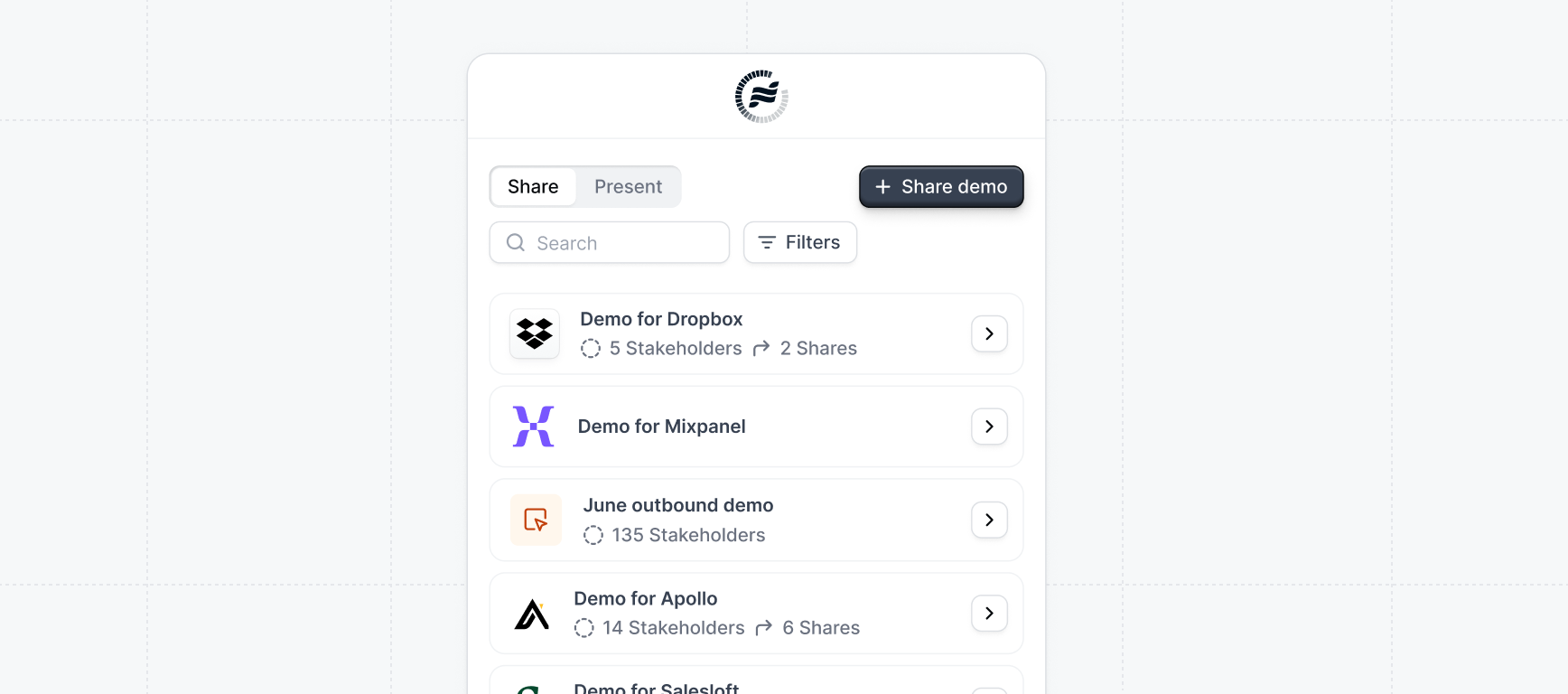 ## What is the Launchpad Extension?
The **Launchpad Extension** is a powerful tool that provides sales reps with frictionless access to demos. It allows reps to easily access demos on the boards available to Launchpad.
Learn more about how to share demos in Launchpad:
Sharing demos from Launchpad
} title="Install Launchpad extension" href="https://chromewebstore.google.com/detail/navattic-launchpad/niekkpiejdapnjipjciadeddkpnpbbik">
Download from the Chrome Web Store.
## Installing the extension
Install the Launchpad extension. Your sales reps will be prompted to install the extension when they onboard.
## Extension integrations
Launchpad extension integrations meet your reps in the tools they live in. The extension integrations are enabled by default and can be configured on the settings page.
} title="Salesforce">
When enabled, the **Salesforce integration** will provide `+ Share demo` button on the Account and Opportunity pages in Salesforce. The created share link will be automatically associated with the Salesforce Account or Opportunity.
## What is the Launchpad Extension?
The **Launchpad Extension** is a powerful tool that provides sales reps with frictionless access to demos. It allows reps to easily access demos on the boards available to Launchpad.
Learn more about how to share demos in Launchpad:
Sharing demos from Launchpad
} title="Install Launchpad extension" href="https://chromewebstore.google.com/detail/navattic-launchpad/niekkpiejdapnjipjciadeddkpnpbbik">
Download from the Chrome Web Store.
## Installing the extension
Install the Launchpad extension. Your sales reps will be prompted to install the extension when they onboard.
## Extension integrations
Launchpad extension integrations meet your reps in the tools they live in. The extension integrations are enabled by default and can be configured on the settings page.
} title="Salesforce">
When enabled, the **Salesforce integration** will provide `+ Share demo` button on the Account and Opportunity pages in Salesforce. The created share link will be automatically associated with the Salesforce Account or Opportunity.
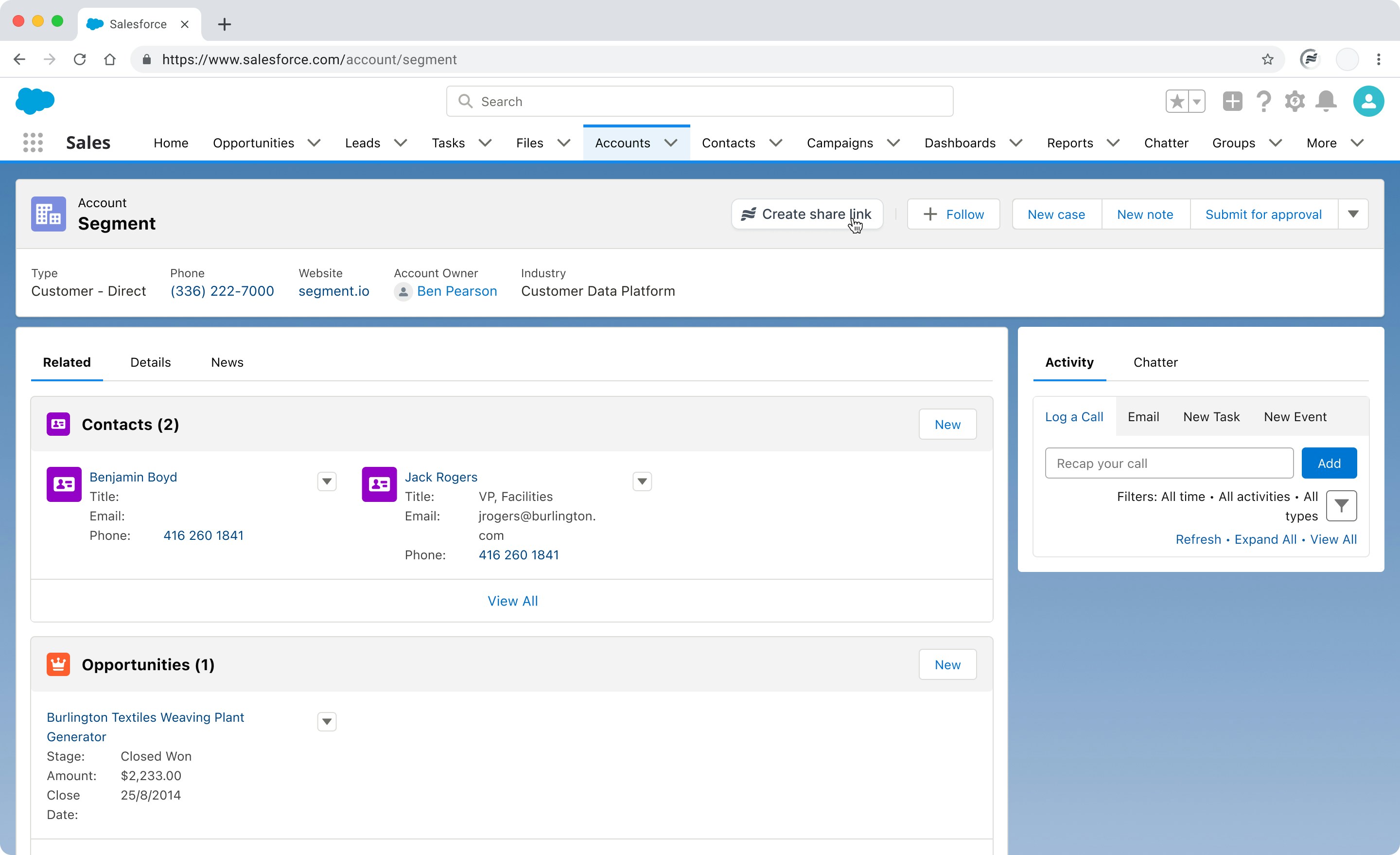 When a link is created from the Salesforce Opportunity page, it will automatically be associated
with that Opportunity. Demo engagement will be sent back to the Opportunity.
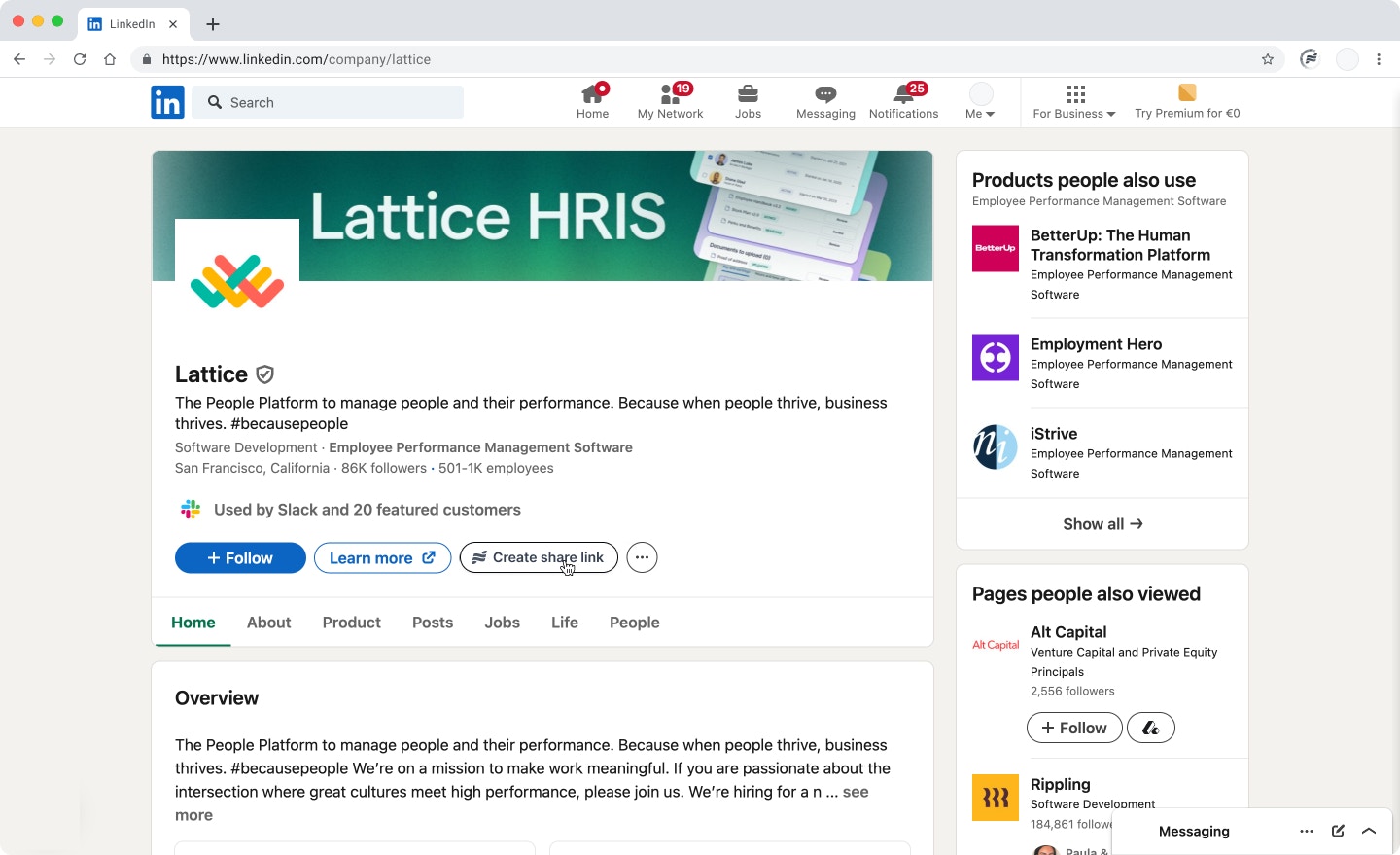
When enabled, the **LinkedIn integration** will add a `+ Share demo` button on the company page in LinkedIn. The created share link will be automatically enriched with informaton about the company.
When a link is created from the Salesforce Opportunity page, it will automatically be associated
with that Opportunity. Demo engagement will be sent back to the Opportunity.
When enabled, the **LinkedIn integration** will add a `+ Share demo` button on the company page in LinkedIn. The created share link will be automatically enriched with informaton about the company.
 } title="Gmail">
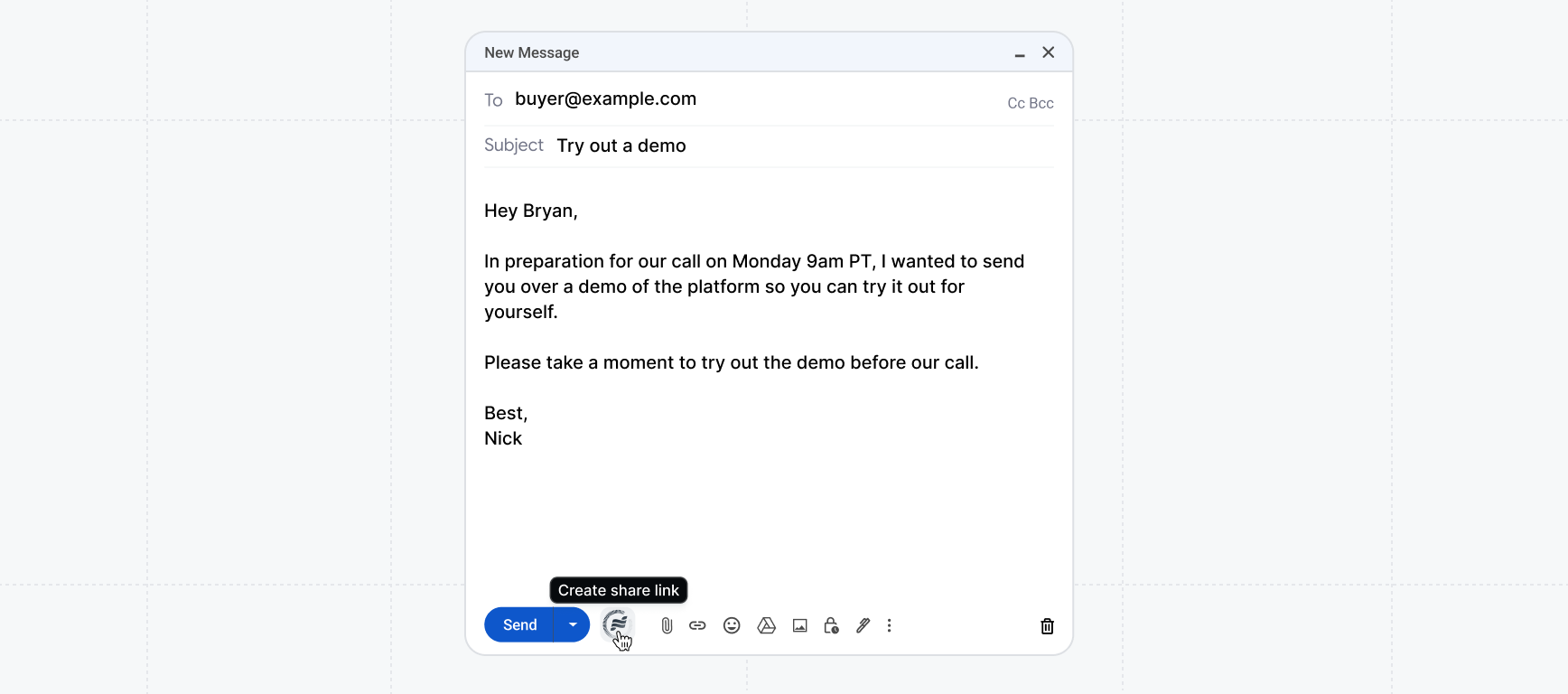
When enabled, the **Gmail integration** will add a `+ Share demo` button from the new message window.
} title="Gmail">
When enabled, the **Gmail integration** will add a `+ Share demo` button from the new message window.
 ## Recording a video
The Launchpad extension lets reps record a custom video to accompany a demo share. Use this to add a personal intro, a quick walkthrough, or context before the prospect views the demo.
### How to record
Click the Launchpad extension icon in your browser toolbar.
Select **Record video** from the extension menu. A recording setup panel will appear in the top-right corner of your screen.
Select one of three recording areas:
| Option | What it captures |
| ---------- | ----------------------- |
| **Tab** | The current browser tab |
| **Screen** | Your entire screen |
| **Camera** | Your webcam only |
Use the camera and microphone dropdowns to select your preferred devices. Select **No camera** to record without video, or **No microphone** to record without audio.
Click **Start recording** to begin. A countdown may appear before recording starts (you can toggle this under **Advanced**).
When you're done, stop the recording. An edit view opens where you can trim the video before saving. Click **Save** to confirm your edits, or **Skip** to use the full recording.
### Advanced options
Expand **Advanced** in the recording setup panel to access additional settings:
* **Background blur** — Apply a blur to your background when recording from a camera.
* **Countdown** — Show a countdown before recording starts to give yourself time to prepare.
### Permissions
The extension requires screen or tab recording permissions from your browser. If you see a permissions warning, click the Launchpad extension icon and grant the requested permissions before starting your recording.
## Adding a personal intro video
When creating a share link from the extension, you can record a short intro video that plays for the prospect before the demo. Use it to add a personal welcome, reference the prospect's company, or set context for what they're about to see.
Click the Launchpad extension icon and select **+ Share demo**.
Complete the **Details** and **Content** steps, then open **Settings**.
Toggle on **Personal intro video**.
Click **Record video**. A menu appears with two recording options:
* **Webcam** — Records your camera directly in the browser. Choose your camera and microphone from the dropdowns, then click **Start recording**. Select **No microphone** to record without audio.
* **Extension** — Records a browser tab using the Navattic Capture Extension. Enter the URL you want to record, then start recording. If the Capture Extension is not installed, a prompt appears to install it first.
When done, stop the recording. An edit view opens where you can trim the video before saving. Click **Save** to confirm, or **Skip** to use the full recording. The share link creation flow resumes with your video attached.
Optionally add a title, description, and button text to display alongside the video. Continue to finish creating your share link.
## Launchpad integrations
Looking for more integrations? View the full list here:
Connect Launchpad with your CRM and email tools.
## Recording a video
The Launchpad extension lets reps record a custom video to accompany a demo share. Use this to add a personal intro, a quick walkthrough, or context before the prospect views the demo.
### How to record
Click the Launchpad extension icon in your browser toolbar.
Select **Record video** from the extension menu. A recording setup panel will appear in the top-right corner of your screen.
Select one of three recording areas:
| Option | What it captures |
| ---------- | ----------------------- |
| **Tab** | The current browser tab |
| **Screen** | Your entire screen |
| **Camera** | Your webcam only |
Use the camera and microphone dropdowns to select your preferred devices. Select **No camera** to record without video, or **No microphone** to record without audio.
Click **Start recording** to begin. A countdown may appear before recording starts (you can toggle this under **Advanced**).
When you're done, stop the recording. An edit view opens where you can trim the video before saving. Click **Save** to confirm your edits, or **Skip** to use the full recording.
### Advanced options
Expand **Advanced** in the recording setup panel to access additional settings:
* **Background blur** — Apply a blur to your background when recording from a camera.
* **Countdown** — Show a countdown before recording starts to give yourself time to prepare.
### Permissions
The extension requires screen or tab recording permissions from your browser. If you see a permissions warning, click the Launchpad extension icon and grant the requested permissions before starting your recording.
## Adding a personal intro video
When creating a share link from the extension, you can record a short intro video that plays for the prospect before the demo. Use it to add a personal welcome, reference the prospect's company, or set context for what they're about to see.
Click the Launchpad extension icon and select **+ Share demo**.
Complete the **Details** and **Content** steps, then open **Settings**.
Toggle on **Personal intro video**.
Click **Record video**. A menu appears with two recording options:
* **Webcam** — Records your camera directly in the browser. Choose your camera and microphone from the dropdowns, then click **Start recording**. Select **No microphone** to record without audio.
* **Extension** — Records a browser tab using the Navattic Capture Extension. Enter the URL you want to record, then start recording. If the Capture Extension is not installed, a prompt appears to install it first.
When done, stop the recording. An edit view opens where you can trim the video before saving. Click **Save** to confirm, or **Skip** to use the full recording. The share link creation flow resumes with your video attached.
Optionally add a title, description, and button text to display alongside the video. Continue to finish creating your share link.
## Launchpad integrations
Looking for more integrations? View the full list here:
Connect Launchpad with your CRM and email tools.