> ## Documentation Index
> Fetch the complete documentation index at: https://docs.navattic.com/llms.txt
> Use this file to discover all available pages before exploring further.
# Seismic
> Access and share Navattic demos directly from Seismic.
The Navattic app for Seismic puts your interactive demos inside Seismic's main navigation. Reps can create and personalize demos without leaving Seismic, then drop them directly into LiveSend messages, Digital Sales Rooms, and WorkSpace assets.
A workspace admin must complete the admin setup before reps can connect their accounts.
## Prerequisites
Before setting up, install the Navattic app from the [Seismic App Exchange](https://exchange.seismic.com/apps/navattic/navattic-app/) in Seismic. This step happens in Seismic and requires Seismic admin access.
## Admin setup
In Navattic, go to **Settings** > **Integrations** and select **Seismic**.
Click **Connect**. In the modal that appears, enter your Seismic Tenant ID. Your Seismic administrator can provide this if you don't have it.
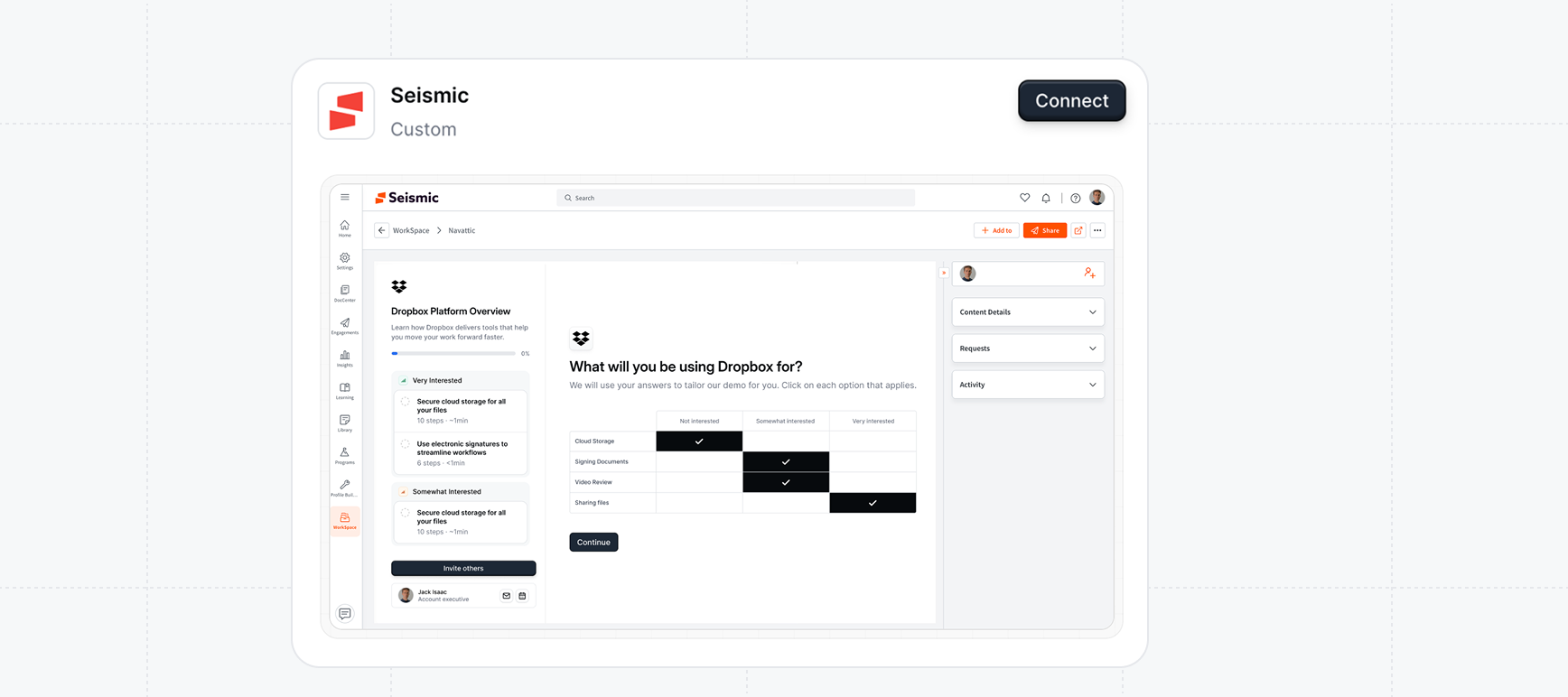 Click **Connect** to complete the workspace-level setup. Reps can now connect their individual accounts.
## Rep setup
Each rep connects their Seismic account once. You can do this from Navattic or from within Seismic.
In Navattic, go to **Launchpad** and open your **Profile**.
Find the **Seismic** card and click **Connect**. Follow the prompts to authorize your account in Seismic.
Click **Connect** to complete the workspace-level setup. Reps can now connect their individual accounts.
## Rep setup
Each rep connects their Seismic account once. You can do this from Navattic or from within Seismic.
In Navattic, go to **Launchpad** and open your **Profile**.
Find the **Seismic** card and click **Connect**. Follow the prompts to authorize your account in Seismic.
 Click **Navattic** in Seismic's main navigation to open the app.
If your account isn't linked yet, you'll see a setup-required screen. Follow the prompts to connect your Navattic account.
## Daily use
Once connected, you can access Navattic directly from the Seismic navigation.
Click **Navattic** in Seismic's main navigation.
Build a new demo or personalize an existing one for your prospect.
Use **Copy link** or **Copy with image** to add the demo to a LiveSend message, Digital Sales Room, or WorkSpace asset.
On your first link, any existing Navattic share links are automatically added to your Navattic folder in Seismic.
## Troubleshooting
This means either your rep account isn't linked yet or the workspace admin hasn't completed the admin setup. Complete the [rep setup](#rep-setup) steps above, or ask your Navattic workspace admin to verify the integration is configured.
Close Navattic and reopen it from the Seismic navigation. This refreshes your session.
The Navattic app must be installed from the Seismic App Exchange by a Seismic admin. Contact your Seismic administrator to request the installation.
Click **Navattic** in Seismic's main navigation to open the app.
If your account isn't linked yet, you'll see a setup-required screen. Follow the prompts to connect your Navattic account.
## Daily use
Once connected, you can access Navattic directly from the Seismic navigation.
Click **Navattic** in Seismic's main navigation.
Build a new demo or personalize an existing one for your prospect.
Use **Copy link** or **Copy with image** to add the demo to a LiveSend message, Digital Sales Room, or WorkSpace asset.
On your first link, any existing Navattic share links are automatically added to your Navattic folder in Seismic.
## Troubleshooting
This means either your rep account isn't linked yet or the workspace admin hasn't completed the admin setup. Complete the [rep setup](#rep-setup) steps above, or ask your Navattic workspace admin to verify the integration is configured.
Close Navattic and reopen it from the Seismic navigation. This refreshes your session.
The Navattic app must be installed from the Seismic App Exchange by a Seismic admin. Contact your Seismic administrator to request the installation.