> ## Documentation Index
> Fetch the complete documentation index at: https://docs.navattic.com/llms.txt
> Use this file to discover all available pages before exploring further.
# Highspot
> Create and share demos from within Highspot Digital Sales Rooms.
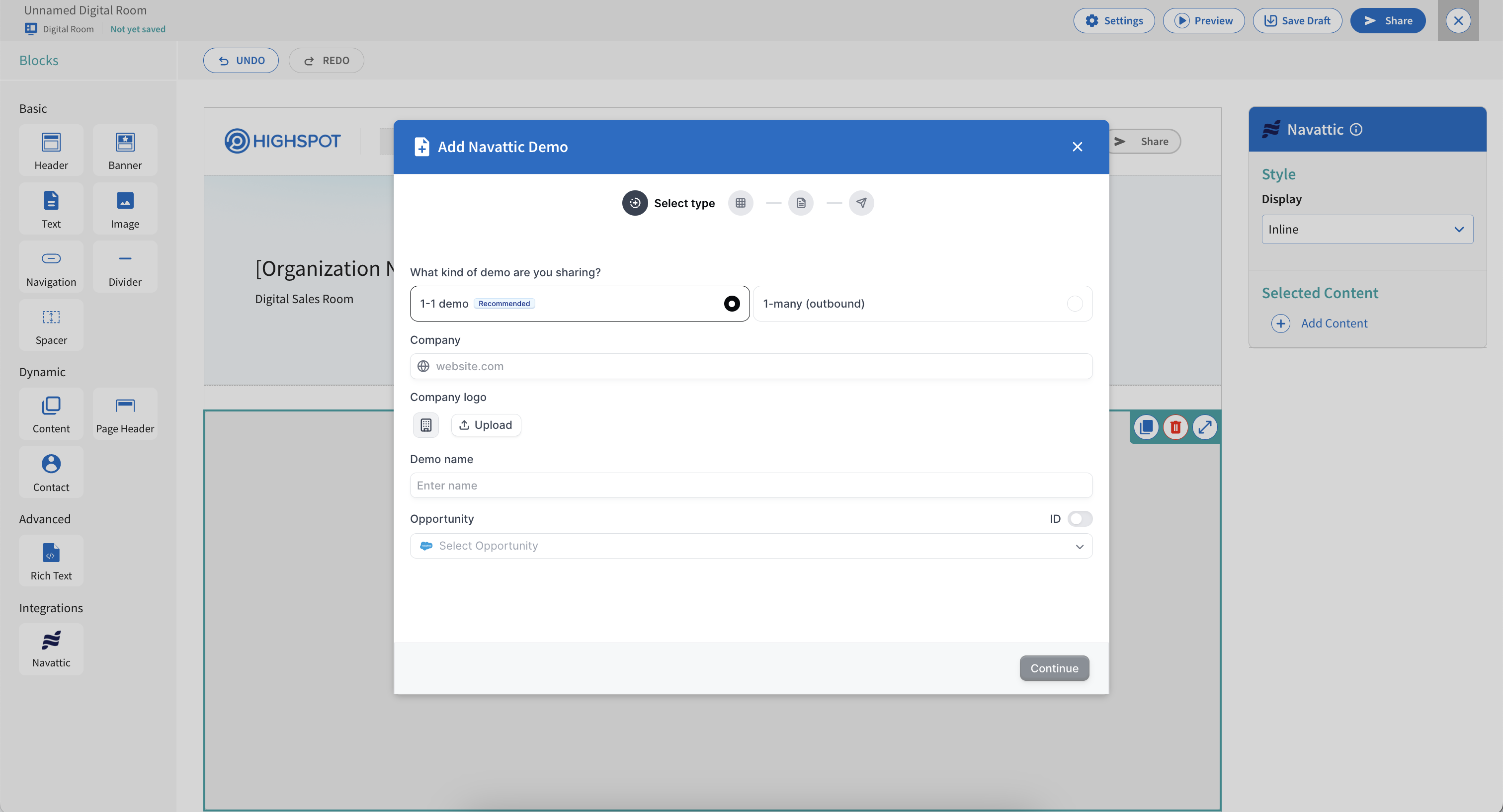 Sales reps can create and share demos from within
  **Highspot** Digital Sales Rooms.
The Highspot integration enables you to create Navattic demo share links directly from within your Highspot Digital Sales Rooms, providing a seamless workflow for adding interactive demos to your sales content.
The Highspot integration requires admin-level setup in Highspot. Once configured, users can access the Navattic integration button within Highspot Digital Sales Rooms.
## Admin setup
Make sure you enable Navattic integration first by navigating to:
`Company Settings` → `Cloud Services` → `Navattic`
Then a new Navattic block will be visible in Digital Room
Only workspace admins can perform the initial Highspot integration setup. Once configured, all workspace members can access the integration within their Digital Sales Rooms.
## How to create a demo in Highspot
Open a Highspot Digital Sales Room where you want to add the demo.
Choose Integrations → Navattic from the Digital Room Builder.
**Highspot** Digital Sales Rooms.
The Highspot integration enables you to create Navattic demo share links directly from within your Highspot Digital Sales Rooms, providing a seamless workflow for adding interactive demos to your sales content.
The Highspot integration requires admin-level setup in Highspot. Once configured, users can access the Navattic integration button within Highspot Digital Sales Rooms.
## Admin setup
Make sure you enable Navattic integration first by navigating to:
`Company Settings` → `Cloud Services` → `Navattic`
Then a new Navattic block will be visible in Digital Room
Only workspace admins can perform the initial Highspot integration setup. Once configured, all workspace members can access the integration within their Digital Sales Rooms.
## How to create a demo in Highspot
Open a Highspot Digital Sales Room where you want to add the demo.
Choose Integrations → Navattic from the Digital Room Builder.
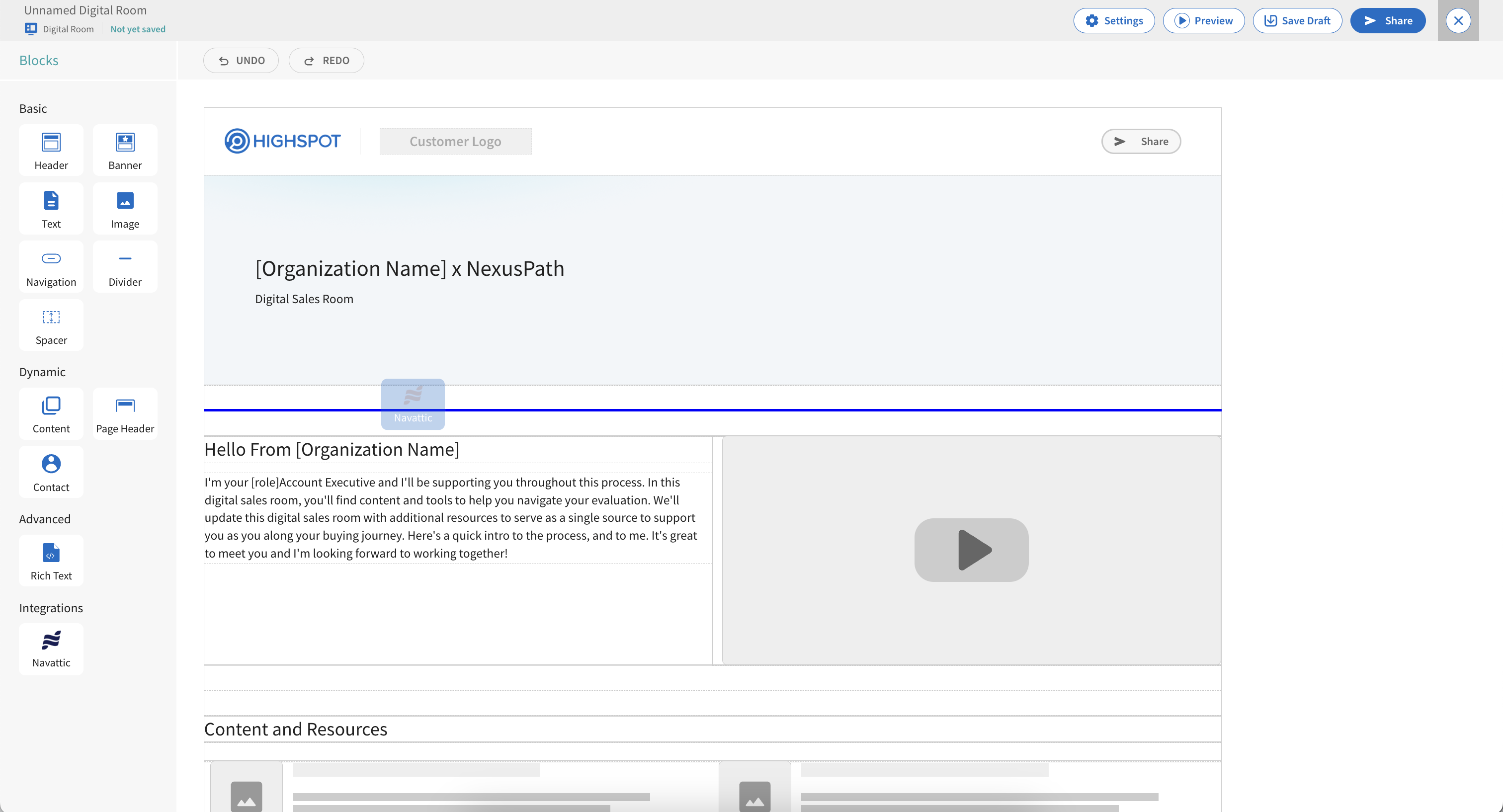 This will launch the Navattic authenication window. Select Link Account to authenticate.
 Create a demo share link within Navattic.
Once a demo has been created, assign it to a Spot using the Spot dropdown. Select Add once completed.
Create a demo share link within Navattic.
Once a demo has been created, assign it to a Spot using the Spot dropdown. Select Add once completed.
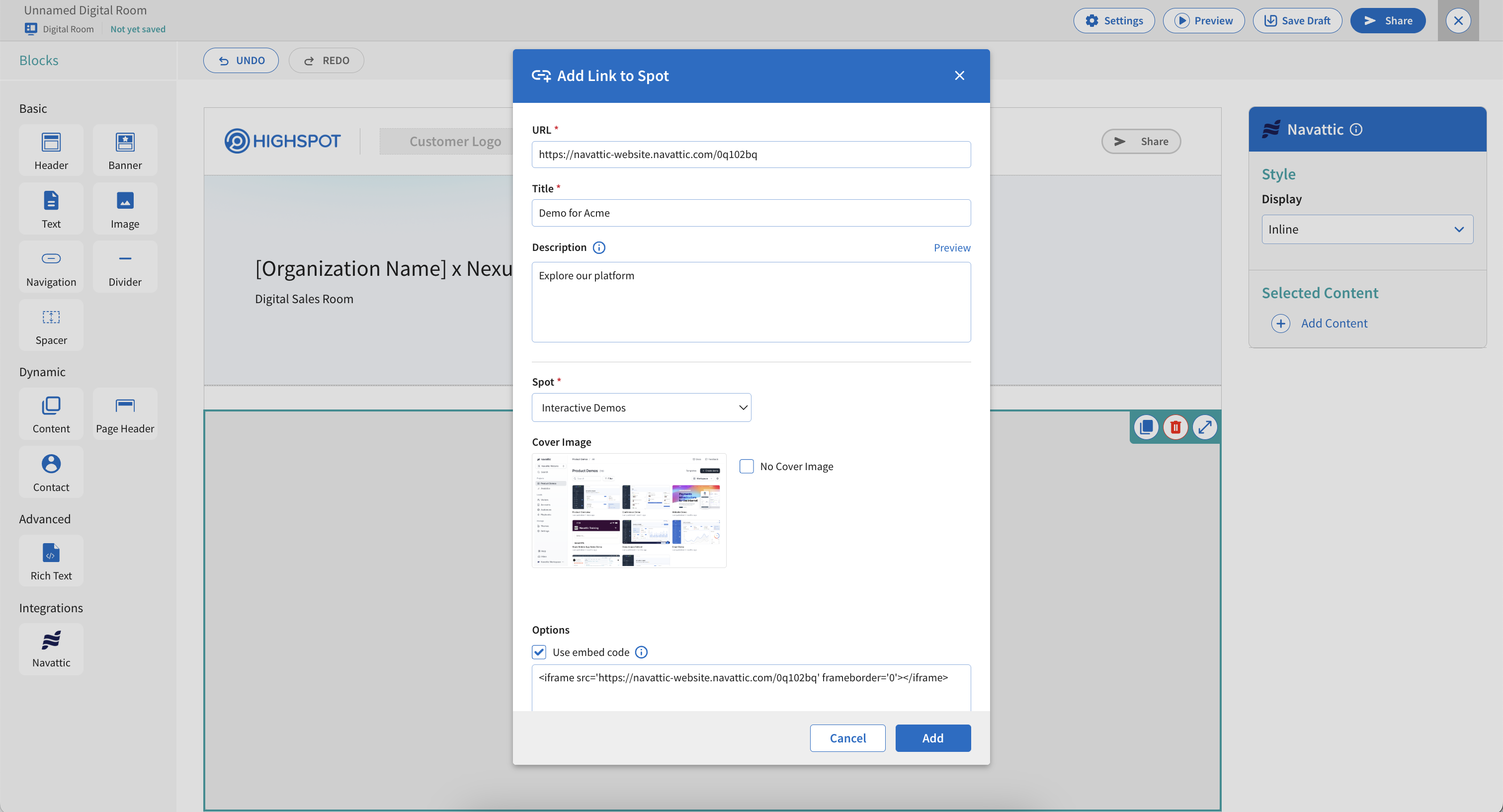 Once created, the demo will be added to your Digital Sales Room.
## Common Use Cases
* **Sales Enablement**: Sales reps add interactive product demos to their Highspot Digital Sales Rooms, making demos easily accessible to prospects browsing the room.
* **Personalized Sales Rooms**: Create personalized demo experiences within Highspot rooms for different prospects or segments, enhancing engagement and relevance.
* **Content Organization**: Organize interactive demos alongside other sales materials in Highspot Digital Sales Rooms for comprehensive sales enablement.
* **Prospect Engagement**: Prospects can interact with demos directly within the Highspot Digital Sales Room, providing a seamless experience without leaving the room.
## FAQs
Check the following:
1. Highspot admin has added Navattic integration
2. You have permissions to use integrations in Highspot
3. The integration URL is correctly configured: `https://app.navattic.com/integration/highspot/email-editor`
4. You're viewing a Digital Sales Room (not just email composer)
5. Try refreshing the page
This can occur due to several reasons:
1. **Authentication issues**: Verify you can log into Navattic normally
2. **Session issues**: Try clearing browser cookies and retrying
3. **Network issues**: Check your internet connection
4. **Popup blockers**: Ensure popup blockers aren't interfering
5. **CSP errors**: Check browser console for Content Security Policy errors - the integration requires proper CSP configuration
If you see "app.navattic.com refused to connect" errors, this indicates a Content Security Policy issue that needs to be resolved by your admin.
Troubleshooting steps:
1. Check browser console for JavaScript errors
2. Verify the demo was created successfully
3. Try refreshing the Highspot Digital Sales Room
4. Ensure you completed all steps in the demo creation process
5. Check that the demo link was successfully generated
If you see CSP errors in the browser console like "Refused to frame '[https://app.navattic.com/](https://app.navattic.com/)'", this means:
1. The integration requires proper CSP configuration in Highspot
2. The CSP must allow framing from `https://*.highspot.com`
3. Contact your Highspot admin to configure the CSP headers correctly
4. The CSP configuration should include: `frame-ancestors 'self' https://*.highspot.com`
Yes, you can create multiple demos and add them to your Highspot Digital Sales Room. Each demo will be independent and can be placed in different sections of your room as needed.
Demo data remains in your Navattic account. The integration creates share links that are added to your Highspot Digital Sales Room. Engagement data is tracked in Navattic, and you can monitor demo performance through Navattic's analytics.
## Crafting emails with demos best practices
Read best practices for crafting emails based on use cases:
## Related resources
Learn how to create and share demos in Launchpad
Track and monitor demo engagement activity
Learn about email notifications for demo engagement
Once created, the demo will be added to your Digital Sales Room.
## Common Use Cases
* **Sales Enablement**: Sales reps add interactive product demos to their Highspot Digital Sales Rooms, making demos easily accessible to prospects browsing the room.
* **Personalized Sales Rooms**: Create personalized demo experiences within Highspot rooms for different prospects or segments, enhancing engagement and relevance.
* **Content Organization**: Organize interactive demos alongside other sales materials in Highspot Digital Sales Rooms for comprehensive sales enablement.
* **Prospect Engagement**: Prospects can interact with demos directly within the Highspot Digital Sales Room, providing a seamless experience without leaving the room.
## FAQs
Check the following:
1. Highspot admin has added Navattic integration
2. You have permissions to use integrations in Highspot
3. The integration URL is correctly configured: `https://app.navattic.com/integration/highspot/email-editor`
4. You're viewing a Digital Sales Room (not just email composer)
5. Try refreshing the page
This can occur due to several reasons:
1. **Authentication issues**: Verify you can log into Navattic normally
2. **Session issues**: Try clearing browser cookies and retrying
3. **Network issues**: Check your internet connection
4. **Popup blockers**: Ensure popup blockers aren't interfering
5. **CSP errors**: Check browser console for Content Security Policy errors - the integration requires proper CSP configuration
If you see "app.navattic.com refused to connect" errors, this indicates a Content Security Policy issue that needs to be resolved by your admin.
Troubleshooting steps:
1. Check browser console for JavaScript errors
2. Verify the demo was created successfully
3. Try refreshing the Highspot Digital Sales Room
4. Ensure you completed all steps in the demo creation process
5. Check that the demo link was successfully generated
If you see CSP errors in the browser console like "Refused to frame '[https://app.navattic.com/](https://app.navattic.com/)'", this means:
1. The integration requires proper CSP configuration in Highspot
2. The CSP must allow framing from `https://*.highspot.com`
3. Contact your Highspot admin to configure the CSP headers correctly
4. The CSP configuration should include: `frame-ancestors 'self' https://*.highspot.com`
Yes, you can create multiple demos and add them to your Highspot Digital Sales Room. Each demo will be independent and can be placed in different sections of your room as needed.
Demo data remains in your Navattic account. The integration creates share links that are added to your Highspot Digital Sales Room. Engagement data is tracked in Navattic, and you can monitor demo performance through Navattic's analytics.
## Crafting emails with demos best practices
Read best practices for crafting emails based on use cases:
## Related resources
Learn how to create and share demos in Launchpad
Track and monitor demo engagement activity
Learn about email notifications for demo engagement