> ## Documentation Index
> Fetch the complete documentation index at: https://docs.navattic.com/llms.txt
> Use this file to discover all available pages before exploring further.

# Custom demos

> Enable your sales team to assemble custom demos from pre-built templates.

export const InlineDemoCTA = ({title = '', demoLink}) => {
  return <div data-navattic-open={demoLink} data-navattic-title={title} className="inline-block w-auto cursor-pointer overflow-hidden rounded-lg border shadow-sm">
      <div className="flex items-center gap-3 bg-white px-3 py-2">
        <div className="flex h-7 w-7 items-center justify-center rounded-md bg-orange-100">
          <Icon icon="square-mouse-pointer" className="bg-blue-600" color="#ea580c" />
        </div>
        <div>
          <div className="text-sm font-medium">Try a demo</div>
          <div className="text-sm text-gray-500">{title}</div>
        </div>
      </div>
    </div>;
};

<img className="overflow-hidden rounded-xl border" src="https://mintcdn.com/navattic-app/eD69r1FtqxHvjQao/images/custom-demo.png?fit=max&auto=format&n=eD69r1FtqxHvjQao&q=85&s=dab37da05b2b5eeb4a283d0ad5fc31c0" alt="Custom Demo" width="1736" height="768" data-path="images/custom-demo.png" />

<Icon icon="circle-fading-plus" /> **Custom demos** are a powerful way for your Sales team to follow up with prospects with relevant content based on their interests. It strikes the right balance between sharing a *standardized* experience while still allowing reps to customize based on the needs of the prospect.

There's nothing more empowering for teams than feeling like they have control of what's included in demos and can iterate themselves -- Custom demos makes this easy!

While it takes some prep work to create the templates, it's a time investment that will pay dividends for your sales team. Sales reps will be able to quickly re-arrange template flows in a way that best suits their needs. This saves you time and effort in the long run from having to building seperate demos for all variations of features.

#### How to create interest content

Interest flows and Interest videos are the building blocks of custom demos. They allow reps to create a custom demo by assembling pre-built templates.

It's highly recommended to create interest templates for your reps so that when they join the workspace they can create custom demos quickly for their deals.

<Steps>
  <Step title="Create a New Template">
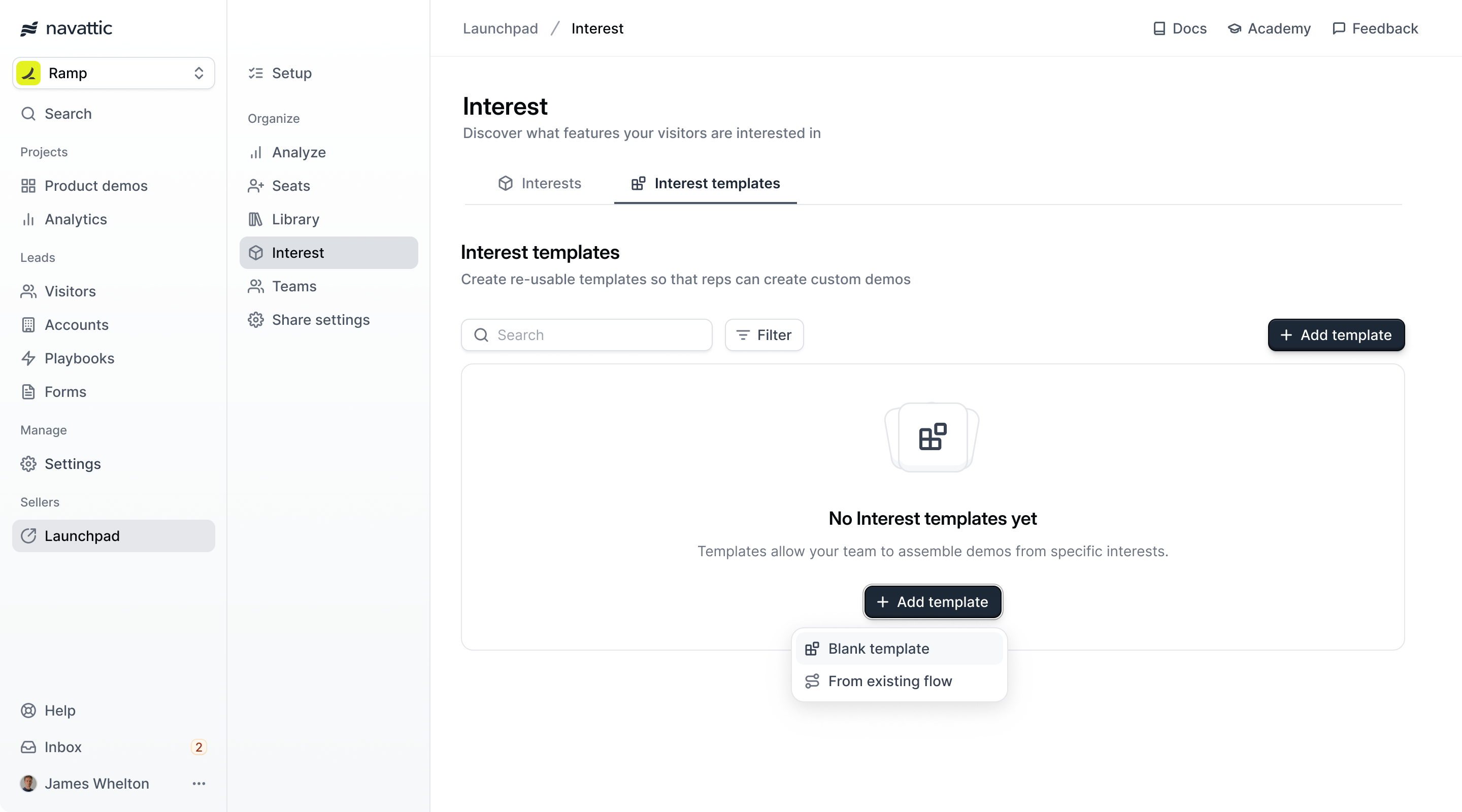
    Navigate to **Interest Templates** and click on `+ Add Template`. Choose either to create a blank template or start from an existing flow.

    If you already have some demos built out, we recommend you use an existing flow so that you have a starting place to work from.

    <Frame>
      <img className="rounded-xl border overflow-hidden" src="https://mintcdn.com/navattic-app/bR17QzPUtrfb78_J/images/interest-templates-empty.png?fit=max&auto=format&n=bR17QzPUtrfb78_J&q=85&s=a900374ce6812ce98f6aa1e1517f4c6a" alt="Interest templates empty" width="2880" height="1600" data-path="images/interest-templates-empty.png" />
    </Frame>
  </Step>

  <Step title="Enter template details">
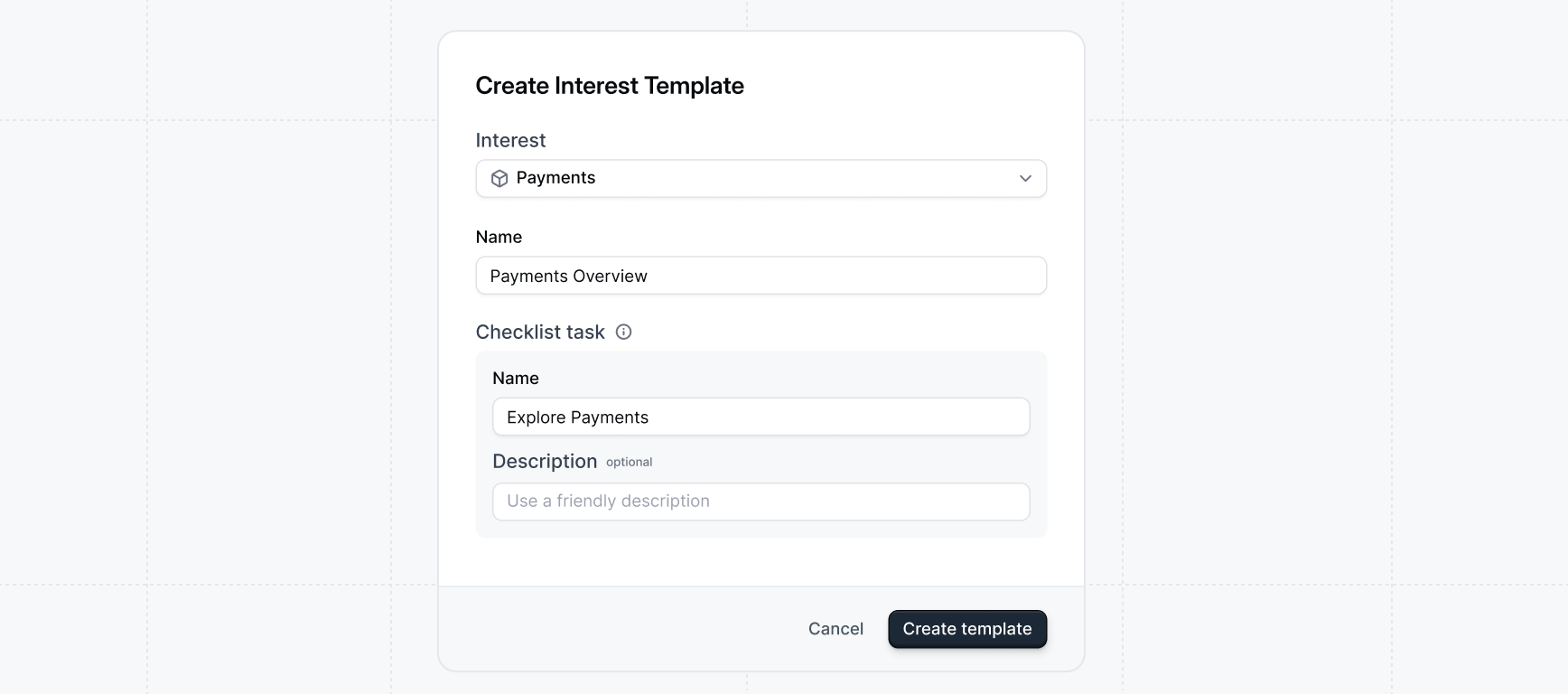
    Select an `Interest` for the type of content you want to include and enter. Enter a checklist task `name` and `description` (optional). These will be displayed on the checklist if one is generated for the demo so it's helpful to use friendly public names.

    <img className="rounded-xl border overflow-hidden" src="https://mintcdn.com/navattic-app/QNOHztjorxprHO7d/images/create-interest-template.png?fit=max&auto=format&n=QNOHztjorxprHO7d&q=85&s=e075a094cb99e69335a15da8b0329fbd" alt="Create interest template" width="1736" height="768" data-path="images/create-interest-template.png" />
  </Step>

  <Step title="Edit the template">
    Select an `Interest` for the type of content you want to include and enter.

    <img className="rounded-xl border overflow-hidden" src="https://mintcdn.com/navattic-app/QNOHztjorxprHO7d/images/create-interest-template.png?fit=max&auto=format&n=QNOHztjorxprHO7d&q=85&s=e075a094cb99e69335a15da8b0329fbd" alt="Create interest template" width="1736" height="768" data-path="images/create-interest-template.png" />
  </Step>

  <Step title="Publish the template">
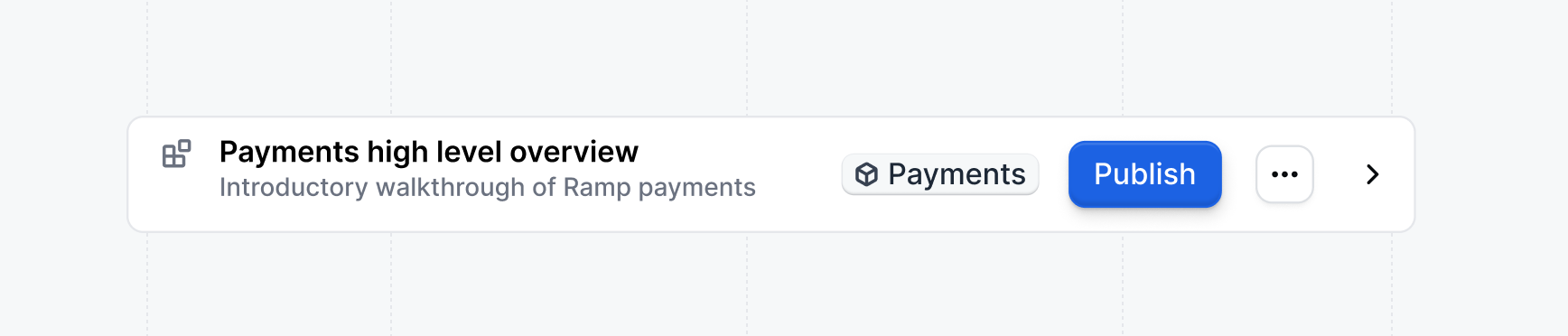
    Once you've finished editing the template, click the `Publish` button to make it available for use in custom demos.

    <img className="rounded-xl border overflow-hidden" src="https://mintcdn.com/navattic-app/Wym34-C-snZlIePn/images/publish-interest-template.png?fit=max&auto=format&n=Wym34-C-snZlIePn&q=85&s=155f5604a94e6f2dcc384b2ffbd9071a" alt="Publish interest template" width="1736" height="372" data-path="images/publish-interest-template.png" />
  </Step>
</Steps>

### How reps share demos

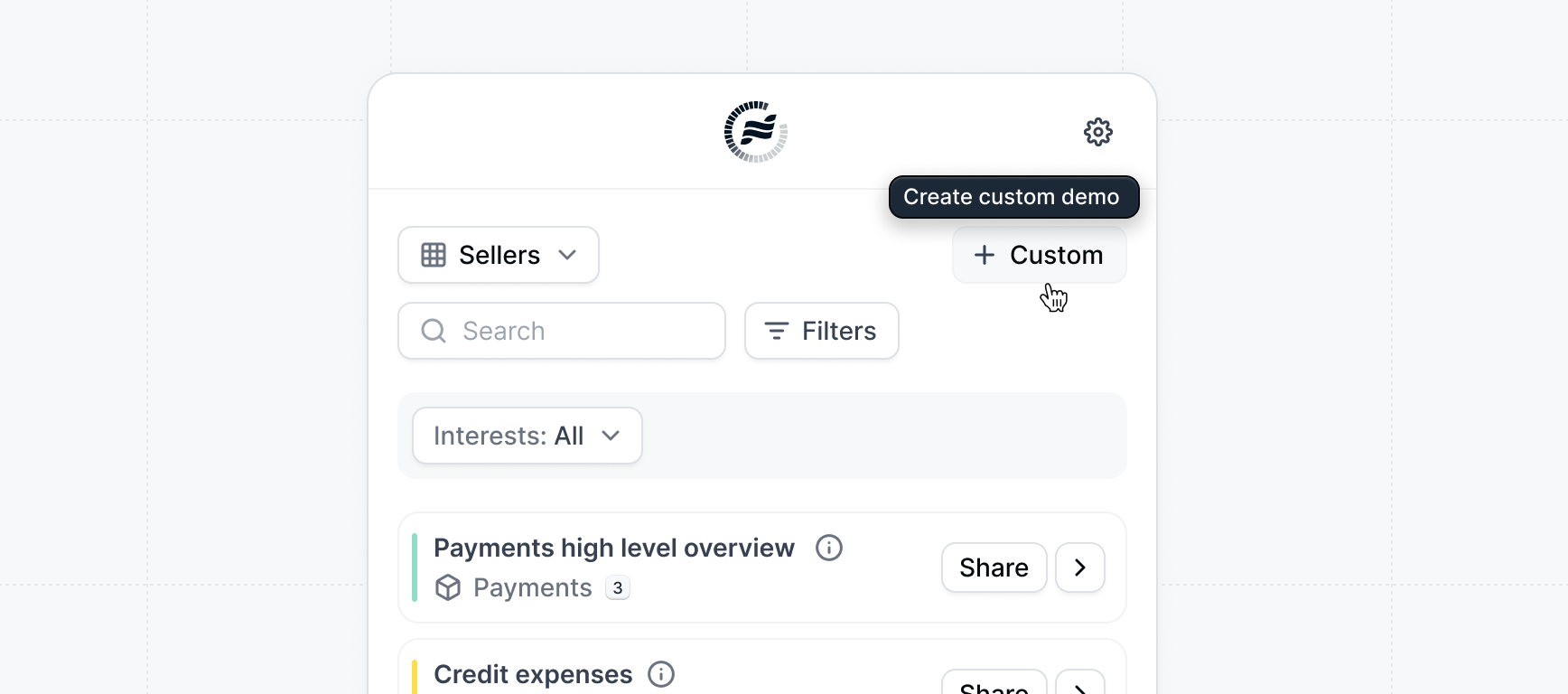
Once you've created interest templates, reps can use them to create custom demos. To create a custom demo, follow these steps:

<CardGroup>
  <Card title="Sharing demos" href="/launchpad/share/demos" img="https://mintcdn.com/navattic-app/npON59s9Ysg9r7EJ/images/launchpad-extension.png?fit=max&auto=format&n=npON59s9Ysg9r7EJ&q=85&s=e4509430ccf5689294d0a2c1d5dfbff6" width="1736" height="768" data-path="images/launchpad-extension.png">
    Sharing demos from Launchpad
  </Card>
</CardGroup>

<p>
  <Icon icon="party-popper" /> **Congratulations** -- you've finished building your first{' '}
  <Icon icon="circle-fading-plus" /> **Custom demo**. Custom demos are a powerful way to follow up
  with a *relevant* demo once you know a prospect's interest. Learn more about how to use custom
  demos as a [Post-call follow-up](/launchpad/use-cases/post-call).
</p>

Once you've prepared your workspace with initial demos, you're ready for your sales team. Learn what steps to follow to invite your sales team to the workspace:

<CardGroup cols={2}>
  <Card title="Adding the sales team" icon="user-round-plus" href="/launchpad/invite/add-reps" img="/images/members-page.png">
    Customize your docs to your company's colors and brands
  </Card>
</CardGroup>