> ## Documentation Index
> Fetch the complete documentation index at: https://docs.navattic.com/llms.txt
> Use this file to discover all available pages before exploring further.
# Prepare your demos
> Select your gold-standard demos to showcase to your sales team.
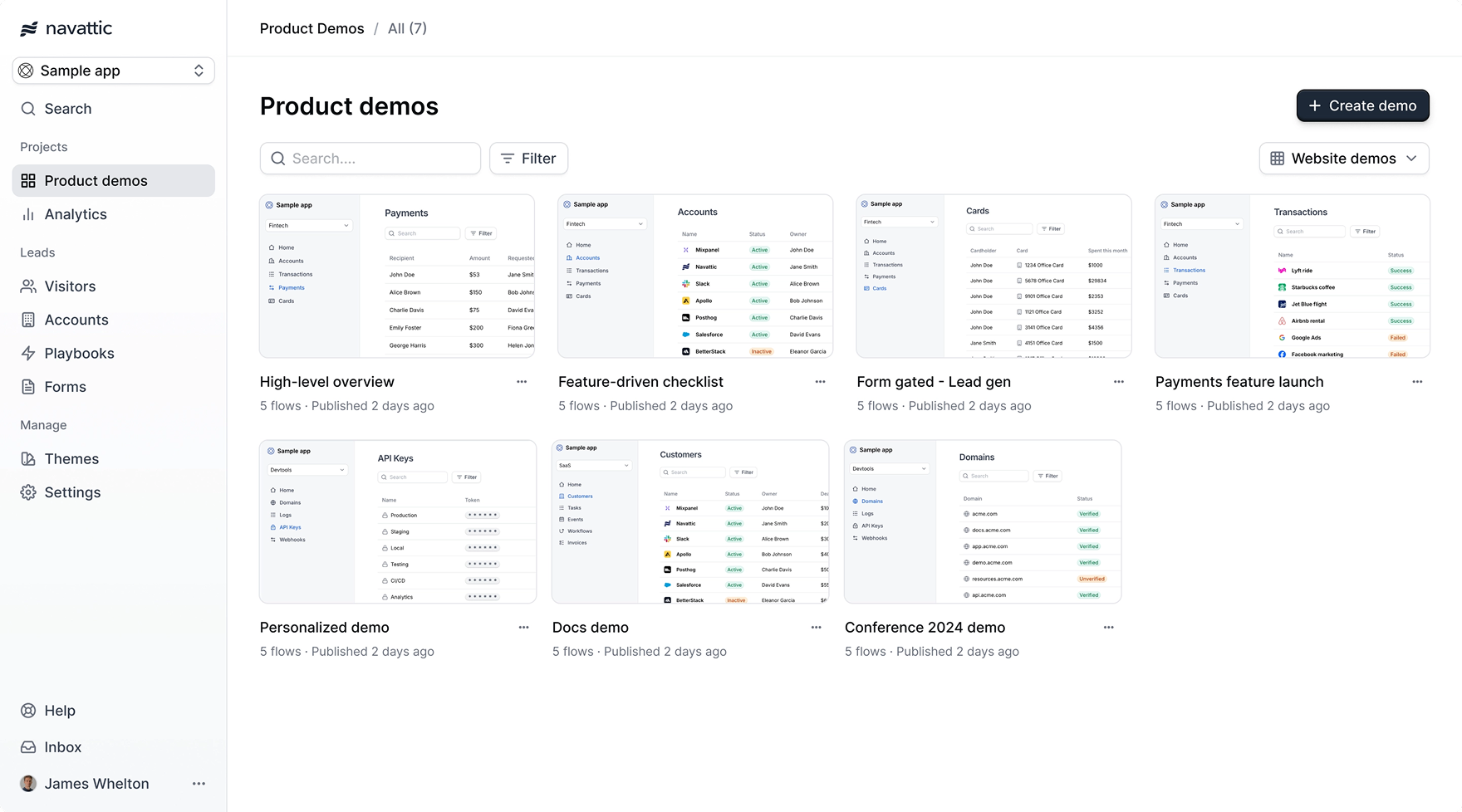 Empower your sales teams to deliver top-performing demos with confidence. In order to do that, you'll have to first create and organize your best demos so that your sales team knows what to look for. Follow the below steps to prepare the demos in your workspace and your sales team streamlined access to the demos relevant to them:
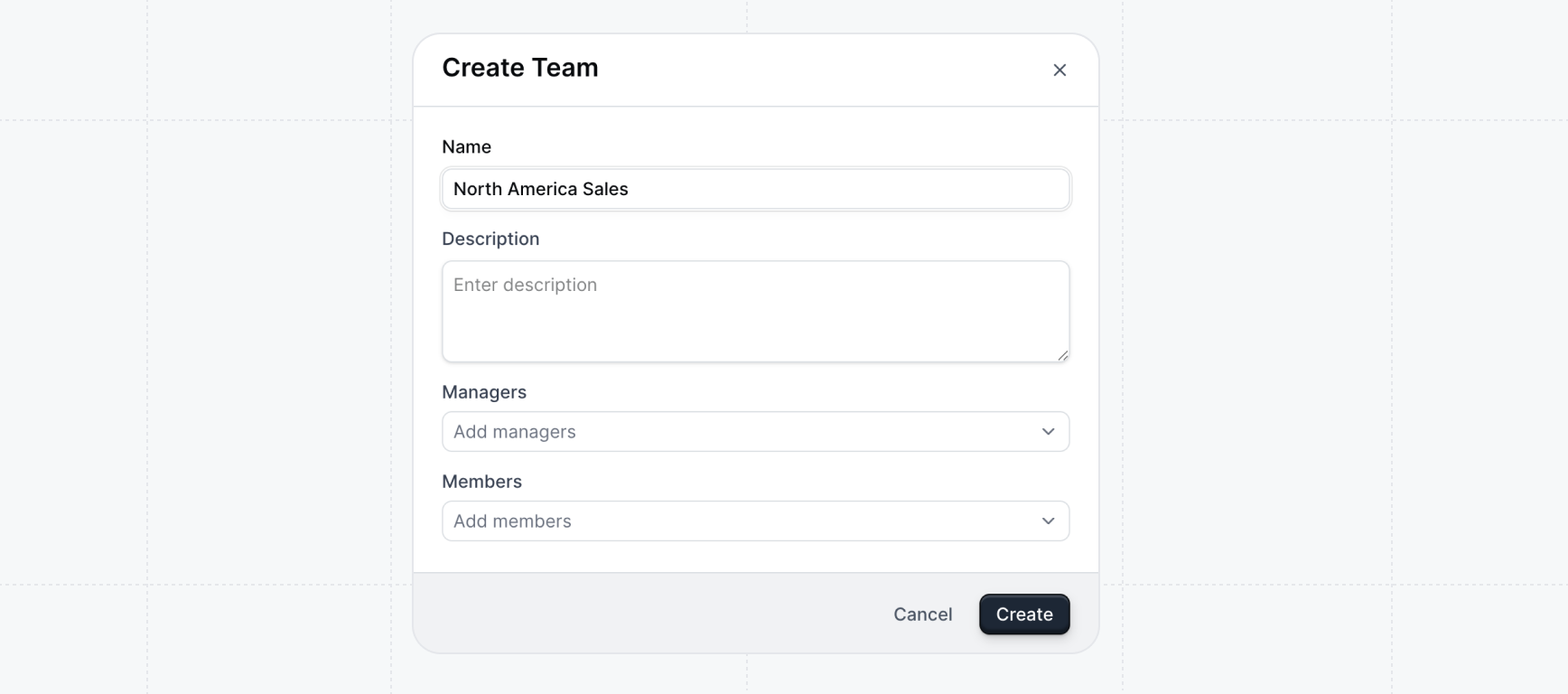
First, you'll create a new team in your workspace for your sales team.
Navgigate to
Team Settings
and click `+ Create Team`. Name the team something recognizable for your
organization ex. "Sales team" or "North America Sales" for example.
Empower your sales teams to deliver top-performing demos with confidence. In order to do that, you'll have to first create and organize your best demos so that your sales team knows what to look for. Follow the below steps to prepare the demos in your workspace and your sales team streamlined access to the demos relevant to them:
First, you'll create a new team in your workspace for your sales team.
Navgigate to
Team Settings
and click `+ Create Team`. Name the team something recognizable for your
organization ex. "Sales team" or "North America Sales" for example.
 Using Launchpad for multiple sales teams in your org (ex. split by segmentation or territory)? Create a team for each to allow sales managers to monitor each team seperately and/or give access to different demos relevant to their needs.
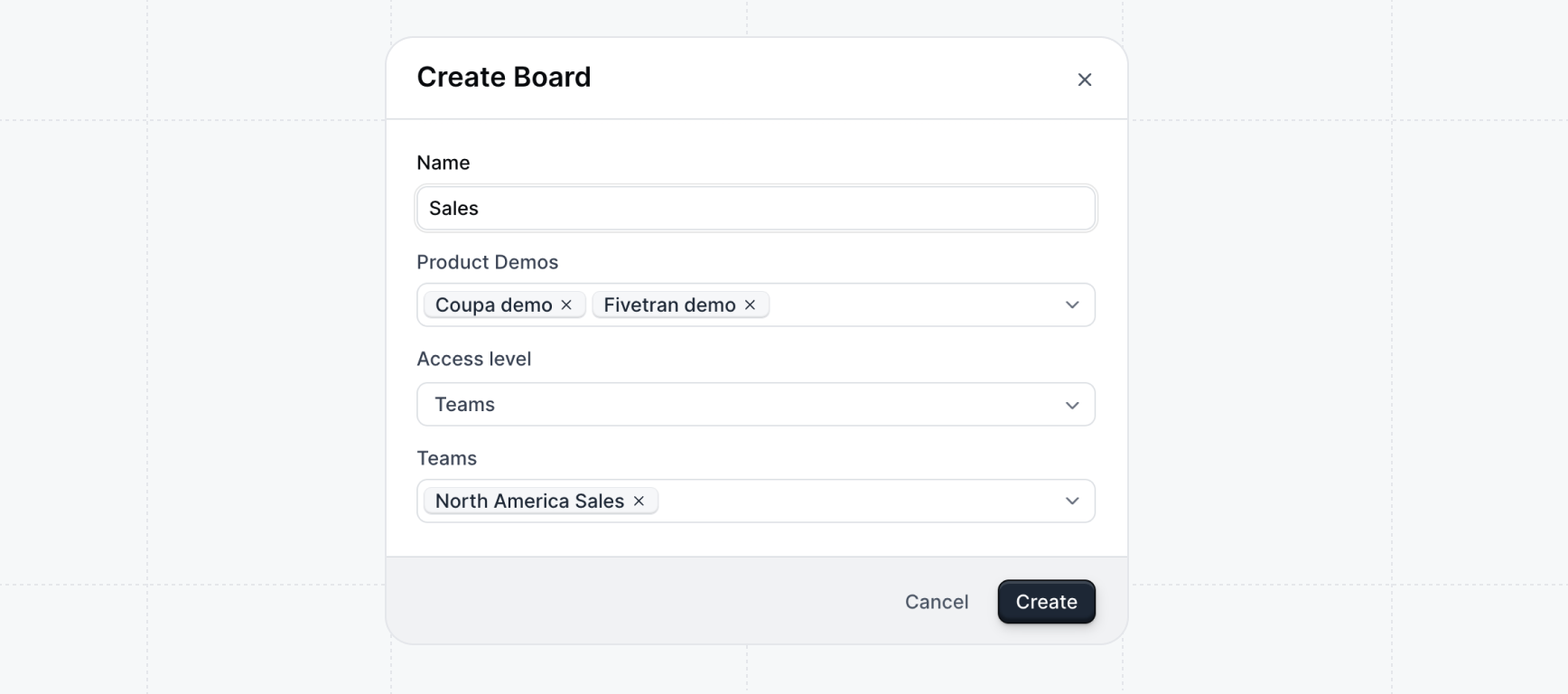
Navigate to Board Settings and create a board for your newly created team. You can name the board anything memorable for your team ex. "Sales" or "Outbound demos". Any number of boards can be created for Launchpad.
Using Launchpad for multiple sales teams in your org (ex. split by segmentation or territory)? Create a team for each to allow sales managers to monitor each team seperately and/or give access to different demos relevant to their needs.
Navigate to Board Settings and create a board for your newly created team. You can name the board anything memorable for your team ex. "Sales" or "Outbound demos". Any number of boards can be created for Launchpad.
 Overtime you can create boards per use case, product, team, etc. We recommend you start simple and create boards based on your organization's initial needs.
Under Product demos, find the top-performing demos relevant to your
sales team. You can use the filters to narrow down the demos by activity or
labels.
Consult your top sales reps (AEs, SEs, BDRs, and SDRs) on what areas of the product are particuarly important for them to show off in demos.
Overtime you can create boards per use case, product, team, etc. We recommend you start simple and create boards based on your organization's initial needs.
Under Product demos, find the top-performing demos relevant to your
sales team. You can use the filters to narrow down the demos by activity or
labels.
Consult your top sales reps (AEs, SEs, BDRs, and SDRs) on what areas of the product are particuarly important for them to show off in demos.
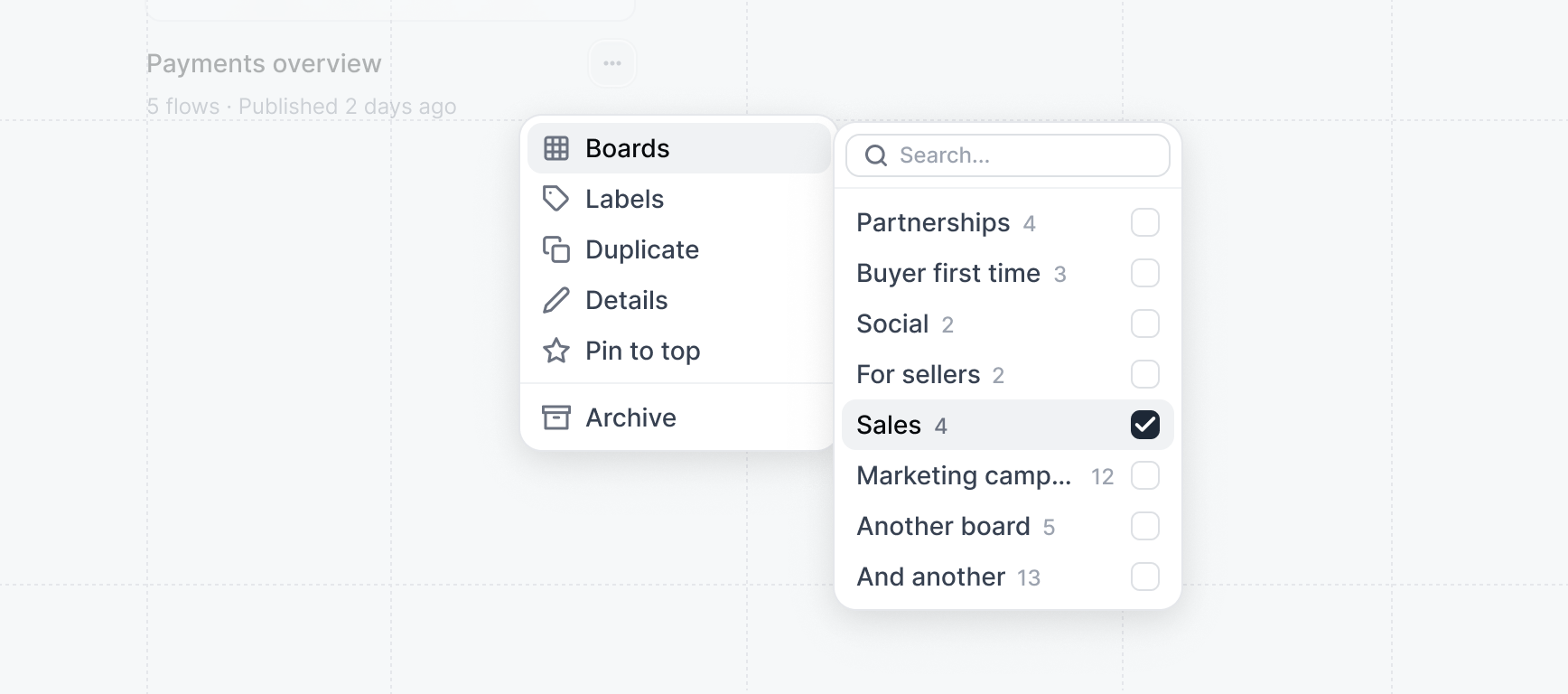 To identify top-performing demos for your sales team, prioritize demos that showcase an **"aha" moment** of your product.
Congratulations -- you've created a board for your sales team with some initial demos for them to start sharing. Next, learn how to create demos that will be particuarly useful for sales use cases:
Make demos personalized by adding user and account variables.
Unlock a powerful insight - what features prospects are interested in seeing.
Enable your sales team to assemble custom demos from pre-built templates.
To identify top-performing demos for your sales team, prioritize demos that showcase an **"aha" moment** of your product.
Congratulations -- you've created a board for your sales team with some initial demos for them to start sharing. Next, learn how to create demos that will be particuarly useful for sales use cases:
Make demos personalized by adding user and account variables.
Unlock a powerful insight - what features prospects are interested in seeing.
Enable your sales team to assemble custom demos from pre-built templates.