> ## Documentation Index
> Fetch the complete documentation index at: https://docs.navattic.com/llms.txt
> Use this file to discover all available pages before exploring further.
# Slack
> Get real-time notifications in Slack when prospects engage with your demos.
export const MediaCard = ({title = '', url, type = 'demo'}) => {
const attributes = type === 'demo' ? {
'data-navattic-open': url,
'data-navattic-title': title
} : {
'data-video': url
};
return
{type === 'video' ? 'Watch video' : 'Try a demo'}
{title}
;
};
Check that you are [Identifying visitors](/tracking/identify/visitors) before setting up the Slack integration.
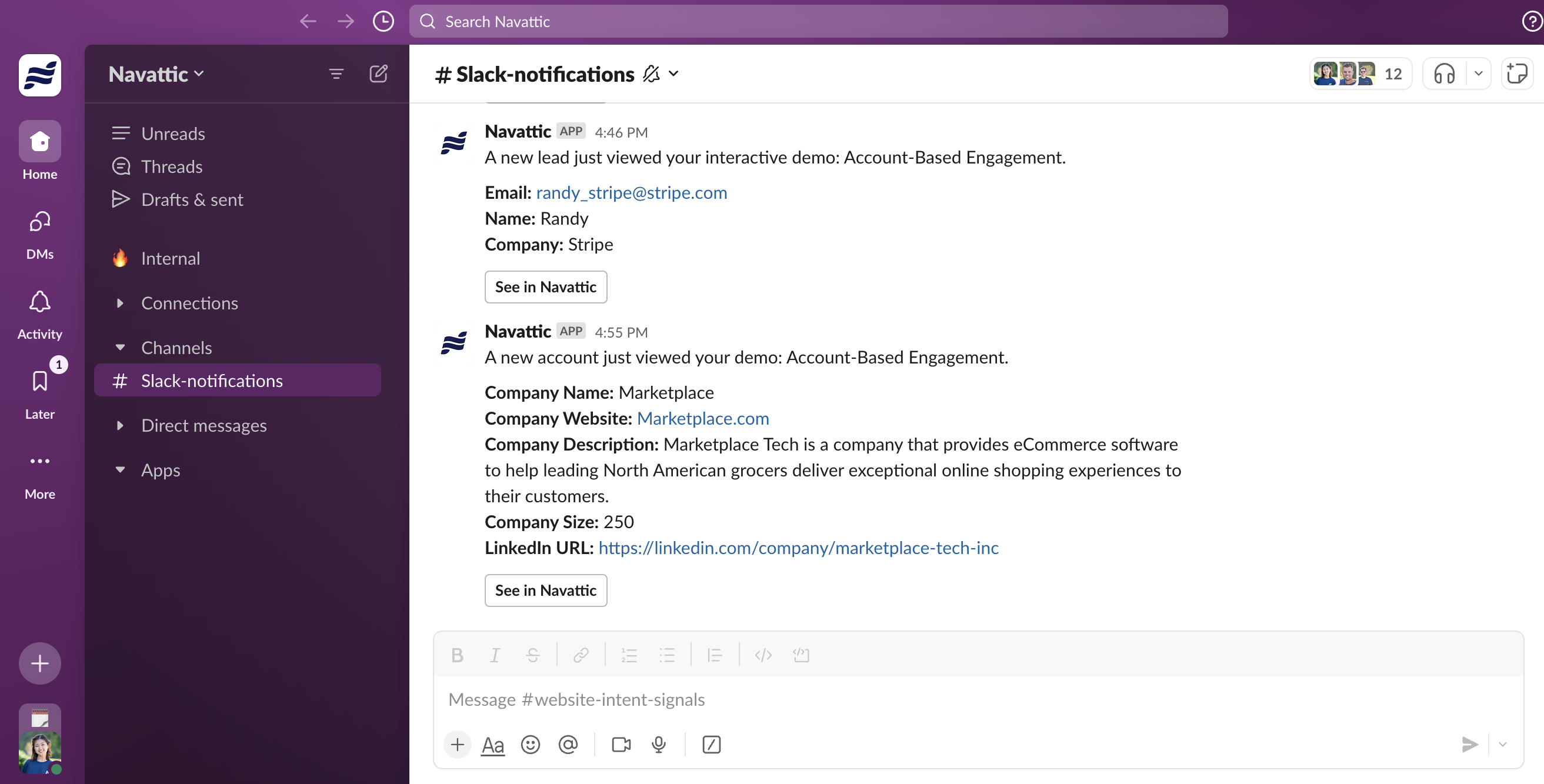
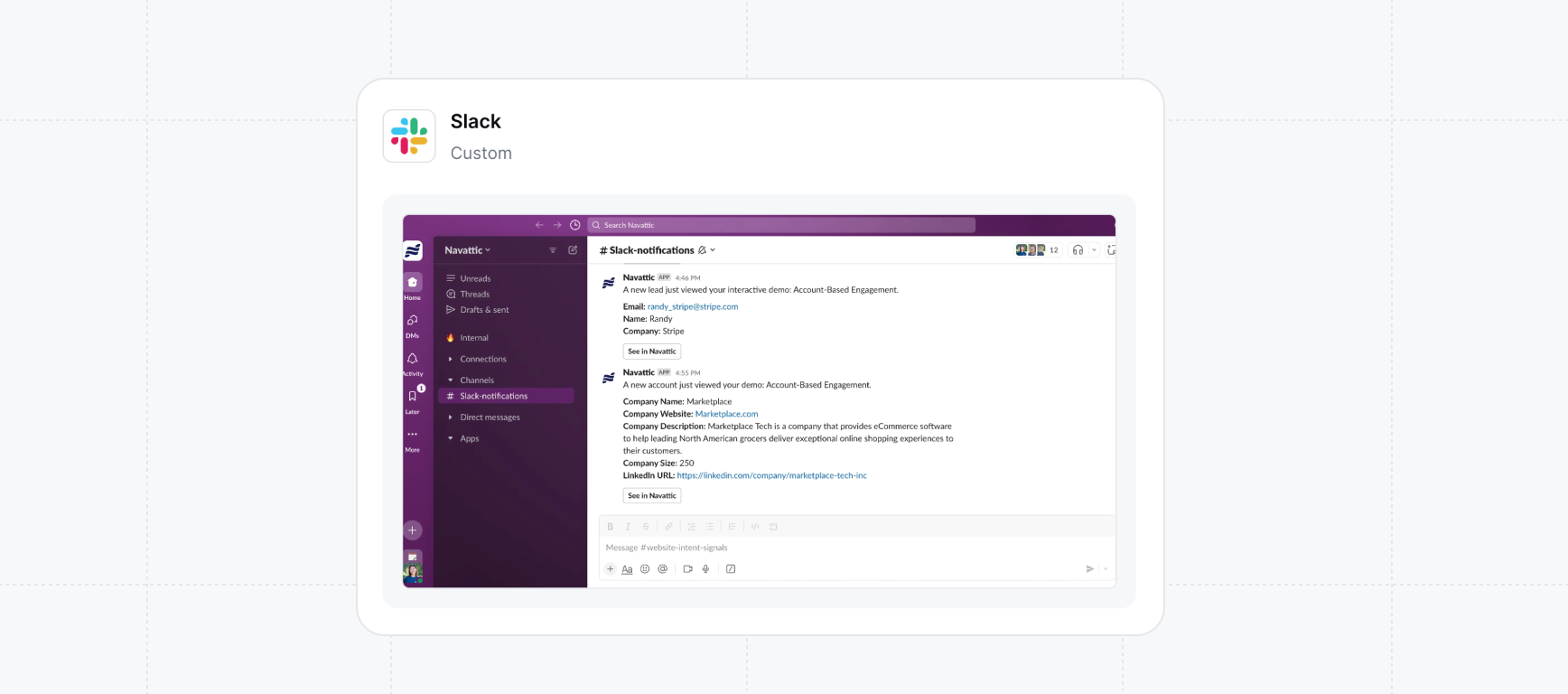
Send identified visitor and/or account information directly to Slack. Once a visitor or account has been [identified](/tracking/identify/visitors), send that information to a Slack channel.
## Setting up the Slack Integration
Use this interactive demo or the written steps below to set up your integration.
Visit [app.navattic.com](https://app.navattic.com) > Playbooks > Integrations > Slack > Manage > Connect > Log into your Slack account if prompted > Authorize certain permissions within your Slack workspace.
You can customize the Slack message under **Configuration**. Click **+ Add property** to select which properties to include in the message.
Once you have connected your Slack workspace, navigate to your channel and connect the Navattic app by sending **@navattic** in a message. You must follow this step before adding the channel to your Playbook (see the next step).
Once your integration for Slack is fully set up, visit [Playbooks](/integrations/playbooks) in your Workspace to start pushing data into Slack. You can use a Template or create your own Playbook.
There are two Action that you can set up: Send visitor message and Send account message (if you have Accounts set up). Additionally, make sure to select the Slack Channel you want to send data to. You can toggle on **Use ID** if the channels aren't populating in the dropdown.
A Playbook consists of [Audiences](/integrations/playbooks) and Actions. You can use one of the default Audiences or you can create your own. If you create your own, remember to add new demos to the Audience if you are choosing to filter by specific demos.
Your connected Slack channel will now receive notifications in real time.