
> ## Documentation Index
> Fetch the complete documentation index at: https://docs.navattic.com/llms.txt
> Use this file to discover all available pages before exploring further.

# Playbooks

> Automate workflows and trigger actions based on demo engagement.

export const MediaCard = ({title = '', url, type = 'demo'}) => {
  const attributes = type === 'demo' ? {
    'data-navattic-open': url,
    'data-navattic-title': title
  } : {
    'data-video': url
  };
  return <div {...attributes} className="hidden md:inline-block w-auto cursor-pointer overflow-hidden rounded-lg border border-gray-200 dark:border-gray-700 shadow-sm">
<div className="flex items-center gap-3 bg-white dark:bg-gray-800 px-3 py-2">
<div className={`flex h-7 w-7 items-center justify-center rounded-md ${type === 'video' ? 'bg-blue-100 dark:bg-blue-900' : 'bg-orange-100 dark:bg-orange-900'}`} style={{
    backgroundColor: type === 'video' ? 'var(--video-bg)' : 'var(--demo-bg)'
  }}>
<Icon icon={type === 'video' ? 'circle-play' : 'square-mouse-pointer'} color={type === 'video' ? 'var(--video-icon)' : 'var(--demo-icon)'} />
</div>
<div>
<div className="text-sm font-medium text-gray-900 dark:text-gray-100">
{type === 'video' ? 'Watch video' : 'Try a demo'}
</div>
<div className="text-sm text-gray-500 dark:text-gray-400">{title}</div>
</div>
</div>
<style jsx>{`
  :root {
    --video-bg: #dbeafe;
    --video-icon: #2563eb;
    --demo-bg: #ffedd5;
    --demo-icon: #ea580c;
  }
  :global(.dark) {
    --video-bg: #1e3a8a;
    --video-icon: #60a5fa;
    --demo-bg: #7c2d12;
    --demo-icon: #fb923c;
  }
`}</style>
</div>;
};

<Frame>
  <img className="overflow-hidden rounded-xl border" src="https://mintcdn.com/navattic-app/Wym34-C-snZlIePn/images/playbooks.png?fit=max&auto=format&n=Wym34-C-snZlIePn&q=85&s=2ceffbb8201e165108511f3687a2adad" alt="Playbooks" width="1736" height="768" data-path="images/playbooks.png" />
</Frame>

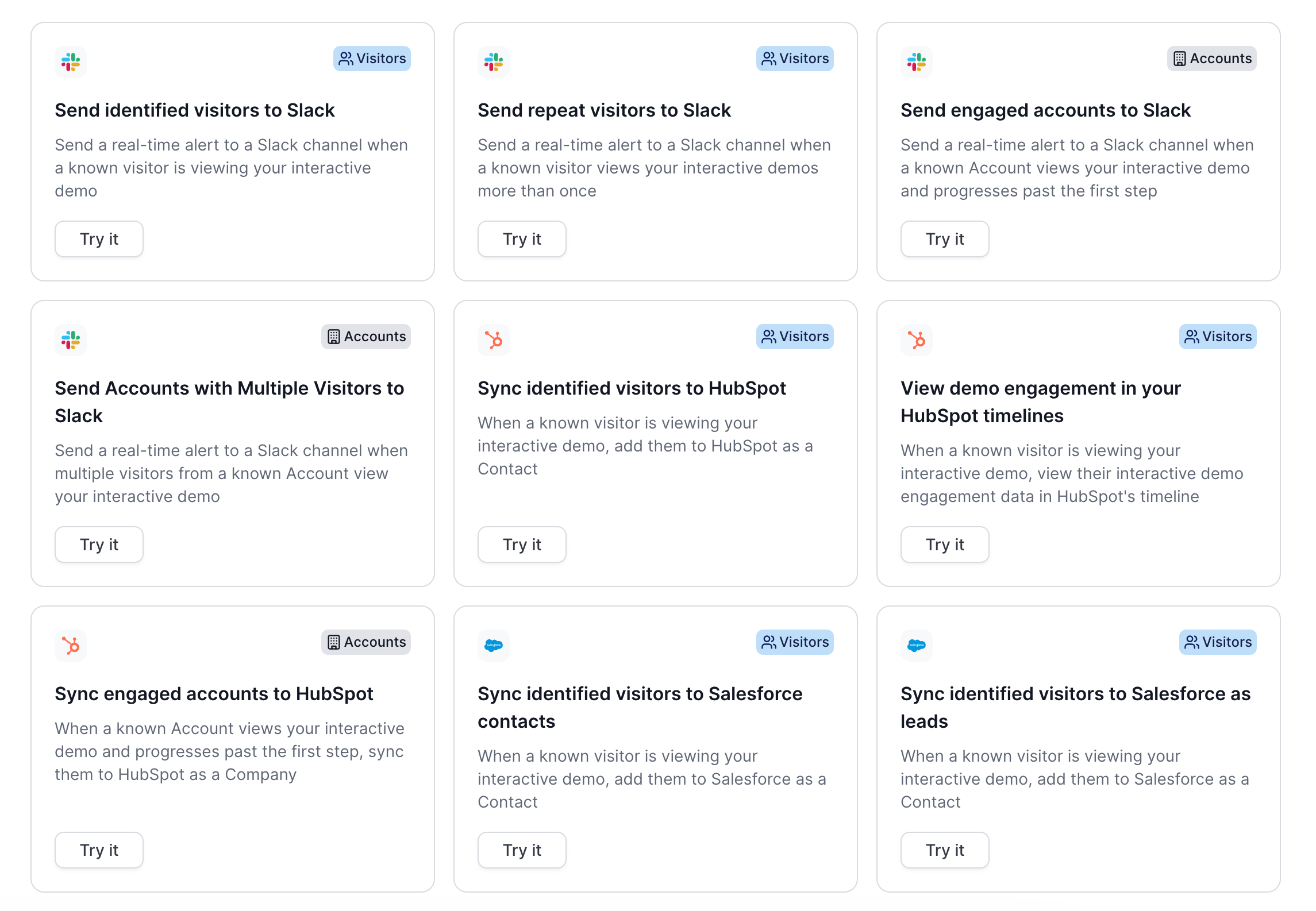
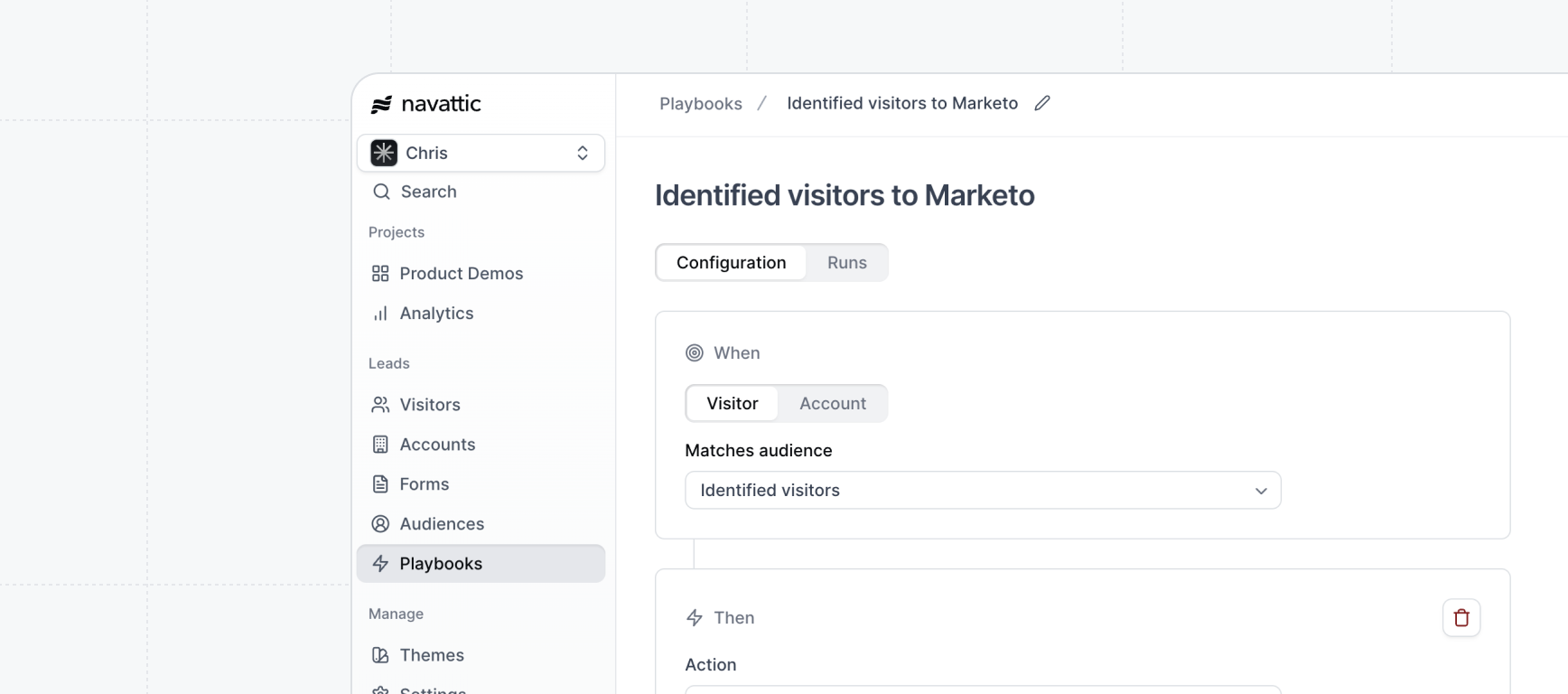
You have the option to create Playbooks manually, selecting from default or custom audiences and actions, or you can generate Playbooks automatically by using **Templates**.
<MediaCard url="https://www.loom.com/embed/fc949ad0a7a8461b8297cc57ef008055?sid=a34eee3a-c96e-49a8-9e19-3eab60ac7b85" type="video" title="Playbooks" />

## Audiences

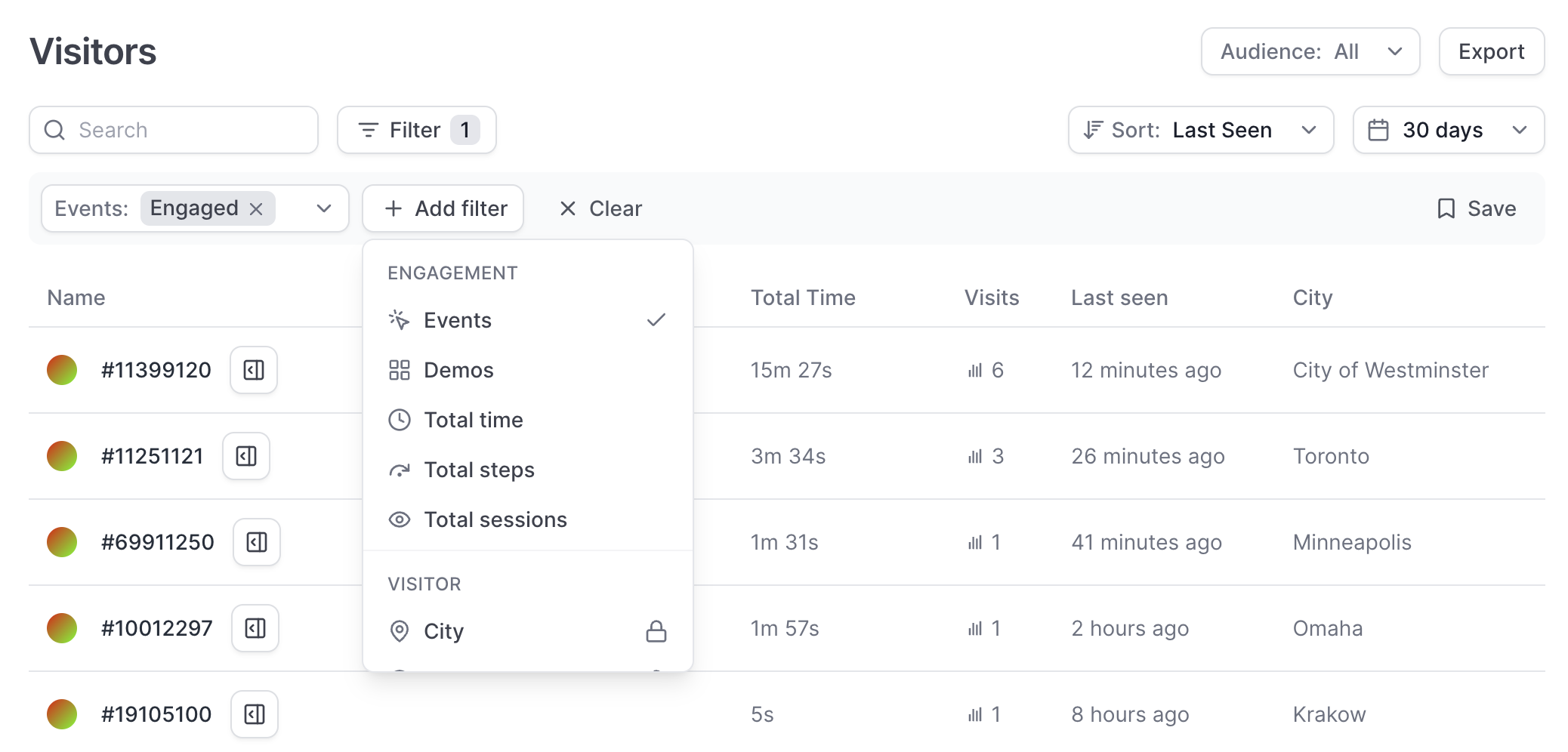
Audiences are filtered views of Visitors and Accounts that view your demos. These include filters for Time spent, Total sessions to detect repeat visitors, Total steps, and more. **Create an Audience** by adding Filters to your Visitors or Accounts tab and selecting **Save.**

<img src="https://mintcdn.com/navattic-app/bR17QzPUtrfb78_J/images/playbooks-2.png?fit=max&auto=format&n=bR17QzPUtrfb78_J&q=85&s=446421e545d41c86e5feccb89abe2bcf" alt="" width="2076" height="996" data-path="images/playbooks-2.png" />

The below **Audiences** are created by default with Playbooks. You can always create a new audience as well.

### Default Visitors audiences

| Audience            | Description                                      |
| ------------------- | ------------------------------------------------ |
| Identified visitors | Visitors that have an email associated with them |
| Engaged visitors    | Visitors who advance 1+ steps in your demo       |
| Repeat visitors     | Visitors with at least 2 unique sessions         |

### Default Accounts audiences

| Audience                        | Description                               |
| ------------------------------- | ----------------------------------------- |
| Engaged accounts                | Companies with at least 1 engaged visitor |
| Accounts with multiple visitors | Companies with >1 unique visitor          |

### Create a custom audience

To create an Audience, visit the **Visitors** tab to create contact-based audiences or the **Accounts** tab to create account-based audiences. Use Filters to select the Audience you'd like to create. Once you have added the necessary Filters click \*\*Save \*\*> Name your audience > Save. Now, when you create a Playbook, you will see this Audience appear in the dropdown under **When visitor: Matches audience**.
<Note>
  If you have created Audiences in the past, these Audience will already be available to use with
  Playbooks.
</Note>

## Actions

We currently support 13 playbook actions outlined below. These actions are used to send visitor or account level data to the listed third-party tools. Playbook actions are run for individual visitor sessions when the session ends (i.e. when a visitor closes the page containing the demo or after 30 minutes of inactivity).

### Visitor-based actions

| Integrations | Playbook Action(s)                             |
| ------------ | ---------------------------------------------- |
| Hubspot      | Sync contact, Timeline events                  |
| Salesforce   | Sync contact, Sync lead, Submit session object |
| Pardot       | Sync lead                                      |
| Marketo      | Sync visitor                                   |
| Slack        | Send visitor message                           |
| Segment      | Segment event                                  |
| Webhook      | Webhook event                                  |
| Email        | Send visitor message                           |

### Account-based actions

Account-based actions are available if you have Account Based Engagement enabled. Contact [success@navattic.com](mailto:success@navattic.com) if you would like to learn more about Account Based Engagement.

| Integrations | Playbook Action(s)                                   |
| ------------ | ---------------------------------------------------- |
| Hubspot      | Sync company, Timeline events                        |
| Salesforce   | Sync account, Send notification to Opportunity Owner |
| Pardot       | Sync account                                         |
| Slack        | Send account message                                 |
| Segment      | Segment event                                        |
| Webhook      | Webhook event                                        |
| Email        | Send account message                                 |

<Note>
  Adding Marketo to a Playbook will allow you to choose which Marketo Program Visitors will sync to.
  Similarly, adding Slack to a Playbook will allow you to select the Slack channel to send visitors
  and/or account messages to.
</Note>

## Sync mode

<img src="https://mintcdn.com/navattic-app/Wym34-C-snZlIePn/images/playbooks-7.png?fit=max&auto=format&n=Wym34-C-snZlIePn&q=85&s=eb7a4d66ee112e59f680fc0ba7efb506" size="60" width="1182" height="612" position="center" caption={true} data-path="images/playbooks-7.png" />

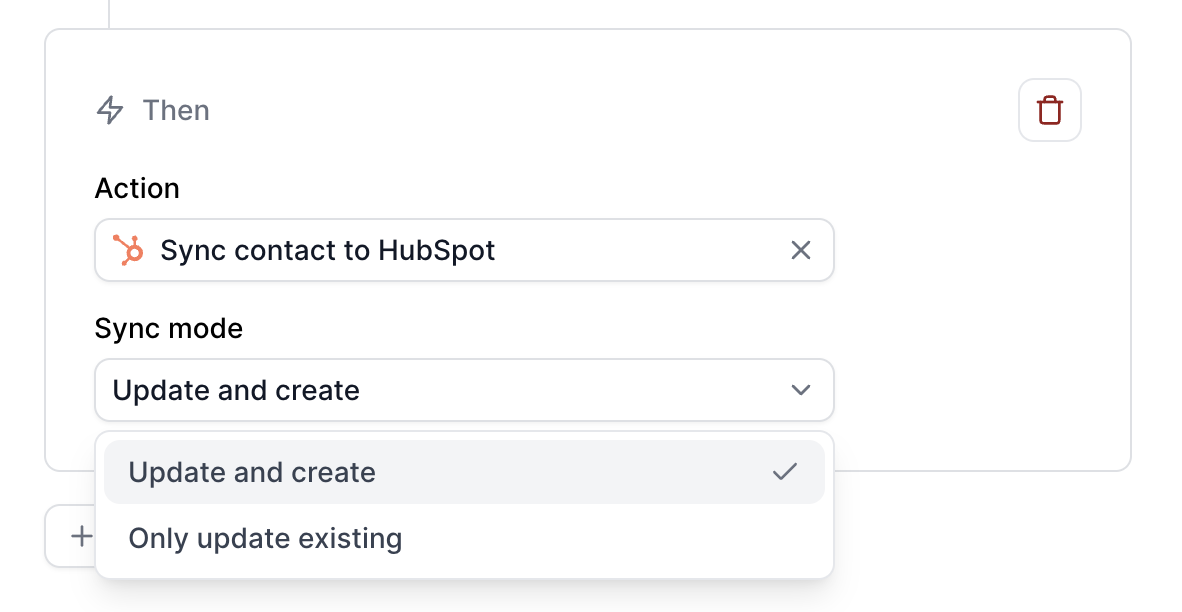
### **Update and create**

**Update and create** includes full sync functionality and will create new Visitor and/or Account records. It will also update existing ones if they exist for each matching session that triggers the Playbook.

### Only update existing

**Only update existing** will not create any net new Visitor and/or Account records, but will update existing ones for each matching session that triggers the Playbook.

### Only first session

When enabled, this action will only be triggered for the first session for that Visitor or Account.

### FAQs

<AccordionGroup>
  <Accordion title="How do Playbooks differ from existing Navattic integrations?">
    Playbooks allow you to filter the Navattic Visitor and Account data that is sent to HubSpot, Salesforce, Marketo, and Slack by configuring different Audiences. For example, do you only want to send data for Repeat Visitors, Visitors who engage with specific demos, or Visitors from a specific industry?

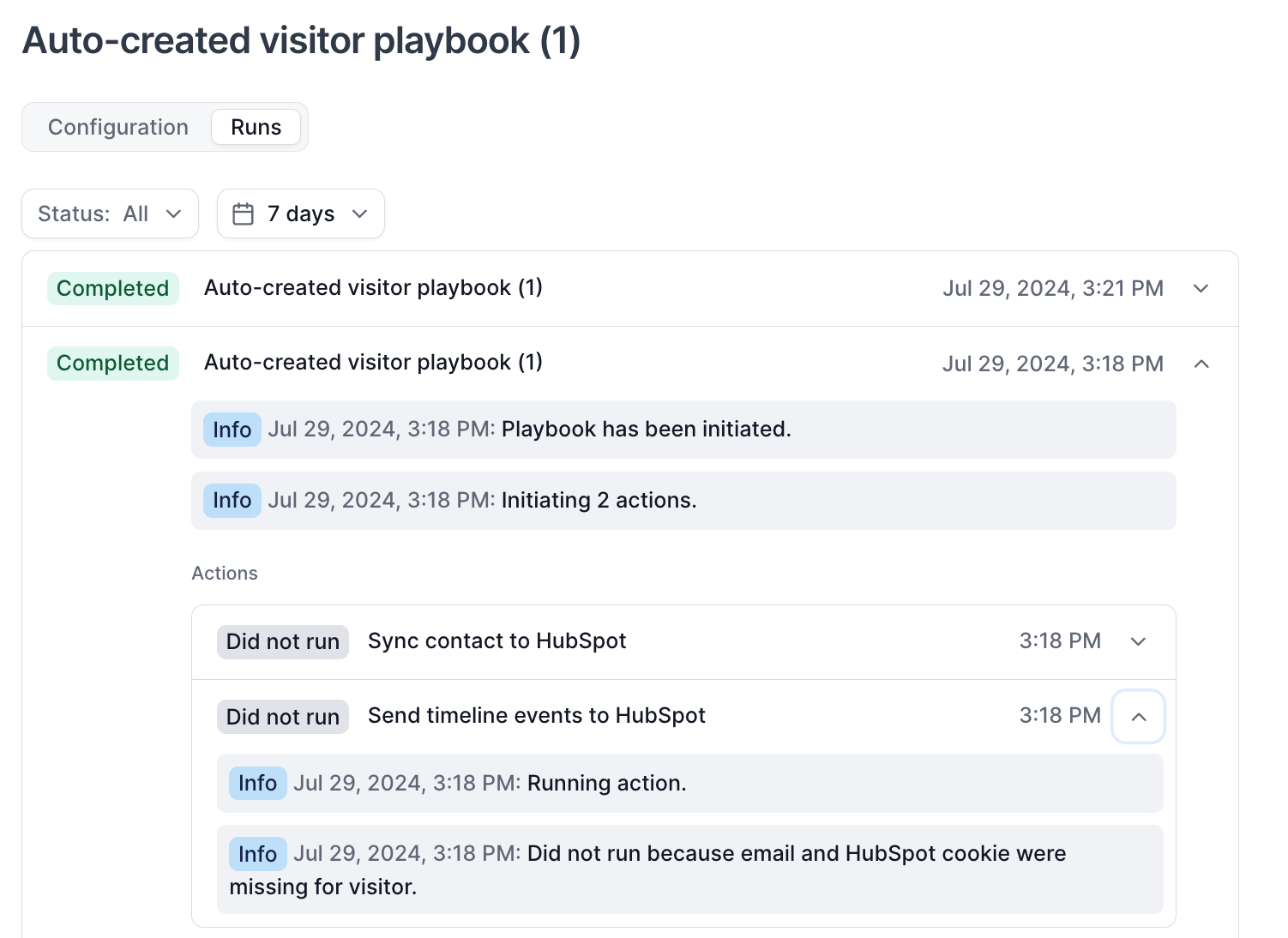
    Playbooks also include **detailed error logs** to support thorough debugging of any failed Runs, which are sent whenever a Visitor or Account is detected viewing your demo. For example:

    <img src="https://mintcdn.com/navattic-app/bR17QzPUtrfb78_J/images/playbooks-3.png?fit=max&auto=format&n=bR17QzPUtrfb78_J&q=85&s=8a3cf6a6a6f19b04659dc5c61a3ff051" alt="" width="1502" height="1094" data-path="images/playbooks-3.png" />
  </Accordion>

  <Accordion title="What happens to my workspace's existing integrations?">
    All existing field mappings to HubSpot, Salesforce, Marketo, and Slack will continue as-is (here are [all available field mappings](/navattic-field-mappings) as a refresher). You may configure field mappings in your Navattic workspace > Settings > Integrations tab (no changes).

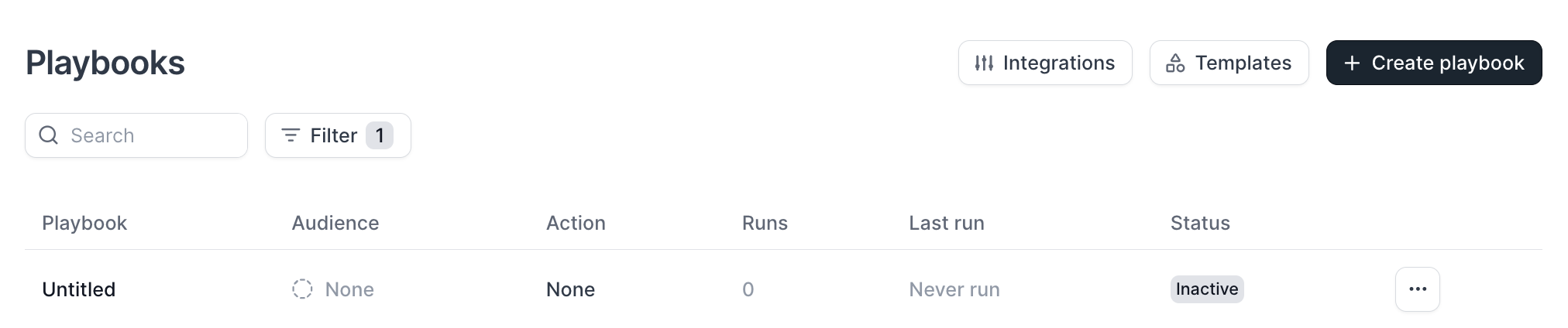
    All existing integrations will now have a corresponding "Playbook" visible in your [Playbooks tab](https://app.navattic.com/w/playbooks), which gives you visibility to the status of each integration. For example, if you were already sending identified Visitors and Accounts to HubSpot, you will see two corresponding Playbooks like this:

    <img src="https://mintcdn.com/navattic-app/bR17QzPUtrfb78_J/images/playbooks-4.png?fit=max&auto=format&n=bR17QzPUtrfb78_J&q=85&s=12ff7d563e8eac50d57ce327668c5f58" alt="" width="1990" height="294" data-path="images/playbooks-4.png" />
  </Accordion>

  <Accordion title="Why does my new Playbook show 0 Runs?">
    Playbook runs are not documented retroactively and will show "0 Runs" if your Playbook was created
    recently (i.e., around the time of this message). However, your integrations have been
    continuously syncing, and your new Playbooks will show more Runs soon as new Visitor or Account
    sessions are detected in your demos.
  </Accordion>

  <Accordion title="Can I retroactively run a Playbook?">
    Yes, you can replay a Playbook to send past Visitor and/or Account data to your integrations. To
    retroactively run a Playbook, visit your Playbook in your Workspace > click the three dots next to
    the save button > **Replay**. Set the **delay between sessions** and the **start** and **end
    dates** for which you want to replay the playbook. See how to [Replay a
    Playbook](https://training.navattic.com/7i801h9).
  </Accordion>

  <Accordion title="How do I create new Playbooks?">
    [Use these steps](https://www.loom.com/share/fc949ad0a7a8461b8297cc57ef008055) to create new Playbooks and visit our [Template Playbooks](https://app.navattic.com/n/playbooks/templates) for inspiration!

    <img src="https://mintcdn.com/navattic-app/bR17QzPUtrfb78_J/images/playbooks-5.png?fit=max&auto=format&n=bR17QzPUtrfb78_J&q=85&s=25d81a7807186b6061ad1fe9212790d2" alt="" width="2290" height="1586" data-path="images/playbooks-5.png" />
  </Accordion>

  <Accordion title="Where do I go to connect new Integrations?">
    You may continue connecting integrations in your Navattic workspace > Settings > Integrations tab. You can also navigate here by clicking the "Integrations" button in the Playbooks tab (shown below).

    <img src="https://mintcdn.com/navattic-app/bR17QzPUtrfb78_J/images/playbooks-6.png?fit=max&auto=format&n=bR17QzPUtrfb78_J&q=85&s=a58aef349ad74ef5b849587218fcff0a" alt="" width="2024" height="424" data-path="images/playbooks-6.png" />
  </Accordion>

  <Accordion title="How do I setup routing rules to email specific sales reps?">
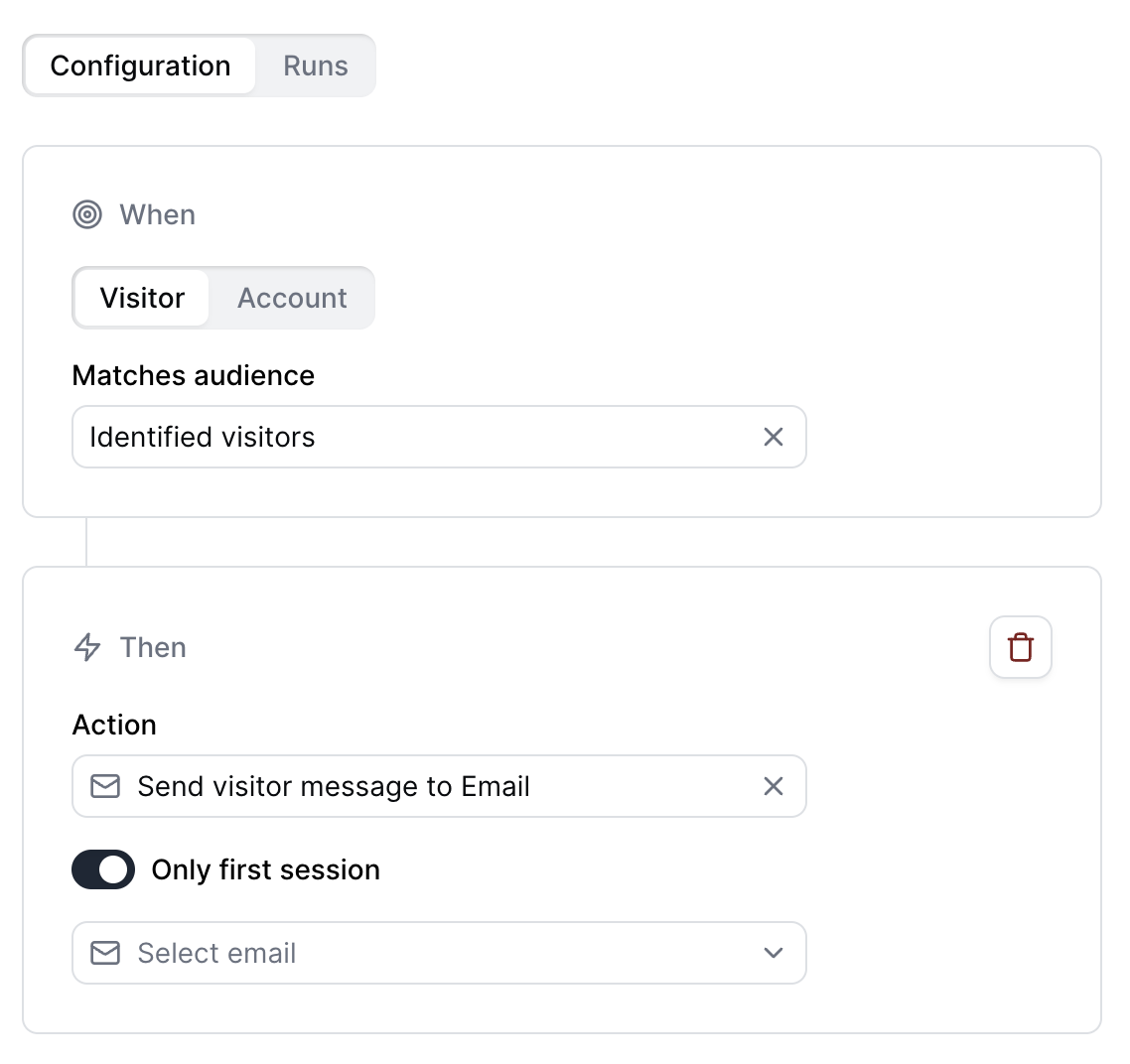
    You can create a Playbook to setup routing rules to email specific sales reps by connecting the Email integration to your workspace. To setup the Email Integration, visit **Playbooks** > **Integrations** > **Email** > **Connect**. Once the Email Integration is connected, create a Playbook, select the Audience you would like to receive notifications for and choose **Send visitor message to Email** as the Action. You can then select the email you would like notifications to be sent to.

    <Note>
      *Tip: Create a custom audience using the advanced filters so that sales reps receive notifications for companies that match their ICP.*
    </Note>

    <img src="https://mintcdn.com/navattic-app/Wym34-C-snZlIePn/images/playbooks-8.png?fit=max&auto=format&n=Wym34-C-snZlIePn&q=85&s=2c5128b1f73eab494e886d3ec4a28dee" size="60" width="1138" height="1072" position="center" caption="Send visitor message to Email" alt={true} data-path="images/playbooks-8.png" />
  </Accordion>

  <Accordion title="How can I prevent duplicate messages in Slack?">
    To avoid duplicate messages in Slack, toggle on **Only first session** after selecting **Send
    visitor message to Slack** as the Action.
  </Accordion>

  <Accordion title="When does a session end?">
    A session ends and is marked as closed when a user navigates away from the demo or closes the
    page. Once a session is closed, the Navattic fields will be sent to the Integrations that are set
    up with the Playbook. In some instances, Navattic is not able to perfectly capture when a user
    leaves a demo, so there is a secondary condition based on user activity. Every 15 minutes Navattic
    checks all ongoing sessions, and if any of them have not had activity within the last 30 minutes
    (defined by having any activity events), they are marked as closed with the closing time equaling
    the time of the session's most recent activity event.
  </Accordion>

  <Accordion title="I'm not seeing my Slack Channel populate when creating a Slack Playbook?">
    If you're unable to select the Slack channel while creating a Playbook, please ensure that the
    Navattic bot has been added to the channel. You can do this by sending the message @navattic in
    the Slack channel. Additionally, verify that you are a Slack Admin and that the channel is set to
    public. If needed, try searching for the channel using the "Use ID" toggle to locate it more
    easily.
  </Accordion>

  <Accordion title="How can I use Webhooks to send data to Zapier?">
    Use the [Webhook](/integrations/webhook) integration to integrate with a Zapier
    workflow by using a Zap URL. Learn more about triggering [Zaps from
    webhooks](https://help.zapier.com/hc/en-us/articles/8496288690317-Trigger-Zaps-from-webhooks).
  </Accordion>

  <Accordion title="Why isn't internal traffic generating a Playbook run?">
    If you are testing out your Playbook on a live demo and do not see a Playbook run come through,
    you likely have **Hidden Accounts** set up to exclude your domain. Instead, we recommend sending a
    test run by clicking the three dots in the top right corner next to Save > Test run. To confirm if
    Hidden Accounts is set up, visit your Workspace **Settings** > **Hidden Accounts** > Add **Domains
    to exclude.**
  </Accordion>

  <Accordion title="What does the info log message mean?">
    \| Message | Description | | ------- | ----------- | | Running action | Playbook action has started
    running | | Initiating \[X] actions | Playbook was triggered and the actions associated with it
    have been deployed (not necessarily started yet). | | Playbook has been initiated | Playbook was
    deployed (not necessarily started yet) | | Contact synced successfully | HubSpot contact finished
    syncing successfully. | | Timeline events (\[X]) sent successfully | Timeline events were
    successfully created for the HubSpot contact corresponding to the session | | Company synced
    successfully | Action for syncing the company completed successfully | | Successfully synced
    contact to Marketo cookie | Marketo cookie was found for visitor and was successfully synced to
    the Marketo program | | Successfully synced Pardot prospect | Sync prospect to Pardot was
    completed successfully. | | Successfully synced lead/contact in Salesforce | Syncing Salesforce
    lead/contact completed successfully. | | Successfully synced Salesforce account | Syncing
    Salesforce account completed successfully. | | Successfully sent event to Segment | The session
    event was successfully sent to Segment. | | Successfully sent Slack message | The session event
    was successfully sent to Segment. | | Successfully sent event to webhook | The session event was
    successfully sent to the Webhook. | | Did not run because the company did not match the audience |
    Company playbook was triggered by a session, but the session did not match the audience. | | Did
    not run because the visitor did not match the audience | Visitor playbook was triggered by a
    session, but the session did not match the audience | | Did not run because email and HubSpot
    cookie were missing for visitor | Sync contact or timeline events was triggered for HubSpot, but
    the session does not have an email or a HubSpot cookie associated with it, so a contact could not
    be found or created | | Did not run because contact does not already exist in HubSpot | HubSpot
    sync contact action was triggered with update only sync mode, but the contact does not already
    exist in HubSpot, so there is nothing to update | | Did not run because there are no company field
    mappings specified | Company sync action was run, but the integration configuration does not
    specify any field mappings, so there is nothing to do | | Did not run because domain could not be
    found for the company | Company sync action was run, but there is no company domain associated
    with the company, so syncing cannot be done. | | Did not run because company does not already
    exist in HubSpot | HubSpot sync company action was triggered with update only sync mode, but the
    company does not already exist in HubSpot, so there is nothing to update | | Did not run because
    email could not be found | Sync visitor was triggered for Marketo/Pardot/Salesforce/Slack, but the
    session does not have an email associated with it, so syncing cannot be done. | | Did not run
    because visitor does not exist in Marketo program | Sync Marketo visitor action was run with
    update only sync mode, but the visitor does not already exist in the Marketo program, so there is
    nothing to update. | | Did not run because prospect does not already exist in Pardot | Sync Pardot
    visitor action was run with update only sync mode, but the visitor does not already exist in the
    Pardot instance, so there is nothing to update. | | Did not run because lead/contact does not
    already exist in Salesforce | Sync Salesforce lead/contact was run with update only sync mode, but
    the lead/contact was not found in the Salesforce instance, so there is nothing to update. | | Did
    not run because company name could not be found | Sync Salesforce account was run, but a company
    name was not found associated with the session which is required for Salesforce account matching,
    so syncing cannot be done. | | Did not run because account does not already exist in Salesforce |
    Sync Salesforce account action was run with update only sync mode, but there was no matching
    account found in the Salesforce instance, so there is nothing to update. | | Did not run because
    this is not the first session for this visitor | "Only first session" is enabled for this playbook
    action, and it has already been run for this visitor, so it should not be run again. | | Did not
    run because this is not the first session for this company | "Only first session" is enabled for
    this playbook action, and it has already been run for this company, so it should not be run again.
    \| | Did not run because company account could not be found | Slack account notification action was
    triggered, but no company was associated with the session, so no notification is sent. |
  </Accordion>

  <Accordion title="What does the error log message mean?">
    | Message                                                    | Description                                                                                                                                                           |
    | ---------------------------------------------------------- | --------------------------------------------------------------------------------------------------------------------------------------------------------------------- |
    | Playbook was run but is not active                         | Playbook was triggered but it is not set as active.                                                                                                                   |
    | Playbook company audience was not found                    | Company audience associated with playbook was not found in the workspace.                                                                                             |
    | Playbook visitor audience was not found                    | Visitor audience associated with playbook was not found in the workspace.                                                                                             |
    | Workspace does not have Account-Based Engagement enabled   | Account playbook was triggered to run, but the workspace does not have access to ABE.                                                                                 |
    | Playbook does not have an audience set                     | Playbook was triggered to run, but does not have an audience saved with it.                                                                                           |
    | Unexpected error encountered when running playbook         | Sorry, we don't know what went wrong, but we are investigating!                                                                                                       |
    | Failed to initialize HubSpot client                        | Could not connect to the workspace's HubSpot instance.                                                                                                                |
    | Failed to update contact                                   | Something went wrong when updating the HubSpot contact.                                                                                                               |
    | Failed to upsert contact                                   | Something went wrong when upserting the HubSpot contact.                                                                                                              |
    | Invalid sync mode                                          | An unsupported sync mode was provided to a sync playbook action.                                                                                                      |
    | Failed to send timeline events                             | Something went wrong when creating HubSpot timeline events.                                                                                                           |
    | Failed to update company                                   | Something went wrong while trying to update the company.                                                                                                              |
    | Failed to upsert company                                   | Something went wrong while trying to upsert the company.                                                                                                              |
    | Failed to get Marketo program                              | Could not find the Marketo program associated with the playbook action.                                                                                               |
    | Failed to check if visitor exists in Marketo program       | Something went wrong while checking if the visitor already exists in the Marketo program.                                                                             |
    | Failed to sync visitor to Marketo program                  | Something went wrong while syncing the visitor to the Marketo program.                                                                                                |
    | Found cookie but failed to sync contact with cookie        | Marketo cookie was found for the session, but something went wrong when syncing the session to the Marketo program.                                                   |
    | This playbook action is not yet supported                  | An unsupported playbook action was triggered.                                                                                                                         |
    | Failed while checking for existing Salesforce lead/contact | Sync Salesforce lead/contact action was run with update only sync mode, but something went wrong while checking the Salesforce instance for an existing lead/contact. |
    | Failed while updating existing Salesforce lead/contact     | Something went wrong while updating the Salesforce lead/contact.                                                                                                      |
    | Failed to upsert Salesforce account                        | Something went wrong while upserting the account in Salesforce.                                                                                                       |
    | Failed while creating new Salesforce lead/contact          | Something went wrong while creating a new Salesforce lead/contact.                                                                                                    |
    | Failed while checking for existing Salesforce account      | Sync Salesforce account was run with update only sync mode, but something went wrong while checking for a matching account in the Salesforce instance.                |
    | Failed to update Salesforce account                        | Something went wrong while updating the account in the Salesforce instance.                                                                                           |
    | Failed to send event to Segment                            | Something went wrong while sending the event to Segment.                                                                                                              |
    | Failed to send Slack message                               | Something went wrong while sending the message to the Slack channel.                                                                                                  |
    | Failed to send event to webhook                            | Something went wrong while sending the event to Webhook.                                                                                                              |
  </Accordion>
</AccordionGroup>
