> ## Documentation Index
> Fetch the complete documentation index at: https://docs.navattic.com/llms.txt
> Use this file to discover all available pages before exploring further.

# Offline demos

> Present Navattic demos offline from your own device.

export const MediaCard = ({title = '', url, type = 'demo'}) => {
  const attributes = type === 'demo' ? {
    'data-navattic-open': url,
    'data-navattic-title': title
  } : {
    'data-video': url
  };
  return <div {...attributes} className="hidden md:inline-block w-auto cursor-pointer overflow-hidden rounded-lg border border-gray-200 dark:border-gray-700 shadow-sm">
<div className="flex items-center gap-3 bg-white dark:bg-gray-800 px-3 py-2">
<div className={`flex h-7 w-7 items-center justify-center rounded-md ${type === 'video' ? 'bg-blue-100 dark:bg-blue-900' : 'bg-orange-100 dark:bg-orange-900'}`} style={{
    backgroundColor: type === 'video' ? 'var(--video-bg)' : 'var(--demo-bg)'
  }}>
<Icon icon={type === 'video' ? 'circle-play' : 'square-mouse-pointer'} color={type === 'video' ? 'var(--video-icon)' : 'var(--demo-icon)'} />
</div>
<div>
<div className="text-sm font-medium text-gray-900 dark:text-gray-100">
{type === 'video' ? 'Watch video' : 'Try a demo'}
</div>
<div className="text-sm text-gray-500 dark:text-gray-400">{title}</div>
</div>
</div>
<style jsx>{`
  :root {
    --video-bg: #dbeafe;
    --video-icon: #2563eb;
    --demo-bg: #ffedd5;
    --demo-icon: #ea580c;
  }
  :global(.dark) {
    --video-bg: #1e3a8a;
    --video-icon: #60a5fa;
    --demo-bg: #7c2d12;
    --demo-icon: #fb923c;
  }
`}</style>
</div>;
};

<Info>Enabled in workspaces on the Enterprise plan.</Info>

Use <img src="https://mintcdn.com/navattic-app/CaLa6x42vs1NHRL9/images/icons/offline.svg?fit=max&auto=format&n=CaLa6x42vs1NHRL9&q=85&s=addab20f921fe4140fac67e58824d611" className="inline-flex h-5 w-5 m-0 -mt-px" width="60" height="60" data-path="images/icons/offline.svg" /> **Offline demos** to confidently present your demo at a conference, trade show, or on-site with your client.

<Steps>
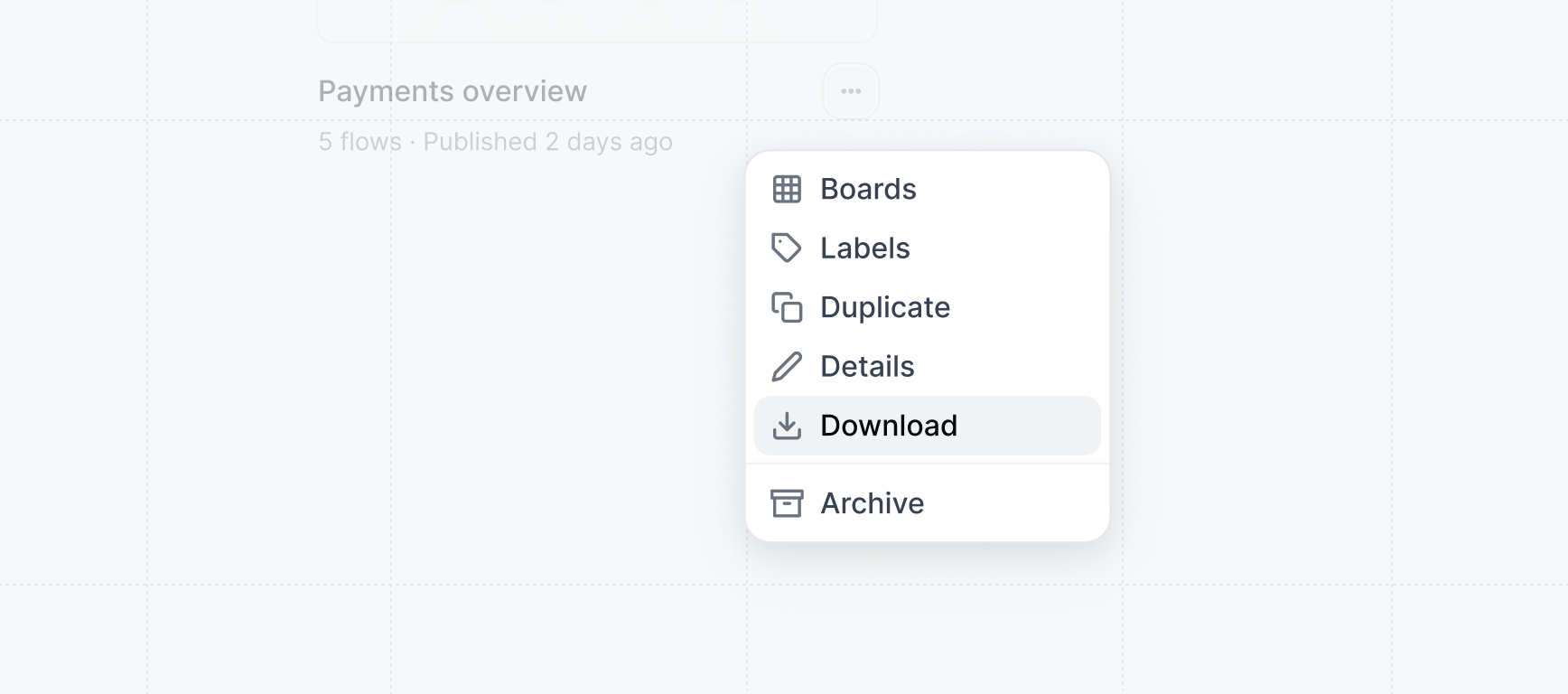
  <Step title="Download demos for offline use">
    Under <Icon icon="layout-grid" /> **Product demos**, find the demo to download for offline use
    and select `Download` under the more actions menu.

    <img className="block rounded-md border" src="https://mintcdn.com/navattic-app/bR17QzPUtrfb78_J/images/offline-demos-download.png?fit=max&auto=format&n=bR17QzPUtrfb78_J&q=85&s=43c08c28071c5aa351fc2dfeb84cad77" alt="Download demos for offline use" width="1736" height="768" data-path="images/offline-demos-download.png" />
  </Step>

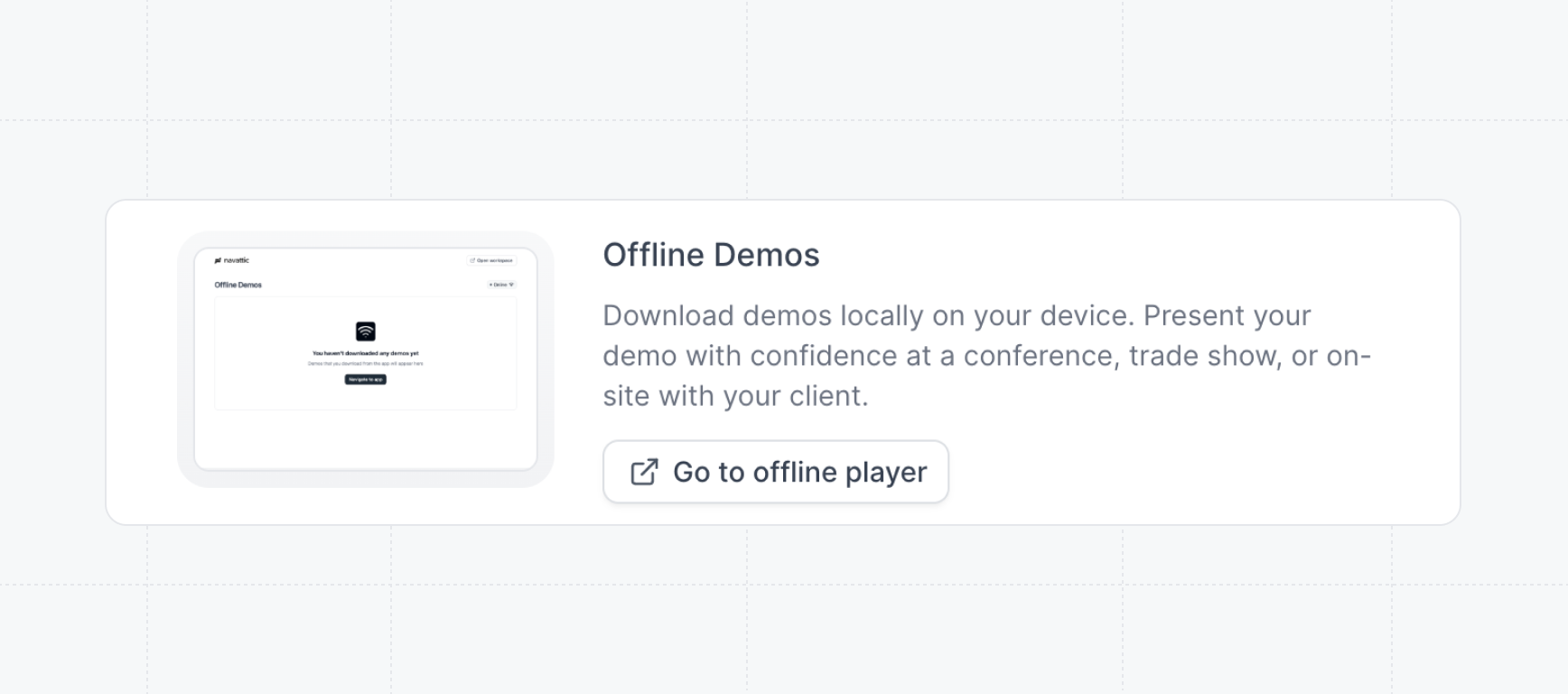
  <Step title="Open the Offline Player">
    The Offline Player is the home for presenting your demos offline on your device. The Offline
    Player can be used without being connected to wifi when installed as a PWA. Navigate to
    `Settings` > `Offline` and click on the `Go to offline player` button.

    <img className="block rounded-md border" src="https://mintcdn.com/navattic-app/bR17QzPUtrfb78_J/images/offline-demos-go-to-player.png?fit=max&auto=format&n=bR17QzPUtrfb78_J&q=85&s=3525b2da50621fc9a8ed4308cf8c1276" alt="Offline demos go to player" width="1736" height="768" data-path="images/offline-demos-go-to-player.png" />
  </Step>

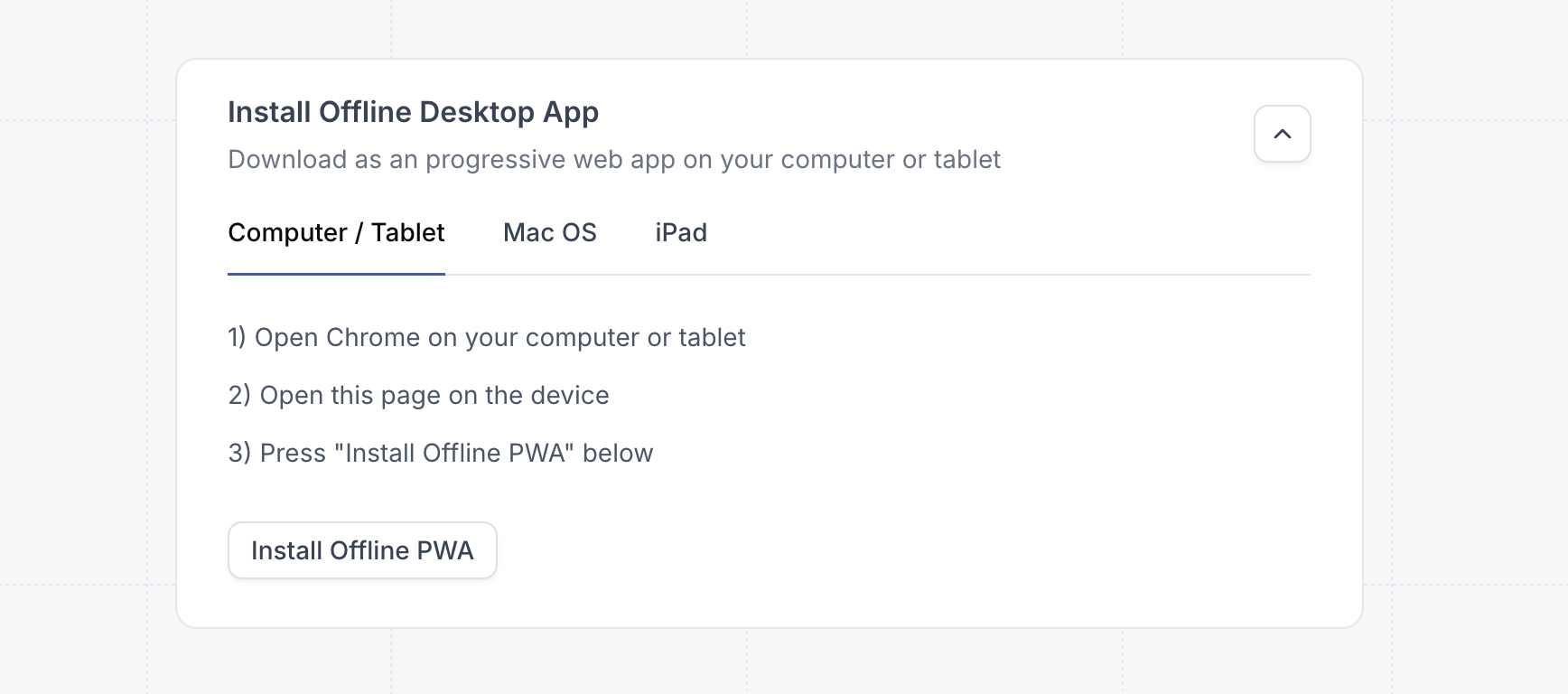
  <Step title="Install Offline Desktop App">
    You can download the offline player as a progressive web app to make it easier to access your
    demos from your dock. Follow the appropriate instructions to install the PWA on your device.

    <img className="block rounded-md border" src="https://mintcdn.com/navattic-app/bR17QzPUtrfb78_J/images/offline-demos-install-pwa.png?fit=max&auto=format&n=bR17QzPUtrfb78_J&q=85&s=a4665eba6f247b7229010ed20928e5af" alt="Offline demos install PWA" width="1736" height="768" data-path="images/offline-demos-install-pwa.png" />
  </Step>

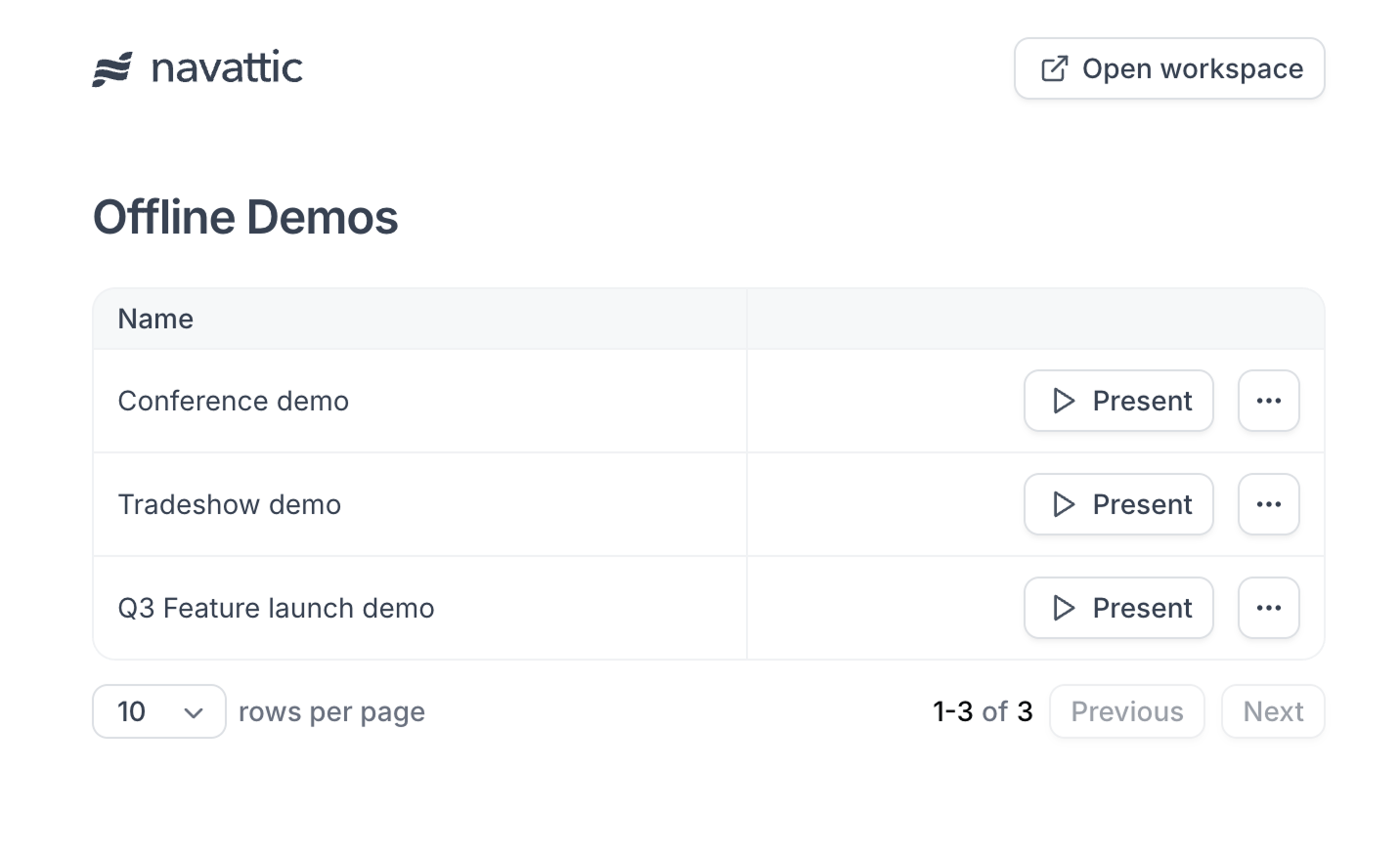
  <Step title="View your offline demos">
    In the Offline Player, you'll see a list of demos that you've downloaded. Click `Present` to
    view the demo.

    <Frame>
      <img className="block rounded-xl border" src="https://mintcdn.com/navattic-app/bR17QzPUtrfb78_J/images/offline-demos-player.png?fit=max&auto=format&n=bR17QzPUtrfb78_J&q=85&s=0901447897f4f80e205d90bf88a3ef82" alt="Offline demos player" width="1432" height="876" data-path="images/offline-demos-player.png" />
    </Frame>
  </Step>
</Steps>

**Use Cases**

* Bring your demo to trade shows or any event where the internet connection may be unstable
* Save your demos to designated event devices to help the attending team avoid logging in
* Use Tooltips and Modals to let audience members explore your product asynchronously (ex. as they wait in line), or use Triggers and Beacons if you're supporting a presenter-led use case.
<MediaCard url="https://navattic-docs.navattic.com/eh2fd0gkv" type="demo" title="Offline Demos" />