> ## Documentation Index
> Fetch the complete documentation index at: https://docs.navattic.com/llms.txt
> Use this file to discover all available pages before exploring further.
# Prompt
> Make bulk changes to step names, content, CTAs, and more using natural language.
Copilot Prompt is available on Base, Growth, and Enterprise plans. Please reach out to your account manager or [support@navattic.com](mailto:support@navattic.com) to learn more.
Copilot Prompt is a conversational AI assistant that lets you update, polish, and repurpose your demos using natural language. Make bulk changes to step names, content, CTAs, and more to cut down on time spent manual editing. Instead of clicking through menus and options, simply describe what you want to change and Copilot will suggest specific edits you can apply with one click.
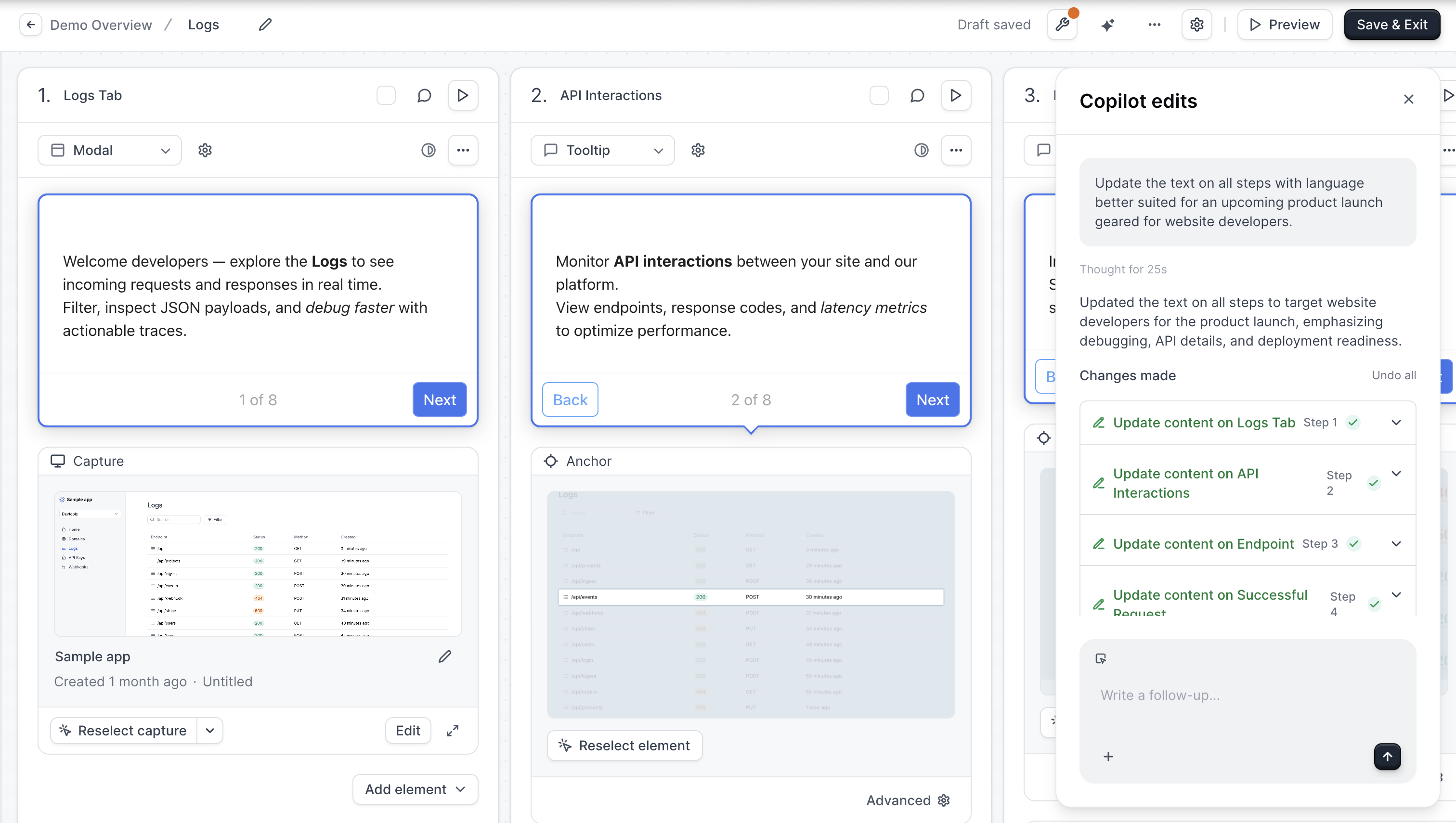 ## How to Use Copilot Prompt
1. Open a flow in the builder
2. Click the **More actions** menu (three dots) > **Copilot Prompt** or use the keyboard shortcut **Cmd/Ctrl + ;** to open the prompt interface
3. Type your request in natural language (e.g., "Make the button text more engaging" or "Add a welcome step at the beginning")
4. Optionally, select specific steps to target your changes
5. Press **Enter** to submit your prompt
6. Review the suggested changes and apply or discard each one
## How to Use Copilot Prompt
1. Open a flow in the builder
2. Click the **More actions** menu (three dots) > **Copilot Prompt** or use the keyboard shortcut **Cmd/Ctrl + ;** to open the prompt interface
3. Type your request in natural language (e.g., "Make the button text more engaging" or "Add a welcome step at the beginning")
4. Optionally, select specific steps to target your changes
5. Press **Enter** to submit your prompt
6. Review the suggested changes and apply or discard each one
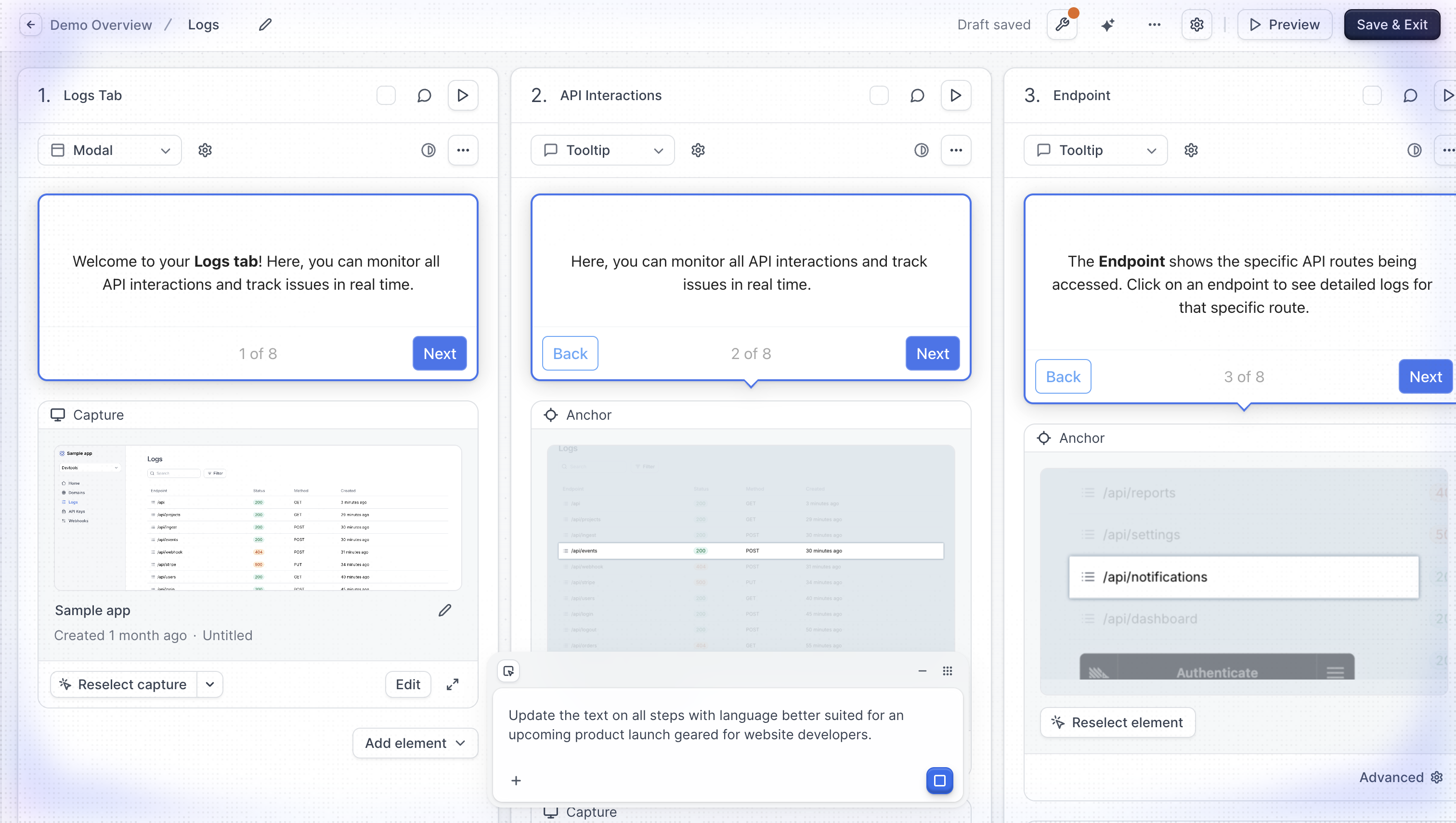 ## Targeting Specific Steps
You can scope your prompts to specific steps:
1. Click **Select steps** in the prompt bar or type **@** to mention a step
2. Click on the steps you want to target in the flow preview
3. Selected steps appear as chips in the prompt bar
4. Your prompt will only affect the selected steps
This is useful when you want to:
* Update content on just a few steps
* Rename specific steps
* Modify buttons on particular steps
## Adding Files for Context
You can upload documents to give Copilot additional context when making changes. This is useful when you want to align demo content with existing materials like product briefs, messaging guides, or feature documentation.
To add a file:
1. Click the **menu** in the prompt bar
2. Select **Add file for context**
3. Choose a file from your computer
Supported formats: **PDF**, **TXT**, **Markdown**, and **DOCX** (up to 512 MB). Once uploaded, the file appears as a chip in the prompt bar. Copilot will reference the file's content when generating suggestions, so your demo copy can pull directly from your source material.
## What Copilot Prompt can do
We are always adding new capabilities. Check back for updates or reach out to [support@navattic.com](mailto:support@navattic.com).
### Step content
* Rewrite or update the text in a modal or tooltip
* Rename steps
* Change tone (professional, casual, technical, etc.)
* Translate content to another language
* Shorten or expand descriptions
* Add or update presenter notes
### Steps
* Add a new step at any position in the flow
* Remove a step
* Reorder steps
* Change a step's type (modal, tooltip, video, invisible)
* Move a modal to a different screen position (center, corner, etc.)
* Move a tooltip to a different position relative to its anchor
### Buttons
* Add or remove buttons on a step
* Update button text
* Change a button's action (go to a specific step, open a URL, close the flow, complete the flow)
* Change button style (primary or secondary)
* Reorder buttons
* Show or hide the **Next** and **Back** navigation buttons per step, or enable/disable them for the entire flow
### Backdrop
* Add or remove a backdrop on a tooltip step
* Set backdrop intensity (light, medium, or heavy)
### Beacons and triggers
* Add or remove beacons (pulsing hotspot indicators)
* Add or remove click, hover, or timer triggers
### Voiceover
* Add voiceover narration to a step from text
* Update or remove voiceover from a step
### Video
* Add a video to a step from a URL (YouTube, Vimeo, Loom, Wistia, or Vidyard)
* Remove a video from a step
### Flow-level settings
* Update the escape view message and buttons
* Add or update the complete button text
* Enable or disable presenter mode for the flow
## Reviewing Suggested Changes
After submitting a prompt, Copilot presents its suggestions in a panel:
* **Summary** - A brief explanation of what Copilot understood and planned
* **Changes list** - Each proposed change as an expandable item showing:
* The type of change (content update, new step, rename, etc.)
* Which step is affected
* A preview of the before/after content
* Apply and Discard buttons
## Applying Changes
For each suggestion:
* **Apply** - Implements the change immediately in your flow
* **Discard** - Ignores the suggestion
Bulk actions:
* **Apply all** - Accepts all pending changes at once
* **Discard all** - Dismisses all pending changes
## Multi-Turn Conversations
Copilot Prompt supports follow-up messages, so you can:
* Refine suggestions ("Make it shorter")
* Request additional changes ("Now do the same for the next step")
* Ask for alternatives ("Try a different approach")
Your conversation history is preserved, and Copilot remembers which changes you've already applied or discarded.
## Example prompts
* "Rewrite all the step content to be more concise"
* "Add a welcome modal at the beginning that introduces the product"
* "Make the button text more action-oriented"
* "Change the tone to be more professional"
* "Rename steps 2-4 to better describe what they show"
* "Remove the last step"
* "Update the CTA on step 3 to say 'Get Started'"
* "Generate copy for a new use case targeting enterprise buyers"
* "Add a beacon to step 4"
* "Add voiceover to step 2 explaining this feature"
* "Turn step 3 into a tooltip"
* "Hide the back button on the first step"
* "Enable navigation buttons for the whole flow"
* "Add a medium backdrop to step 5"
## Targeting Specific Steps
You can scope your prompts to specific steps:
1. Click **Select steps** in the prompt bar or type **@** to mention a step
2. Click on the steps you want to target in the flow preview
3. Selected steps appear as chips in the prompt bar
4. Your prompt will only affect the selected steps
This is useful when you want to:
* Update content on just a few steps
* Rename specific steps
* Modify buttons on particular steps
## Adding Files for Context
You can upload documents to give Copilot additional context when making changes. This is useful when you want to align demo content with existing materials like product briefs, messaging guides, or feature documentation.
To add a file:
1. Click the **menu** in the prompt bar
2. Select **Add file for context**
3. Choose a file from your computer
Supported formats: **PDF**, **TXT**, **Markdown**, and **DOCX** (up to 512 MB). Once uploaded, the file appears as a chip in the prompt bar. Copilot will reference the file's content when generating suggestions, so your demo copy can pull directly from your source material.
## What Copilot Prompt can do
We are always adding new capabilities. Check back for updates or reach out to [support@navattic.com](mailto:support@navattic.com).
### Step content
* Rewrite or update the text in a modal or tooltip
* Rename steps
* Change tone (professional, casual, technical, etc.)
* Translate content to another language
* Shorten or expand descriptions
* Add or update presenter notes
### Steps
* Add a new step at any position in the flow
* Remove a step
* Reorder steps
* Change a step's type (modal, tooltip, video, invisible)
* Move a modal to a different screen position (center, corner, etc.)
* Move a tooltip to a different position relative to its anchor
### Buttons
* Add or remove buttons on a step
* Update button text
* Change a button's action (go to a specific step, open a URL, close the flow, complete the flow)
* Change button style (primary or secondary)
* Reorder buttons
* Show or hide the **Next** and **Back** navigation buttons per step, or enable/disable them for the entire flow
### Backdrop
* Add or remove a backdrop on a tooltip step
* Set backdrop intensity (light, medium, or heavy)
### Beacons and triggers
* Add or remove beacons (pulsing hotspot indicators)
* Add or remove click, hover, or timer triggers
### Voiceover
* Add voiceover narration to a step from text
* Update or remove voiceover from a step
### Video
* Add a video to a step from a URL (YouTube, Vimeo, Loom, Wistia, or Vidyard)
* Remove a video from a step
### Flow-level settings
* Update the escape view message and buttons
* Add or update the complete button text
* Enable or disable presenter mode for the flow
## Reviewing Suggested Changes
After submitting a prompt, Copilot presents its suggestions in a panel:
* **Summary** - A brief explanation of what Copilot understood and planned
* **Changes list** - Each proposed change as an expandable item showing:
* The type of change (content update, new step, rename, etc.)
* Which step is affected
* A preview of the before/after content
* Apply and Discard buttons
## Applying Changes
For each suggestion:
* **Apply** - Implements the change immediately in your flow
* **Discard** - Ignores the suggestion
Bulk actions:
* **Apply all** - Accepts all pending changes at once
* **Discard all** - Dismisses all pending changes
## Multi-Turn Conversations
Copilot Prompt supports follow-up messages, so you can:
* Refine suggestions ("Make it shorter")
* Request additional changes ("Now do the same for the next step")
* Ask for alternatives ("Try a different approach")
Your conversation history is preserved, and Copilot remembers which changes you've already applied or discarded.
## Example prompts
* "Rewrite all the step content to be more concise"
* "Add a welcome modal at the beginning that introduces the product"
* "Make the button text more action-oriented"
* "Change the tone to be more professional"
* "Rename steps 2-4 to better describe what they show"
* "Remove the last step"
* "Update the CTA on step 3 to say 'Get Started'"
* "Generate copy for a new use case targeting enterprise buyers"
* "Add a beacon to step 4"
* "Add voiceover to step 2 explaining this feature"
* "Turn step 3 into a tooltip"
* "Hide the back button on the first step"
* "Enable navigation buttons for the whole flow"
* "Add a medium backdrop to step 5"