 ## Media captures in sandbox demos
Photos and videos can now be added to Sandbox demos as media captures. Capture a screen recording or image directly in a Sandbox flow, then wire NavLinks to use them in your clickable navigation — just like web captures.
## Media captures in sandbox demos
Photos and videos can now be added to Sandbox demos as media captures. Capture a screen recording or image directly in a Sandbox flow, then wire NavLinks to use them in your clickable navigation — just like web captures.
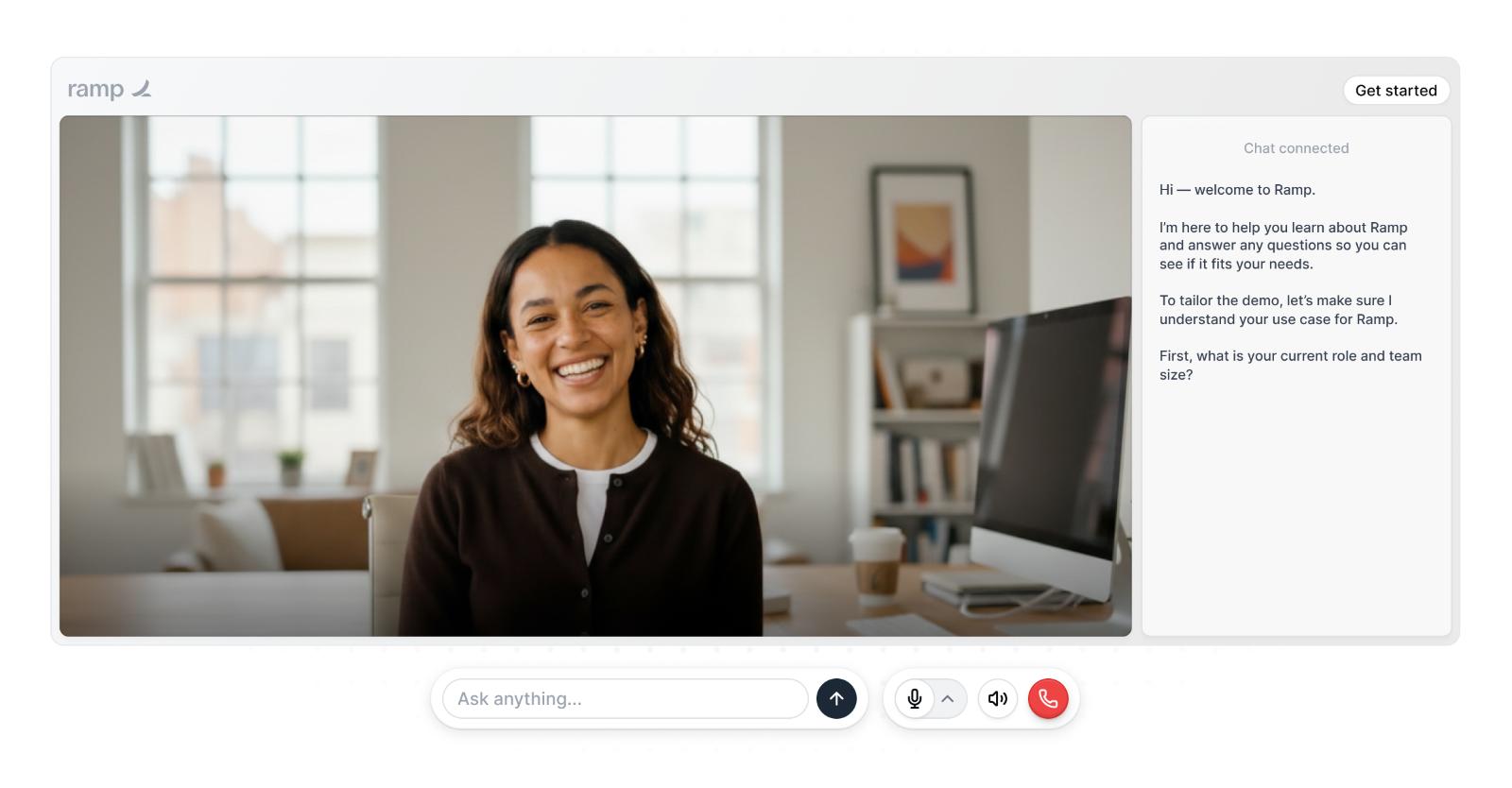
 ## Agent Demo avatar improvements
AI avatars in Agent Demos can now be fixed to the side or expanded to fill the screen while the agent is talking, then move into a sidebar during a product flow. New AI avatars are also available to choose from.
## Agent Demo avatar improvements
AI avatars in Agent Demos can now be fixed to the side or expanded to fill the screen while the agent is talking, then move into a sidebar during a product flow. New AI avatars are also available to choose from.
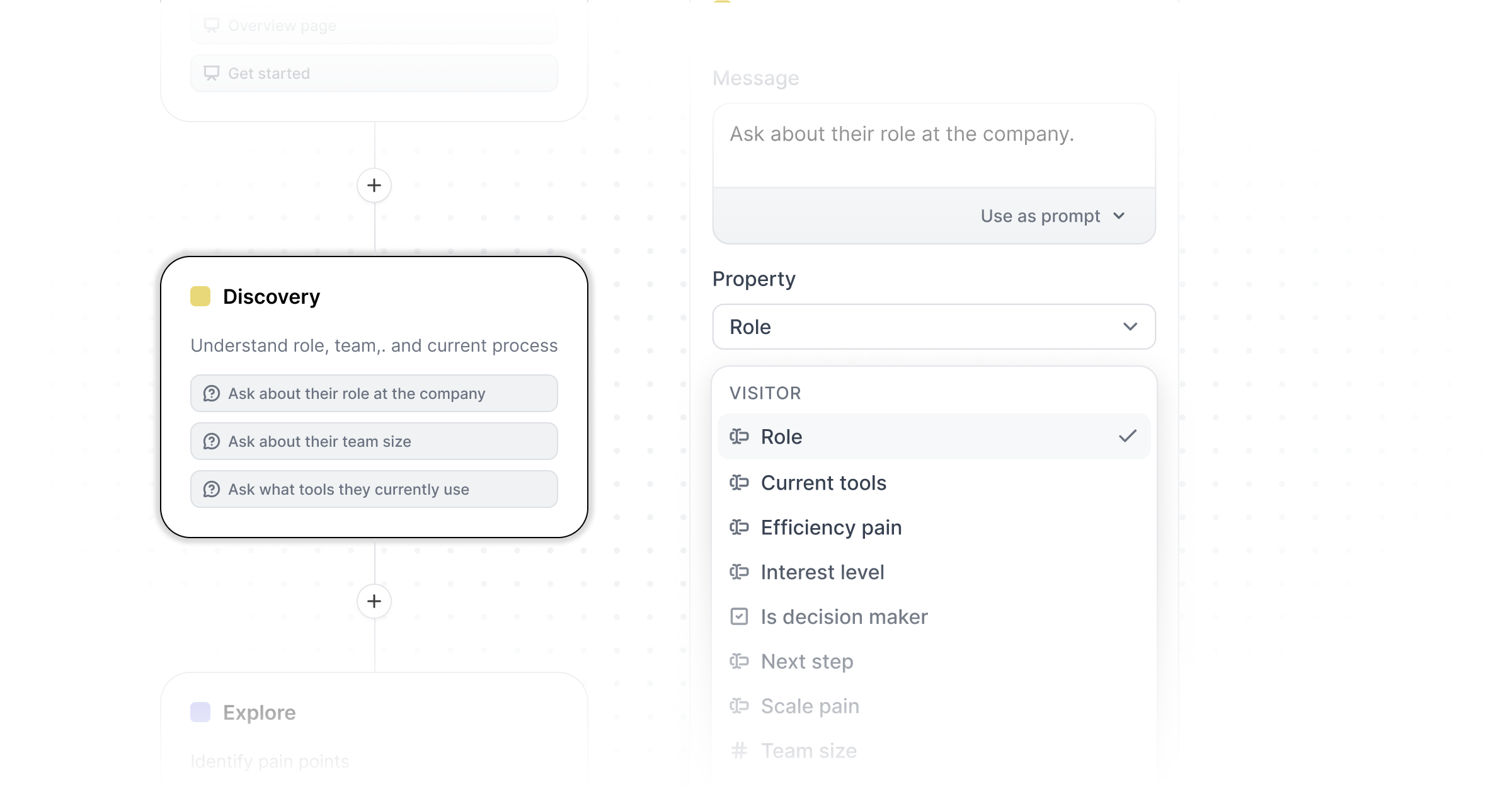
 ## Agent Demo qualification outcomes
Qualification questions in Agent Demos can be mapped to any custom property in your CRM. After a session ends, the AI extracts the visitor's answer from the conversation and writes it to the property.
You can also configure the Agent to dynamically change the demo CTA based on a visitor's answers — for example, routing enterprise prospects directly to a sales rep.
## Agent Demo qualification outcomes
Qualification questions in Agent Demos can be mapped to any custom property in your CRM. After a session ends, the AI extracts the visitor's answer from the conversation and writes it to the property.
You can also configure the Agent to dynamically change the demo CTA based on a visitor's answers — for example, routing enterprise prospects directly to a sales rep.
 ## Launchpad MCP
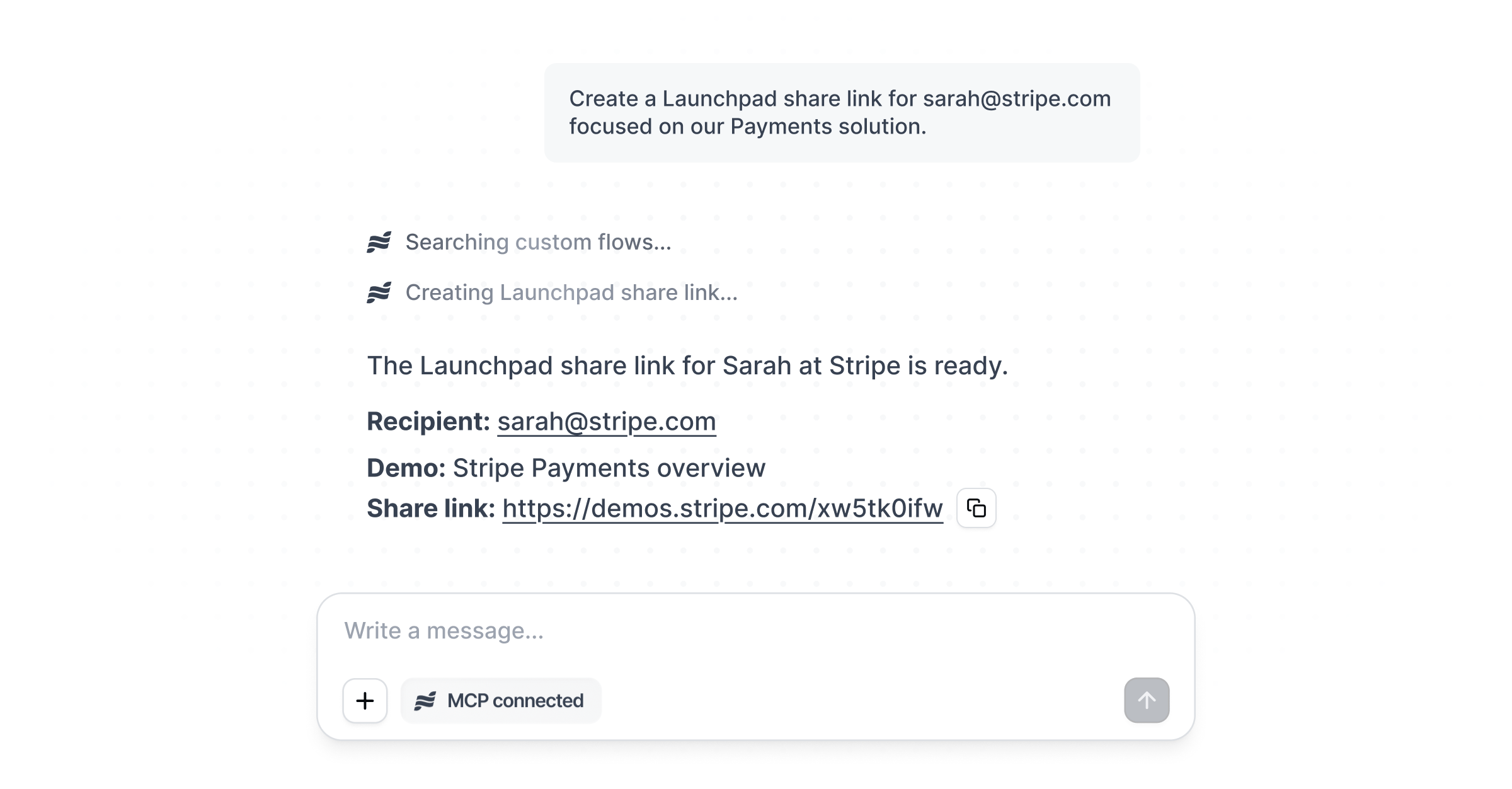
Create custom Launchpad share links for specific prospects directly from your AI tool of choice. Connect the Navattic MCP to Claude, ChatGPT, or Cursor to build targeted share links without opening the app.
## Launchpad MCP
Create custom Launchpad share links for specific prospects directly from your AI tool of choice. Connect the Navattic MCP to Claude, ChatGPT, or Cursor to build targeted share links without opening the app.
 ## Changelog in app
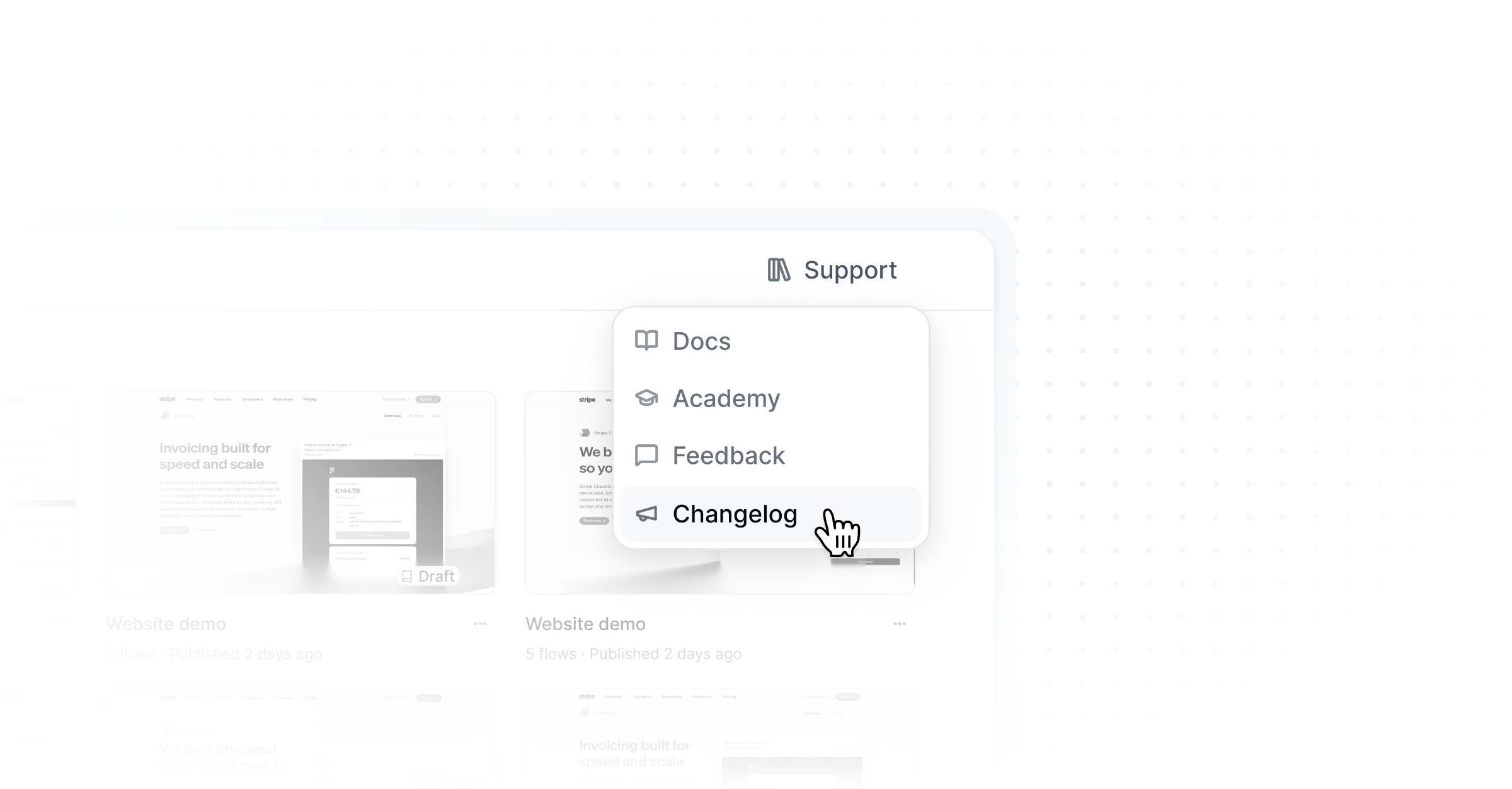
The changelog is now available directly in Navattic. Find it in the account avatar dropdown or the support dropdown.
## Changelog in app
The changelog is now available directly in Navattic. Find it in the account avatar dropdown or the support dropdown.
 ## Navattic MCP
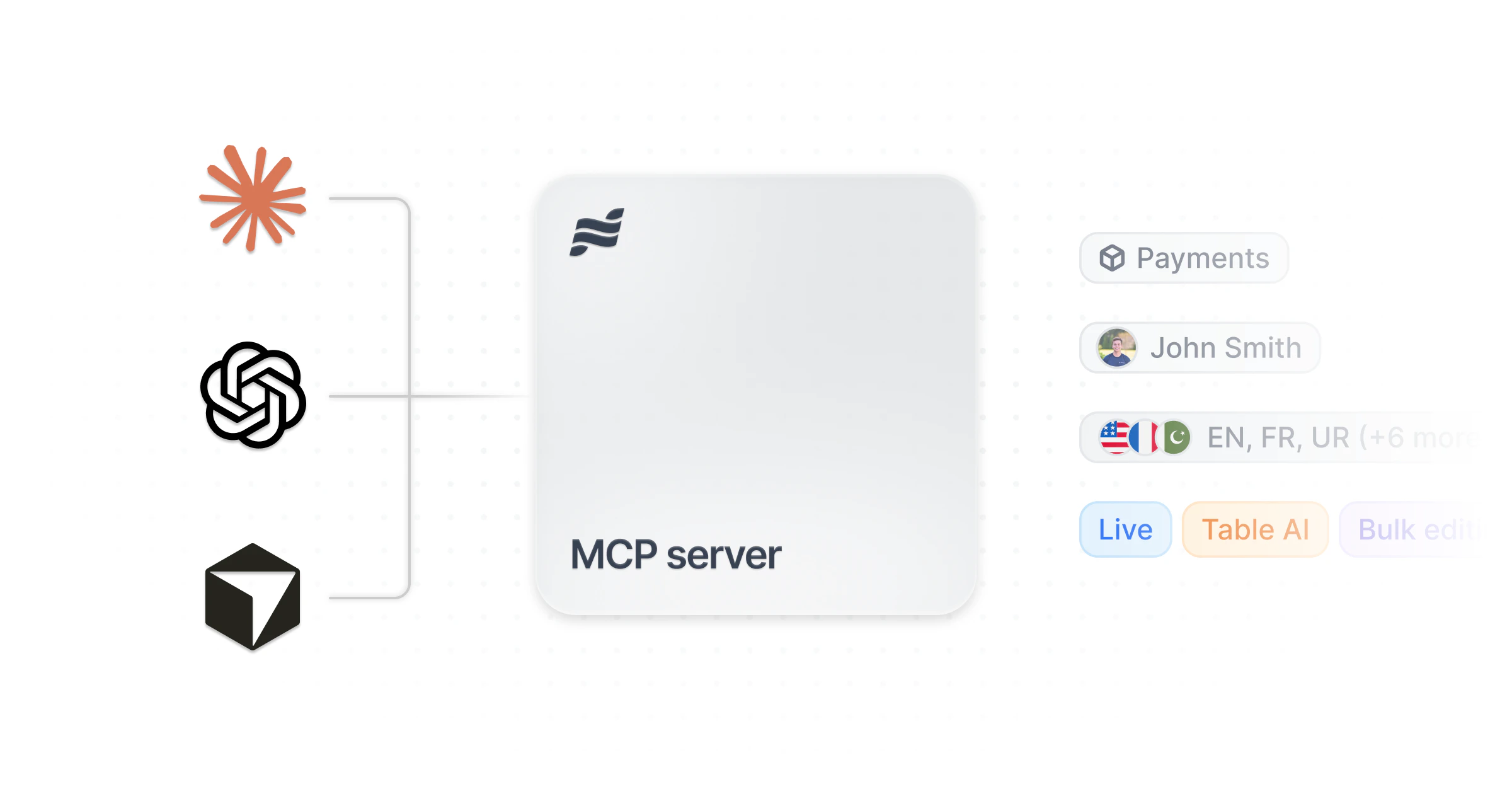
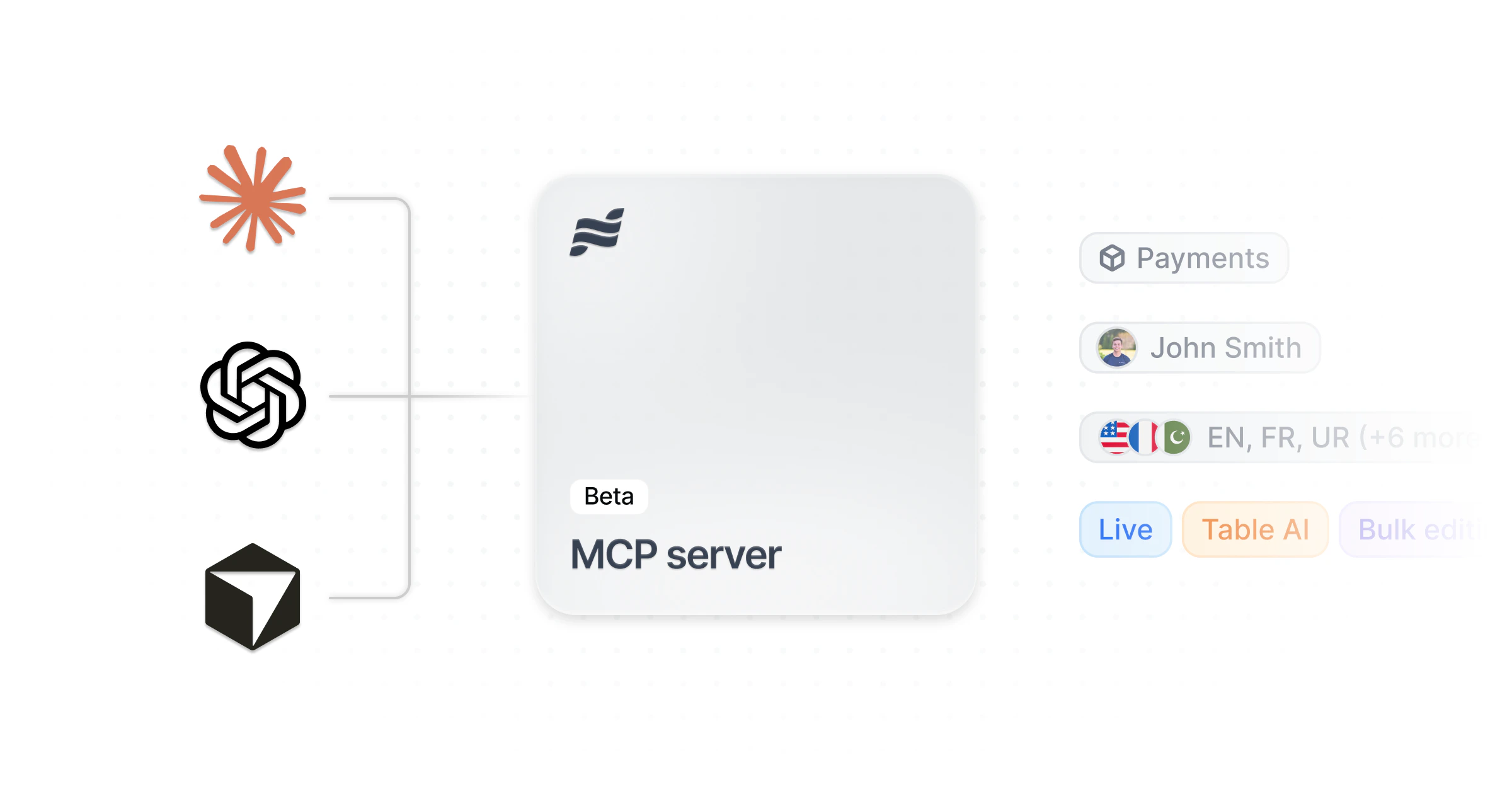
The Navattic MCP is now out of Beta. Connect to Claude or ChatGPT to report on demo performance, see high-intent demo leads, or quickly monitor which demos haven't been updated in a bit.
For Base, Growth, or Enterprise customers, start using the MCP by [following these instructions.](https://docs.navattic.com/workspace/mcp-server) Note that a Claude or ChatGPT admin will need to set up the MCP.
If you use Launchpad, you can use the MCP to view and build custom share links.
## Navattic MCP
The Navattic MCP is now out of Beta. Connect to Claude or ChatGPT to report on demo performance, see high-intent demo leads, or quickly monitor which demos haven't been updated in a bit.
For Base, Growth, or Enterprise customers, start using the MCP by [following these instructions.](https://docs.navattic.com/workspace/mcp-server) Note that a Claude or ChatGPT admin will need to set up the MCP.
If you use Launchpad, you can use the MCP to view and build custom share links.
 ## Upload Content
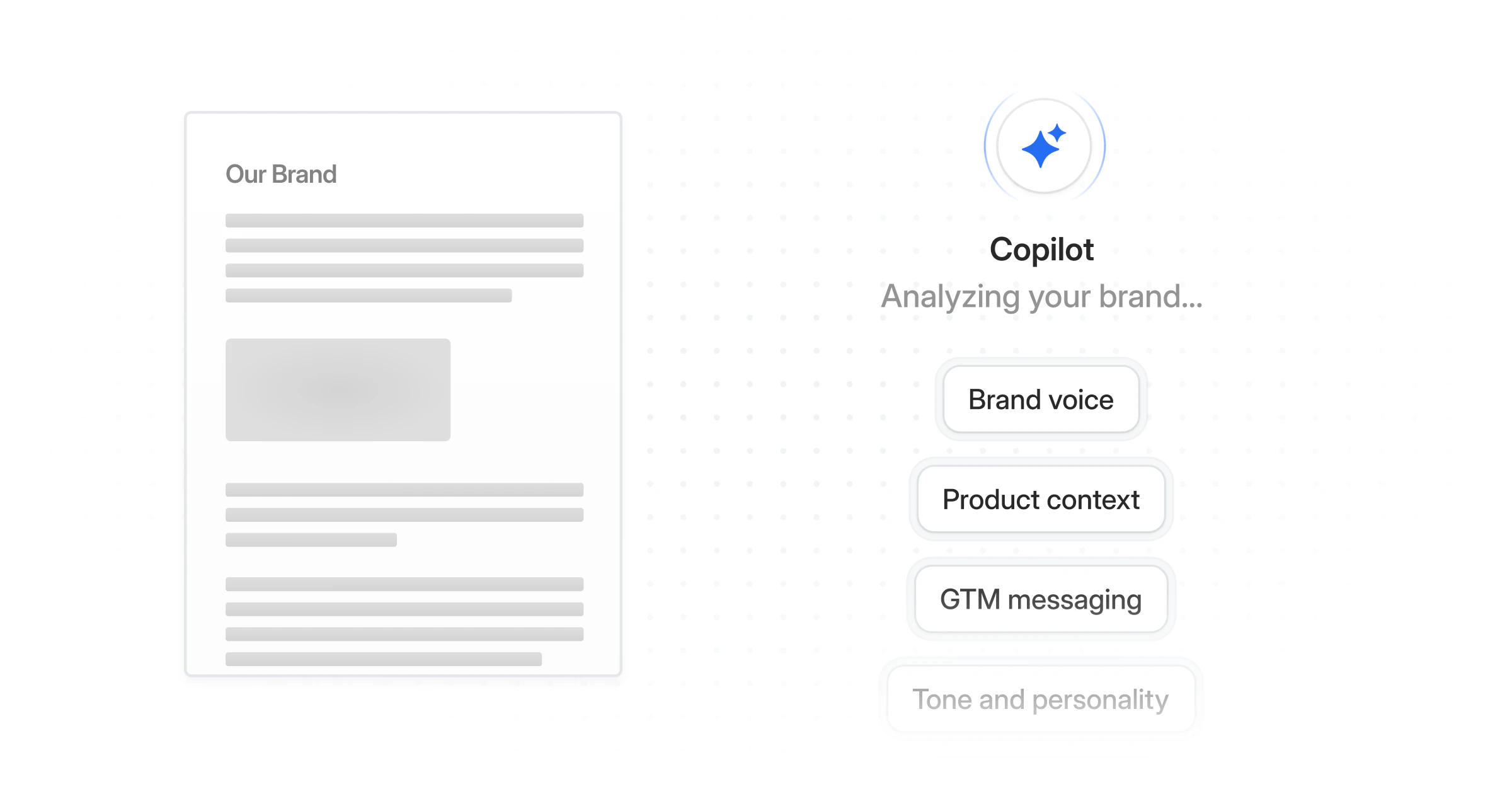
Copilot can now read your brand guidelines directly from a website or file.
Add a URL or upload a PDF, DOCX, TXT, or MD file, and Copilot extracts your brand voice, product context, and GTM context into Workspace Knowledge.
## Upload Content
Copilot can now read your brand guidelines directly from a website or file.
Add a URL or upload a PDF, DOCX, TXT, or MD file, and Copilot extracts your brand voice, product context, and GTM context into Workspace Knowledge.
 ## Voiceover Defaults
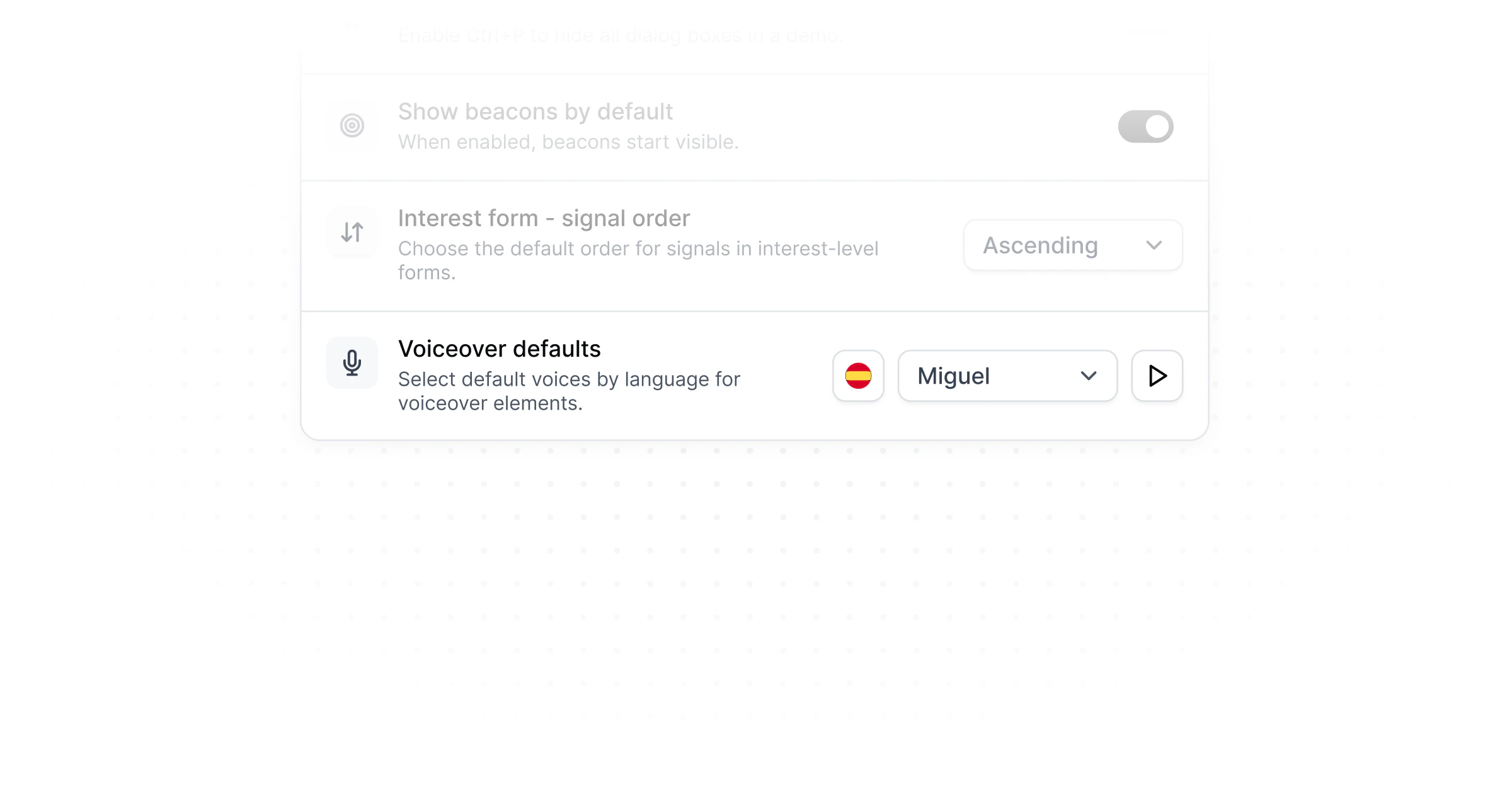
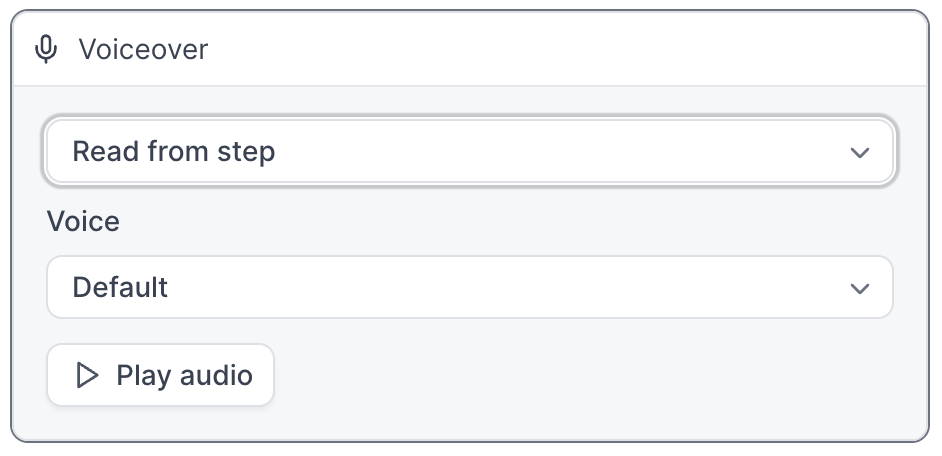
Set a default voice for each of your demo languages at the Workspace Level, and new steps inherit it automatically.
You can also bulk-sync all flows to the workspace default from the flow builder.
## Voiceover Defaults
Set a default voice for each of your demo languages at the Workspace Level, and new steps inherit it automatically.
You can also bulk-sync all flows to the workspace default from the flow builder.
 ## Team-level Permissions
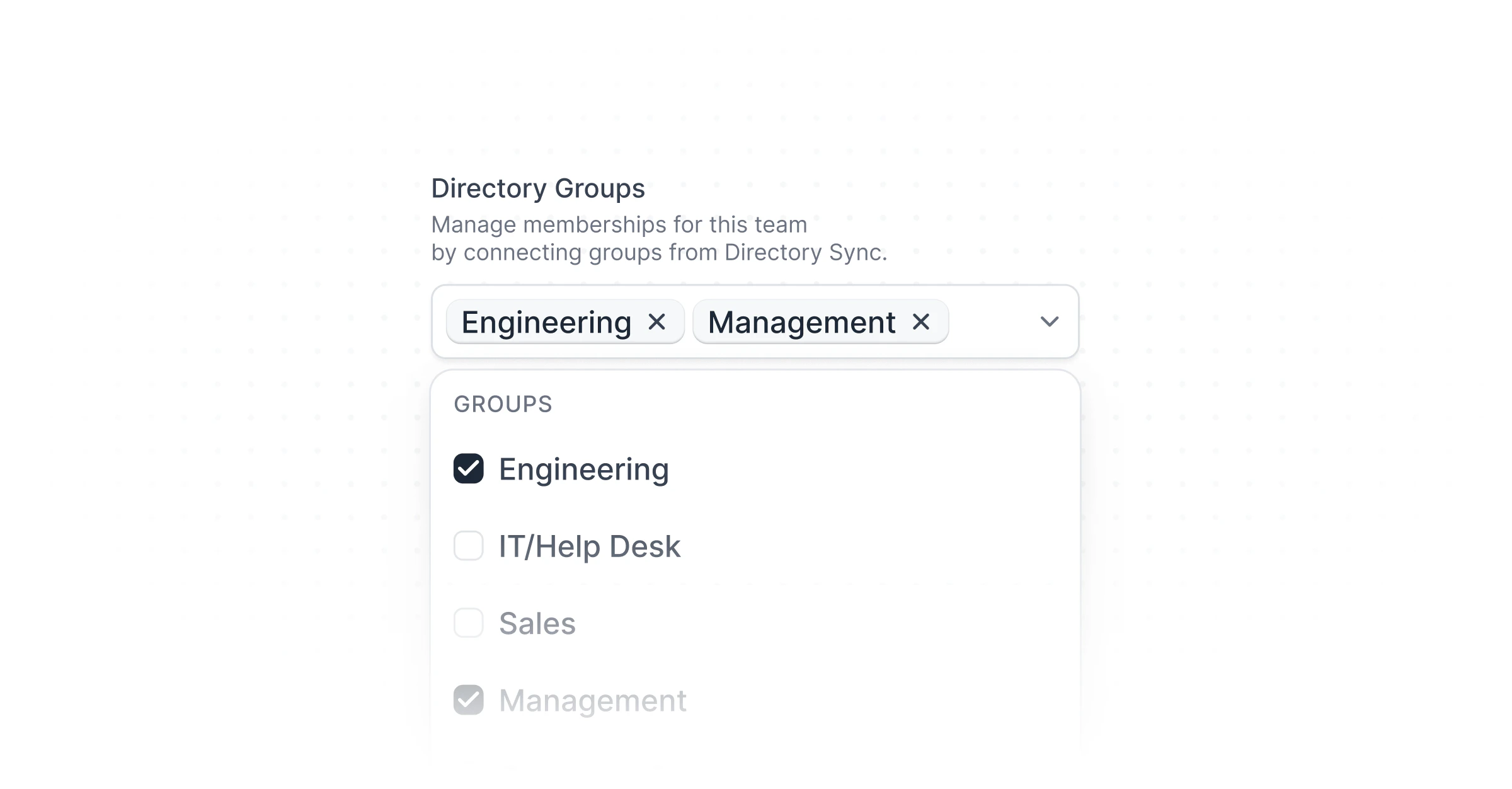
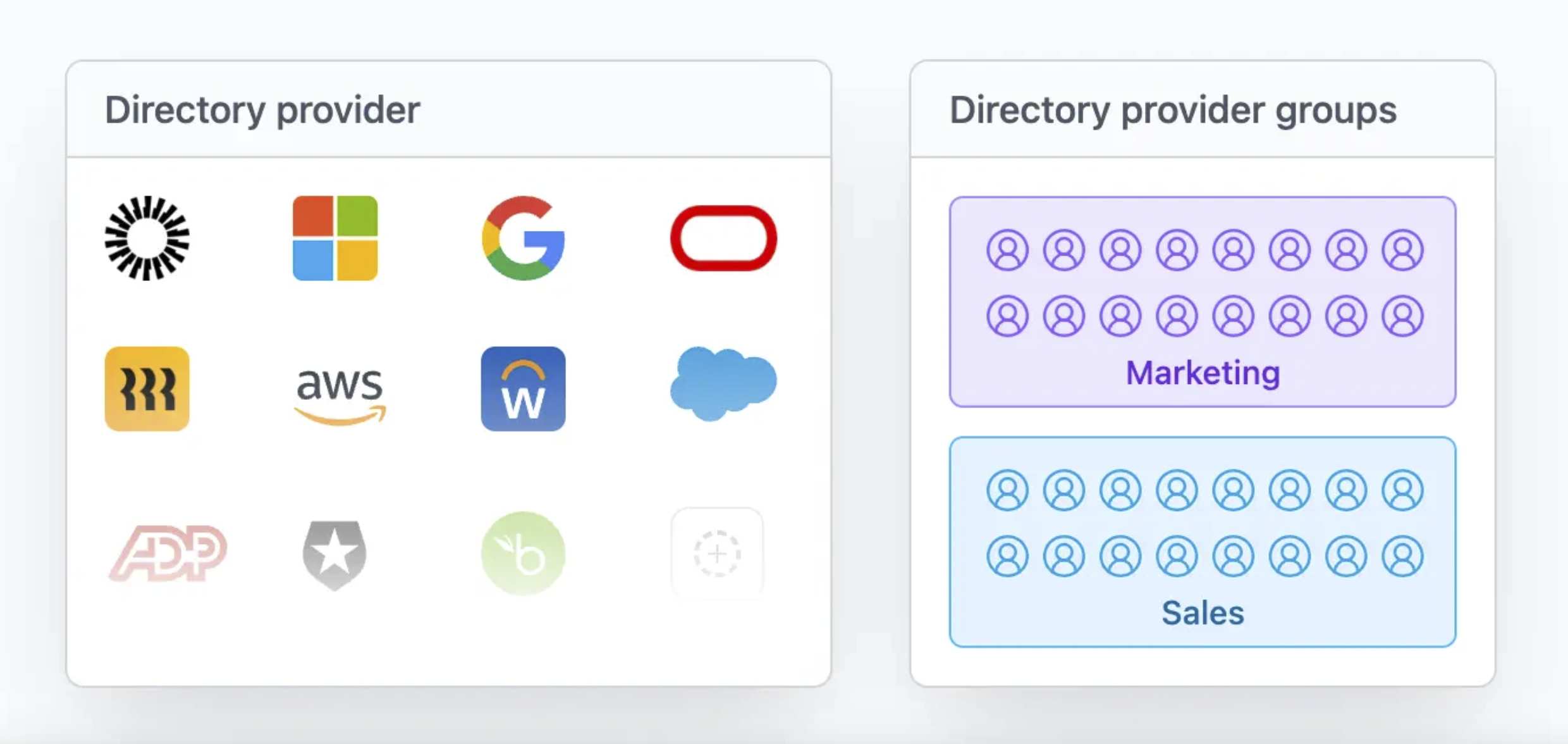
Directory Sync (SCIM) now provisions teams automatically. Map directory groups from your identity provider to Navattic teams, and membership stays in sync.
When a group changes, Navattic reflects it, and you control whether to keep or remove members when a mapping is removed.
Available for Growth and Enterprise customers with Directory Sync enabled.
## Team-level Permissions
Directory Sync (SCIM) now provisions teams automatically. Map directory groups from your identity provider to Navattic teams, and membership stays in sync.
When a group changes, Navattic reflects it, and you control whether to keep or remove members when a mapping is removed.
Available for Growth and Enterprise customers with Directory Sync enabled.
 ## Narrated demos
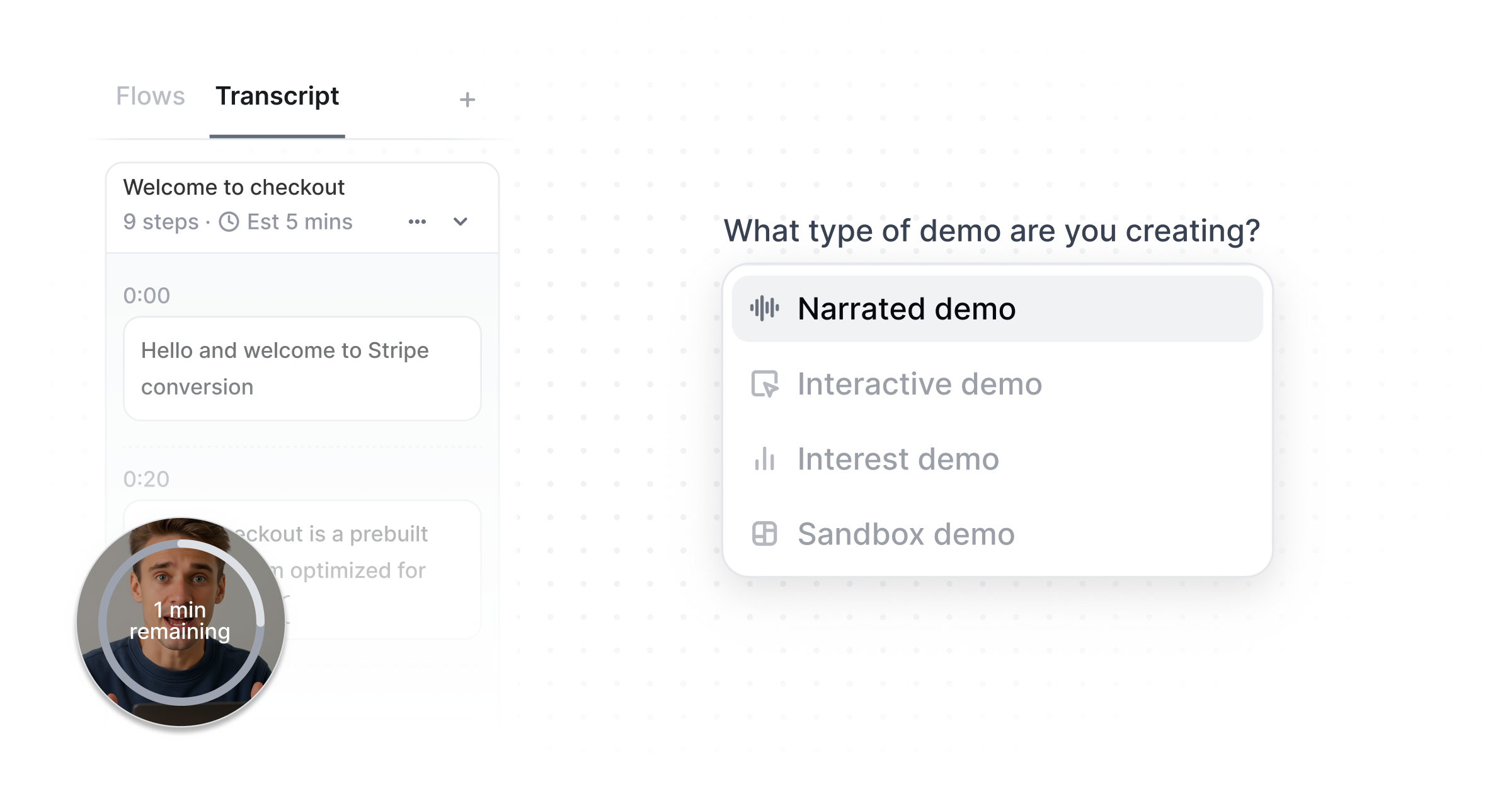
Narrated demos let you capture your screen alongside a live voice narration, then use Copilot to generate a demo with synced audio and screen. \
\
Choose to display your Narrated demo with voiceovers or custom AI avatars.\
\
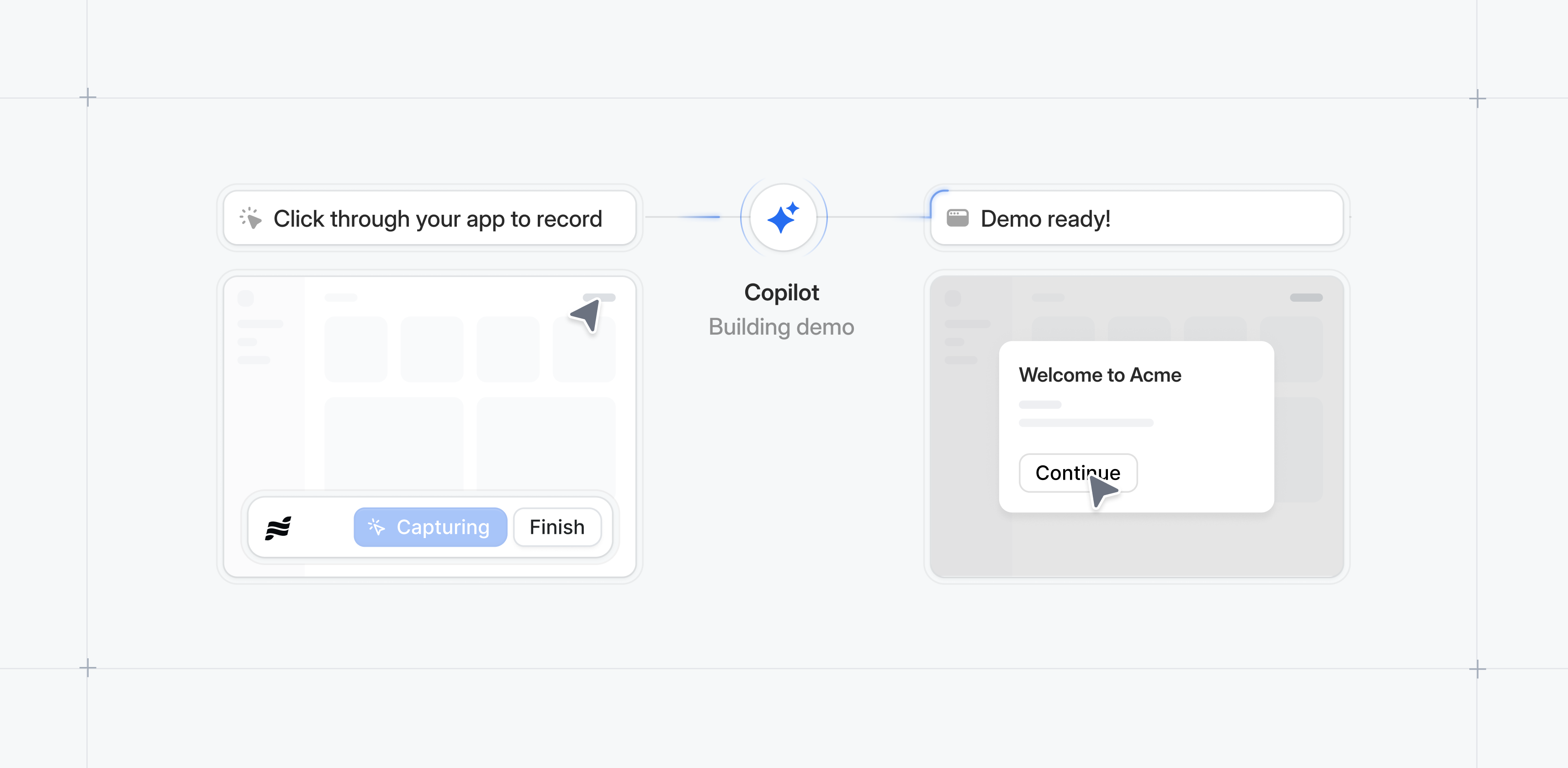
For Growth and Enterprise customers, when you go to build a new demo, you'll be prompted to create an Interactive demo, Sandbox demo, or Narrated demo.
## Narrated demos
Narrated demos let you capture your screen alongside a live voice narration, then use Copilot to generate a demo with synced audio and screen. \
\
Choose to display your Narrated demo with voiceovers or custom AI avatars.\
\
For Growth and Enterprise customers, when you go to build a new demo, you'll be prompted to create an Interactive demo, Sandbox demo, or Narrated demo.
 ## Document export as PDF
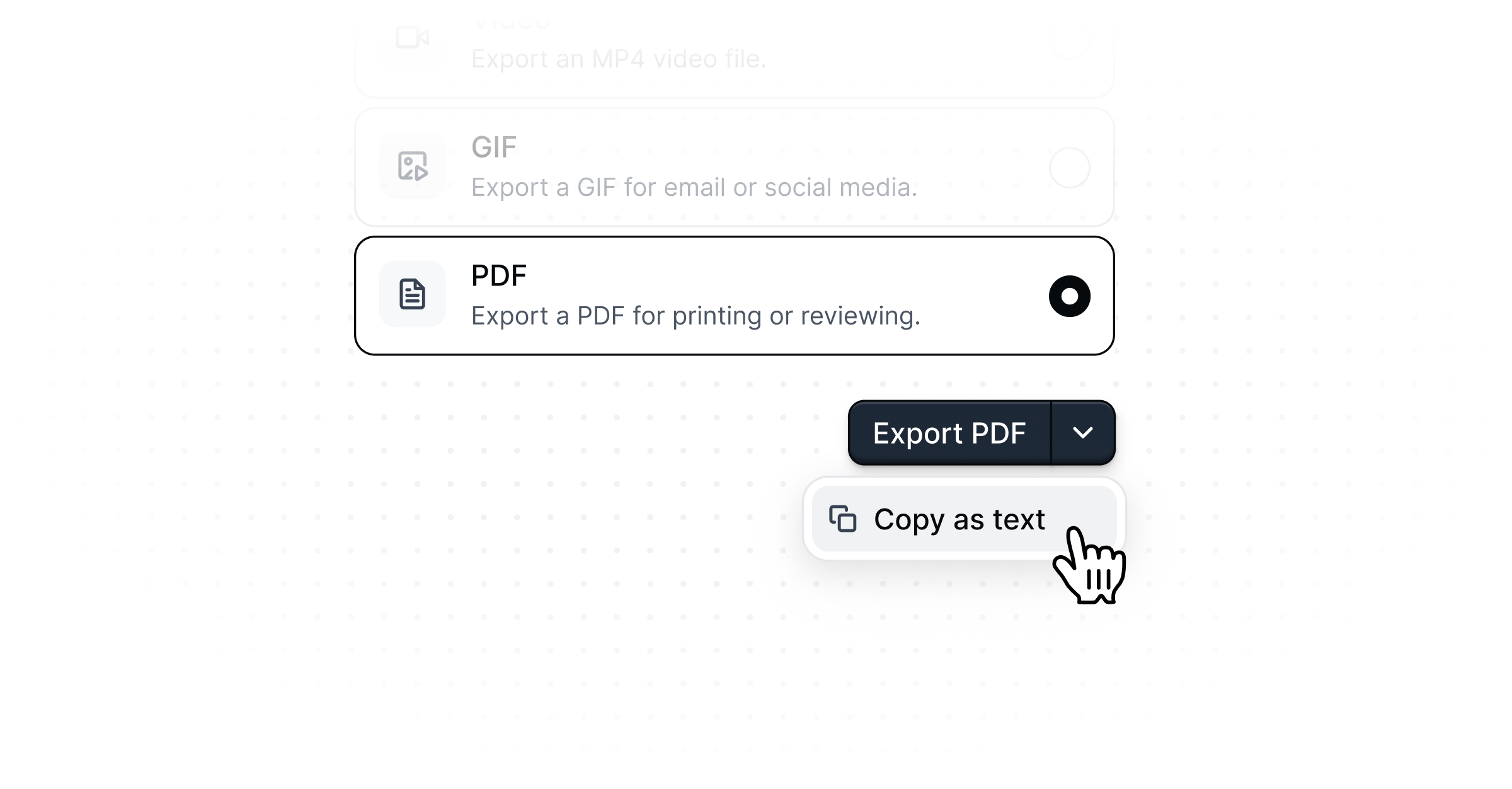
Share demos as a PDF with step screenshots and copy, or as a plain numbered text list.\
\
Convert your demo into a one-pager in seconds for async reviews, stakeholder sign-offs, or buyers who want something to reference later.
## Document export as PDF
Share demos as a PDF with step screenshots and copy, or as a plain numbered text list.\
\
Convert your demo into a one-pager in seconds for async reviews, stakeholder sign-offs, or buyers who want something to reference later.
 ## HubSpot on Sales & Pipeline Impact Dashboards
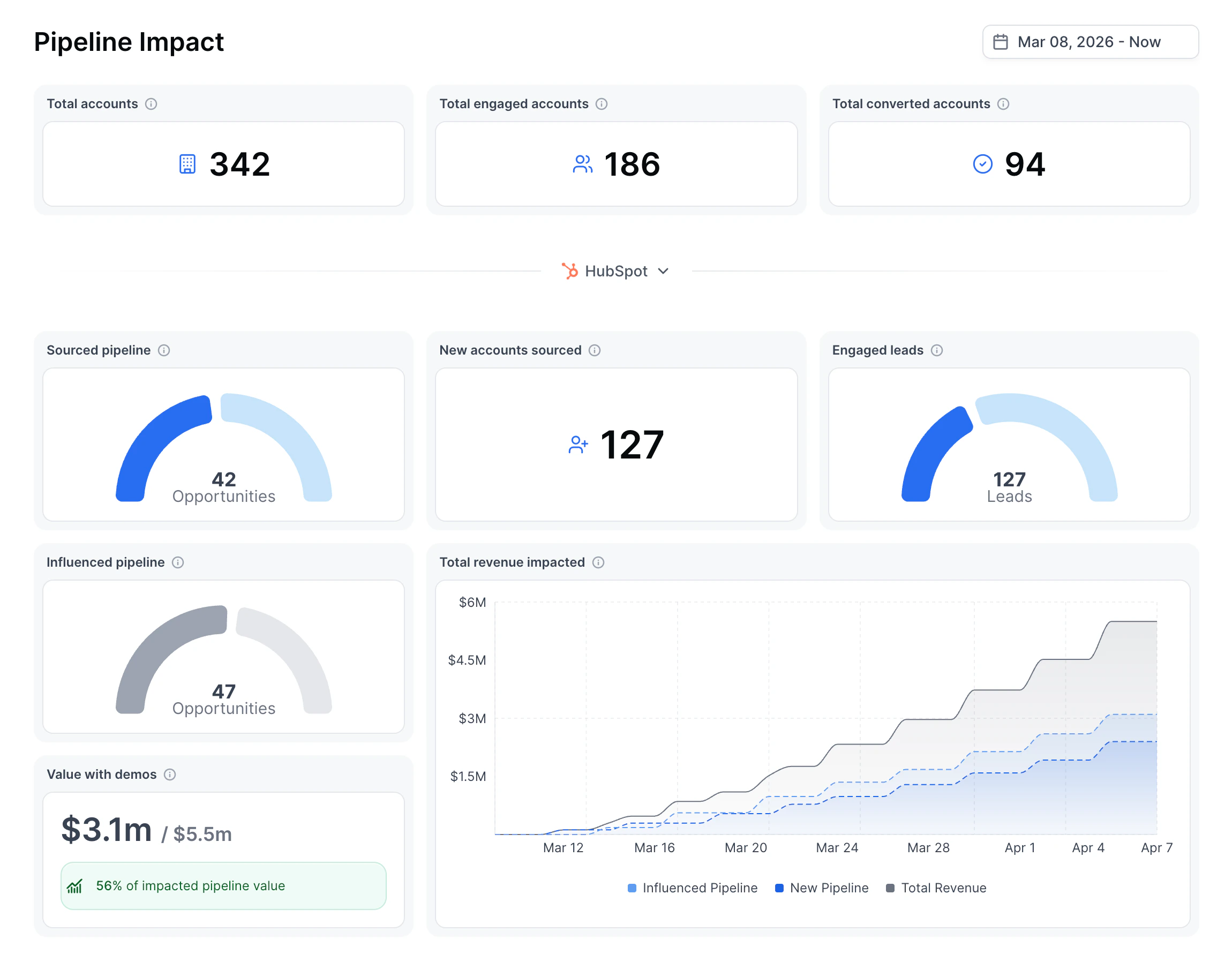
The Sales Impact and Pipeline Impact dashboards now work with HubSpot in addition to Salesforce. HubSpot integrations can opt into a "deal mode" in their integration settings, which syncs opportunity and pipeline data through the same attribution engine that powers Salesforce analytics.
Once enabled, your HubSpot deals flow into the same dashboards – pipeline created, deals influenced, revenue attributed to demos. If your workspace has both Salesforce and a deal-mode HubSpot connected, a CRM source dropdown appears on both dashboards so you can toggle between data sources. Your selection persists across sessions.
Learn more about the [HubSpot Integration](/integrations/hubspot).
## HubSpot on Sales & Pipeline Impact Dashboards
The Sales Impact and Pipeline Impact dashboards now work with HubSpot in addition to Salesforce. HubSpot integrations can opt into a "deal mode" in their integration settings, which syncs opportunity and pipeline data through the same attribution engine that powers Salesforce analytics.
Once enabled, your HubSpot deals flow into the same dashboards – pipeline created, deals influenced, revenue attributed to demos. If your workspace has both Salesforce and a deal-mode HubSpot connected, a CRM source dropdown appears on both dashboards so you can toggle between data sources. Your selection persists across sessions.
Learn more about the [HubSpot Integration](/integrations/hubspot).
 ## Workspace Knowledge for Copilot
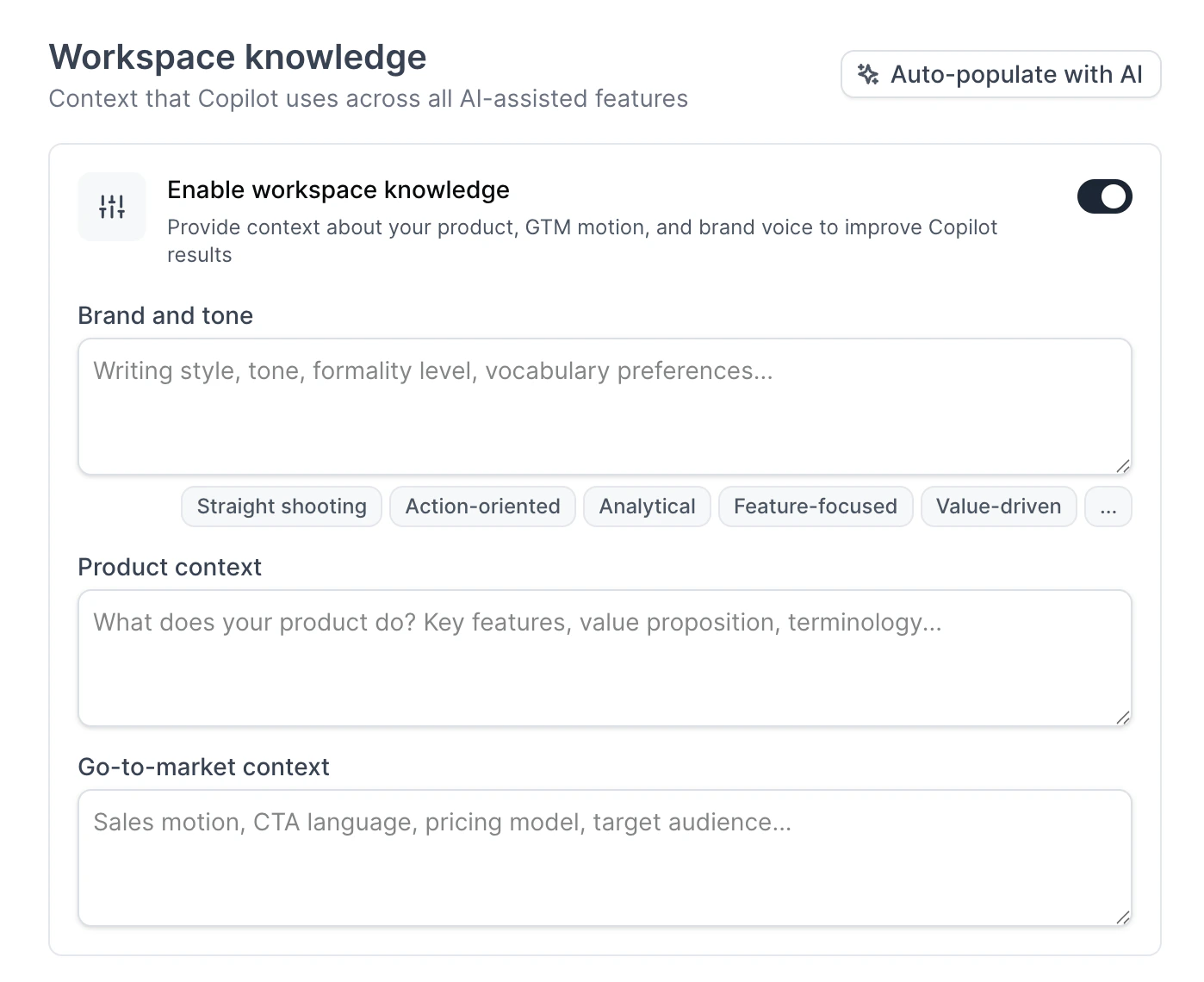
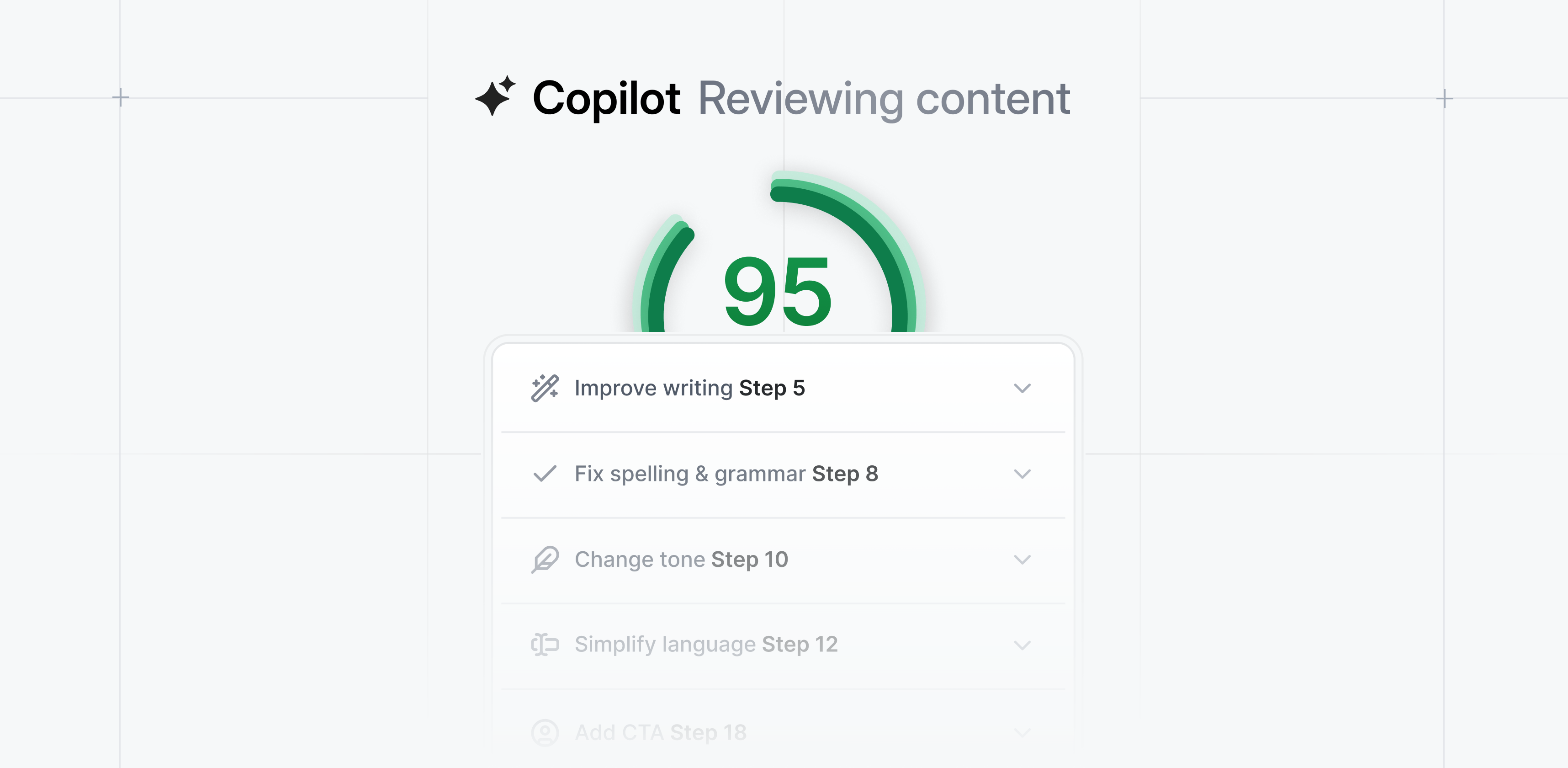
Copilot now draws on workspace-level knowledge to deliver more tailored suggestions across all review features – writing, CTAs, flow structure, and full demo reviews.
A new settings panel lets you define three types of context: brand voice (tone, terminology, style guidelines), product context (what your product does, key features, differentiators), and go-to-market positioning (target audience, use cases, competitive landscape).
An "Auto-populate with AI" button generates a starting point from your company's domain, pulling from trained data and falling back to web search for newer products. This knowledge is stored at the project level, so workspaces with multiple products can maintain separate context for each.
Learn more about [Copilot](/copilot/generate).
## Workspace Knowledge for Copilot
Copilot now draws on workspace-level knowledge to deliver more tailored suggestions across all review features – writing, CTAs, flow structure, and full demo reviews.
A new settings panel lets you define three types of context: brand voice (tone, terminology, style guidelines), product context (what your product does, key features, differentiators), and go-to-market positioning (target audience, use cases, competitive landscape).
An "Auto-populate with AI" button generates a starting point from your company's domain, pulling from trained data and falling back to web search for newer products. This knowledge is stored at the project level, so workspaces with multiple products can maintain separate context for each.
Learn more about [Copilot](/copilot/generate).
 ## Mobile Zoom
Let mobile viewers explore your full desktop demo.\
\
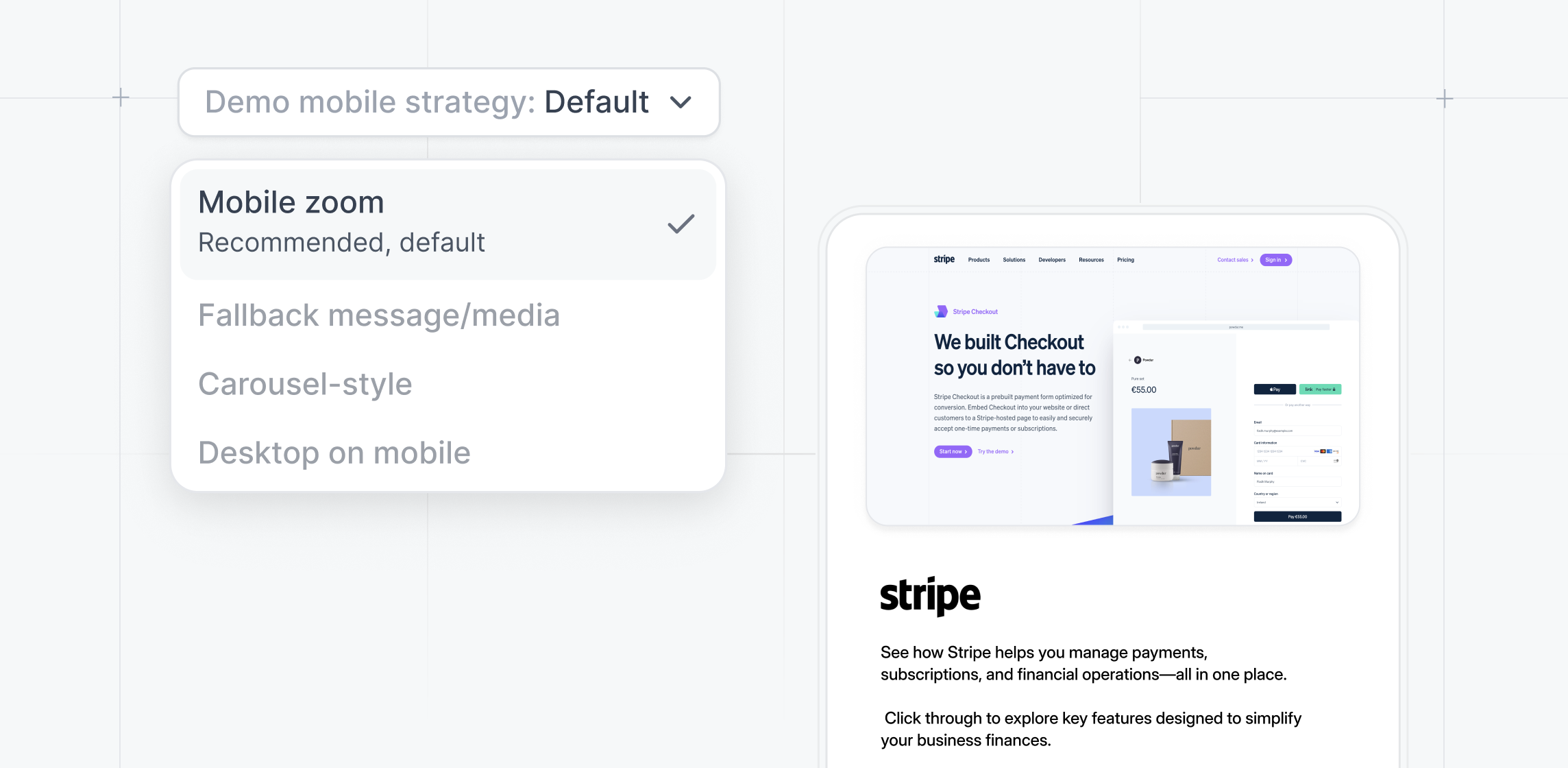
Mobile Zoom is a new strategy in the Mobile tab that gives mobile viewers full access to your desktop demo with **pinch-to-zoom and panning.**
Zoom in to read text, explore details, and navigate the product.
There are now three main Mobile Strategies available:
* Mobile Zoom: Shows the full desktop demo with pinch-to-zoom and panning
* Mobile Swipe Demos: Shows a swipable demo experience built for mobile
* Mobile Alert: Shows a custom fallback message, video, or image
## Mobile Zoom
Let mobile viewers explore your full desktop demo.\
\
Mobile Zoom is a new strategy in the Mobile tab that gives mobile viewers full access to your desktop demo with **pinch-to-zoom and panning.**
Zoom in to read text, explore details, and navigate the product.
There are now three main Mobile Strategies available:
* Mobile Zoom: Shows the full desktop demo with pinch-to-zoom and panning
* Mobile Swipe Demos: Shows a swipable demo experience built for mobile
* Mobile Alert: Shows a custom fallback message, video, or image
 ## Highspot Integration
If you're using Highspot, you can now embed Navattic interactive demos directly into their Digital Sales Rooms and Spots.
Sellers can browse, select, and personalize demos without leaving Highspot, giving buyers hands-on product experiences alongside decks, case studies, and other sales content.
## Highspot Integration
If you're using Highspot, you can now embed Navattic interactive demos directly into their Digital Sales Rooms and Spots.
Sellers can browse, select, and personalize demos without leaving Highspot, giving buyers hands-on product experiences alongside decks, case studies, and other sales content.
 ## Copilot Brand & Tone
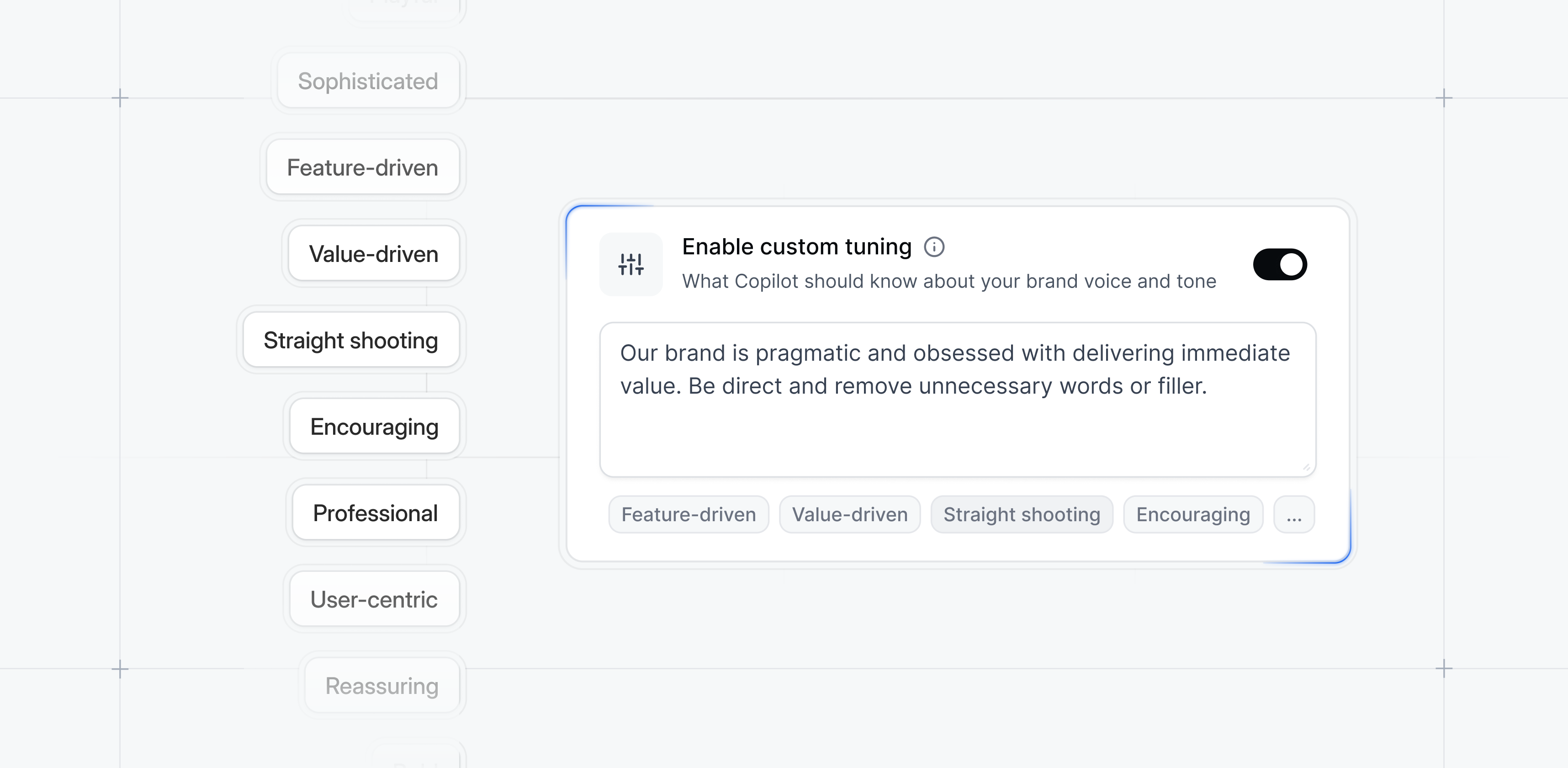
Add Brand and Tone context to build all your demos with brand consistency.
Adjust prompts to match your messaging style, so every team member can build, edit, and personalize demos with set guardrails for brand tone.
## Copilot Brand & Tone
Add Brand and Tone context to build all your demos with brand consistency.
Adjust prompts to match your messaging style, so every team member can build, edit, and personalize demos with set guardrails for brand tone.
 ## Copilot Prompt
Make bulk edits or quick fixes without touching individual steps.
Whether you need to rename steps, update CTAs, or insert new steps, Copilot Prompt understands natural language and handles the updates for you.
## Copilot Prompt
Make bulk edits or quick fixes without touching individual steps.
Whether you need to rename steps, update CTAs, or insert new steps, Copilot Prompt understands natural language and handles the updates for you.
 ## Copilot: AI Theme generator
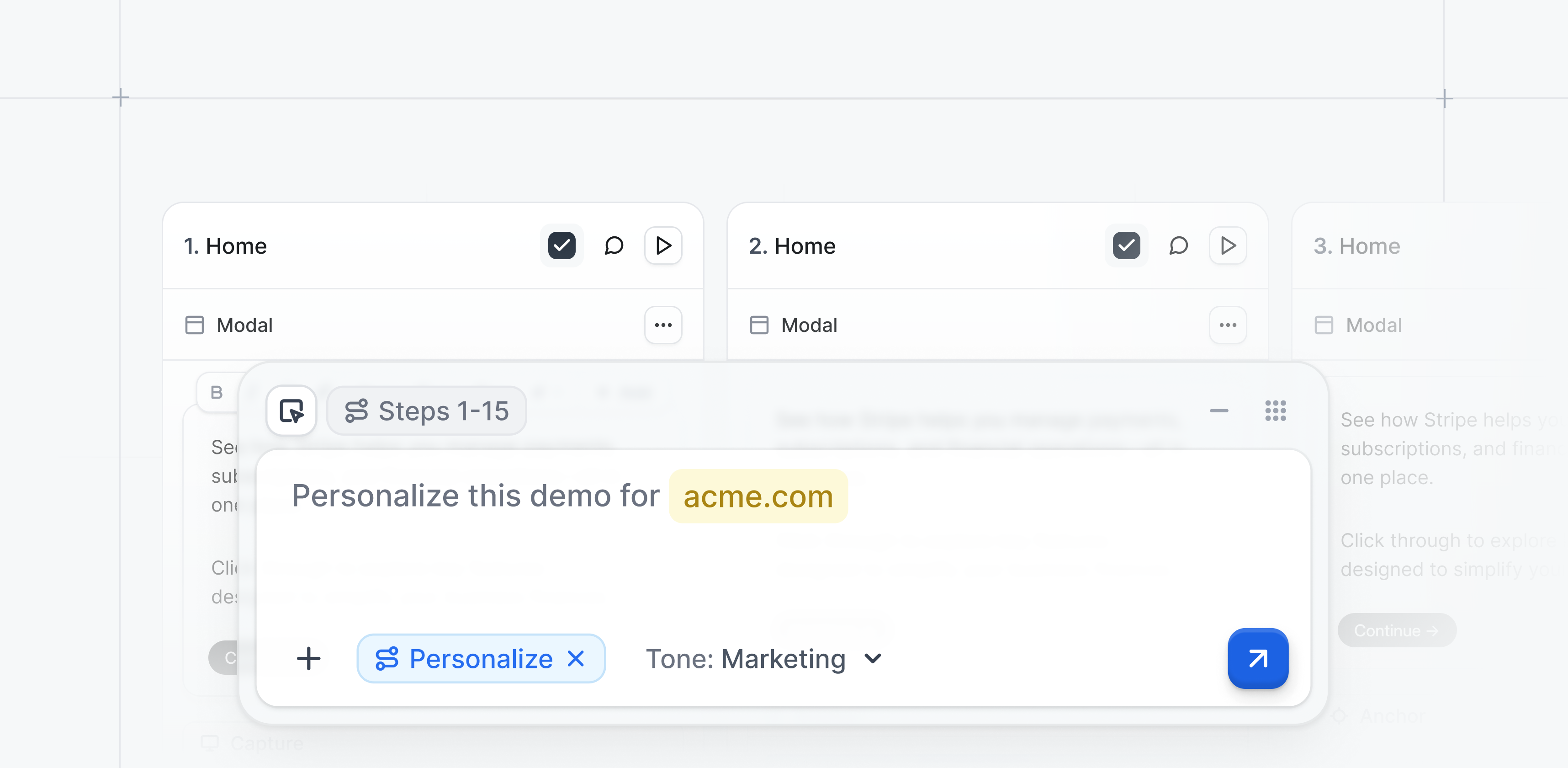
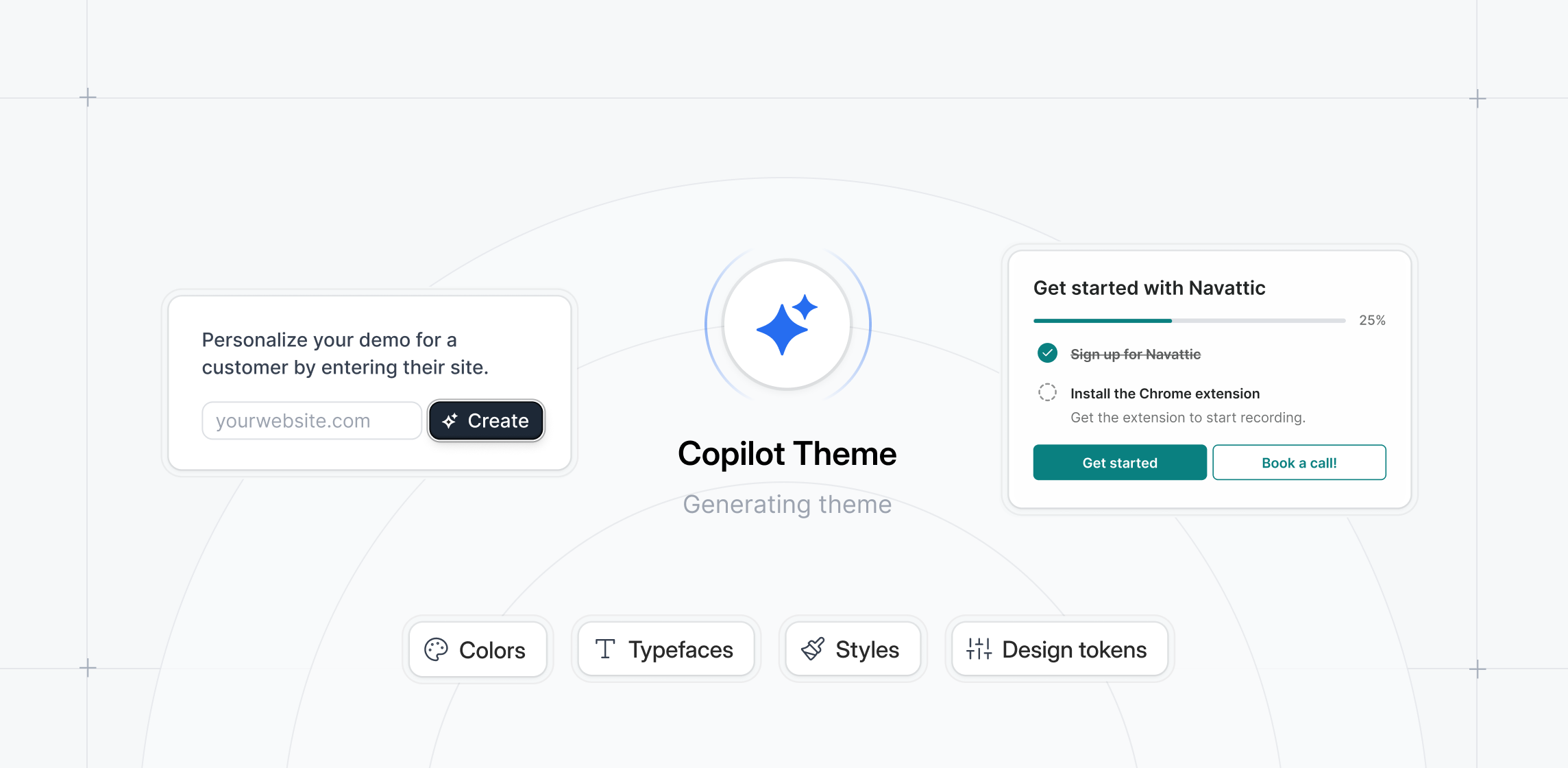
Auto-generate demo themes based on any website.
Provide a URL and Copilot will pull brand colors, typography, button styles, and other design tokens to generate a cohesive demo theme, ideal for account-specific personalization.
Generate via Settings → Themes → Generate with Copilot.
## Copilot: AI Theme generator
Auto-generate demo themes based on any website.
Provide a URL and Copilot will pull brand colors, typography, button styles, and other design tokens to generate a cohesive demo theme, ideal for account-specific personalization.
Generate via Settings → Themes → Generate with Copilot.
 ## Edit SVG charts in Capture Editor
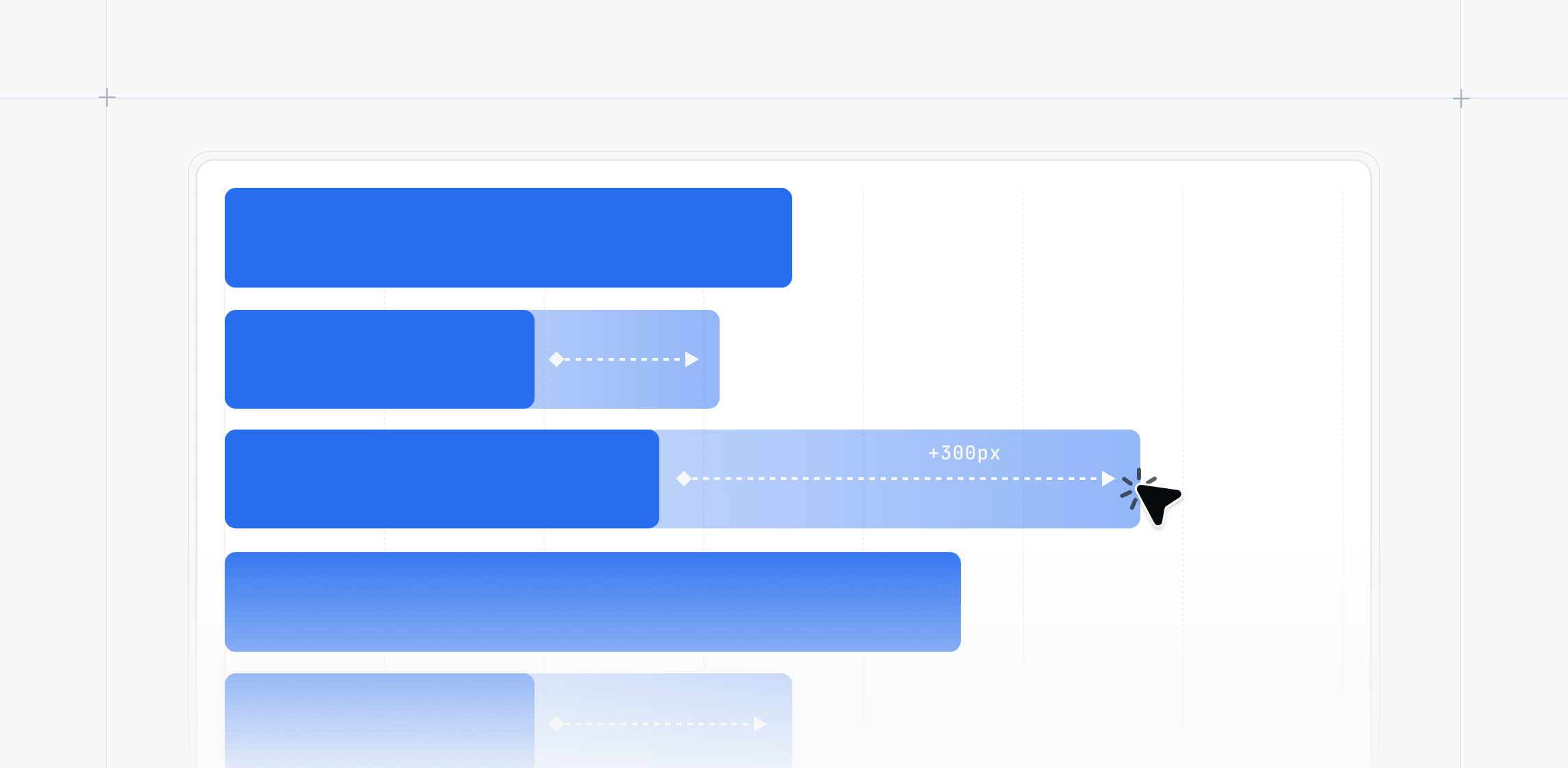
Edit SVG charts directly in the Capture Editor.
Click to update values, labels, and data points in chart elements, no external tools needed.
Perfect for customizing metrics in your demo to match specific scenarios or audiences.
## Edit SVG charts in Capture Editor
Edit SVG charts directly in the Capture Editor.
Click to update values, labels, and data points in chart elements, no external tools needed.
Perfect for customizing metrics in your demo to match specific scenarios or audiences.
 ## Video step engagement analytics
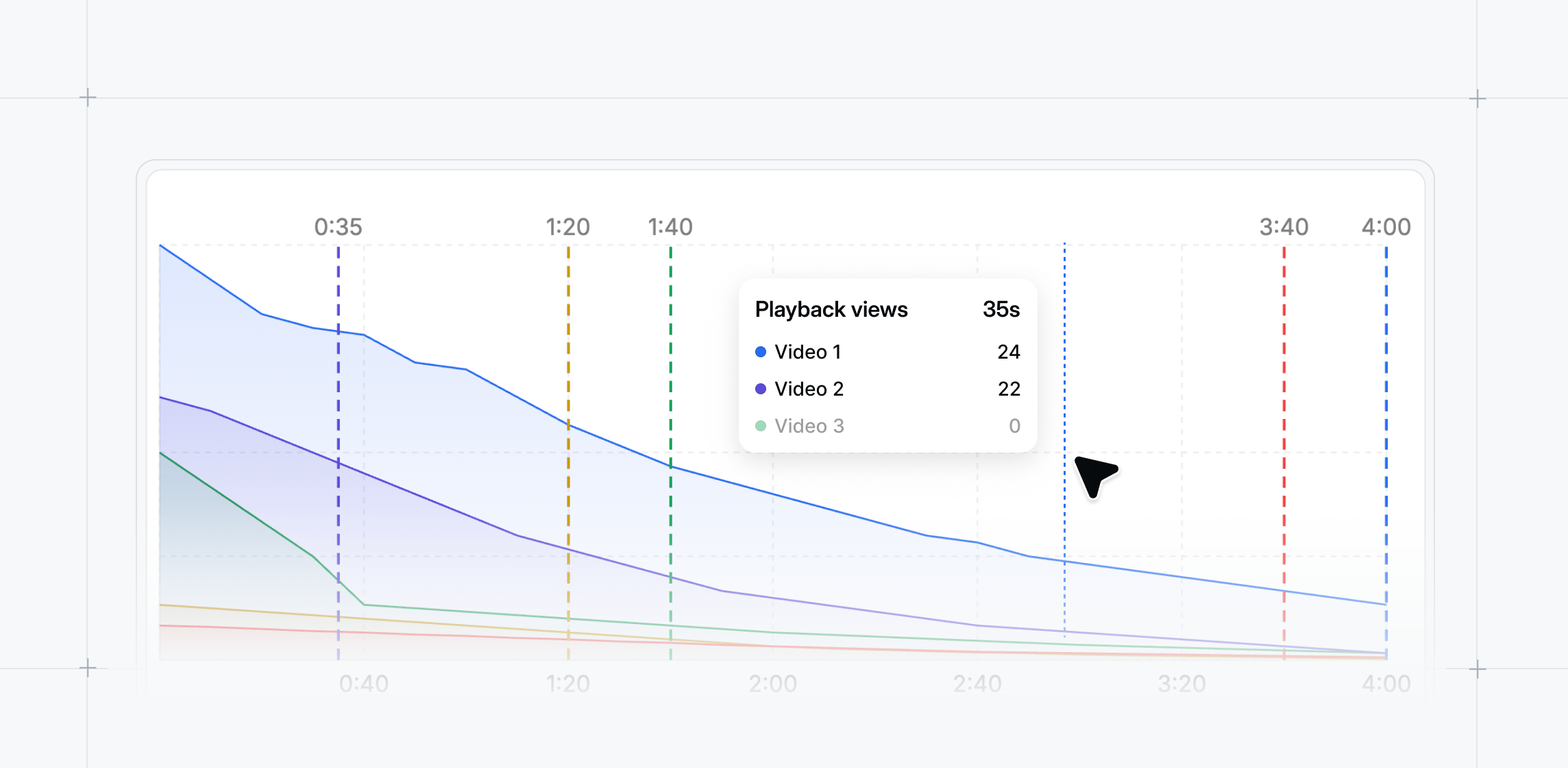
Analyze where viewers engage with your video steps.
The new playback breakdown chart shows engagement at 5-second intervals so you can identify high-attention moments and drop-off points.
Find it under Analyze → Step Breakdown.
## Video step engagement analytics
Analyze where viewers engage with your video steps.
The new playback breakdown chart shows engagement at 5-second intervals so you can identify high-attention moments and drop-off points.
Find it under Analyze → Step Breakdown.
 ## Record intro videos from Launchpad
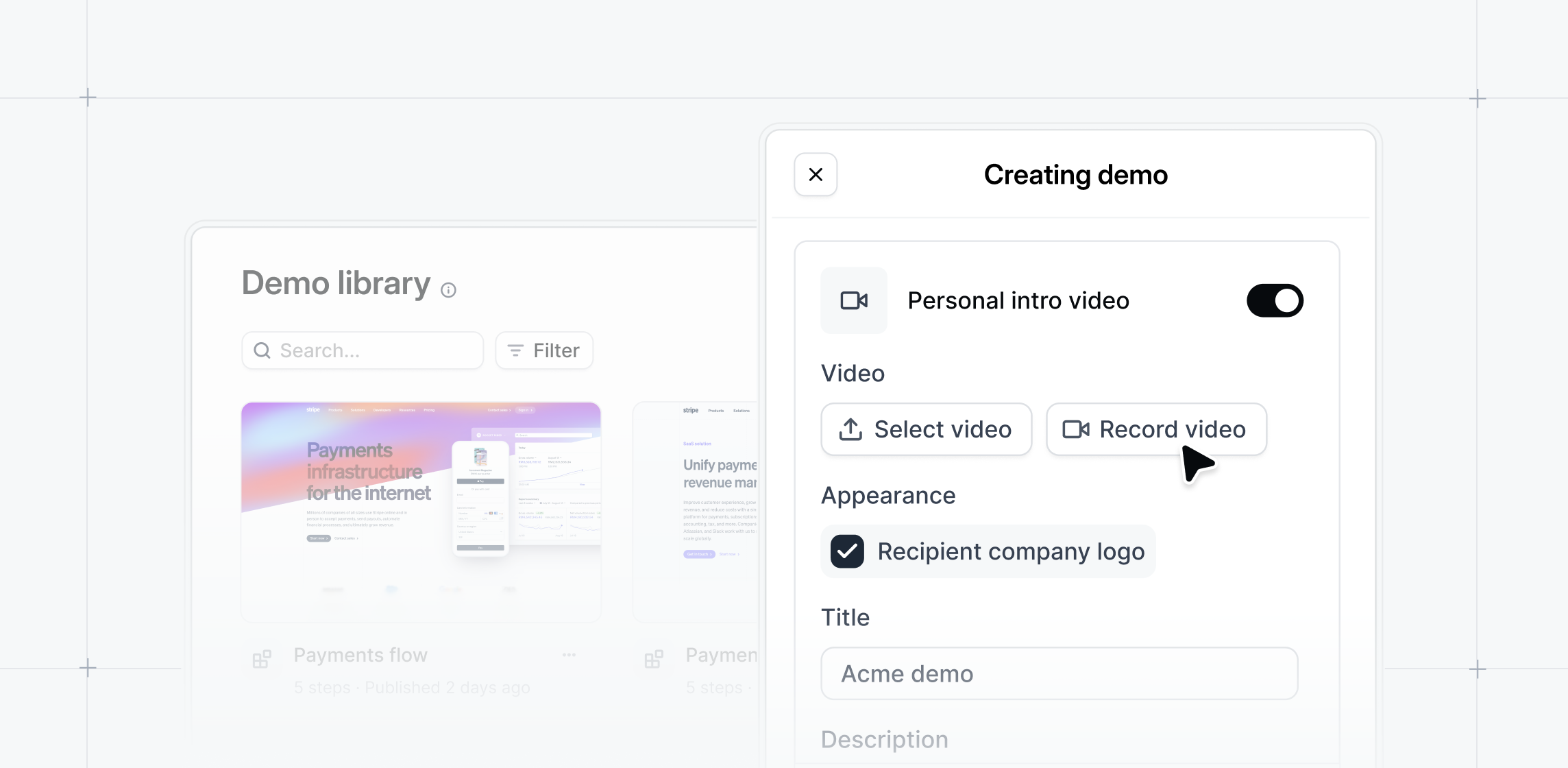
Record personalized intro videos directly in Launchpad.
Use the new Record Video option in your Personal Intro Video settings to capture webcam and microphone recordings on the spot.
Add context or prospect-specific messaging or use-case explanations without needing pre-recorded files.
## Record intro videos from Launchpad
Record personalized intro videos directly in Launchpad.
Use the new Record Video option in your Personal Intro Video settings to capture webcam and microphone recordings on the spot.
Add context or prospect-specific messaging or use-case explanations without needing pre-recorded files.
 ## Filter audiences by email source
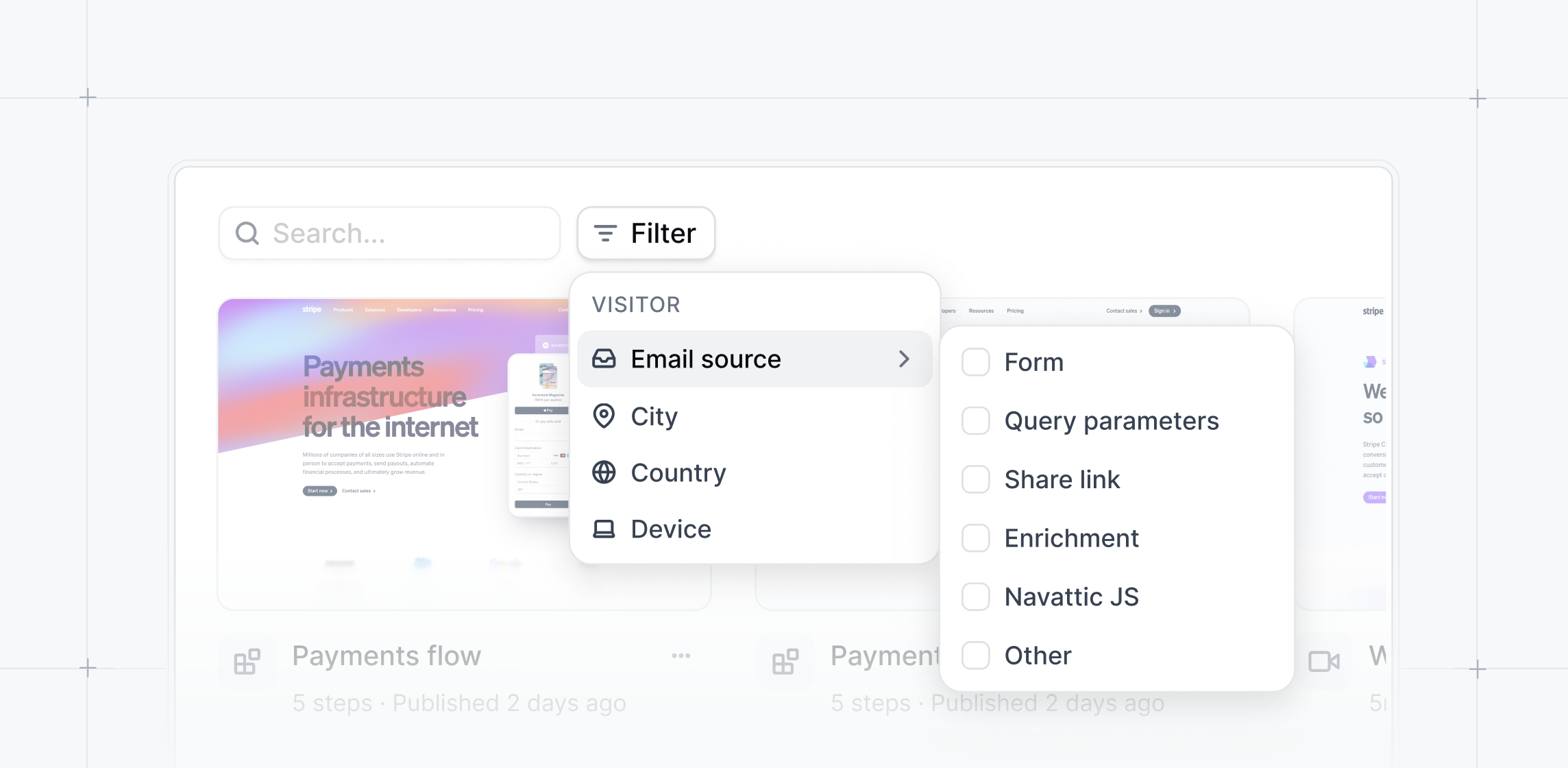
Target visitors with precision using the new email source filter.
Build audiences based on how emails were collected: form fills, CRM syncs, manual uploads, or API imports.
Use this in Audiences → Create Audience → Email Source to tailor demo experiences or refine analytics.
## Filter audiences by email source
Target visitors with precision using the new email source filter.
Build audiences based on how emails were collected: form fills, CRM syncs, manual uploads, or API imports.
Use this in Audiences → Create Audience → Email Source to tailor demo experiences or refine analytics.
 ## Expanded AI avatar library + avatar cloning
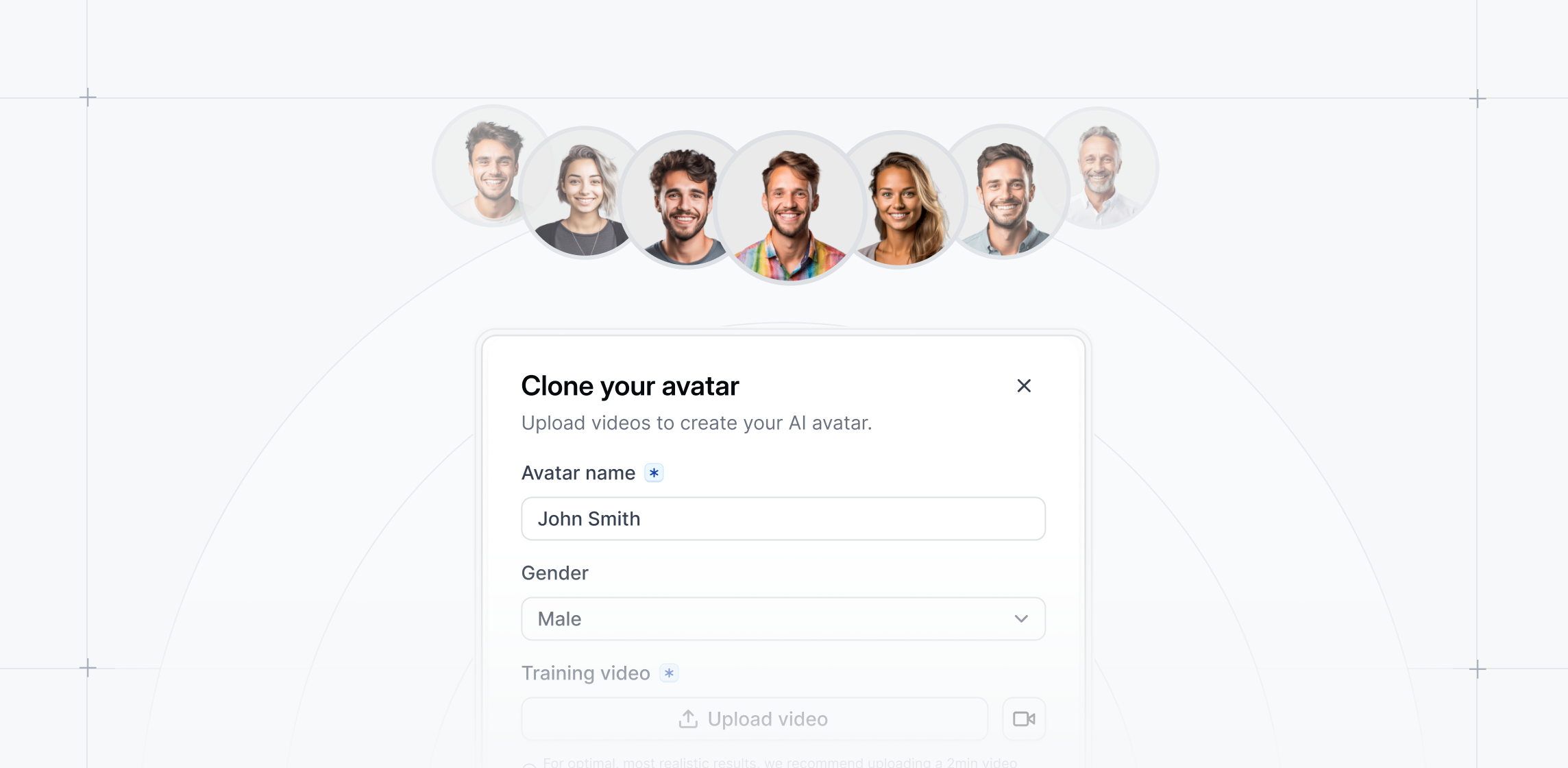
Choose from an expanded library of AI avatars with preview headshots and voice samples.
Access beta features for avatar and voice cloning to match your brand tone or feature internal team members.
Contact your account team to enable custom avatars or custom voiceovers.
## Expanded AI avatar library + avatar cloning
Choose from an expanded library of AI avatars with preview headshots and voice samples.
Access beta features for avatar and voice cloning to match your brand tone or feature internal team members.
Contact your account team to enable custom avatars or custom voiceovers.
 ## New in-app Sidebar
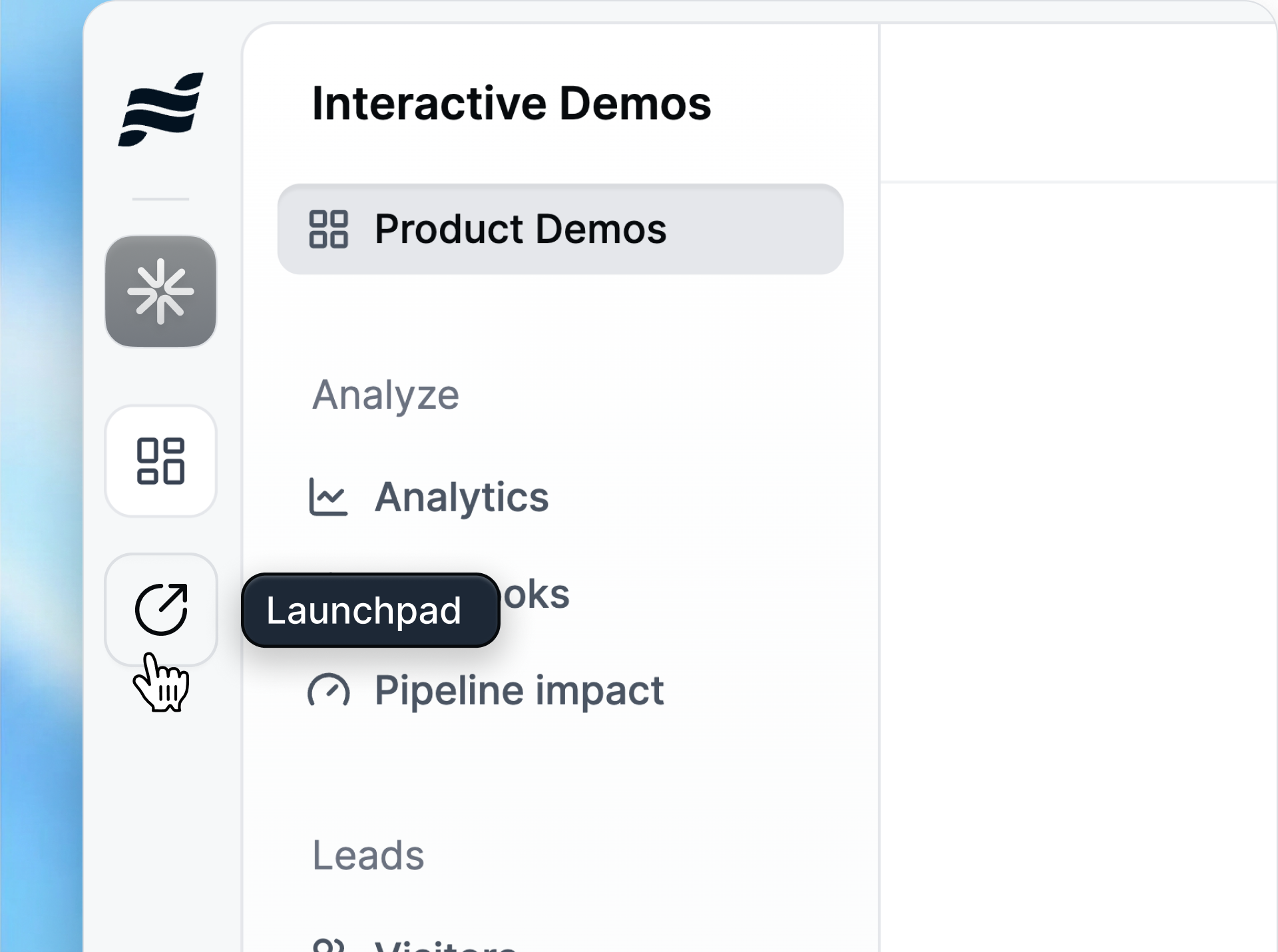
The sidebar has been redesigned to simplify navigation and provide dedicated views for Interactive Demos, Launchpad, and more.
To open Launchpad, click on the Launchpad icon on the far left of the sidebar.
## New in-app Sidebar
The sidebar has been redesigned to simplify navigation and provide dedicated views for Interactive Demos, Launchpad, and more.
To open Launchpad, click on the Launchpad icon on the far left of the sidebar.
 ## Analyze all versions
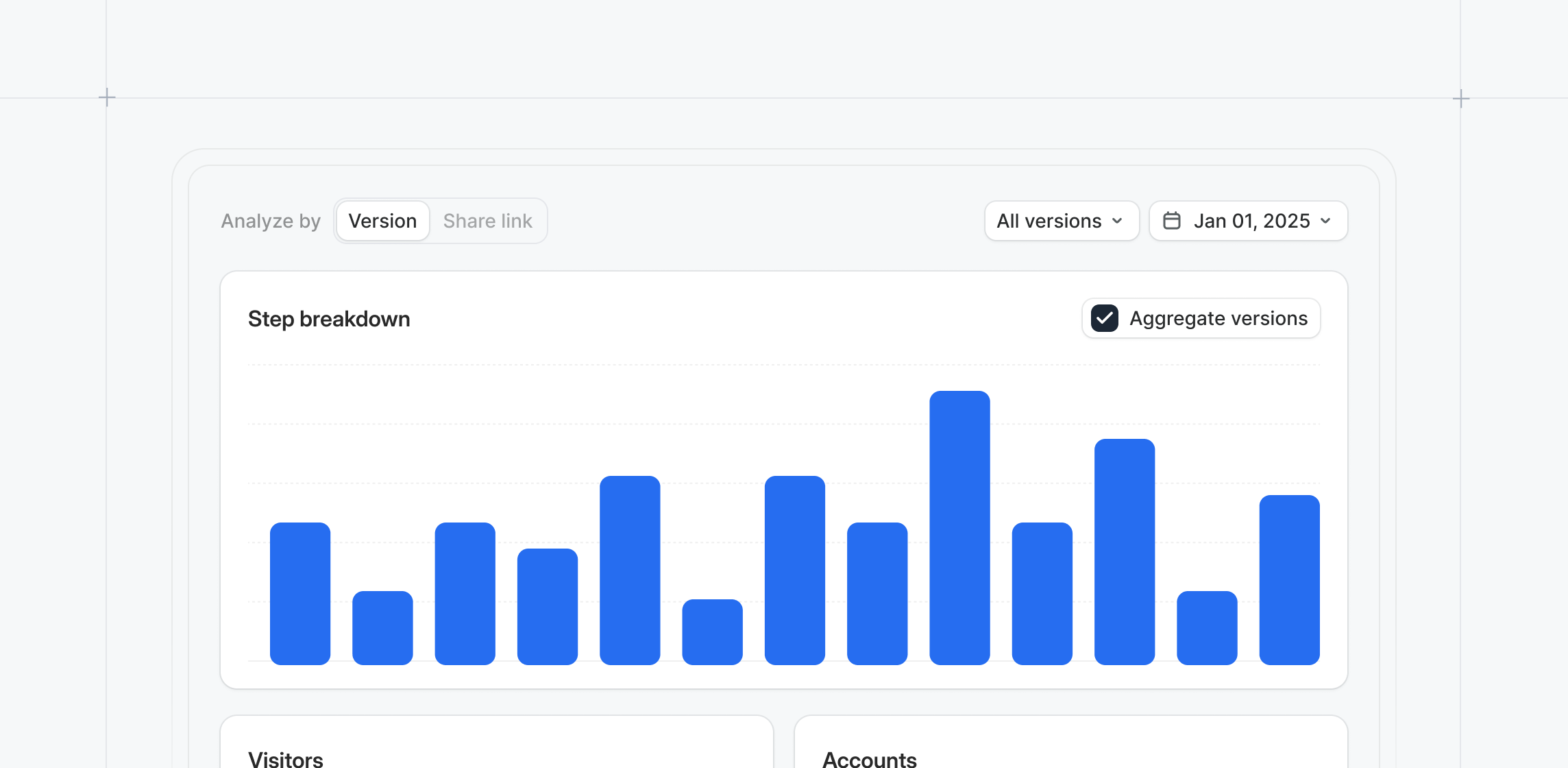
Understand holistically how your demos have performed over time. \
\
Under the Analyze tab → Step breakdown toggle on "Aggregate versions" to see drop-off rates across every version of your demo.
## Analyze all versions
Understand holistically how your demos have performed over time. \
\
Under the Analyze tab → Step breakdown toggle on "Aggregate versions" to see drop-off rates across every version of your demo.
 ## Outreach integration
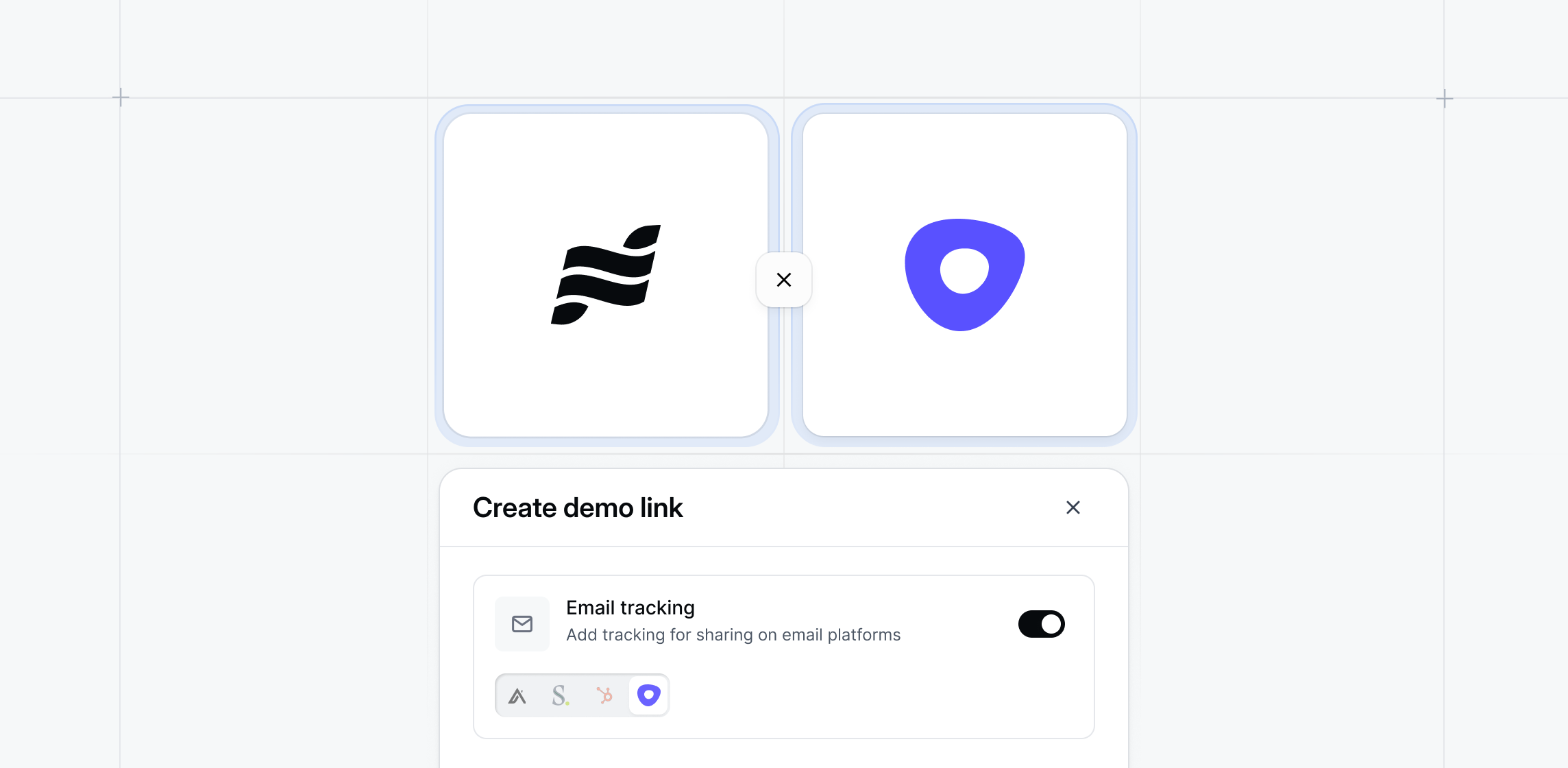
Add demos directly into Outreach templates and sequences to scale consistent product messaging. \
\
With the Navattic Outreach app, sellers can share personalized interactive demos with specific recipients or add to a general outbound campaign.
## Outreach integration
Add demos directly into Outreach templates and sequences to scale consistent product messaging. \
\
With the Navattic Outreach app, sellers can share personalized interactive demos with specific recipients or add to a general outbound campaign.
 ## Outlook integration
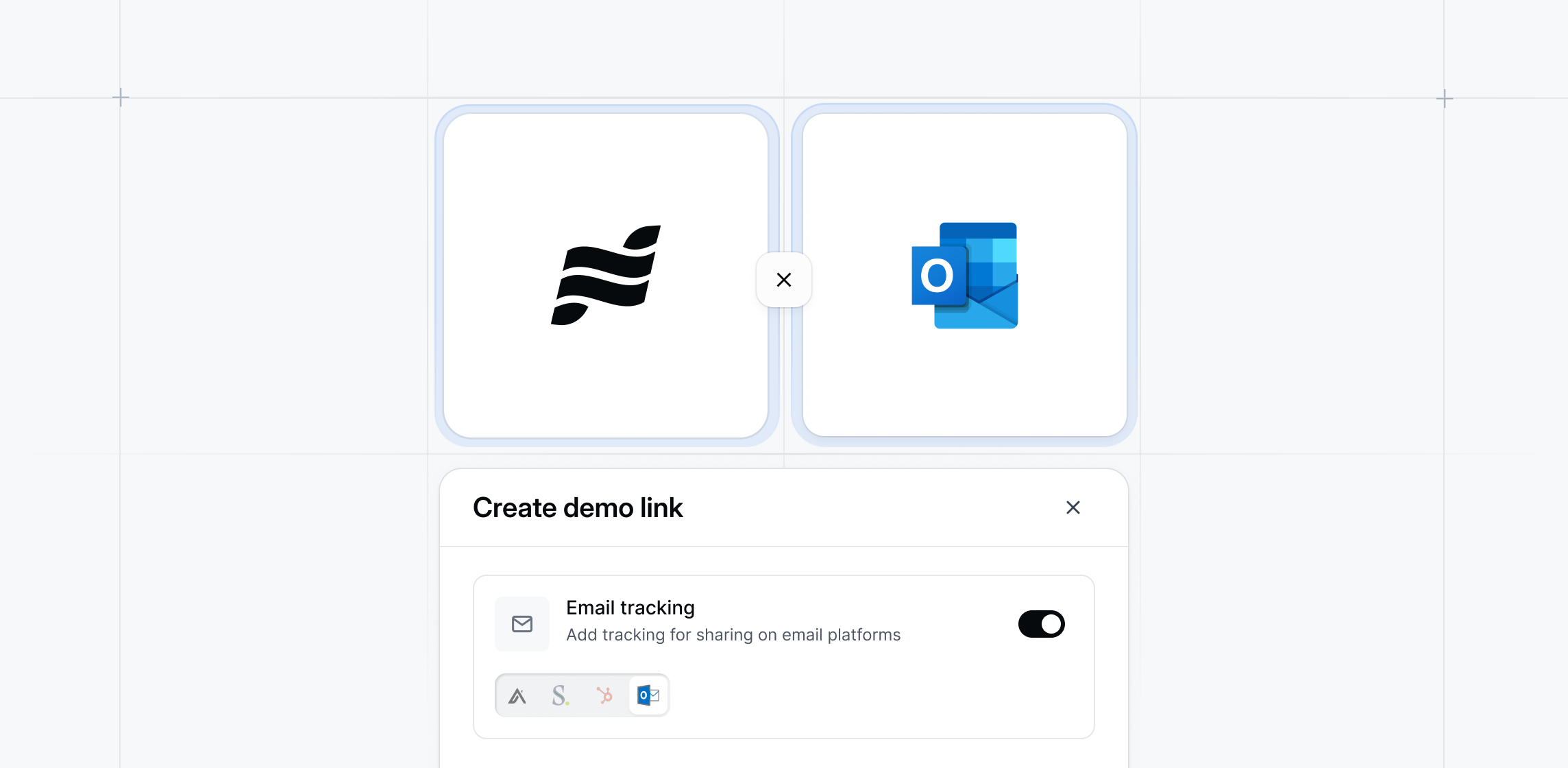
Inject demo previews directly into your Outlook emails. \
\
With the new Navattic button in the Outlook toolbar, you can insert demos in one click and auto-detect recipients for personalization variables.
## Outlook integration
Inject demo previews directly into your Outlook emails. \
\
With the new Navattic button in the Outlook toolbar, you can insert demos in one click and auto-detect recipients for personalization variables.
 ## HubSpot account timeline events
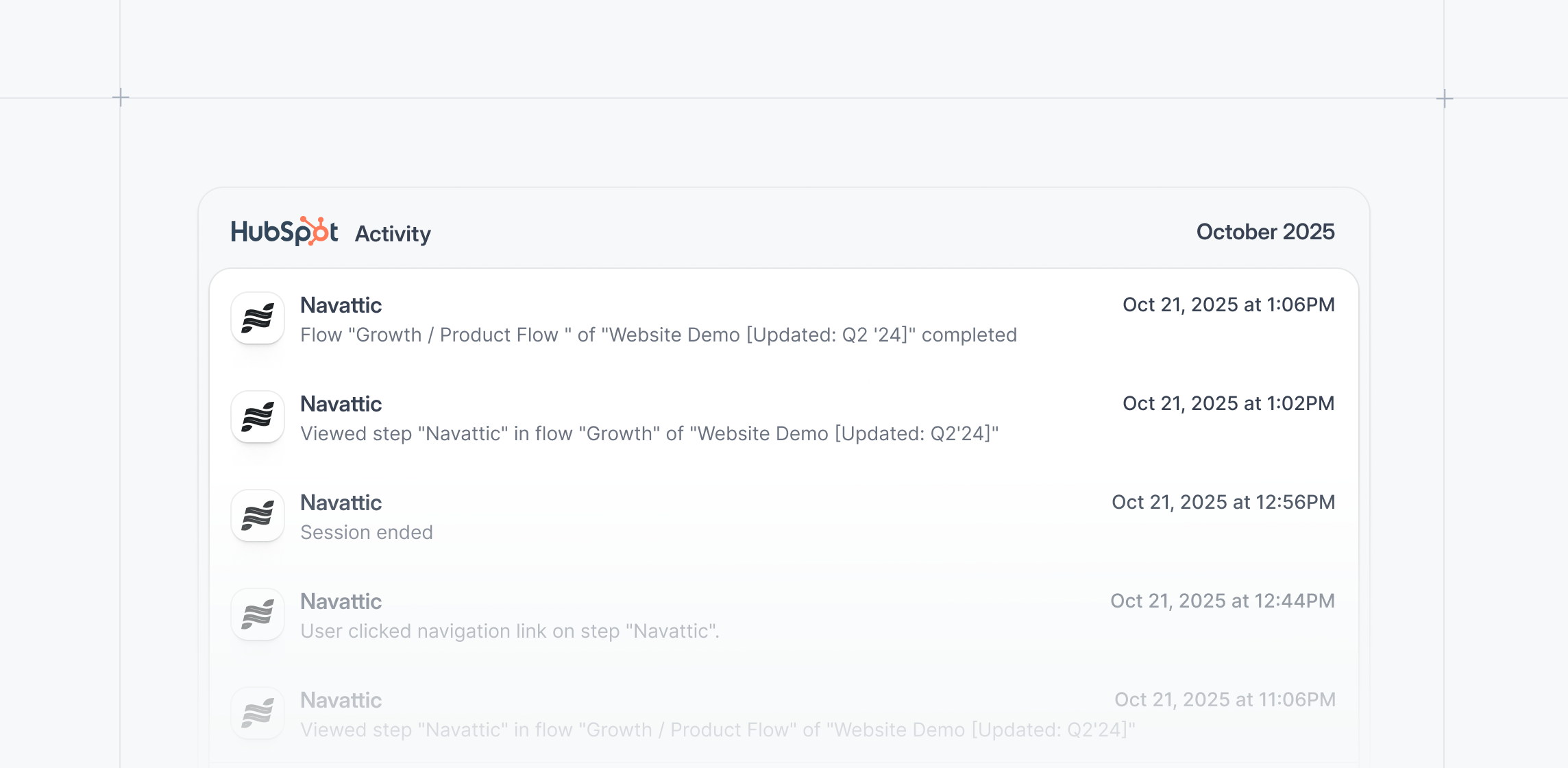
See timeline events in HubSpot based on accounts or deals, not just contacts.\
\
Configure playbooks to track and segment your accounts by company-level engagement or ICP criteria.
## HubSpot account timeline events
See timeline events in HubSpot based on accounts or deals, not just contacts.\
\
Configure playbooks to track and segment your accounts by company-level engagement or ICP criteria.
 ## Last edited history
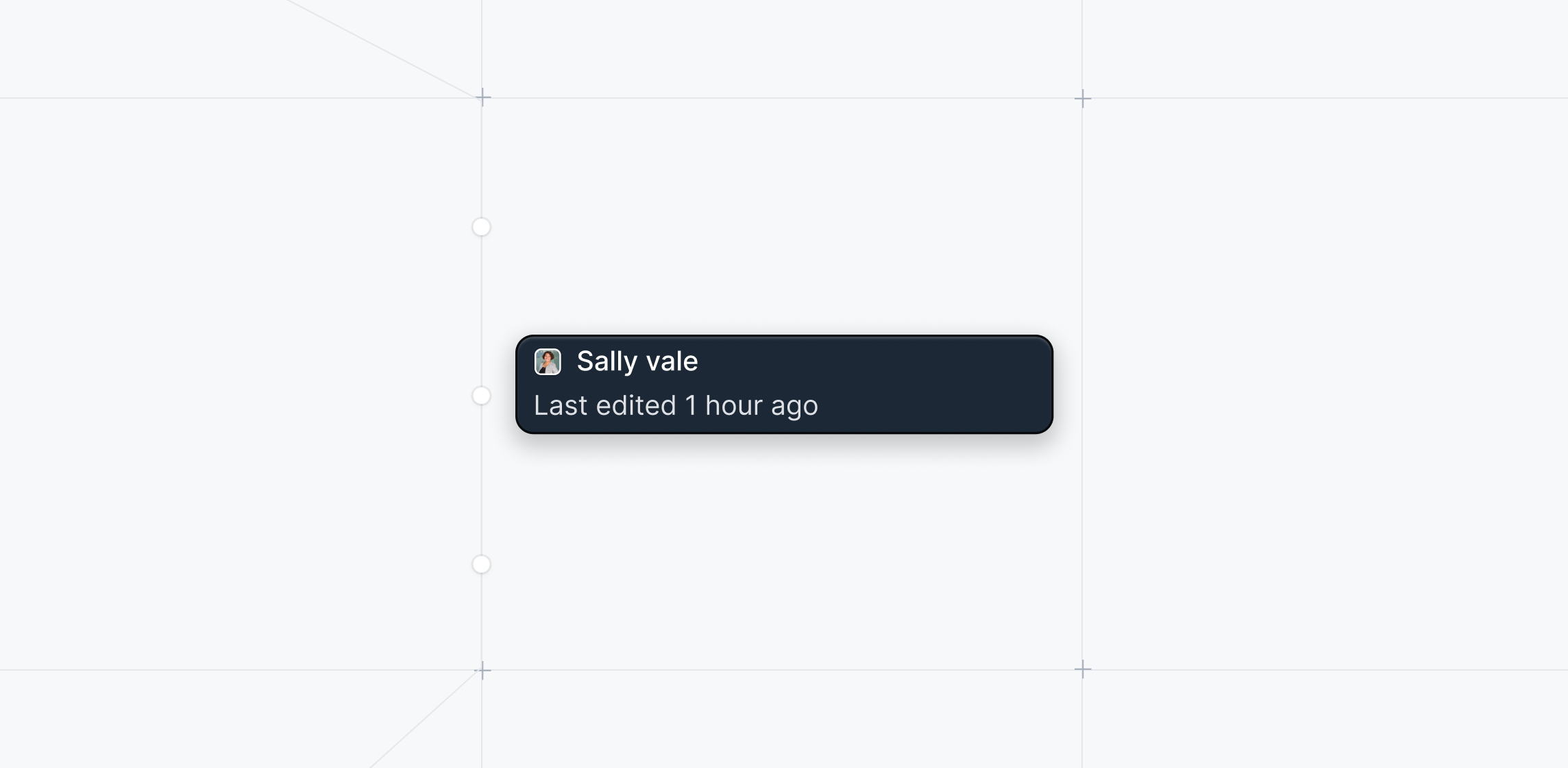
Instantly see who's editing what demo. On any demo, see edit history by hovering over the "Edited x days ago" label.
## Last edited history
Instantly see who's editing what demo. On any demo, see edit history by hovering over the "Edited x days ago" label.
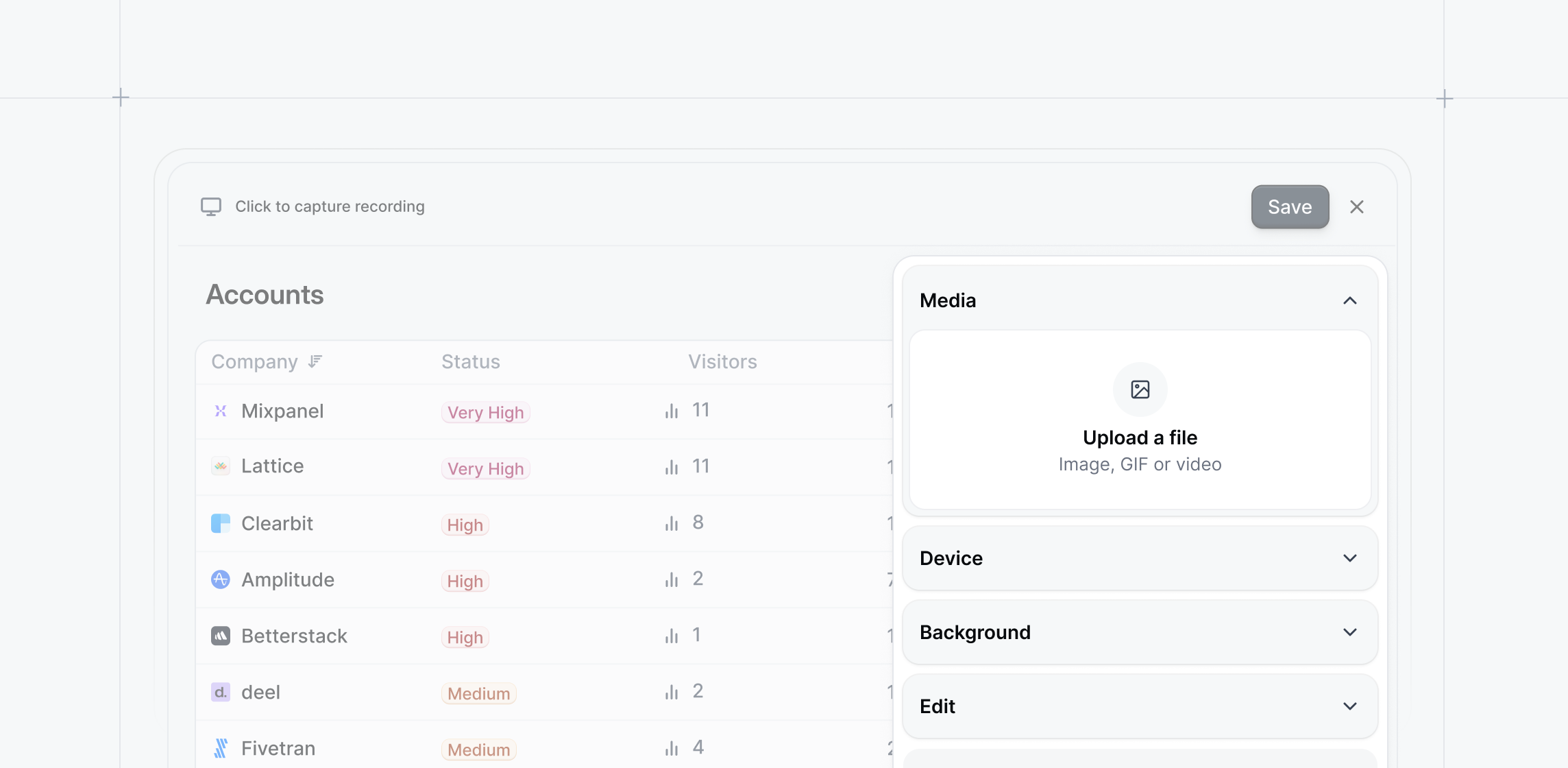
 ## Media capture editing
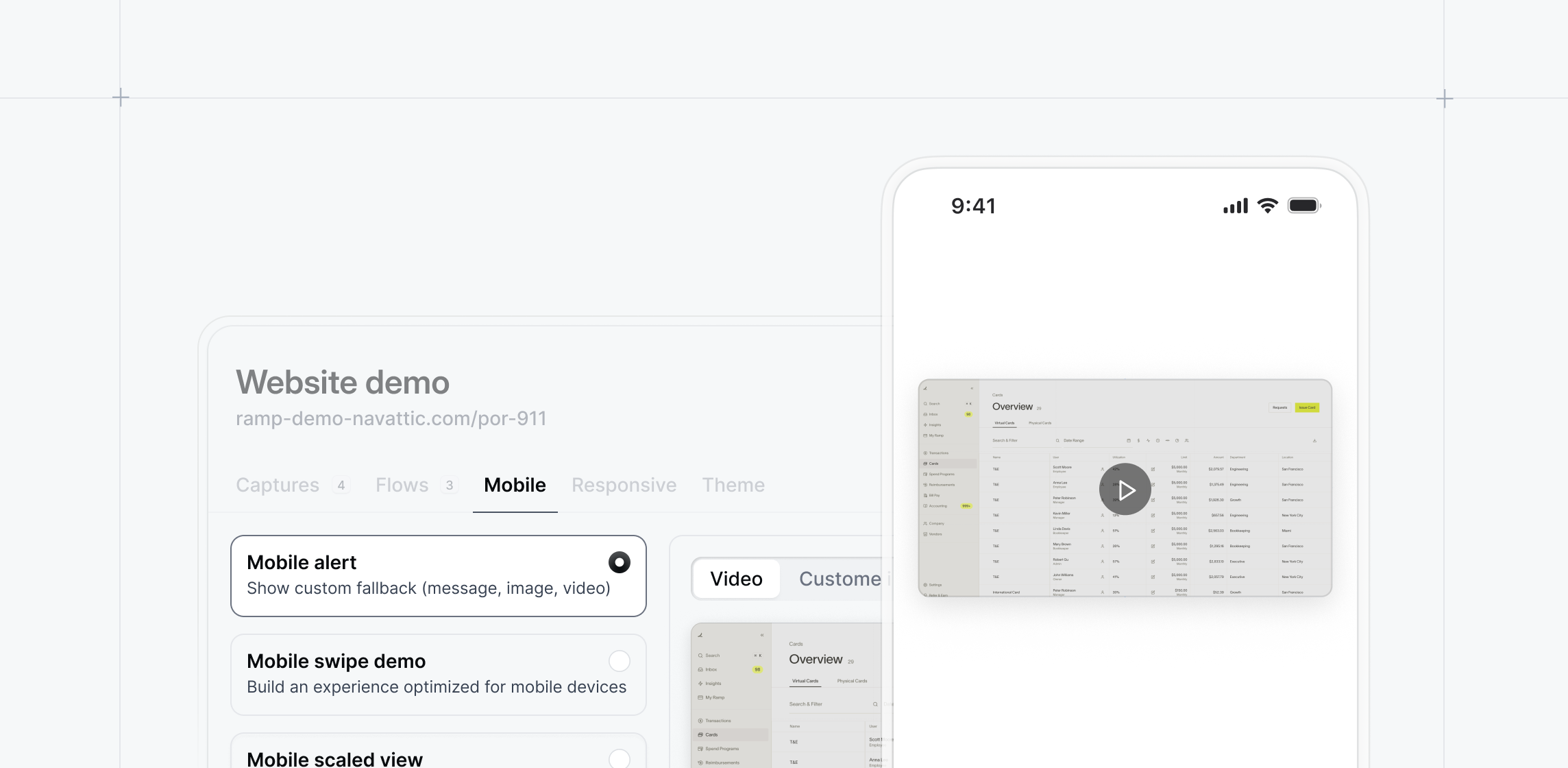
Adjust how screenshots appear inside device frames.\
\
In the media capture editor, select "Position" to align content to the top, center, or bottom to better fill the screen. Tooltips and annotations will also follow your selected alignment.
## Media capture editing
Adjust how screenshots appear inside device frames.\
\
In the media capture editor, select "Position" to align content to the top, center, or bottom to better fill the screen. Tooltips and annotations will also follow your selected alignment.
 ## Tooltip selector preview
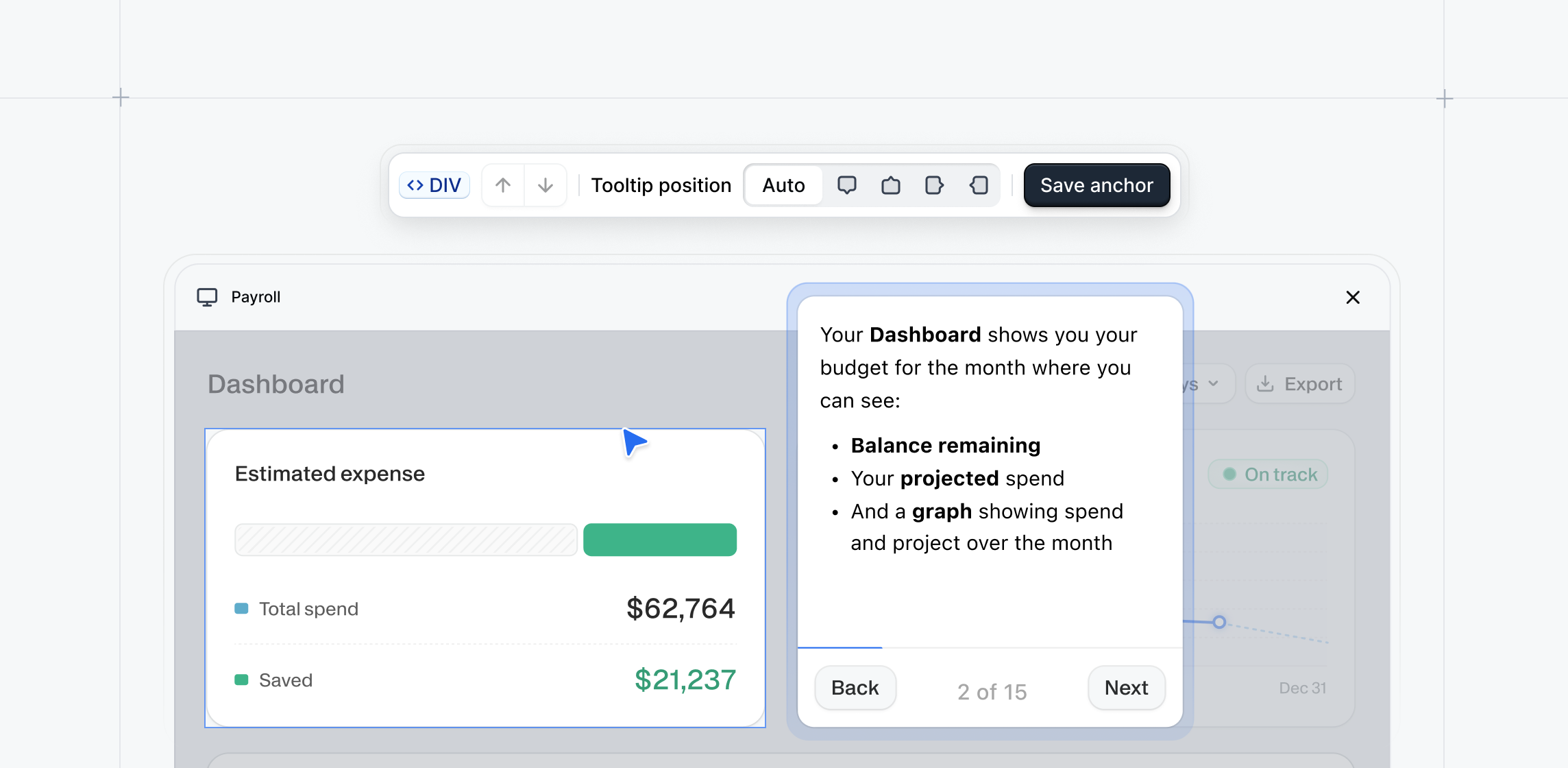
Preview tooltip step placement directly when building your demo. \
\
When you go to add a tooltip, you'll now see a live preview of what your tooltip looks like in your demo. The builder automatically suggests a default position, which you can adjust directly from the editor.
## Tooltip selector preview
Preview tooltip step placement directly when building your demo. \
\
When you go to add a tooltip, you'll now see a live preview of what your tooltip looks like in your demo. The builder automatically suggests a default position, which you can adjust directly from the editor.
 ## Sandbox editing
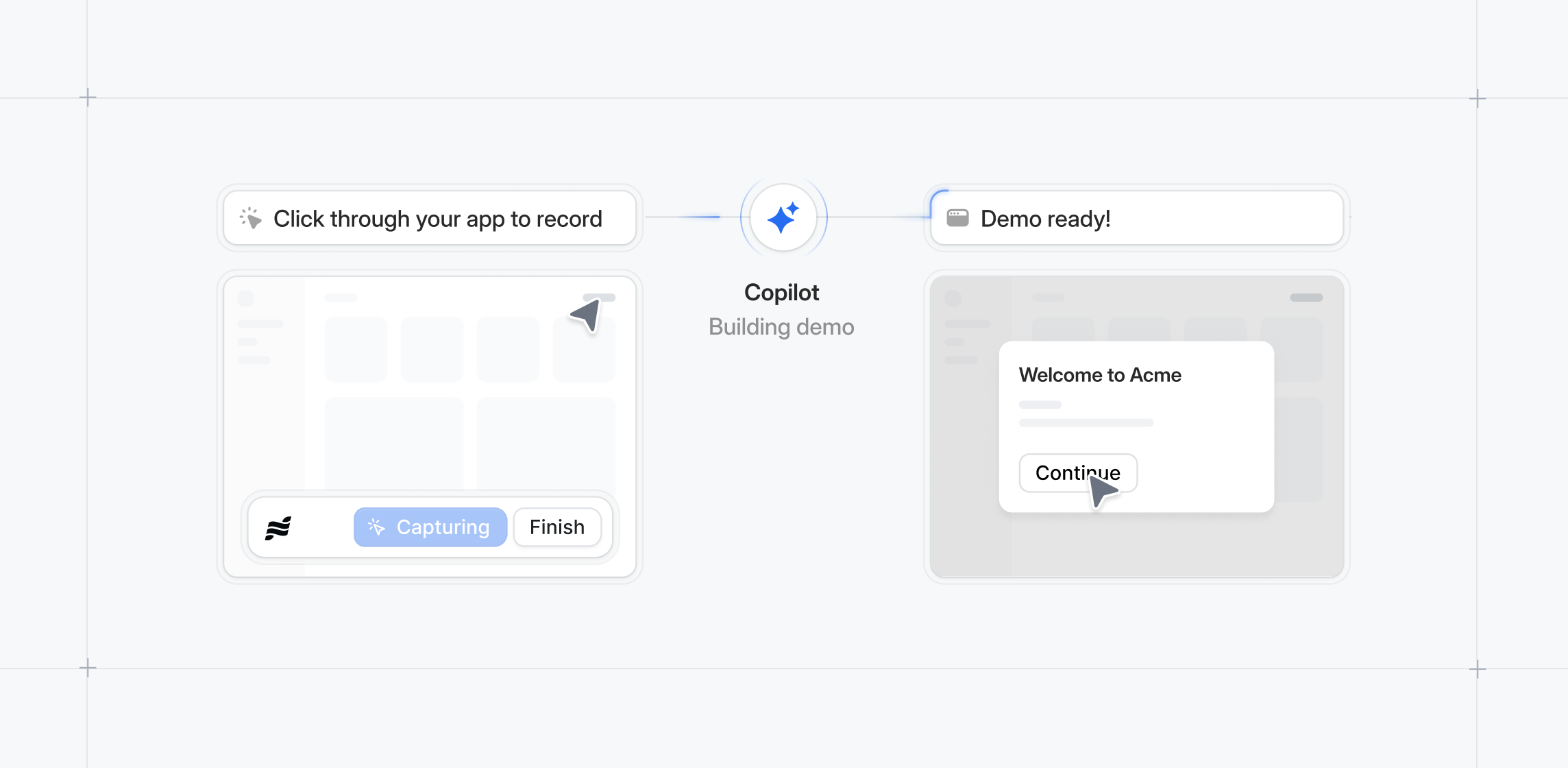
Create and refine demos faster from directly within Sandbox mode.\
\
You can now re-capture individual steps without starting over or edit, delete, and reorder steps in the Sandbox builder.
## Bulk editing for product demos
Clean up your demo workspace in a few clicks.
Use the bulk editor to select multiple demos to mass publish, archive, or apply boards and labels.
## Sandbox editing
Create and refine demos faster from directly within Sandbox mode.\
\
You can now re-capture individual steps without starting over or edit, delete, and reorder steps in the Sandbox builder.
## Bulk editing for product demos
Clean up your demo workspace in a few clicks.
Use the bulk editor to select multiple demos to mass publish, archive, or apply boards and labels.
 ## Copilot: Use Cases
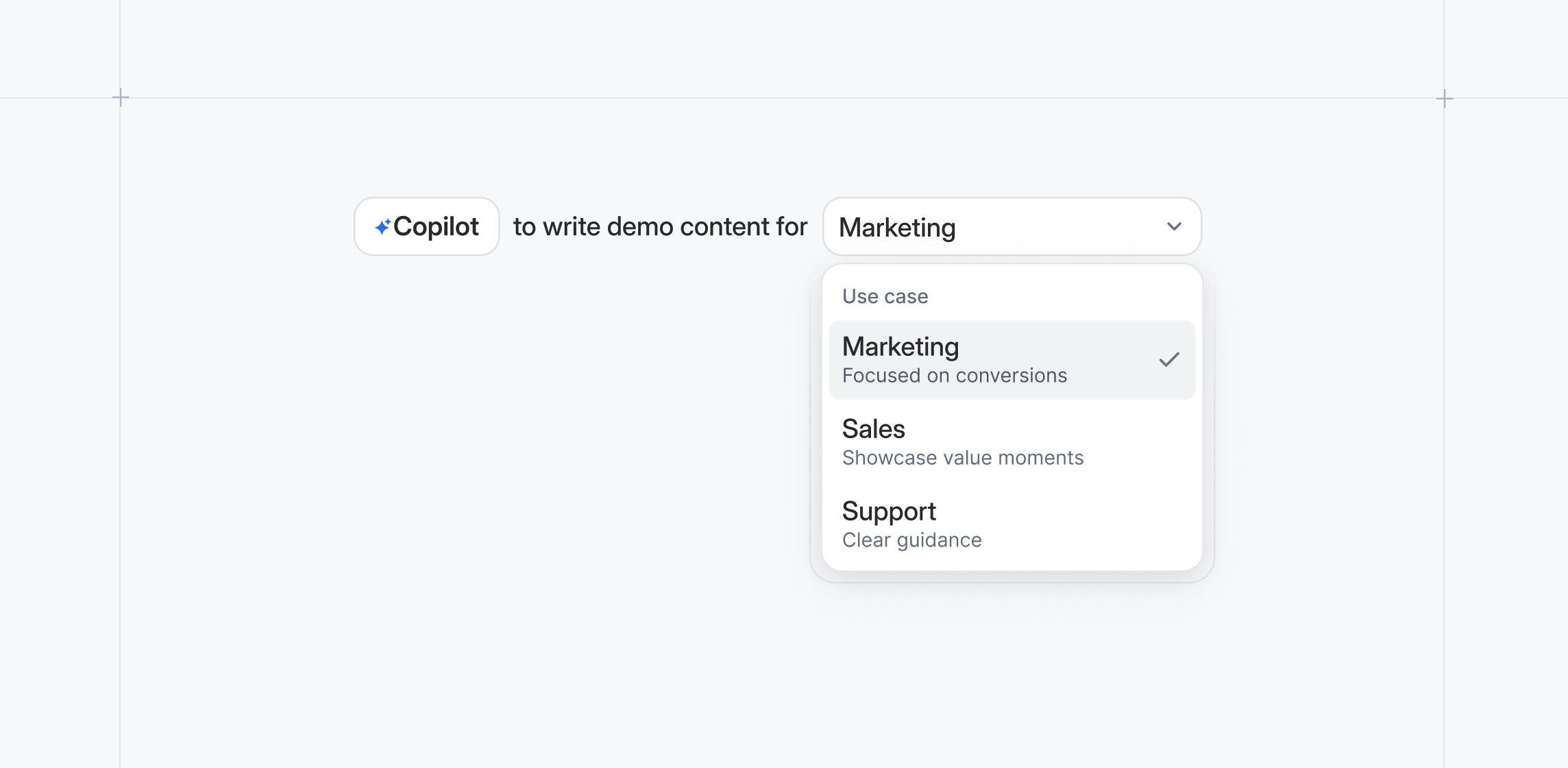
Copilot comes with default prompts with built-in use-case-specific best practices.\
\
You also have the option to add on additional use case prompts or adjust prompts to match your exact brand messaging, voice, and tone.
## Copilot: Use Cases
Copilot comes with default prompts with built-in use-case-specific best practices.\
\
You also have the option to add on additional use case prompts or adjust prompts to match your exact brand messaging, voice, and tone.
 ## Recapture
Simplify how you replace Captures in existing demos. Select Recapture to automatically take you back to your original product page URL at the Capture or Collection level.\
\
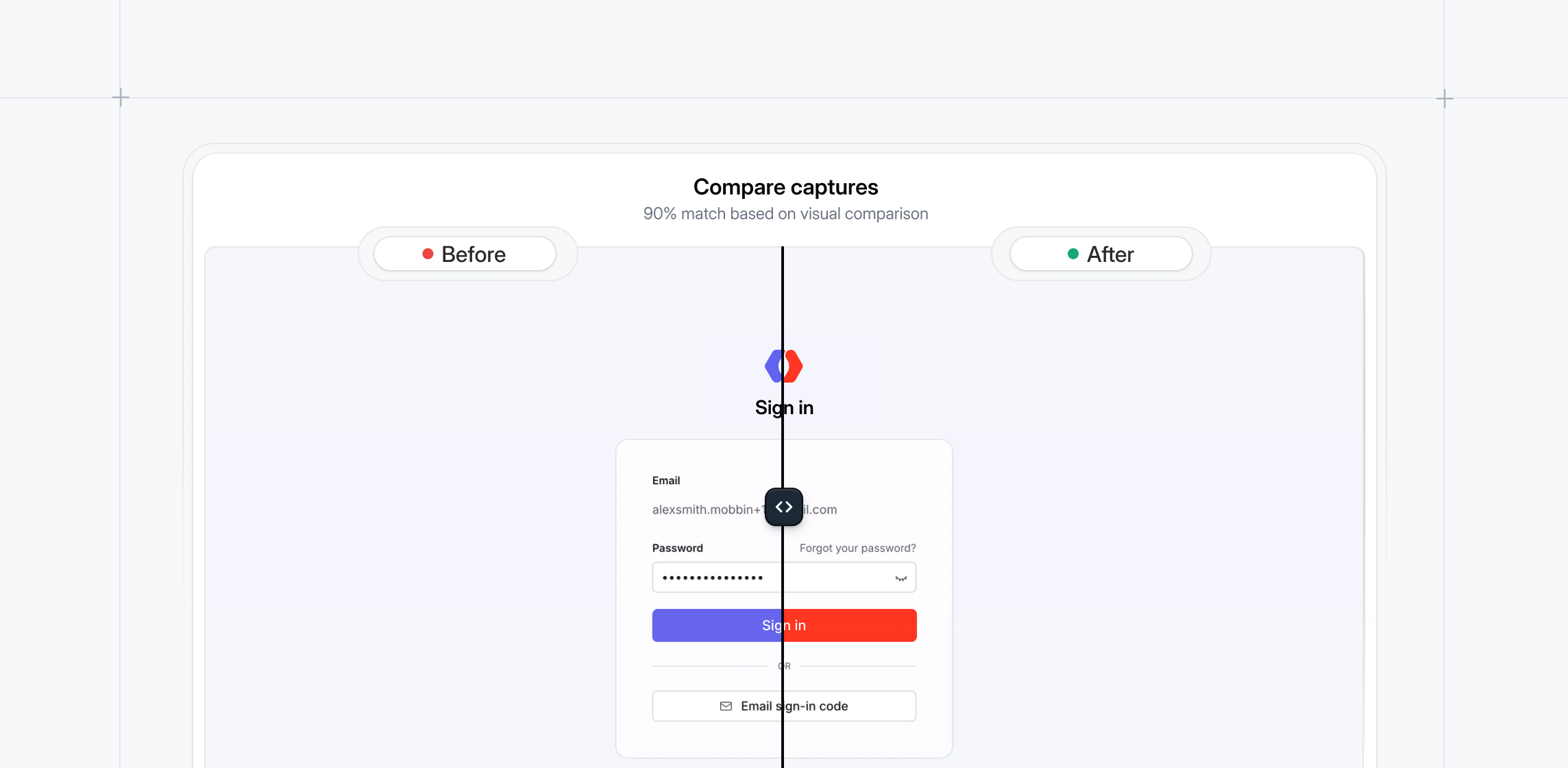
While recapturing, preview the old vs the new Capture to see how your product has changed. Recapture will also preserve anchors from the original Capture.
## Recapture
Simplify how you replace Captures in existing demos. Select Recapture to automatically take you back to your original product page URL at the Capture or Collection level.\
\
While recapturing, preview the old vs the new Capture to see how your product has changed. Recapture will also preserve anchors from the original Capture.
 ## Animating Text with Magic Editor
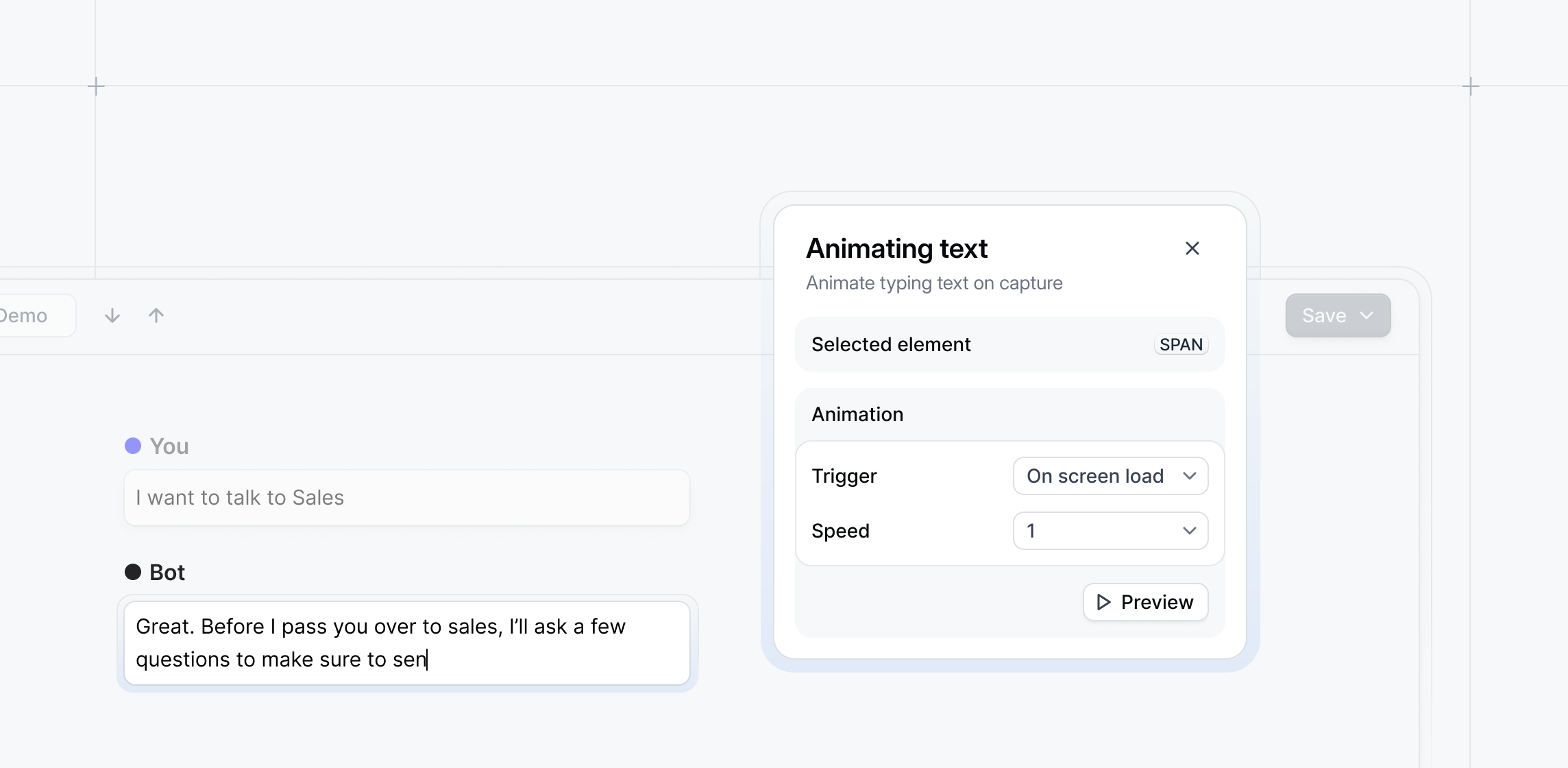
Need to simulate an AI chat or mimic typing inside your demo? With our Animating Text Magic Editor, you can now show animated text within a Capture.\
\
In the demo, the Capture will show the text being typed out automatically to recreate live interactions like AI chatbots.
## Animating Text with Magic Editor
Need to simulate an AI chat or mimic typing inside your demo? With our Animating Text Magic Editor, you can now show animated text within a Capture.\
\
In the demo, the Capture will show the text being typed out automatically to recreate live interactions like AI chatbots.
 ## See interests and new stakeholders
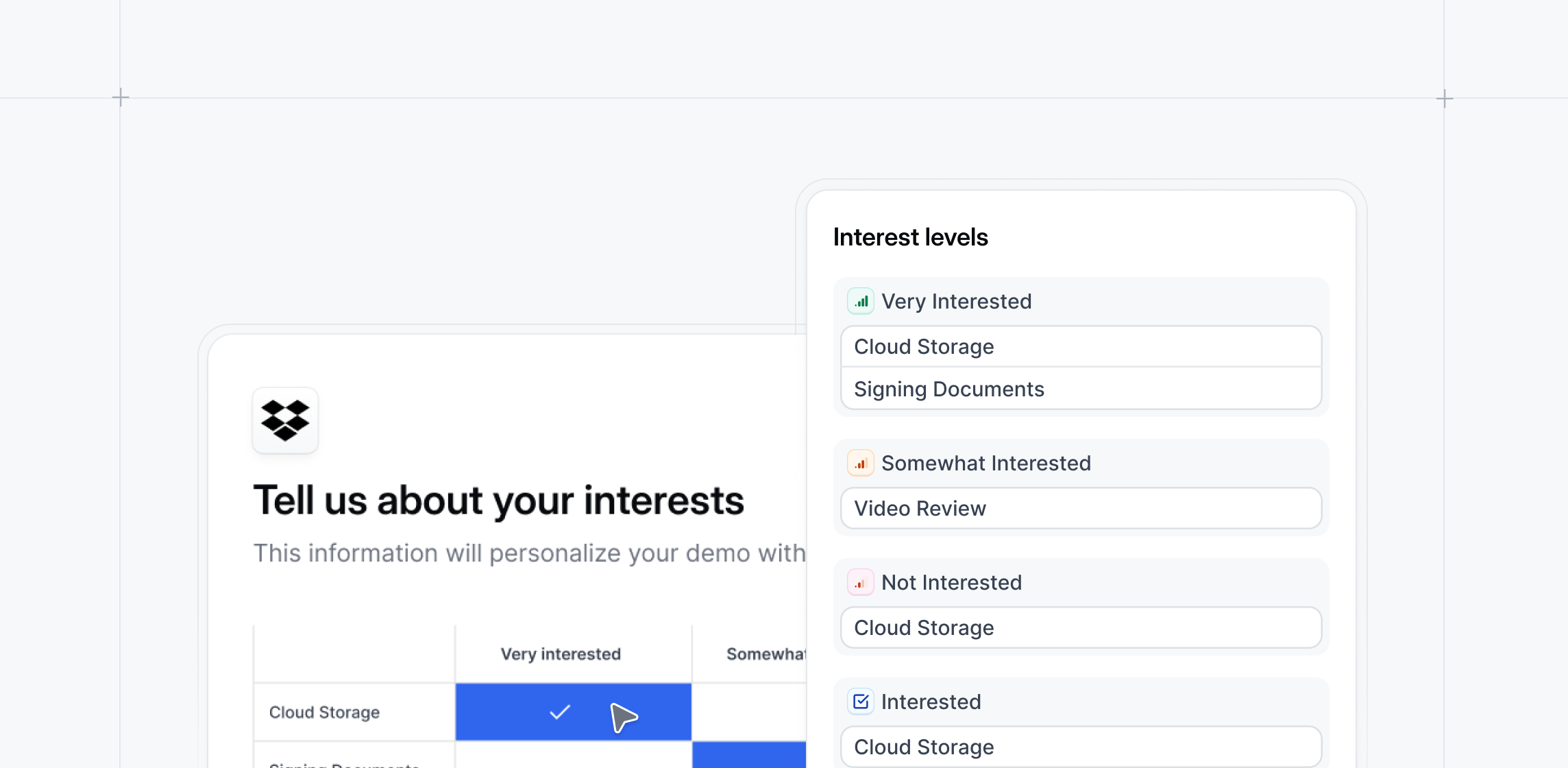
Add interest levels to demos to understand buyer intent before your first call:
* **Get alerted via Slack or email** when prospects go through your demos
* **Track buyer interest** to inform smarter, more strategic follow-ups
* **Uncover new members** of the buying circle when demos are shared internally
## See interests and new stakeholders
Add interest levels to demos to understand buyer intent before your first call:
* **Get alerted via Slack or email** when prospects go through your demos
* **Track buyer interest** to inform smarter, more strategic follow-ups
* **Uncover new members** of the buying circle when demos are shared internally
 ## Create and present lightweight Sandbox demos
Quickly build Sandboxes with auto-linked screens that reps can use live on calls:
* **Personalize demo data** to specific prospects, accounts, or verticals
* **Present demos** in a stable, standardized environment with confidence
* **Stay on track** with optional presenter notes or click guidance
## Create and present lightweight Sandbox demos
Quickly build Sandboxes with auto-linked screens that reps can use live on calls:
* **Personalize demo data** to specific prospects, accounts, or verticals
* **Present demos** in a stable, standardized environment with confidence
* **Stay on track** with optional presenter notes or click guidance
 ## Mobile Forms
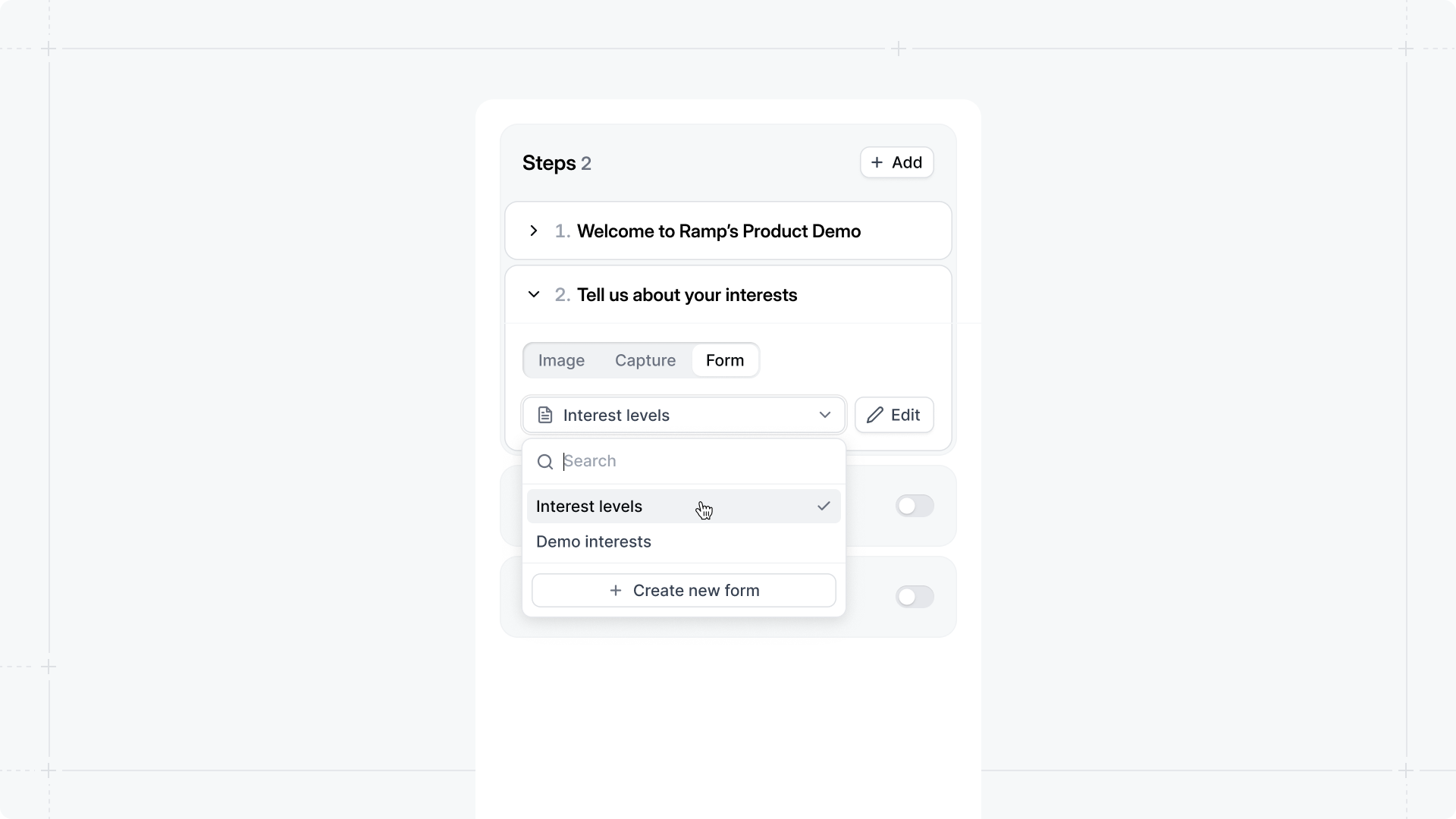
Capture lead information from your Mobile Swipe Demos.
For any step in your Mobile Swipe Demo, choose Form and select any existing form in your workspace.
## Mobile Forms
Capture lead information from your Mobile Swipe Demos.
For any step in your Mobile Swipe Demo, choose Form and select any existing form in your workspace.
 ## Export Form Submissions
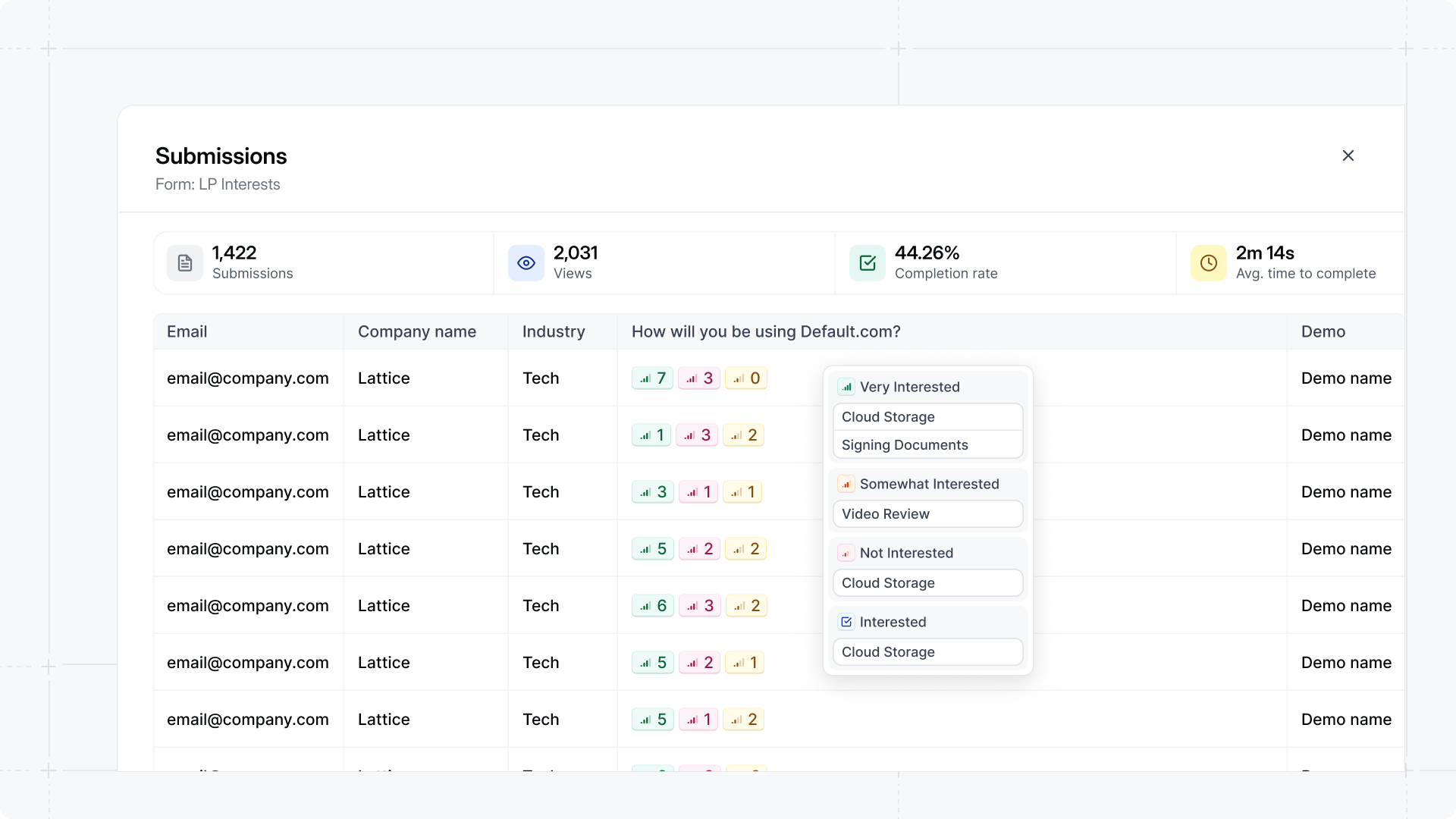
View and export form submissions directly in our new Forms Table to see all leads that filled out that form and which demo they filled out the form on.
If you're using Interest-Level demos, you can also quickly see each submission's level of interest.
## Export Form Submissions
View and export form submissions directly in our new Forms Table to see all leads that filled out that form and which demo they filled out the form on.
If you're using Interest-Level demos, you can also quickly see each submission's level of interest.
 ## AI Up-to-Date
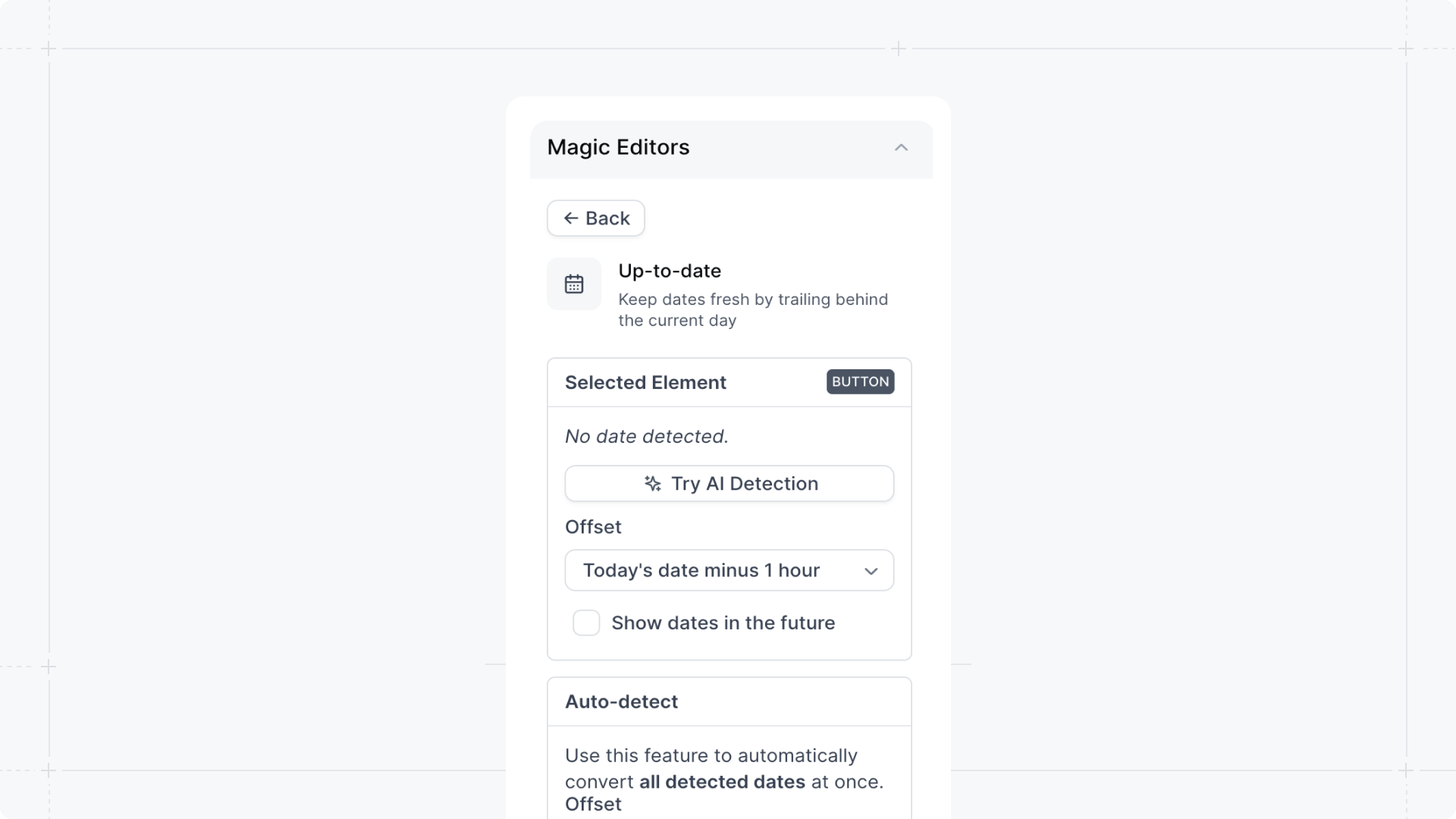
Keep demos current by updating dates in old captures with today's date. Use AI Detection to help easily find and mass replace old dates hiding in your captures.
## AI Up-to-Date
Keep demos current by updating dates in old captures with today's date. Use AI Detection to help easily find and mass replace old dates hiding in your captures.
 ## Custom Analytics Timeframes
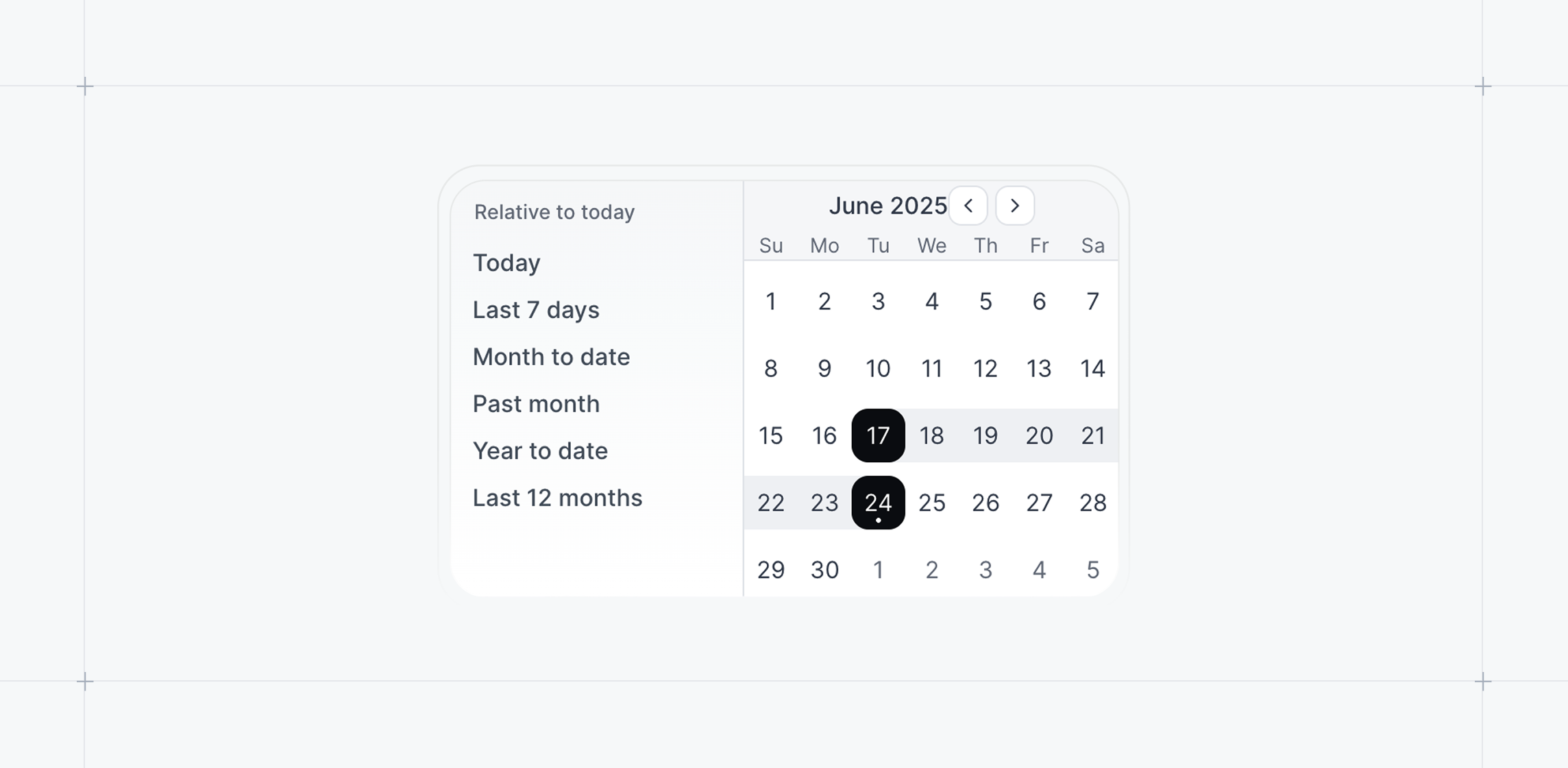
Compare and analyze demo performance for custom date ranges within the Analytics, Visitors, and Accounts views.
To access custom timeframes, click the Analytics, Visitors or Accounts tab > select the timeframe in the top right corner.
## Custom Analytics Timeframes
Compare and analyze demo performance for custom date ranges within the Analytics, Visitors, and Accounts views.
To access custom timeframes, click the Analytics, Visitors or Accounts tab > select the timeframe in the top right corner.
 ## Email Blacklisting
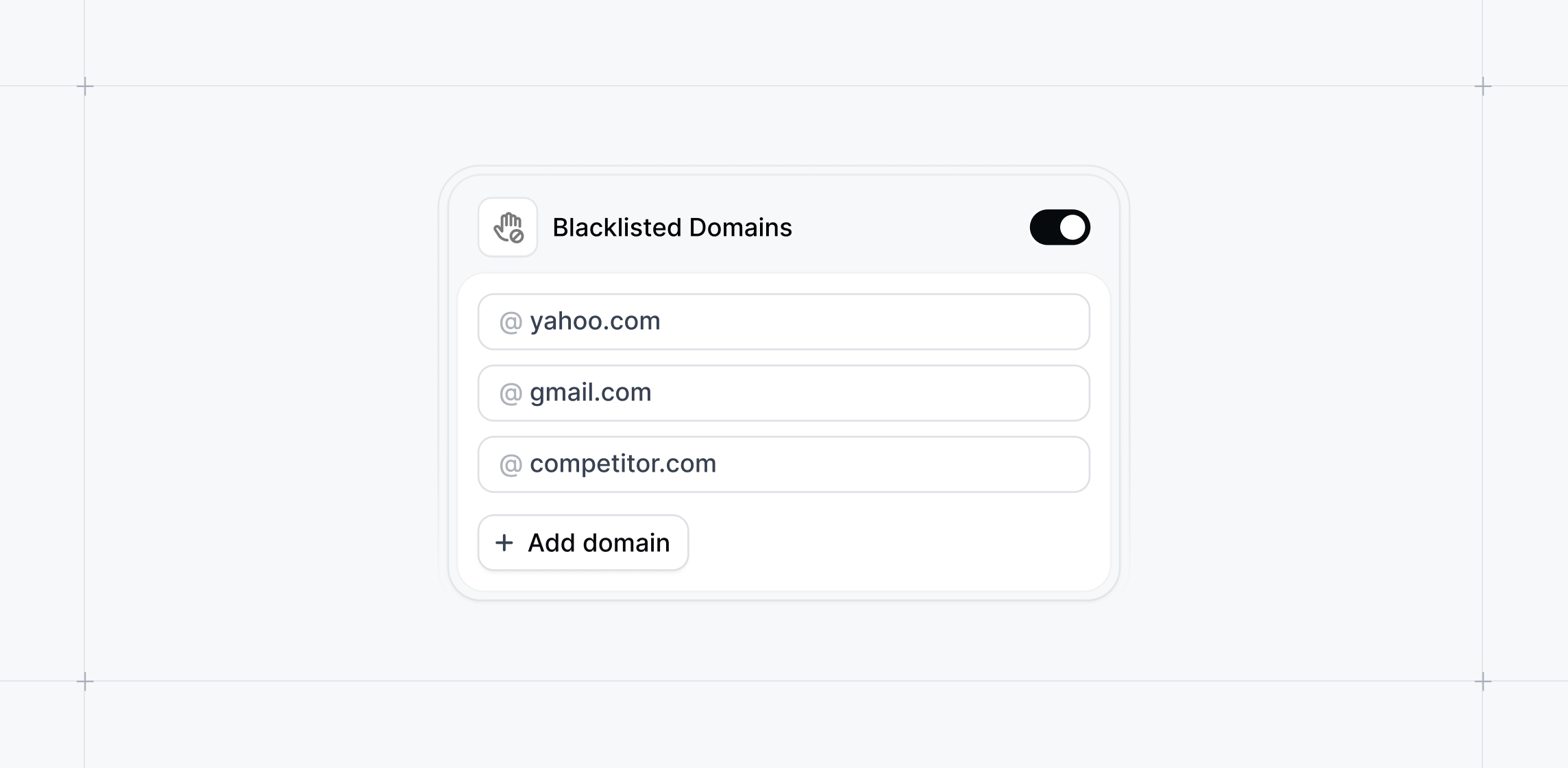
Improve lead quality by blocking unwanted email domains from accessing your interactive demos.
With Email Blacklisting, you can prevent Visitors with specified email domains from accessing gated demos or completing forms.
To enable this feature, visit your Form Builder > select the **email** field > toggle on **Blacklisted Domains** > Add the domains you want to block.
This feature is available for Growth and Enterprise workspaces.
## Email Blacklisting
Improve lead quality by blocking unwanted email domains from accessing your interactive demos.
With Email Blacklisting, you can prevent Visitors with specified email domains from accessing gated demos or completing forms.
To enable this feature, visit your Form Builder > select the **email** field > toggle on **Blacklisted Domains** > Add the domains you want to block.
This feature is available for Growth and Enterprise workspaces.
 ## Combined Media and Web Capture Collections
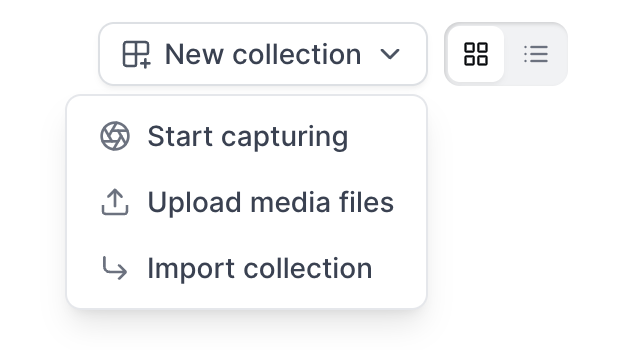
Simplify your capture workflow with a unified Capture Collection system. All Captures, whether web-based or media uploads, now live together in a single, streamlined structure—making it easier to manage and edit your demos.
No action required—your collections have already been updated.
## Combined Media and Web Capture Collections
Simplify your capture workflow with a unified Capture Collection system. All Captures, whether web-based or media uploads, now live together in a single, streamlined structure—making it easier to manage and edit your demos.
No action required—your collections have already been updated.
 ## Estimated Completion Time
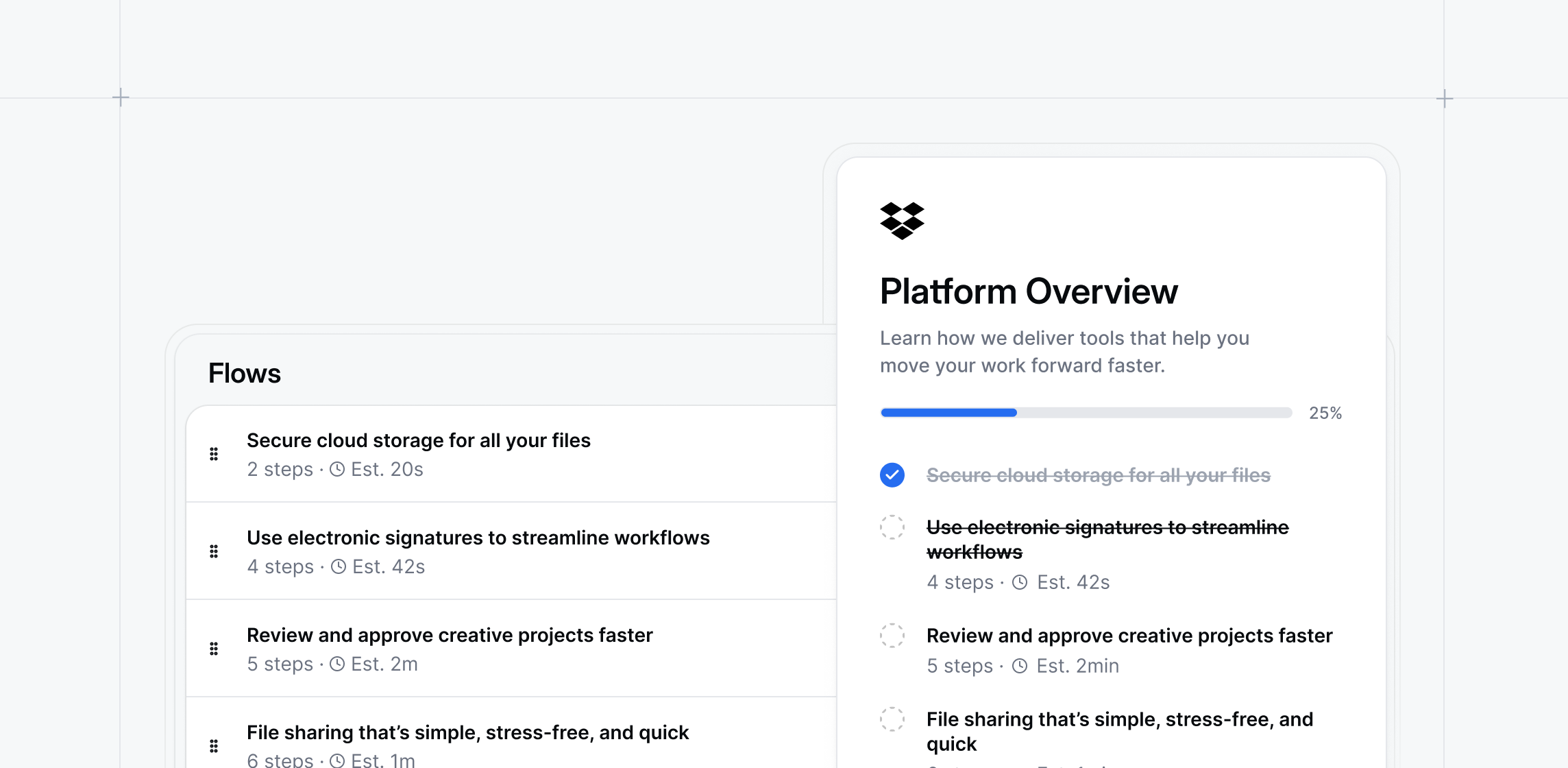
Set clear expectations for demo Visitors with estimated completion times.
Automatically display how long a Flow or Checklist task will take, helping users plan and complete demos more efficiently.
To enable estimated completion time, visit the Checklist builder > toggle on **Estimated completion time** under **Advanced**.
## Estimated Completion Time
Set clear expectations for demo Visitors with estimated completion times.
Automatically display how long a Flow or Checklist task will take, helping users plan and complete demos more efficiently.
To enable estimated completion time, visit the Checklist builder > toggle on **Estimated completion time** under **Advanced**.
 ## On Hover Tooltips
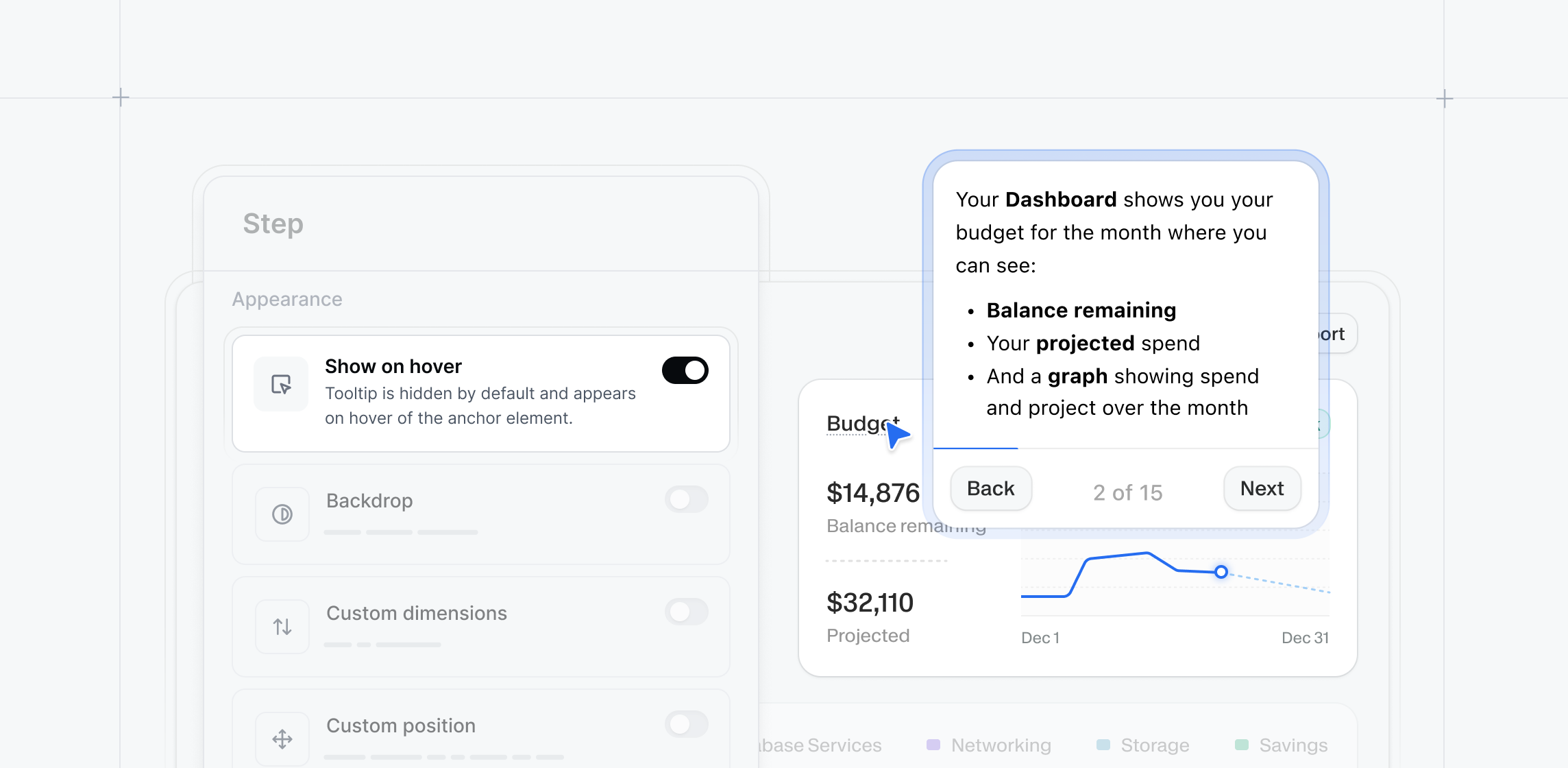
Use the **On Hover Tooltip** setting to display tooltips automatically when users hover over anchor elements. This feature provides optional context while maintaining a clean and readable interface.
Learn more about the [On Hover Tooltip Setting](/flows#mFtaZ).
## On Hover Tooltips
Use the **On Hover Tooltip** setting to display tooltips automatically when users hover over anchor elements. This feature provides optional context while maintaining a clean and readable interface.
Learn more about the [On Hover Tooltip Setting](/flows#mFtaZ).
 ## Preserve Anchors when Replacing Captures
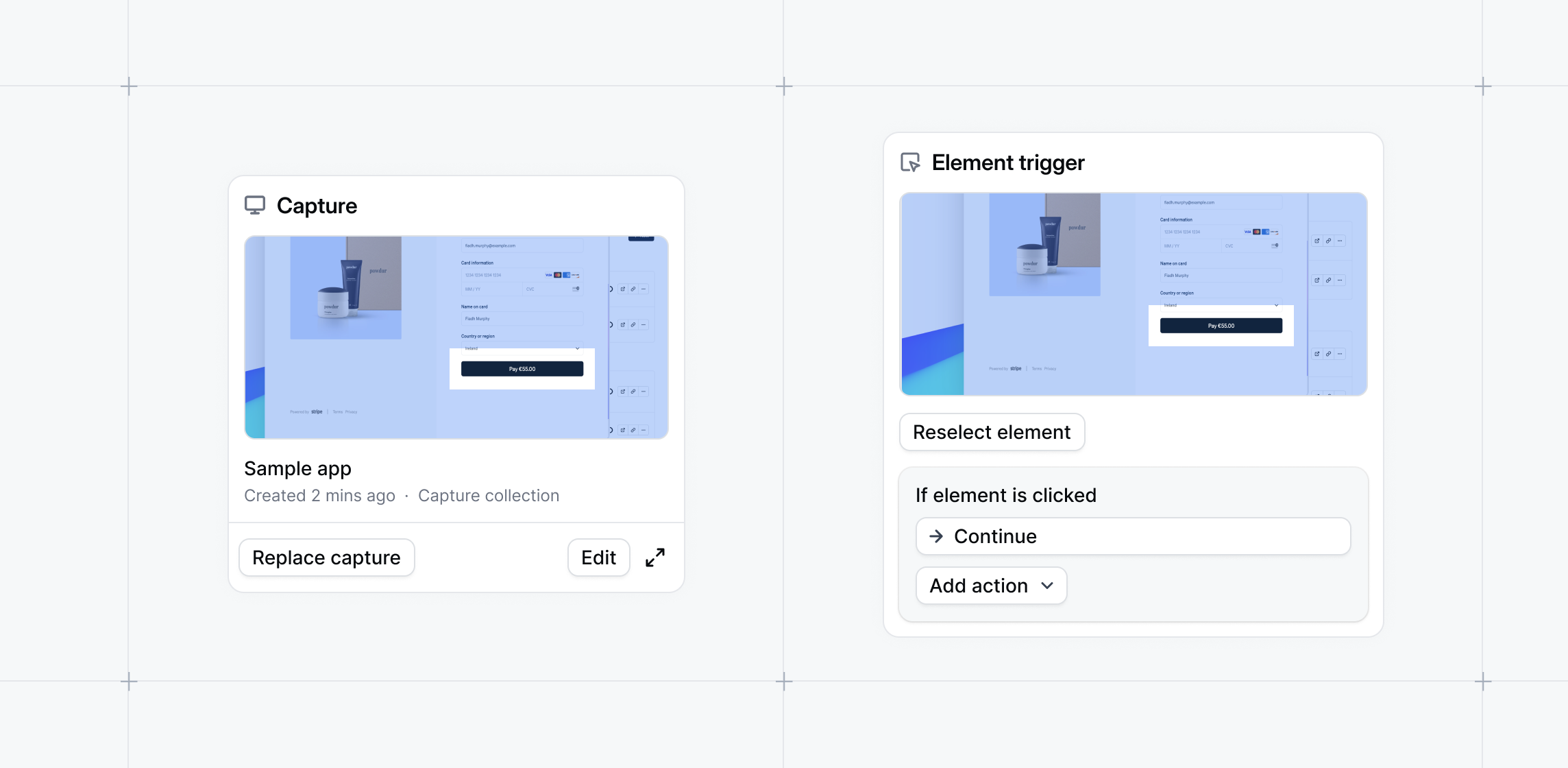
Maintain anchor positions when replacing captures.
Keep tooltips, beacons, and triggers precisely placed, simplifying demo updates when adding or replacing steps across your interactive demos.
## Preserve Anchors when Replacing Captures
Maintain anchor positions when replacing captures.
Keep tooltips, beacons, and triggers precisely placed, simplifying demo updates when adding or replacing steps across your interactive demos.
 ## Collection Global Edits
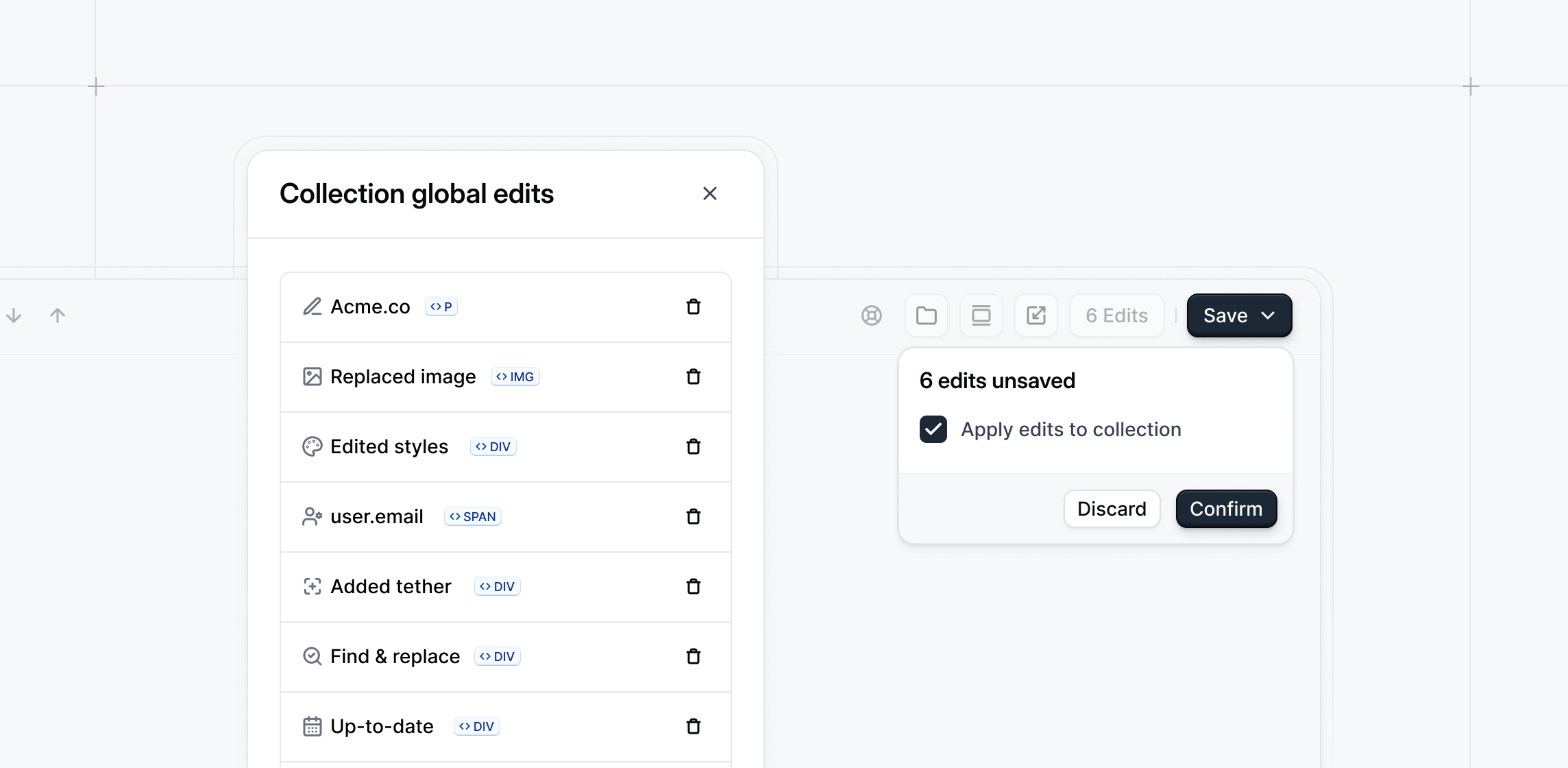
Make edits once and automatically apply changes across all captures in a collection, quickly personalizing demos for different industries or personas.
Whether updating text, images, or styling, keep demo styling and messaging consistent across all your captures.
To apply bulk edits, open the Capture Editor > Make an edit to the Capture > Click **Save** > Select **Apply edits to collection** > **Confirm**.
## Collection Global Edits
Make edits once and automatically apply changes across all captures in a collection, quickly personalizing demos for different industries or personas.
Whether updating text, images, or styling, keep demo styling and messaging consistent across all your captures.
To apply bulk edits, open the Capture Editor > Make an edit to the Capture > Click **Save** > Select **Apply edits to collection** > **Confirm**.
 ## AI Writing Assistant
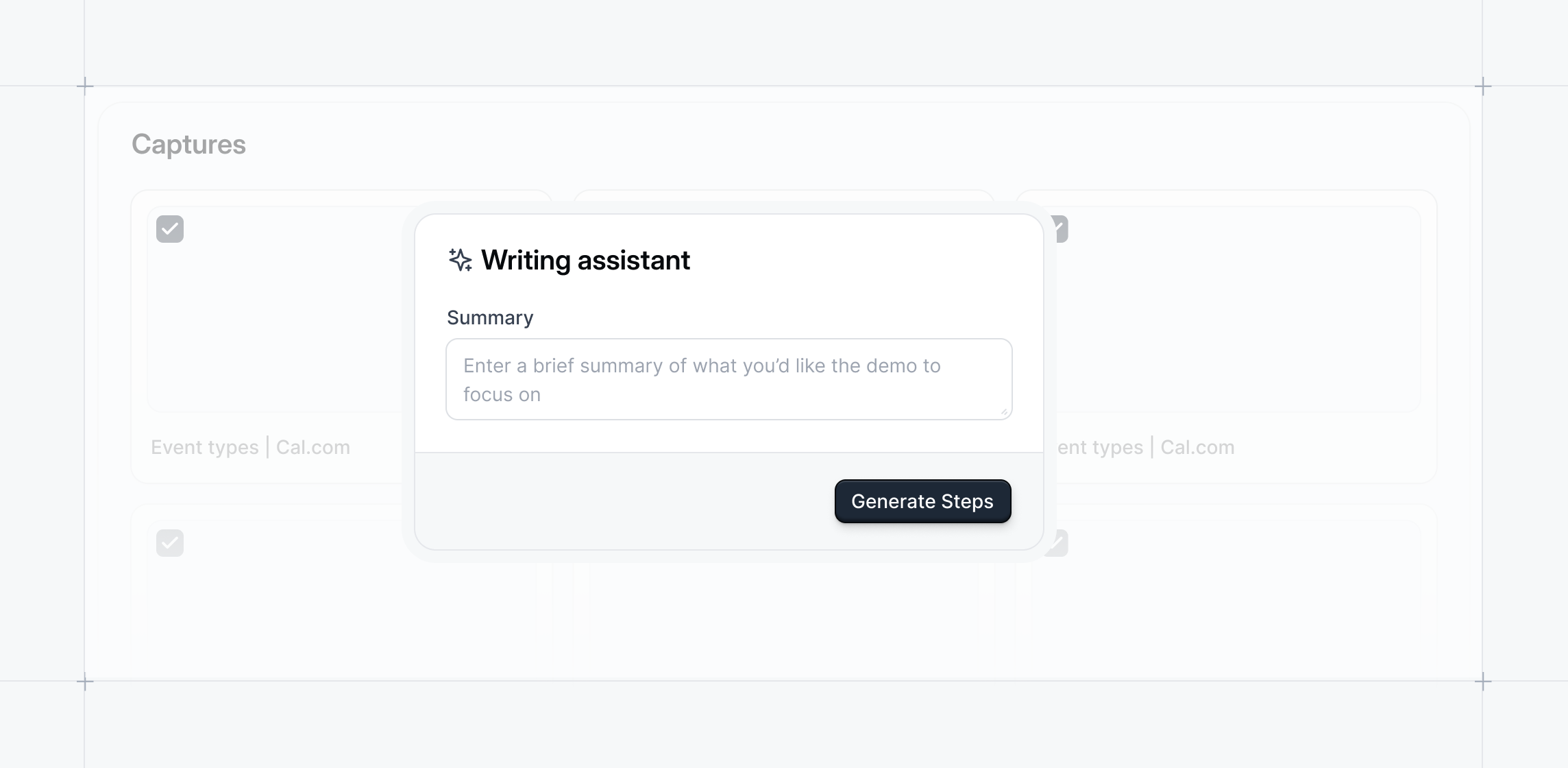
Create a first draft copy for your demo steps pulled directly from your captures.
The AI Writing Assistant is trained on our interactive demo best practices to help you write an engaging and value-driven demo.
To use the Writing Assistant, generate a Flow from a Capture Collection > Select **Use Writing Assistant** > Click **Next** > Enter a brief summary of what you'd like the demo to focus on > **Generate Flow**.
Writing Assistant is an early-release feature. Contact [**success@navattic.com**](mailto:success@navattic.com) to enable this in your workspace.
## AI Writing Assistant
Create a first draft copy for your demo steps pulled directly from your captures.
The AI Writing Assistant is trained on our interactive demo best practices to help you write an engaging and value-driven demo.
To use the Writing Assistant, generate a Flow from a Capture Collection > Select **Use Writing Assistant** > Click **Next** > Enter a brief summary of what you'd like the demo to focus on > **Generate Flow**.
Writing Assistant is an early-release feature. Contact [**success@navattic.com**](mailto:success@navattic.com) to enable this in your workspace.
 ## Click-and-Drag Flow Reordering
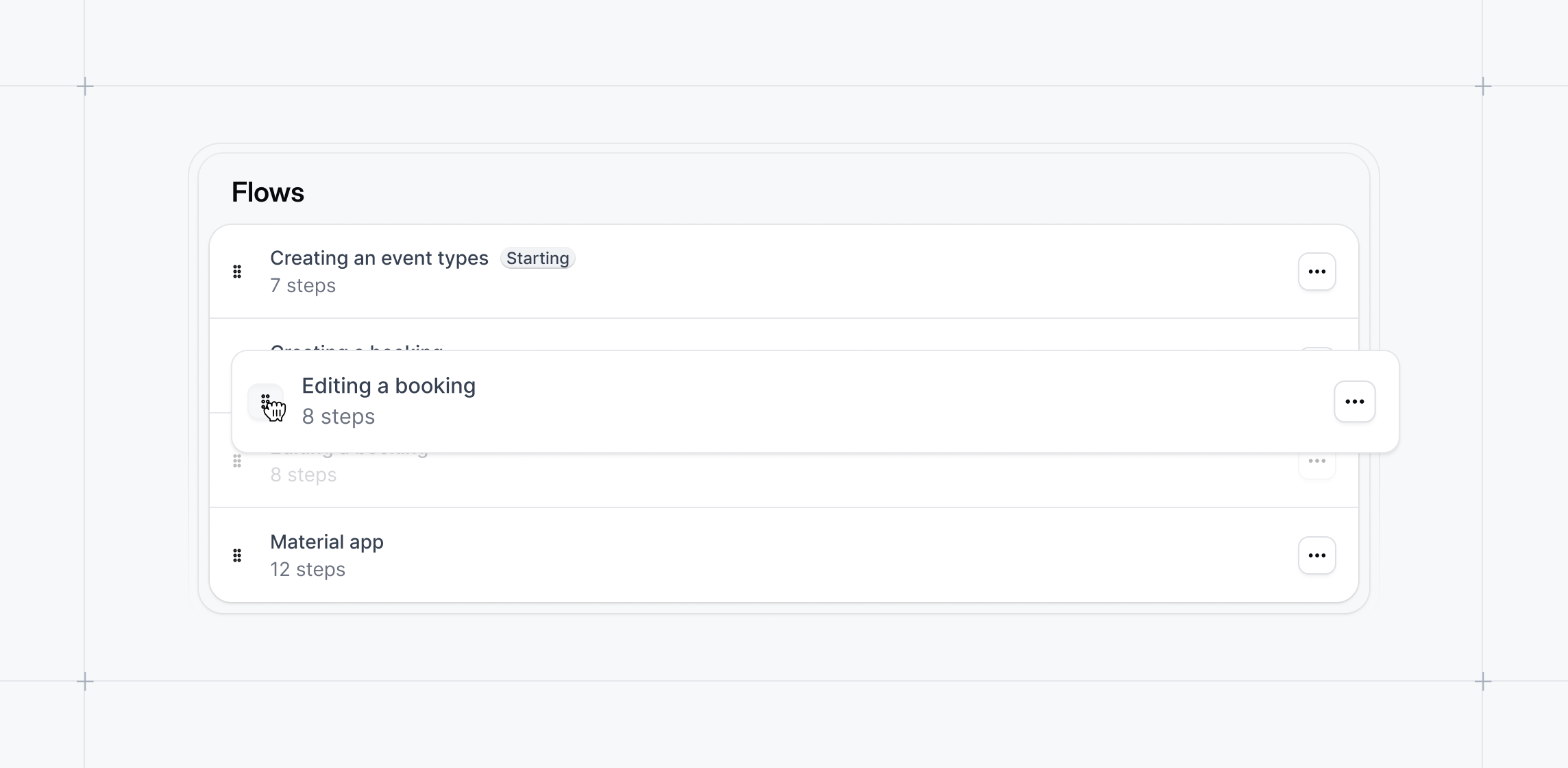
Get more flexibility with how you order flows within your demos.
Rearrange demo flows by clicking and dragging steps directly on the Product Demo Flows page.
Pair this with the [**Last step continue behavior**](/flows#bweW5) in the Flow Settings to automatically continue to the next Flow.
## Click-and-Drag Flow Reordering
Get more flexibility with how you order flows within your demos.
Rearrange demo flows by clicking and dragging steps directly on the Product Demo Flows page.
Pair this with the [**Last step continue behavior**](/flows#bweW5) in the Flow Settings to automatically continue to the next Flow.
 ## Skip Form Setting
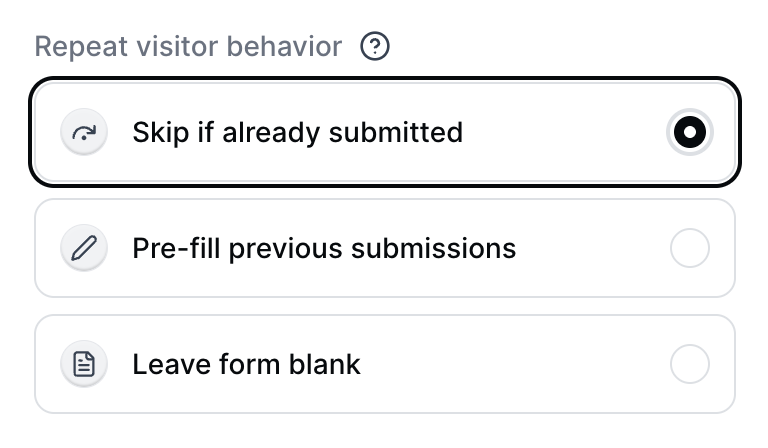
Add an optional setting to bypass or pre-fill a Navattic Form if a demo Visitor has already been identified.
Learn more about [Form Settings]().
## Skip Form Setting
Add an optional setting to bypass or pre-fill a Navattic Form if a demo Visitor has already been identified.
Learn more about [Form Settings]().
 ## Add Guide Defaults in Workspace Settings
Set workspace defaults for Step type, Backdrop, Navigation Buttons, and Escape View to build a consistent starting point for your team to build off of.
To set guide defaults, visit your Workspace > **Settings** > **General** > **Flow Defaults**.
## Add Guide Defaults in Workspace Settings
Set workspace defaults for Step type, Backdrop, Navigation Buttons, and Escape View to build a consistent starting point for your team to build off of.
To set guide defaults, visit your Workspace > **Settings** > **General** > **Flow Defaults**.
 ## Launchpad
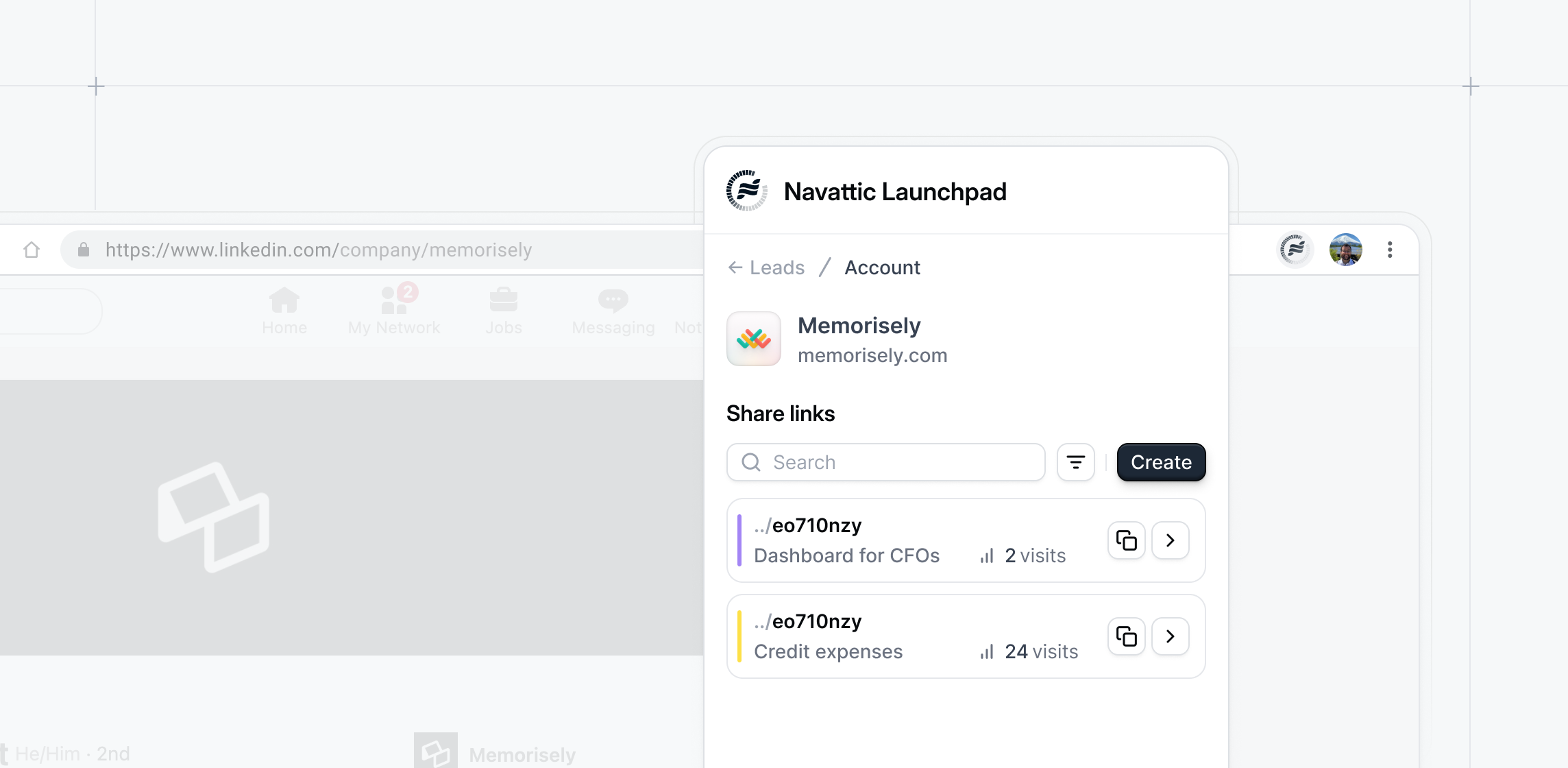
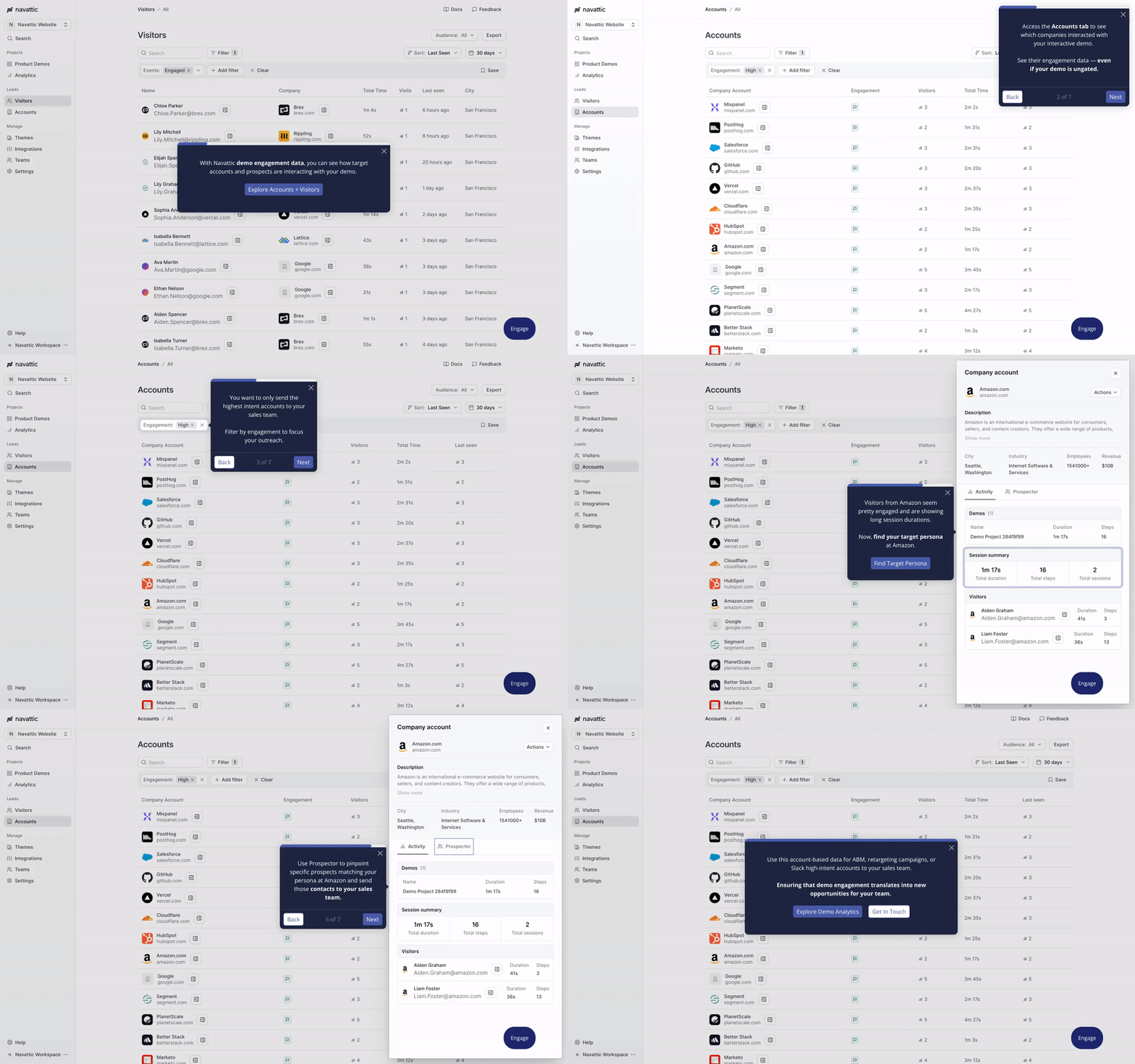
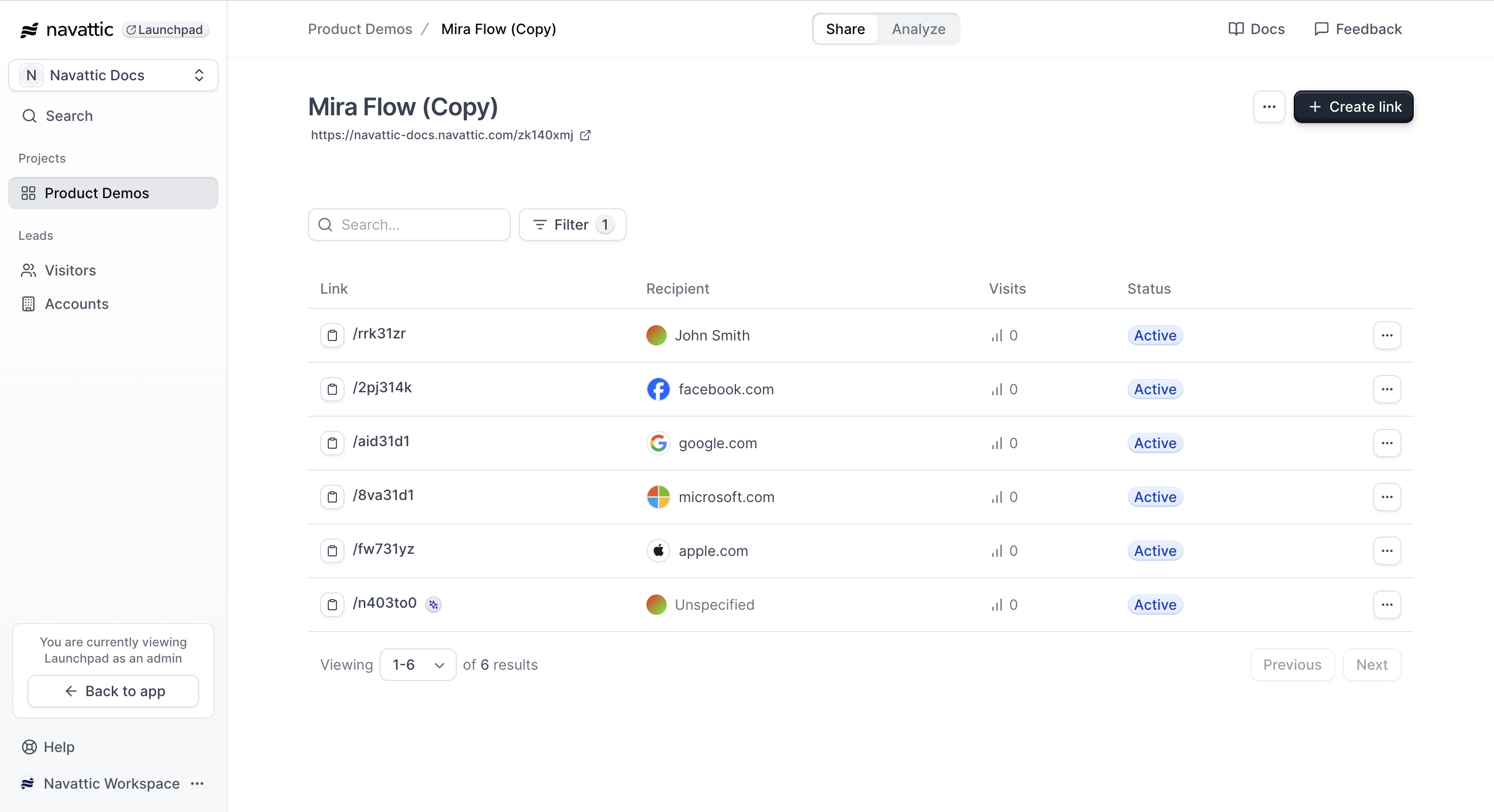
Launchpad is a view only portal to your Navattic interactive demos. Organizations are using Launchpad to give sellers, partners, and customer success teams easy access to a defined set of interactive demos.
From Launchpad, teams can easily create targeted share links for specific Visitors and Accounts to track demo engagement. These insights can be used to monitor interest and create targeted followups throughout the buyer journey.
Launchpad is an add-on feature. Contact [**success@navattic.com**](mailto:success@navattic.com) to enable this in your workspace.
## Launchpad
Launchpad is a view only portal to your Navattic interactive demos. Organizations are using Launchpad to give sellers, partners, and customer success teams easy access to a defined set of interactive demos.
From Launchpad, teams can easily create targeted share links for specific Visitors and Accounts to track demo engagement. These insights can be used to monitor interest and create targeted followups throughout the buyer journey.
Launchpad is an add-on feature. Contact [**success@navattic.com**](mailto:success@navattic.com) to enable this in your workspace.
 ## Audiences
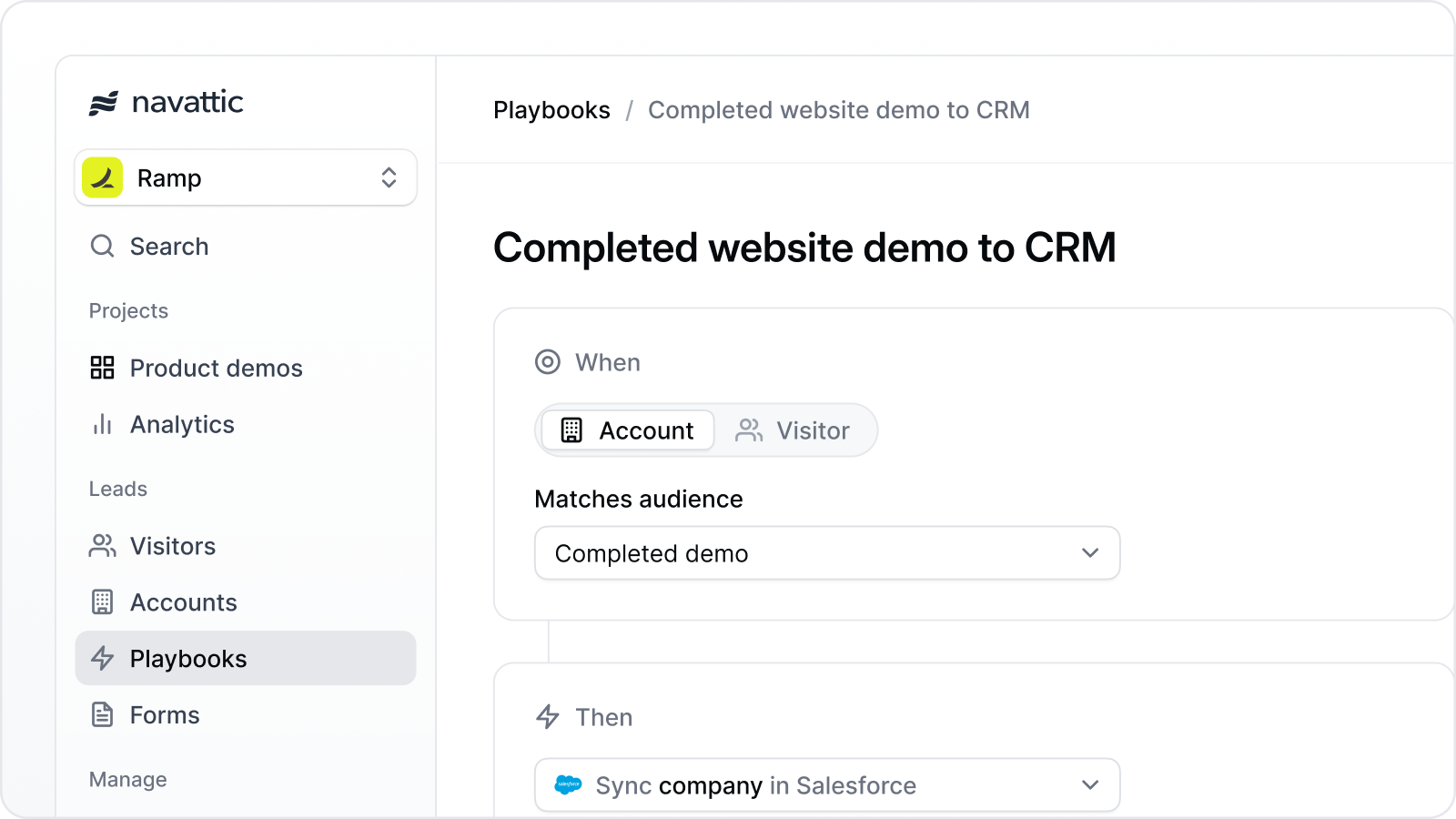
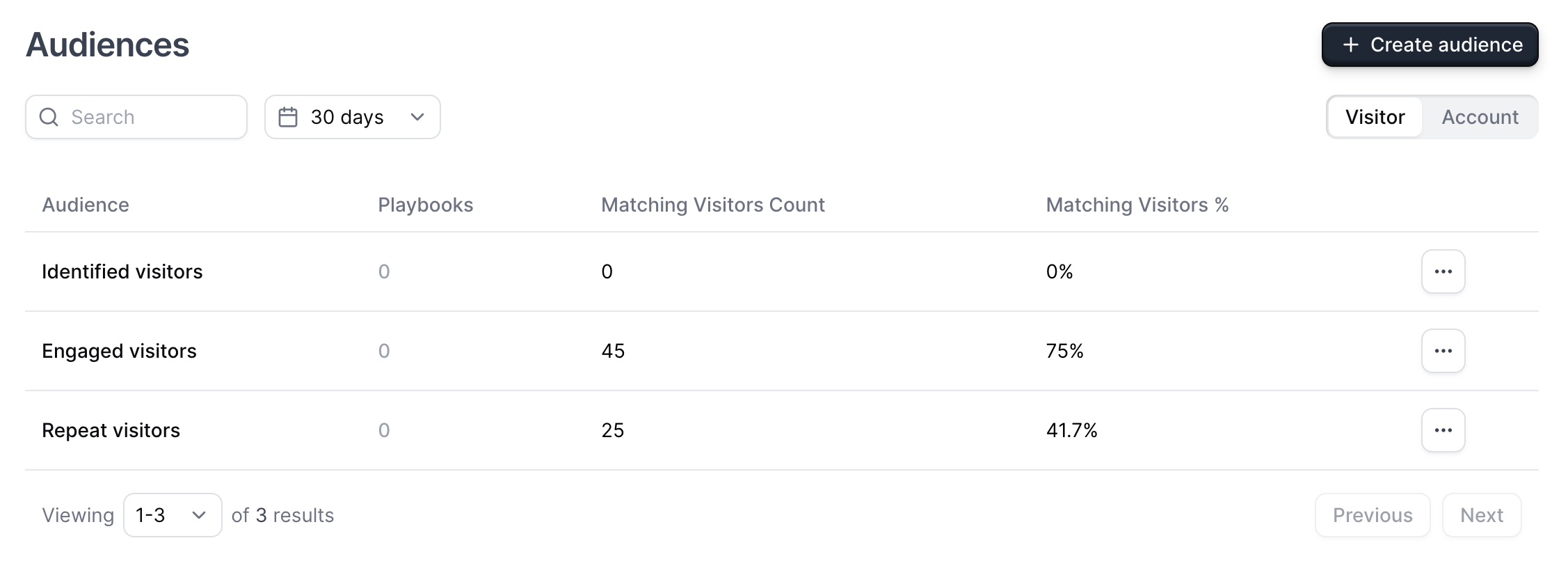
Now you can create Audiences which are filtered views of Visitors and Accounts that view your demos. These include filters for Time spent, Total sessions to detect repeat Visitors, Total steps, and more. With Playbooks, you can decide which Visitors and Accounts to send to your CRM.
## Audiences
Now you can create Audiences which are filtered views of Visitors and Accounts that view your demos. These include filters for Time spent, Total sessions to detect repeat Visitors, Total steps, and more. With Playbooks, you can decide which Visitors and Accounts to send to your CRM.
 ### Advanced Filters
Advanced filters allow you to sort your Visitor and Account data using granular filters such as which share link they viewed, what city they are from, what year the company was founded and more. Pair Advanced Filters with Audiences and Playbooks to set up contact routing that matches your ICP.
Advanced Filters are included in Navattic Growth and Enterprise plans. Contact [**success@navattic.com**](mailto:success@navattic.com) to enable this in your workspace.
## Share Link Email Notifications
Toggle on Email notifications when creating a link to receive an email when a Visitor visits the share link or set up notifications for all demos under Integrations.
Visit [Playbooks](/integrations/playbooks) to learn how to setup routing rules to email specific sales reps when Accounts matching their ICP view your demos.
### Advanced Filters
Advanced filters allow you to sort your Visitor and Account data using granular filters such as which share link they viewed, what city they are from, what year the company was founded and more. Pair Advanced Filters with Audiences and Playbooks to set up contact routing that matches your ICP.
Advanced Filters are included in Navattic Growth and Enterprise plans. Contact [**success@navattic.com**](mailto:success@navattic.com) to enable this in your workspace.
## Share Link Email Notifications
Toggle on Email notifications when creating a link to receive an email when a Visitor visits the share link or set up notifications for all demos under Integrations.
Visit [Playbooks](/integrations/playbooks) to learn how to setup routing rules to email specific sales reps when Accounts matching their ICP view your demos.
 ## Add Tracking params to URL actions
We added optional tracking parameters to automatically add a UTM **Source** parameter to buttons using the "Navigate to URL" action.
## Add Tracking params to URL actions
We added optional tracking parameters to automatically add a UTM **Source** parameter to buttons using the "Navigate to URL" action.
 ## Pop up Embed Option
You can now embed your demo as a lightbox pop-up directly from Navattic. To embed a pop-up, visit your demo > Embed > Pop up > Get embed code.
## Highest Performing Demos
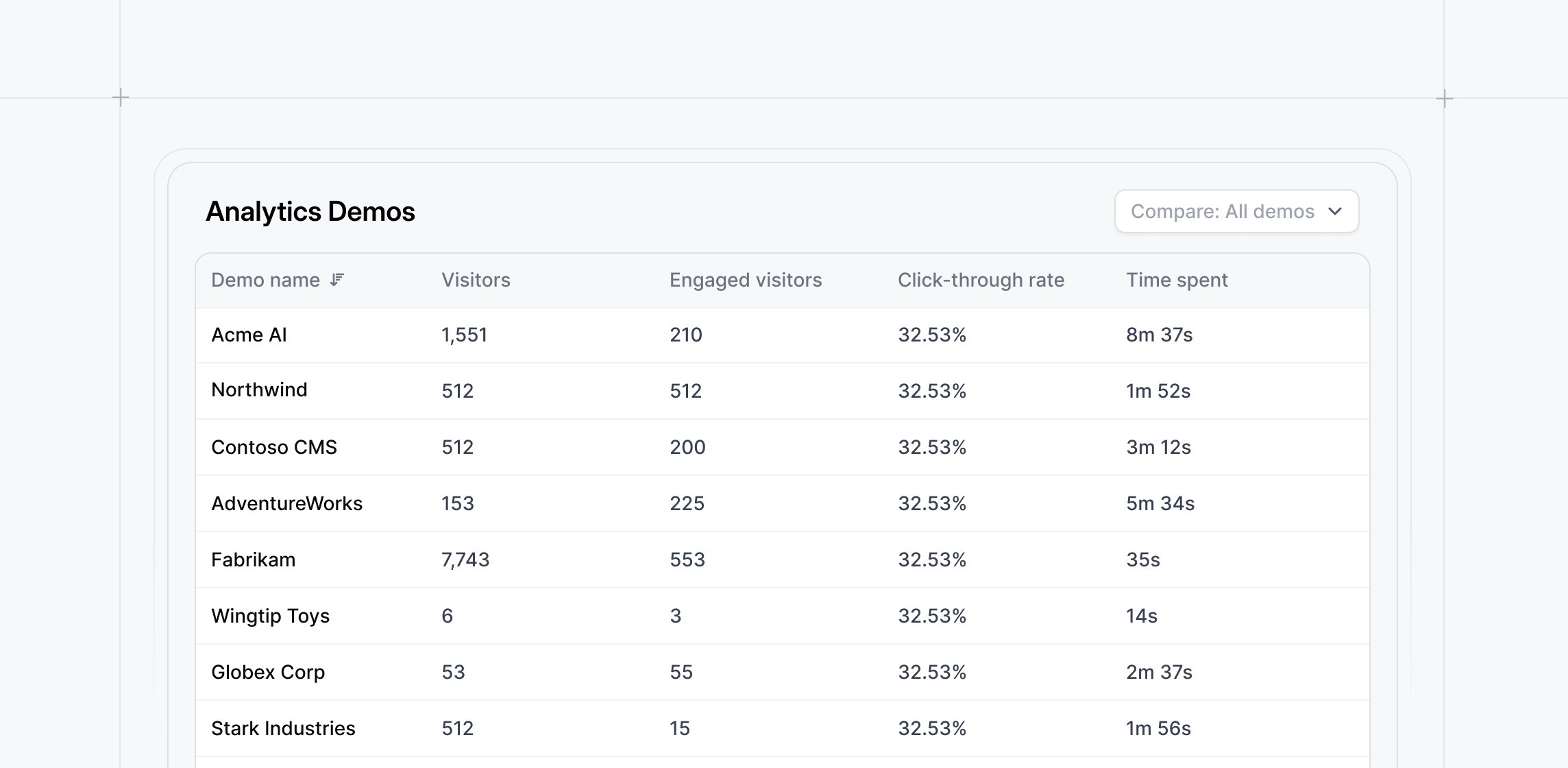
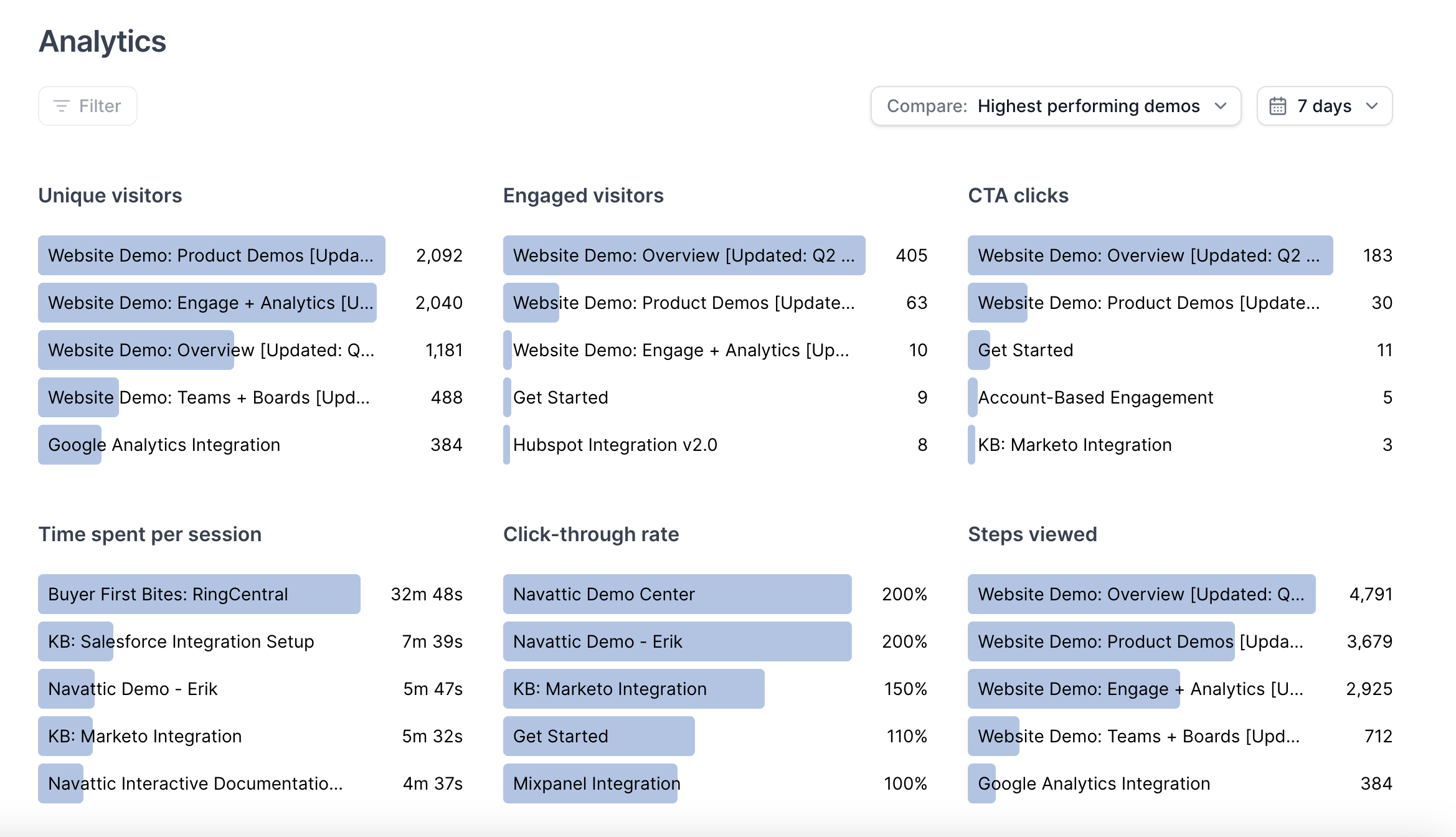
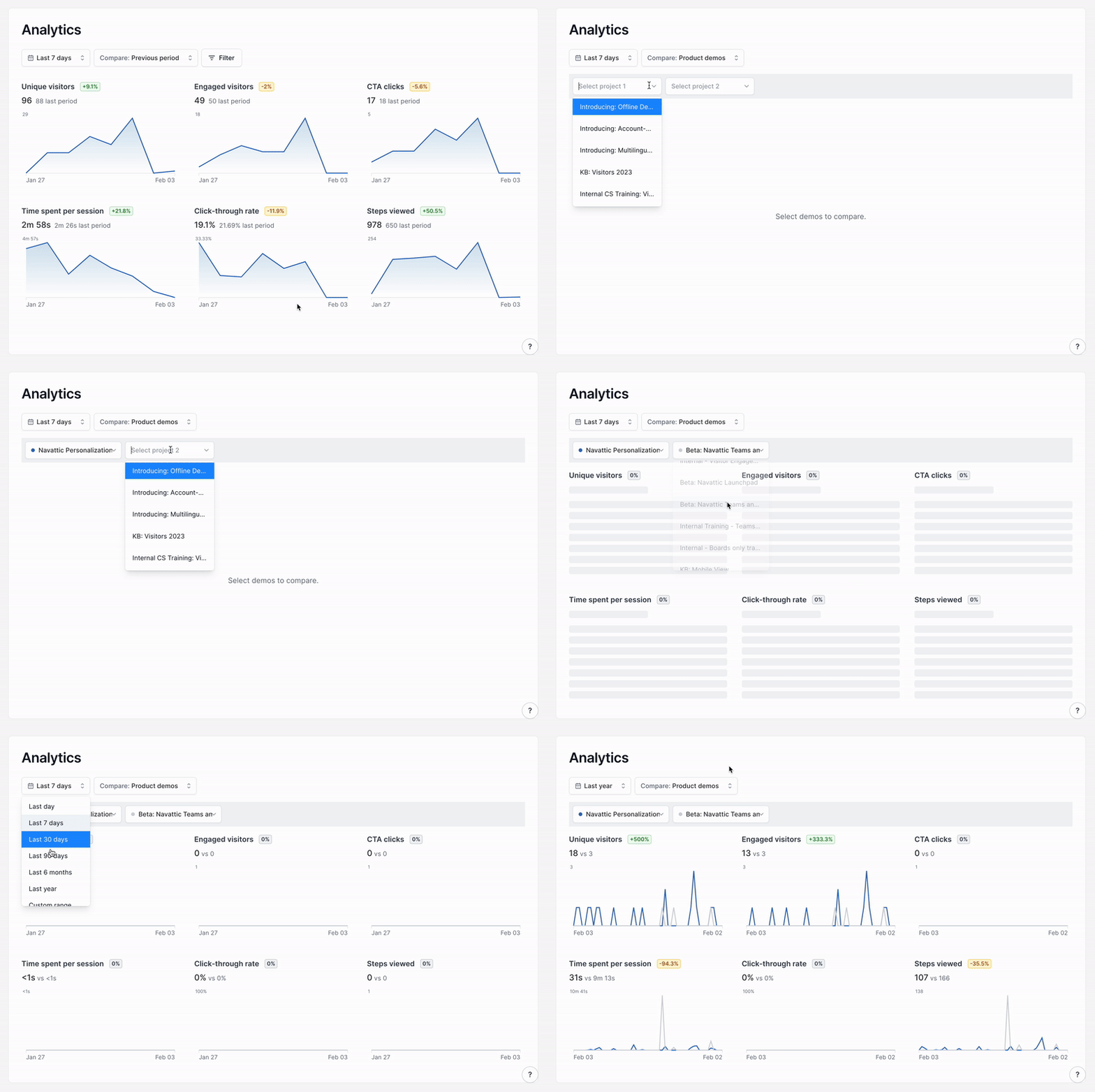
You can now identify your highest performing demos in Analytics. Simply visit Analytics and select "Compare: **Highest Performing Demos**" from the dropdown menu to view your top five demos for each section.
## Pop up Embed Option
You can now embed your demo as a lightbox pop-up directly from Navattic. To embed a pop-up, visit your demo > Embed > Pop up > Get embed code.
## Highest Performing Demos
You can now identify your highest performing demos in Analytics. Simply visit Analytics and select "Compare: **Highest Performing Demos**" from the dropdown menu to view your top five demos for each section.
 ## Offline Demos
The Offline feature lets you download demos into your local Navattic app, accessible on Windows/Linux, macOS, and iPad without an internet connection. This enables easy access to your demos at conferences, trade shows, on-site customer visits, and more.
Offline Demos is an add-on feature. Reach out to [success@navattic.com](mailto:success@navattic.com) to learn more.
## Offline Demos
The Offline feature lets you download demos into your local Navattic app, accessible on Windows/Linux, macOS, and iPad without an internet connection. This enables easy access to your demos at conferences, trade shows, on-site customer visits, and more.
Offline Demos is an add-on feature. Reach out to [success@navattic.com](mailto:success@navattic.com) to learn more.
 ## Demo Suggestions
With more than 20,000 interactive demos built on our platform - we looked at the **top 1%** to understand what top-performing interactive demos had in common. Leveraging this research, our automated demo suggestions provide insights, allowing you to integrate best practices into your demo creation process.
## Set a Product Demo Theme
## Demo Suggestions
With more than 20,000 interactive demos built on our platform - we looked at the **top 1%** to understand what top-performing interactive demos had in common. Leveraging this research, our automated demo suggestions provide insights, allowing you to integrate best practices into your demo creation process.
## Set a Product Demo Theme
 ## Beacons Reveal Hotkey
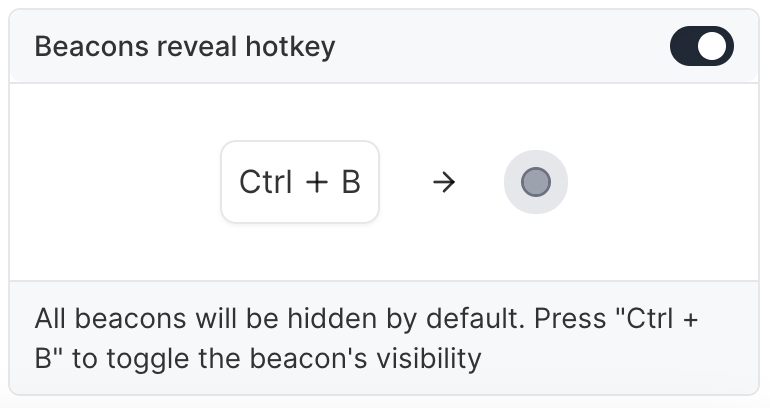
Effortlessly create demos to assist sales-led presentations by combining [Click to Capture](https://www.loom.com/share/b2999aa772c442bea316e758fe2b496d?sid=8a7b897f-d175-4782-bfad-cc48599afed0) with the Beacons reveal hotkey feature. When this is enabled, Beacons will be hidden in this demo by default and may only be revealed if a demo visitor or presenter presses Ctrl + B on the keyboard.
To turn on the Beacons reveal hotkey, visit the Flow settings > Beacons reveal hotkey. Once enabled, toggle beacons on and off using "Ctrl + B".
## Beacons Reveal Hotkey
Effortlessly create demos to assist sales-led presentations by combining [Click to Capture](https://www.loom.com/share/b2999aa772c442bea316e758fe2b496d?sid=8a7b897f-d175-4782-bfad-cc48599afed0) with the Beacons reveal hotkey feature. When this is enabled, Beacons will be hidden in this demo by default and may only be revealed if a demo visitor or presenter presses Ctrl + B on the keyboard.
To turn on the Beacons reveal hotkey, visit the Flow settings > Beacons reveal hotkey. Once enabled, toggle beacons on and off using "Ctrl + B".
 ## Bulk Editor
With the Bulk Editor, you can apply edits across multiple steps at once. Bulk edits include:
* Updating all beacons to triggers
* Turning multiple modals into tooltips
* Changing all beacons to have a highlight appearance instead of pulse
* Deleting multipe beacons or triggers at the same time
* and more!
[View a 2-minute tutorial here](https://www.loom.com/share/eed1f37b07cf4a1e9f1082d2021cee0e?sid=3d83d4e7-56fc-43f4-af70-8c19d91ca2c3)
## Bulk Editor
With the Bulk Editor, you can apply edits across multiple steps at once. Bulk edits include:
* Updating all beacons to triggers
* Turning multiple modals into tooltips
* Changing all beacons to have a highlight appearance instead of pulse
* Deleting multipe beacons or triggers at the same time
* and more!
[View a 2-minute tutorial here](https://www.loom.com/share/eed1f37b07cf4a1e9f1082d2021cee0e?sid=3d83d4e7-56fc-43f4-af70-8c19d91ca2c3)
 ## Pin Demos to the Top of a Board
To pin a demo to the top of a board, visit Product Demos > Select three dots (...) on the demo you want to pin > Pin to top. Your demo will now show up at the top of your board with a pin. To unpin a demo, select three dots (...) > Unpin.
## Video Captures
Media captures now include a video option. To upload a video as a capture, visit your Product Demo > Captures > New > Media > Create > Add to Collection > Add .MP4 video files up to 40MB. See an [example](https://training.navattic.com/tp2e0vbm) of a demo that uses Video captures.
## Pin Demos to the Top of a Board
To pin a demo to the top of a board, visit Product Demos > Select three dots (...) on the demo you want to pin > Pin to top. Your demo will now show up at the top of your board with a pin. To unpin a demo, select three dots (...) > Unpin.
## Video Captures
Media captures now include a video option. To upload a video as a capture, visit your Product Demo > Captures > New > Media > Create > Add to Collection > Add .MP4 video files up to 40MB. See an [example](https://training.navattic.com/tp2e0vbm) of a demo that uses Video captures.
 ## Overlay Detection
When editing a capture, ignore an overlay to edit content in the background of the capture.
## Canvas Element Freeselector
Set a target anchor element on canvas graphics (ex. an interactive map area or graph). Freely select the desired area and size to target a specific hotspot for user attention or in-demo action.
## Overlay Detection
When editing a capture, ignore an overlay to edit content in the background of the capture.
## Canvas Element Freeselector
Set a target anchor element on canvas graphics (ex. an interactive map area or graph). Freely select the desired area and size to target a specific hotspot for user attention or in-demo action.